What this does
Every company you add has a profile you can update at any time. You can change the legal name, type, tax number, address, and the owner's contact details. You can also change the company's status.
Open the company
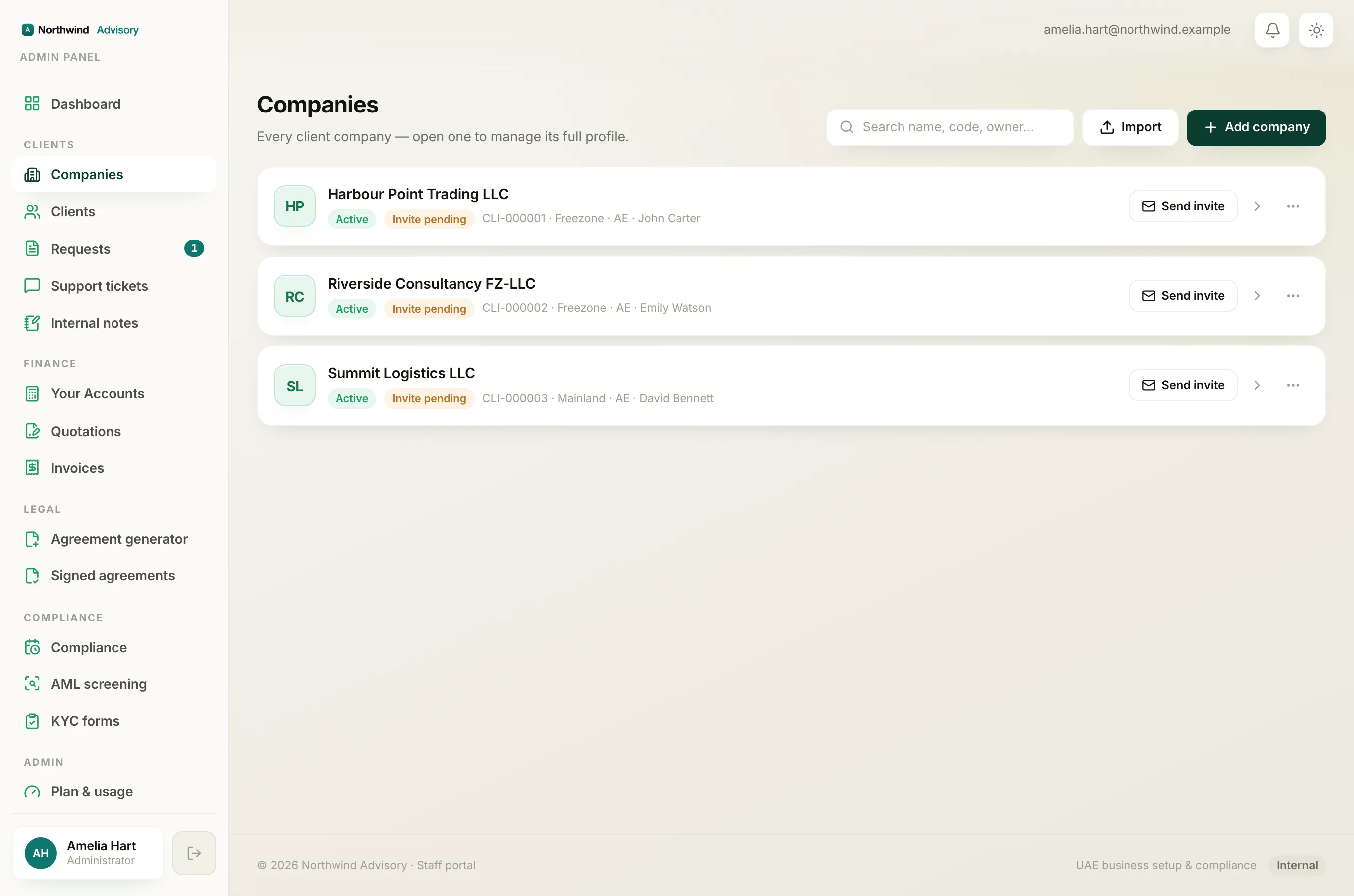
- Log in to your workspace.
- In the left menu, under Clients, click Companies.
- Find the company in the list. To search, type a name, client code, or owner into the Search name, code, owner box at the top.
- Click the company to open its profile.
Edit the details
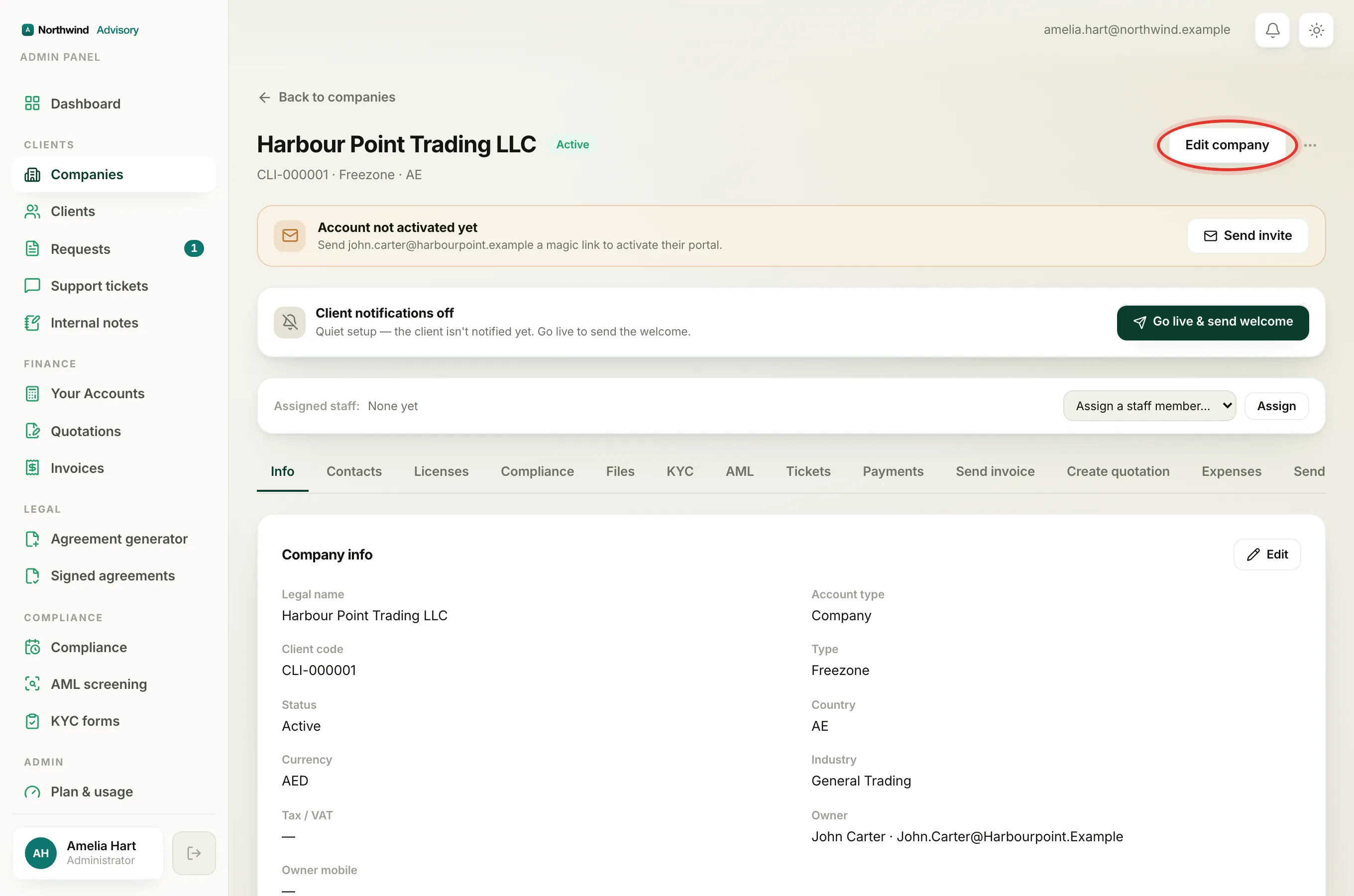
- On the company profile, in the top right, click Edit company. (You can also open the Info tab and click the Edit button next to "Company info".)
- The form opens. Change any of these fields:
- Legal name is required.
- Type is Mainland, Freezone, or Offshore.
- Status is Active, Blocked, or Archived.
- Country, Currency, Industry, and Tax / VAT.
- Address, which shows as the invoice "Bill To".
- Under Owner / primary contact, you can update the Owner name, Owner email, and Owner mobile.
- Tick or untick This client is an individual (not a company) if needed.
- Click Save changes. To leave without saving, click Cancel.
Important
The Client code is fixed and cannot be changed.
Important
If the owner has already activated their portal, changing the Owner email also changes the email they use to sign in. If they have not activated yet, fix the email here first, then send the invite so it reaches a real inbox. See How to invite a client.
About status
- Active is the normal working state.
- Blocked suspends the client.
- Archived hides the company from your main list. To see archived companies, go to Companies and click View archived at the bottom of the list.
What to do next
- Manage the people linked to the company. See How to manage a company's contacts.
- See what the client sees in their own portal. See What clients see.