To reconcile an account, IzzyTap needs the list of transactions from your bank as a file it can read. You download this file yourself from your bank, then upload it. This page explains how to get the right file so the import goes smoothly.
What file type you need
IzzyTap reads two kinds of file:
- CSV (a spreadsheet file, ending in
.csv) - Excel (ending in
.xlsor.xlsx)
Most bank portals offer one or both of these when you export a statement.
Important
A PDF statement is not accepted. A PDF is a picture of your statement, not a list IzzyTap can read line by line. If your bank only shows a PDF, look for an "Export", "Download" or "Download as CSV / Excel" option, which usually sits near the statement or transaction list.
Getting the file from your bank
The exact wording differs by bank, but the steps are the same everywhere:
- Log in to your bank's online or business portal.
- Open the account statement, or the transaction list, for the period you want to bring in.
- Choose to download or export it as CSV or Excel, not PDF.
- Save the file somewhere you can find it, such as your Downloads folder.
Note
You only ever hand IzzyTap the file. IzzyTap never sees or asks for your bank username or password, and never connects to your bank. You stay in full control of your login.
Keep the file under 10 MB
The upload limit is 10 MB, which is far larger than a normal statement, so a single month or quarter is never a problem. If you somehow have a very large file, export a shorter date range instead and import it in parts. Any lines that overlap between two files are skipped automatically, so you cannot double up.
What is in a good statement file
When you open the file it should have, at least, a column for the transaction date, a description, and the amount. Some banks put money out and money in in two separate columns, others use one column where money out is a negative number. Either layout works. In the next step you tell IzzyTap which column is which.
Next step
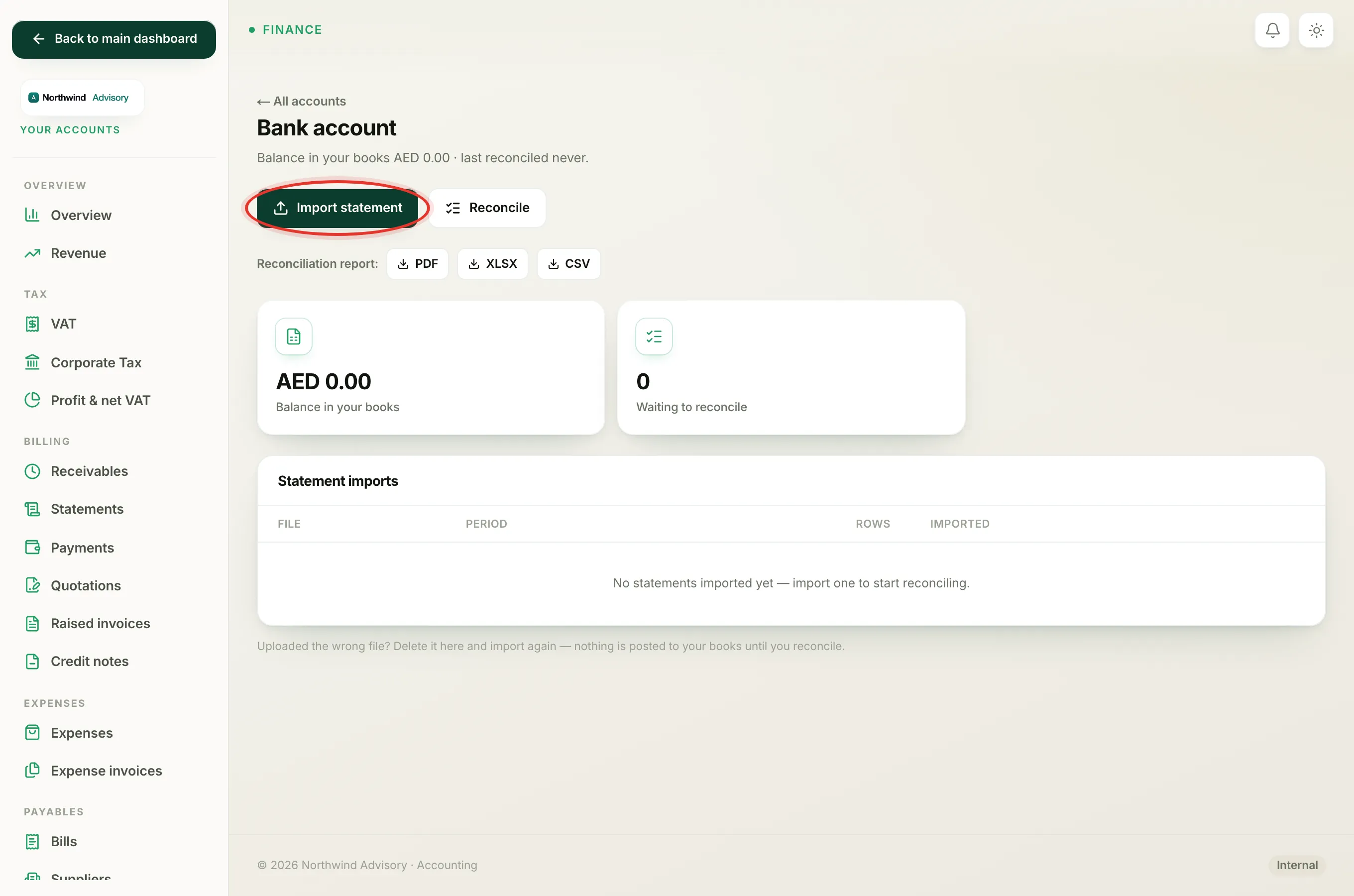
Once you have the file, upload it on the account's Import statement screen. See Import a bank statement, then Tell IzzyTap which column is which.