Accounts reports open on the current year by default. To look at a different window, use the date picker at the top of the report. The figures, the chart and the tables all recompute for the period you choose.
Open the date picker
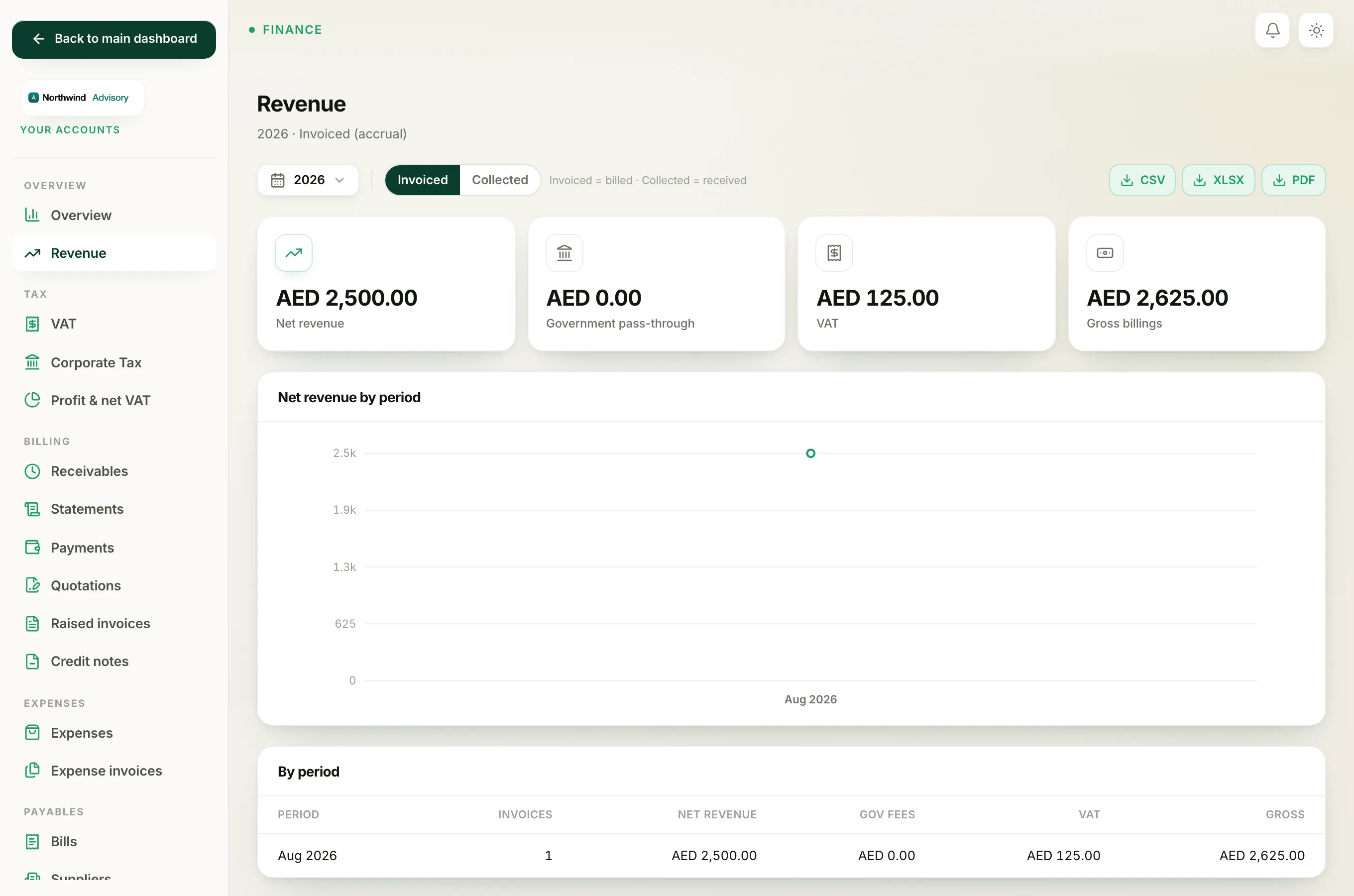
- Log in to your workspace.
- In the left menu, under Finance, click Your Accounts.
- Open the report you want, for example Revenue or Profit and net VAT from the accounts side menu.
- At the top of the report, click the date button. It shows the period you are currently viewing, such as This year, 2026 or Q3 2026.
A small panel opens with the quick presets and a custom range.
Use a quick preset
Click any of the presets to jump straight to that window:
- This month
- Last month
- This quarter
- Last quarter
- This year
- Last year
The panel closes and the report reloads for that period. The chosen period is also written into the report title so you always know what you are looking at.
Set a custom range
- In the same panel, under Custom range, pick a From date and a To date.
- Click Apply range.
The report then covers exactly those dates. The Apply range button stays greyed out until both a from and a to date are set.
Tip
On a phone the date fields open your device's own calendar, so picking a range is quick with one thumb.
Good to know
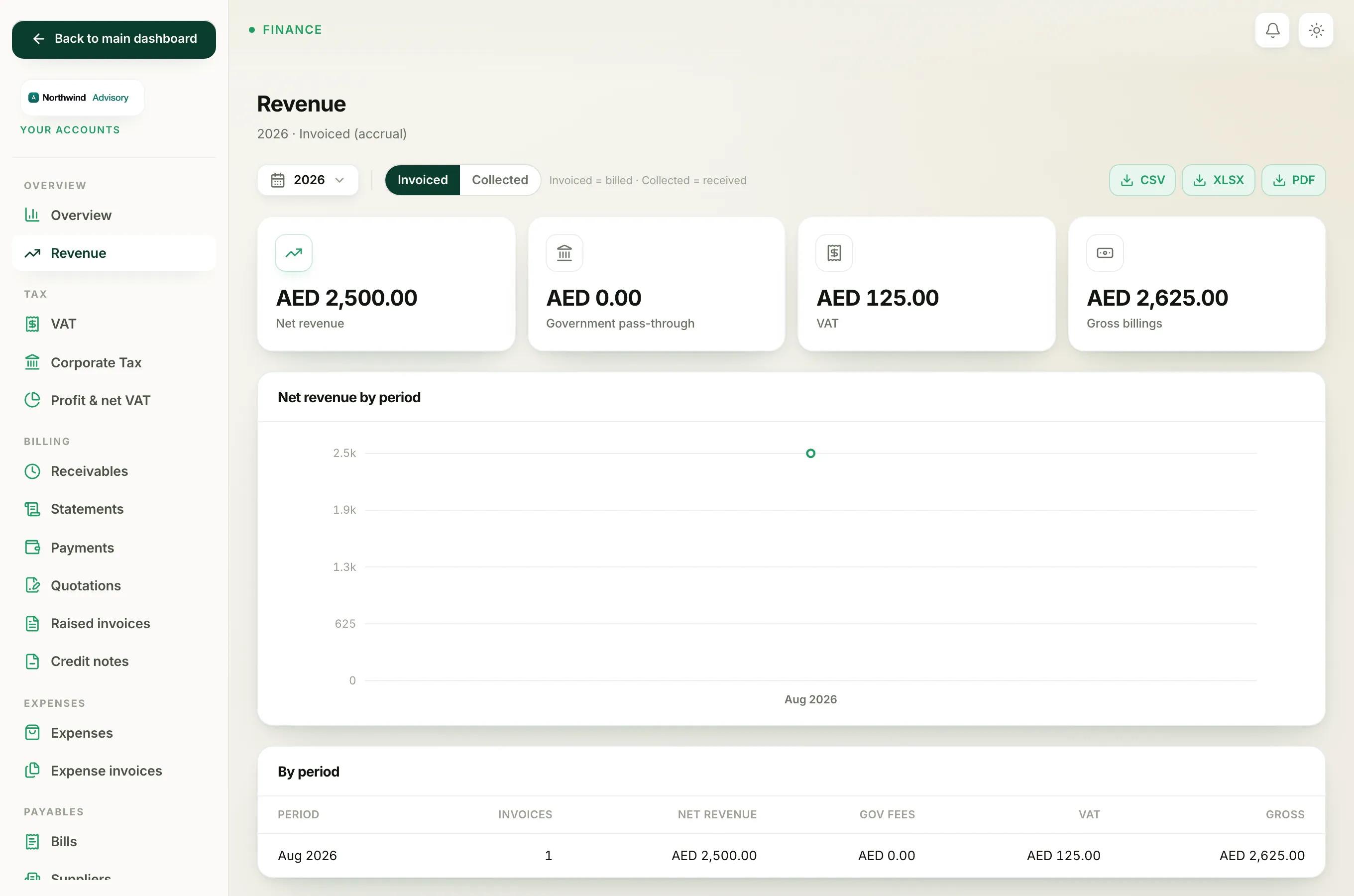
- The period you pick carries over when you export the report, so the PDF, Excel or CSV file covers the same window you are viewing.
- The period also stays selected if you switch the Invoiced or Collected basis.
- A few screens are always shown as of today rather than for a period, for example the receivables and clients lists, so they do not show the date picker.
- If a report looks empty, check the period first. You may simply be looking at a month with no activity. Widen the range to This year to confirm.