You can download an agreement as a PDF at any point, whether it is still a draft or fully signed. The signed copy is the one you keep on file as the executed contract.
Open the agreement
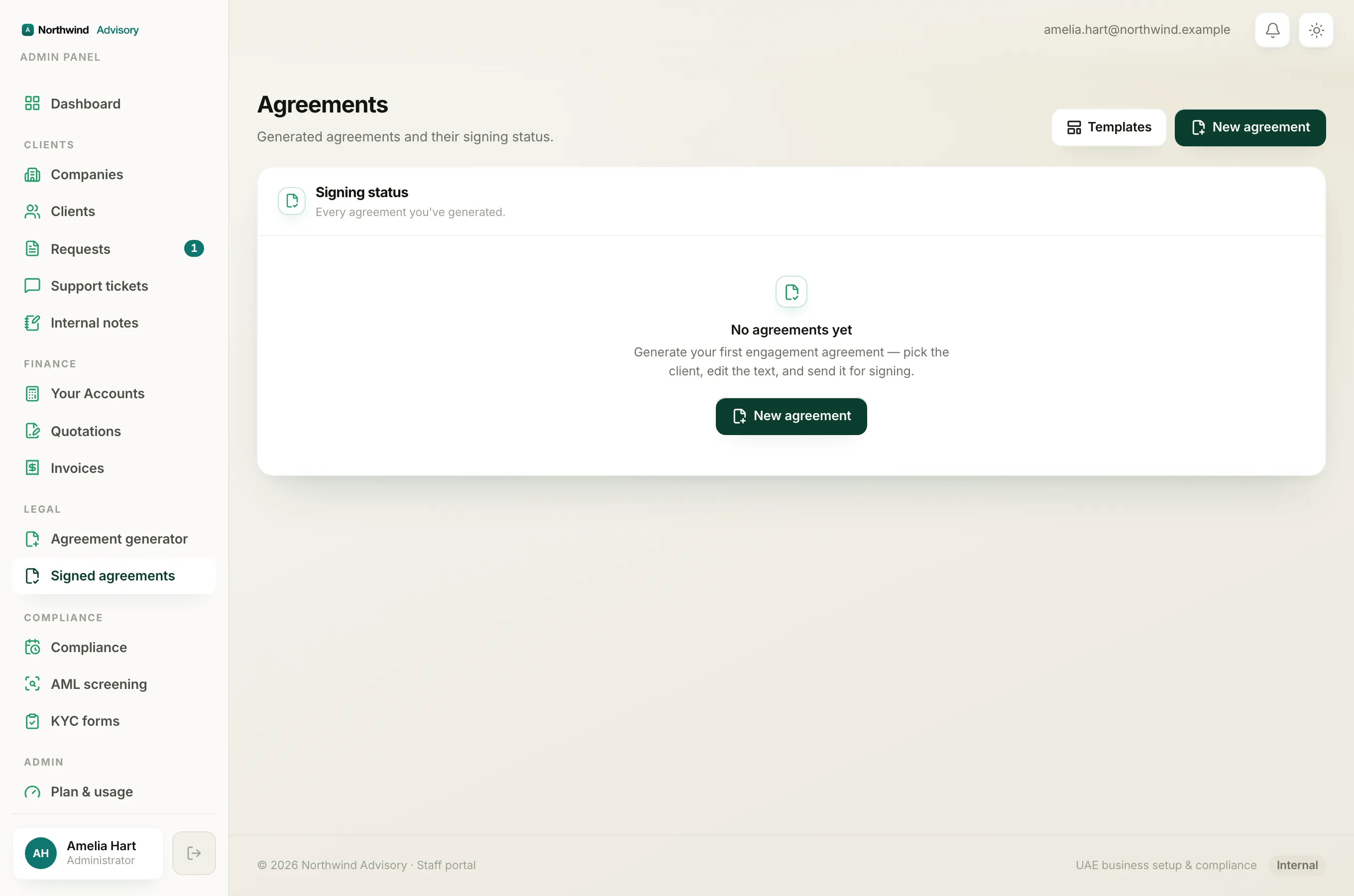
- Log in to your workspace.
- In the left menu, under Legal, click Signed agreements.
- Click the agreement you want.
Download the current PDF
At the top right of the agreement page there is a Download PDF button. Click it to save the PDF as it stands right now.
This works at every stage:
- Draft: you get the unsigned document, useful for a final read-through or to share the wording before sending.
- Out for signing: you get the document with your firm's signature in place and the parties still to sign.
- Signed: you get the fully-executed copy.
The live preview shown on the agreement page is the same PDF, so what you download is exactly what you see.
Download the signed copy
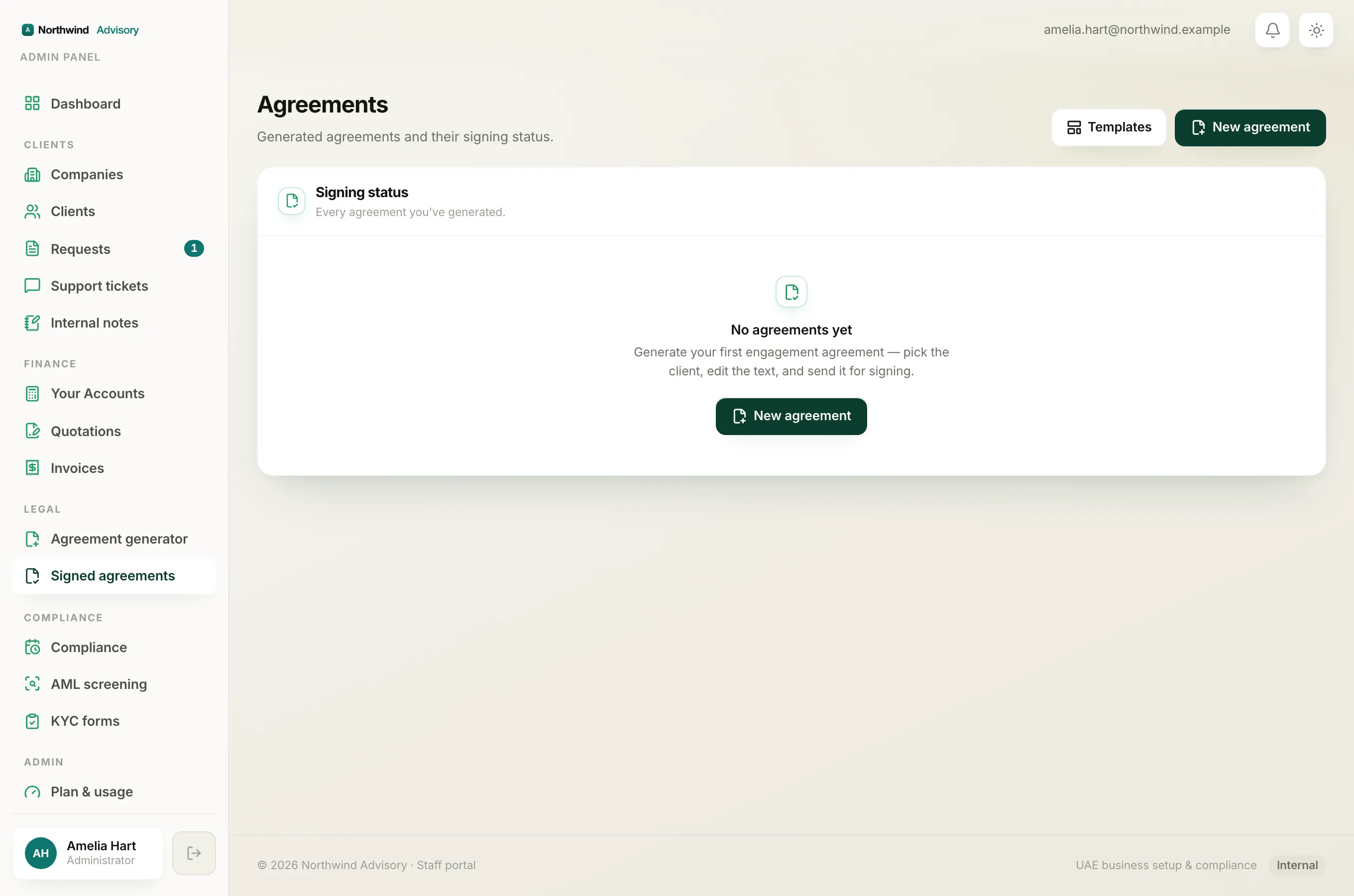
Once every party has signed and the status chip reads Signed, a green Download signed agreement button appears on the right of the page. This is the copy to keep. The same fully-signed PDF is also emailed to every party automatically when the last signature is added, so your client already has their own copy.
What the signed PDF contains
The signed copy includes a Signature Certificate page at the end. This is the audit trail: it lists each party, how they signed, the date and time, and a verification ID tied to the signed content. It is your proof that the agreement was properly executed. To understand every part of it, see The Signature Certificate on a signed agreement.
Tip
Save the signed PDF into the client's file so it sits alongside their other documents and is easy to find later.