Open your profile
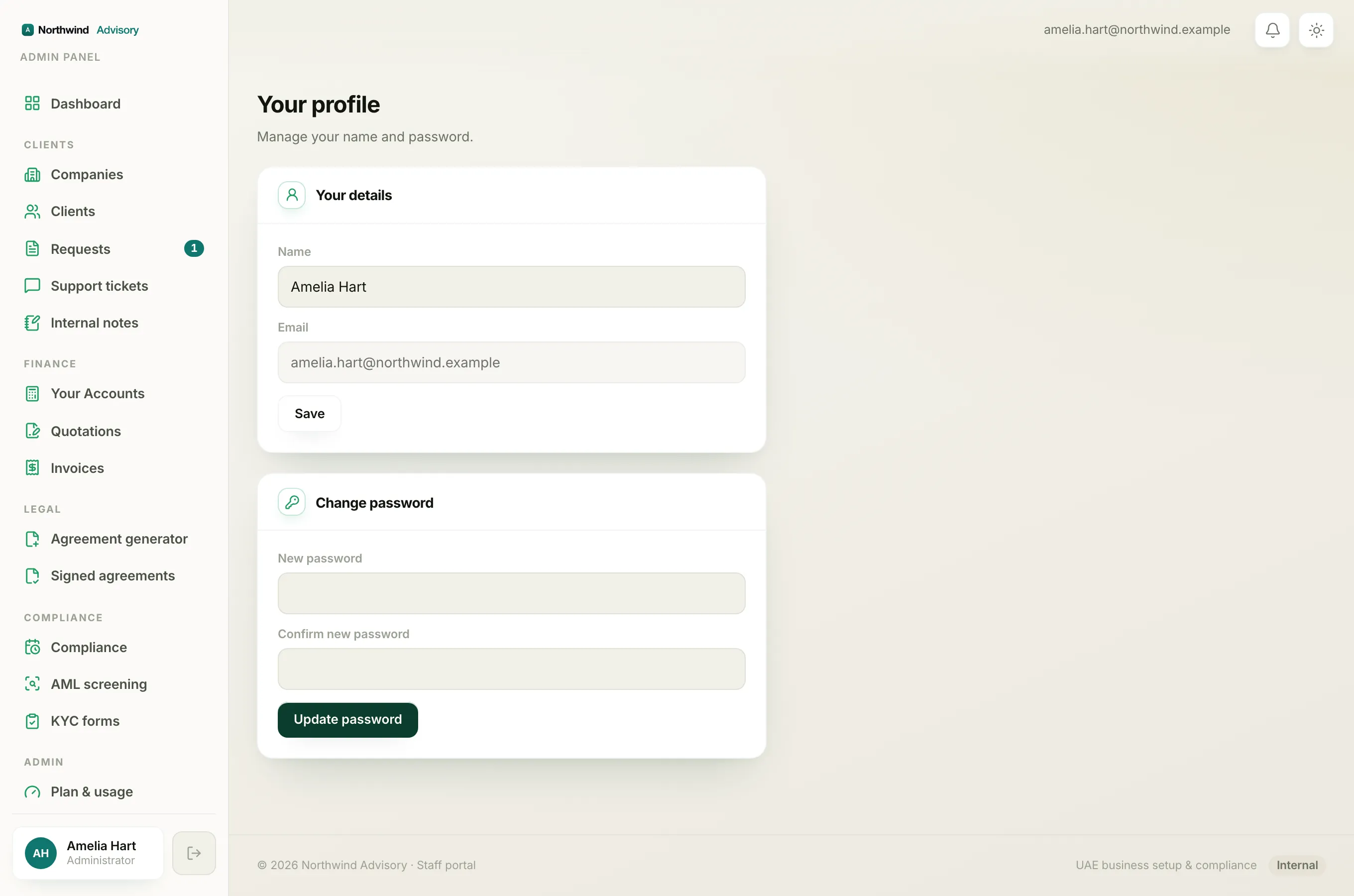
Your name lives on the Your profile screen.
- Log in to your workspace.
- At the bottom of the left menu, click the card that shows your initials, your name and your role.
- This opens the Your profile screen, headed "Manage your name and password."
On a phone, open the menu with the hamburger button at the top left first, then tap the same card at the bottom of the drawer.
Update your name
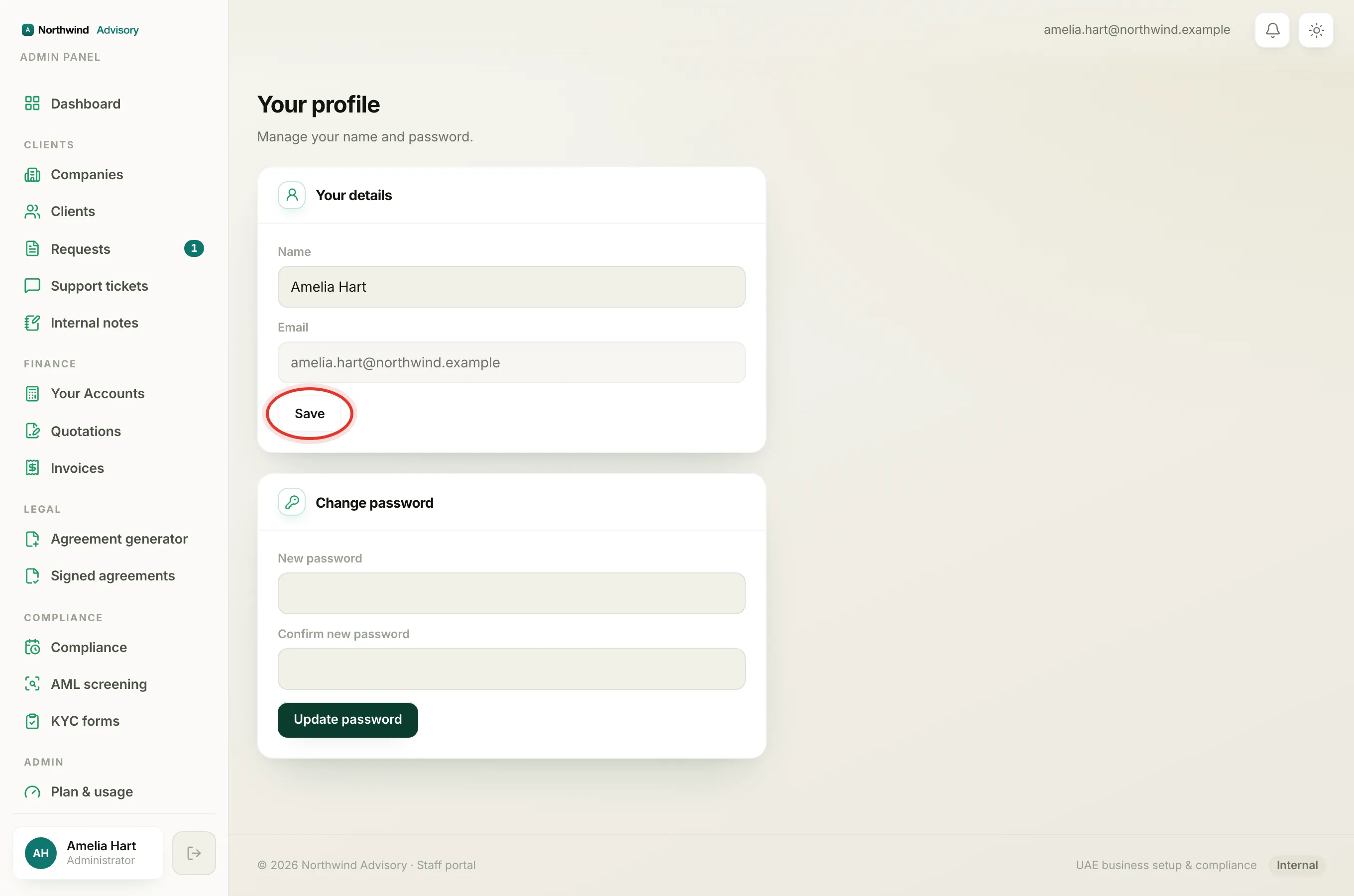
Under Your details you will see two fields, Name and Email.
- Click the Name field.
- Type the name you want shown on your account.
- Click Save.
That is it. Your new name is used across the workspace, such as on the sign-off of messages you send and on your profile card in the menu.
Why the email field is locked
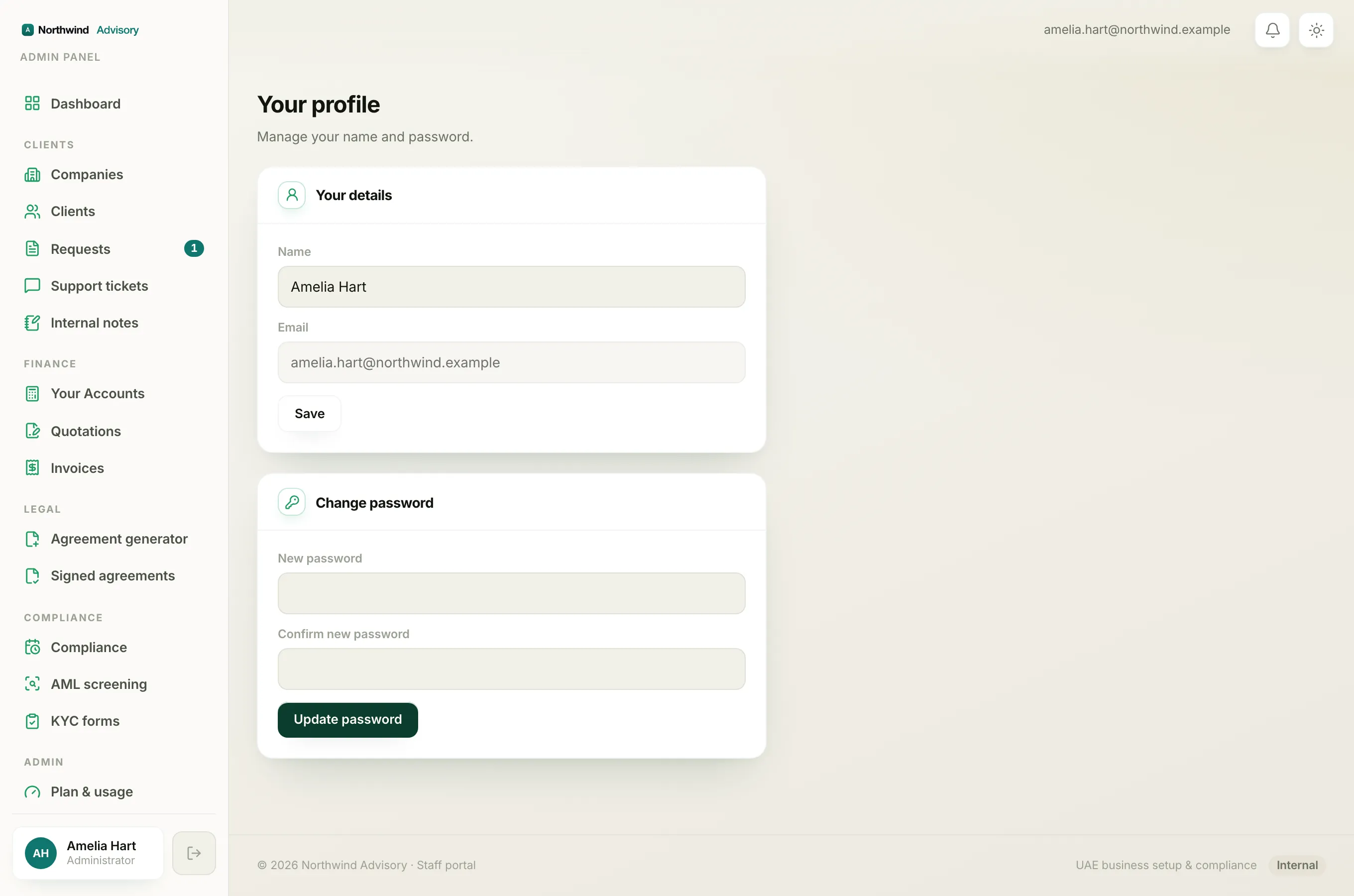
On the same screen you will see your Email, but it is greyed out and you cannot type in it. This is deliberate.
Your email address is how you sign in. It is your identity in the system, not just a piece of contact information. If it could be changed here by accident, it could lock you out of your own account or send your sign-in details to the wrong place. To keep your access safe, the email is shown for reference only and cannot be edited on this screen.
Note
If your email address is wrong or needs to change, ask a firm owner or admin to help, rather than trying to change it yourself. Your login is tied to it, so it needs to be handled carefully.
While you are here
The Your profile screen is also where you set your password. See Change your password. When you are done, you can close the workspace safely from the menu, covered in Sign out of your workspace.