Two ways to add a teammate
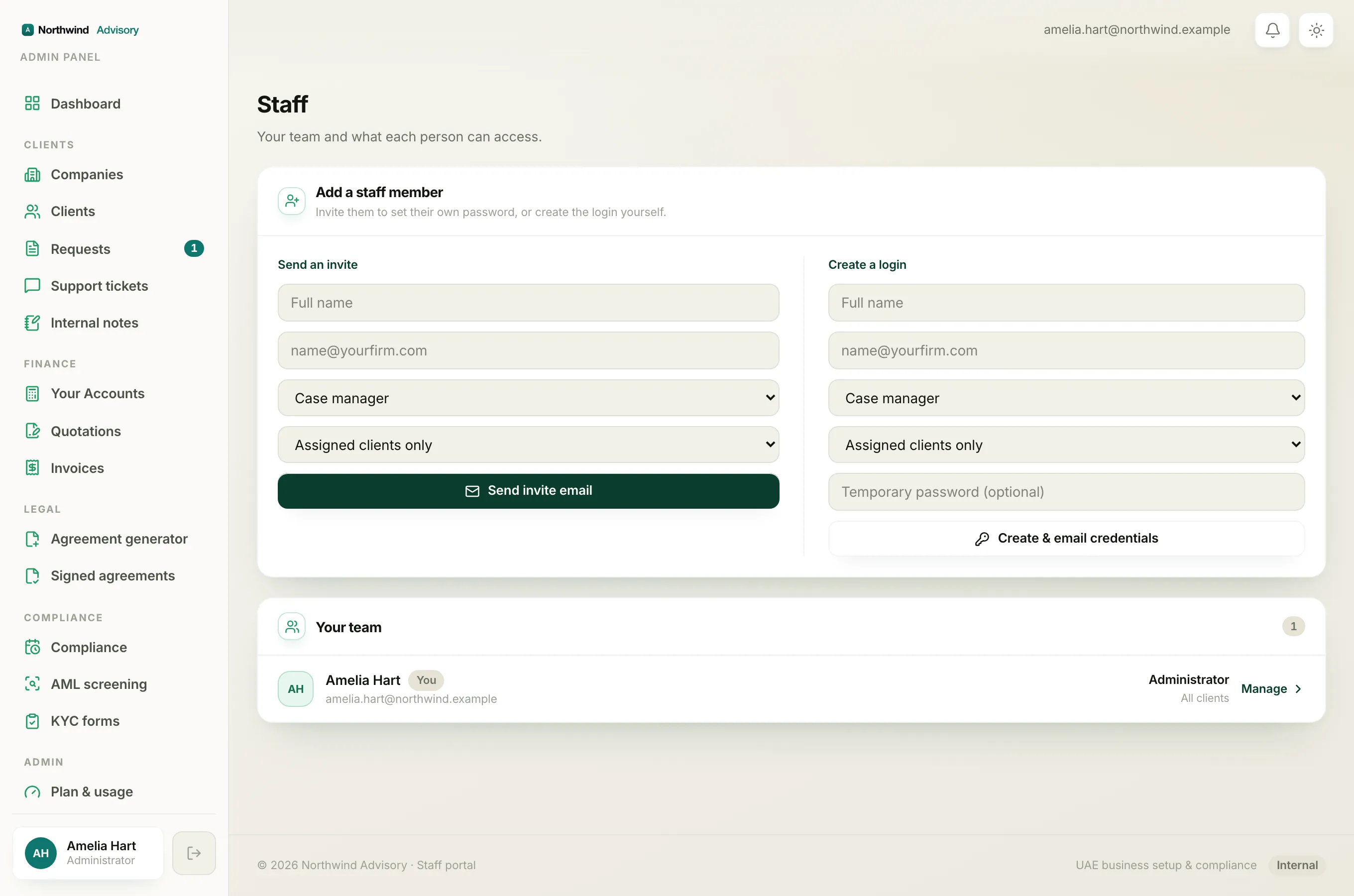
When you add a staff member you have two choices, shown side by side on the Staff page:
- Send an invite, where you email the person a link and they set their own password.
- Create a login, where you set the credentials yourself and the system emails them to the person.
This article covers the second one. It is useful when you want the account ready immediately, or when the person prefers to be handed a password rather than follow an invite link.
Create the login
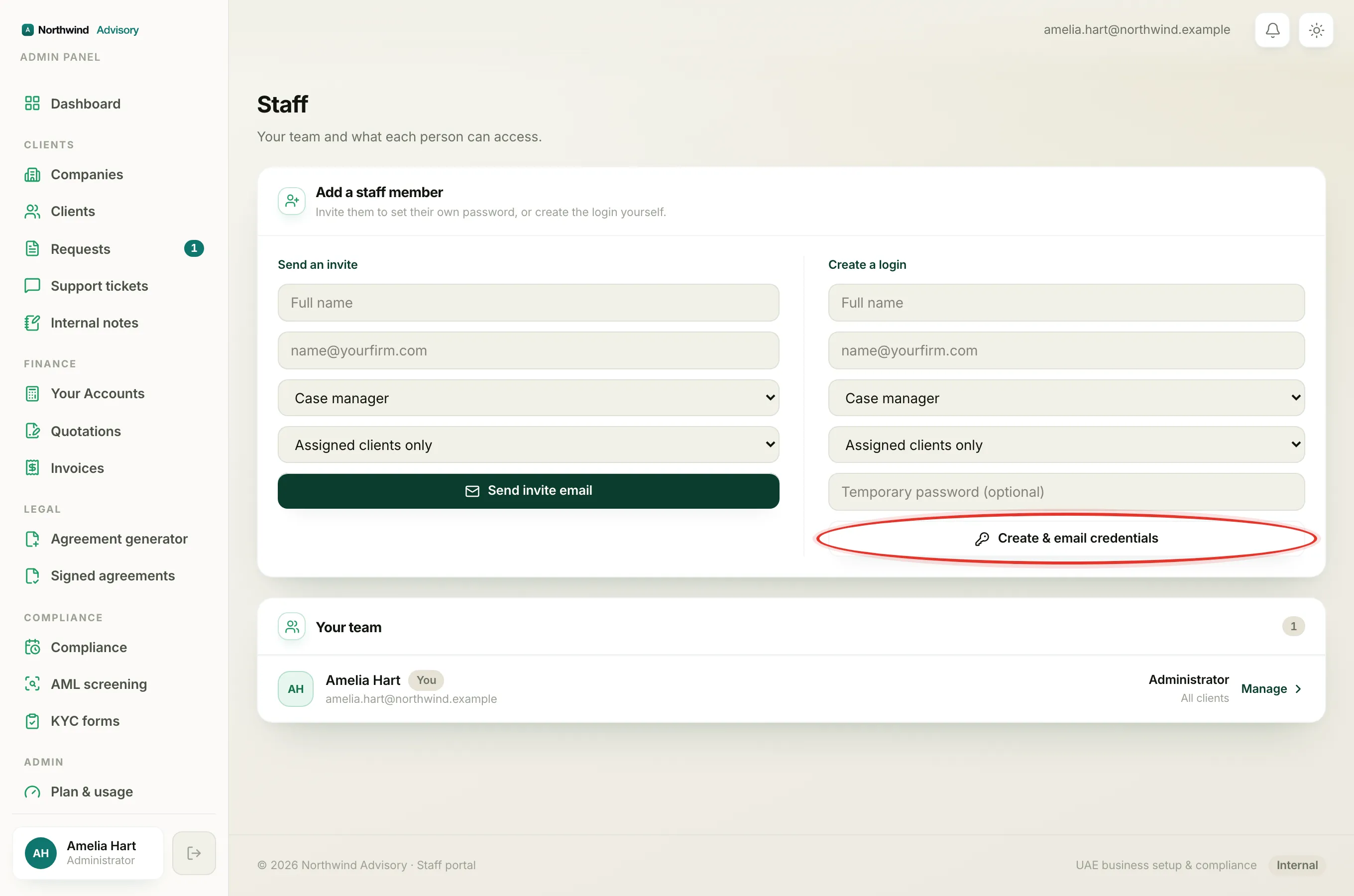
- Log in to your workspace.
- In the left menu, under Admin, click Staff.
- In the Add a staff member panel, use the Create a login column on the right.
- Type the person's Full name and their email (the email is required).
- Choose their role and their scope, either Assigned clients only or All clients.
- In Temporary password (optional), either type a password of at least 8 characters, or leave it blank to have a secure one generated for you.
- Click Create & email credentials. When it succeeds you will see Login created & emailed.
What the teammate receives
The system emails the person, in your firm's name, their sign-in email and their temporary password. When they sign in for the first time, they are asked to set their own password right away. So the temporary password only ever gets them through the first login.
Note
If the email you enter already belongs to a staff member, you will see a message saying so. Pick a different email, or edit the existing teammate from the Your team list instead.
Tip
Prefer to let people set their own password from the start? Use the Send an invite option in the same panel. See add a team member.
For what each role can and cannot do, read staff roles.