IzzyTap can add 5% UAE VAT to an invoice for you. VAT is set per line, so you choose which lines are taxed. The maths is done for you, and the VAT total is shown before you send.
Add VAT to a line
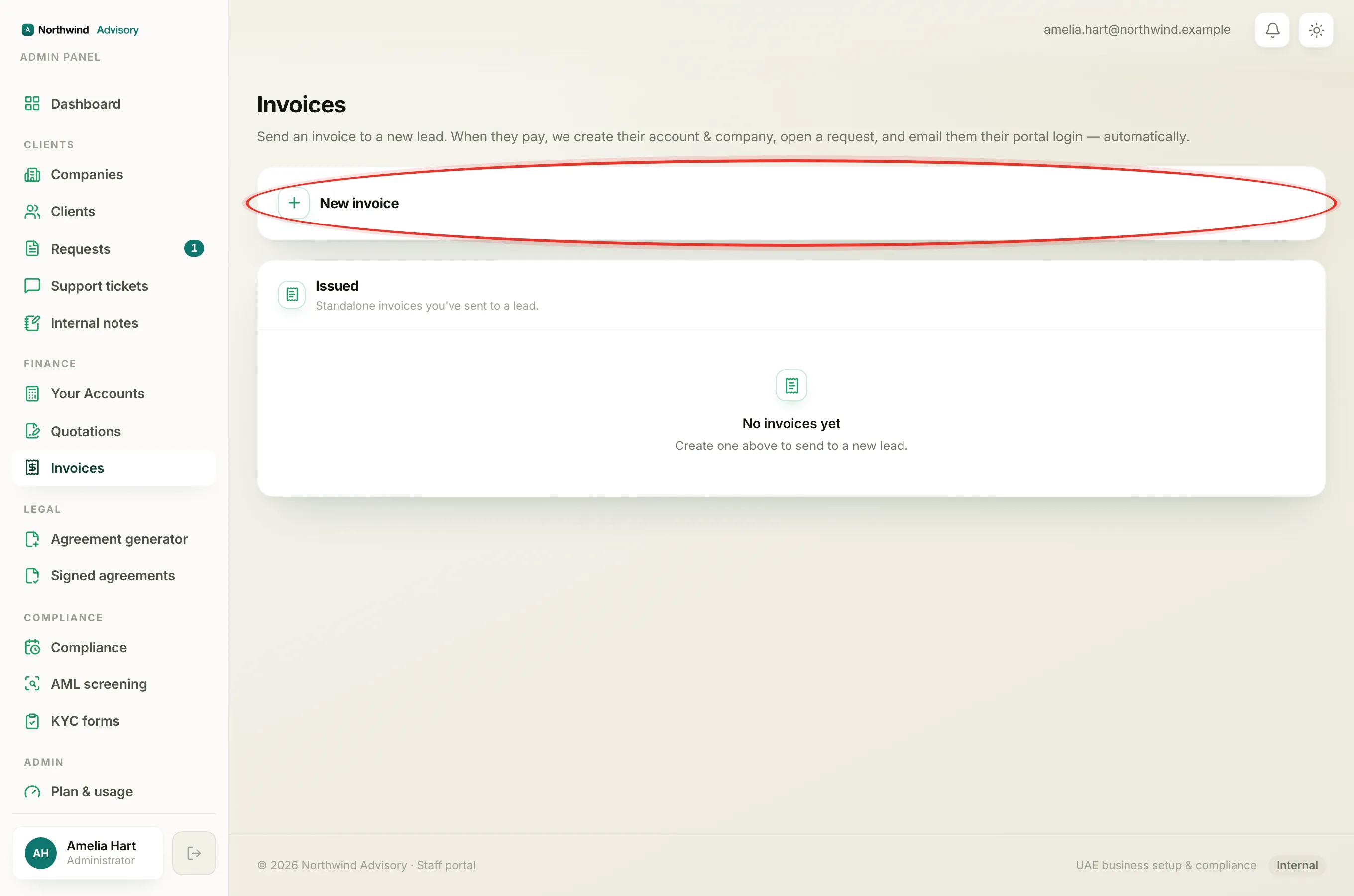
- Log in to your workspace.
- In the left menu, under Finance, click Invoices.
- Click New invoice to open the invoice builder.
- Fill in the recipient details and add your line items as normal. See how to create an invoice for the full walk-through.
- On the line you want to tax, tick the +5% VAT checkbox.
- Repeat for any other line that should carry VAT. Leave the box unticked on lines that should not.
As you tick the boxes, the totals box updates. You will see a VAT (5%) line and the new Total.
A shortcut for service charges
Each line has a type box next to it with three choices: Government fee, Service charge, and Other.
When you set a line to Service charge, the +5% VAT box is ticked for you automatically. This is because your own service fees are usually taxable, while government fees are usually not.
Tip
The automatic tick is only a starting point. You can always untick +5% VAT on a service line, or tick it on any other line. You stay in control of each line.
Check the VAT before you send
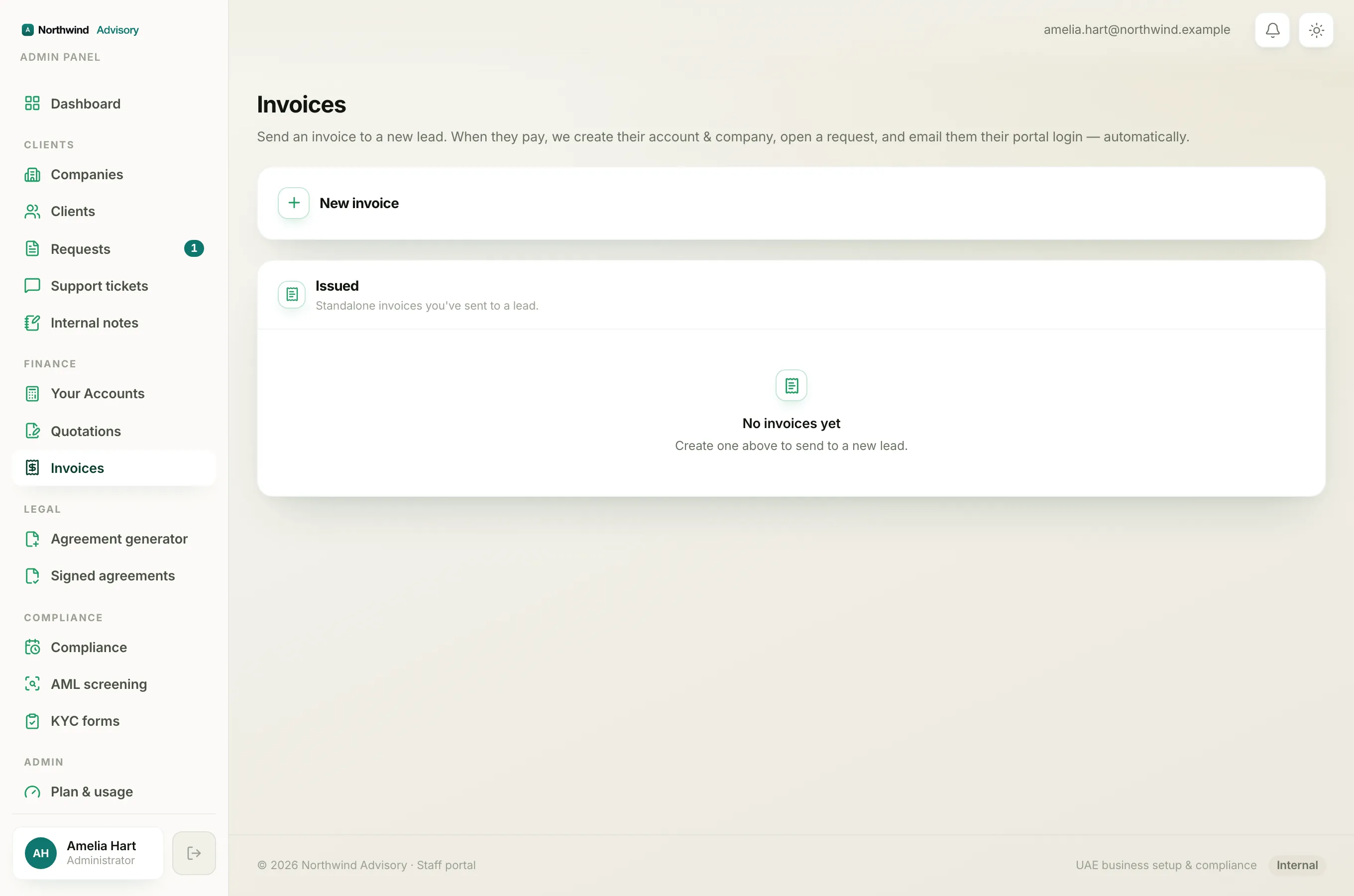
- When your lines are ready, click Preview invoice.
- A preview of the invoice PDF opens. Check that the VAT amount and the total look right.
- If something is wrong, click Edit to go back and change your lines.
- When it looks correct, click Send invoice.
Important
VAT is worked out on each line after any discount on that line. So if you both discount a line and tax it, the 5% is taken on the reduced amount, not the full amount. See how to add a discount.
Note
To enter your own VAT number, or the client's TRN, use the VAT / TRN (optional) field in the recipient details when you build the invoice.