An internal note is a private message you and your team leave on a request. It never reaches the client. Use it for the things you want on the record but not in front of the customer: a reminder to chase a document, a heads-up for whoever picks the ticket up next, or a note of what a client said on the phone.
Add an internal note on a request
- Log in to your workspace.
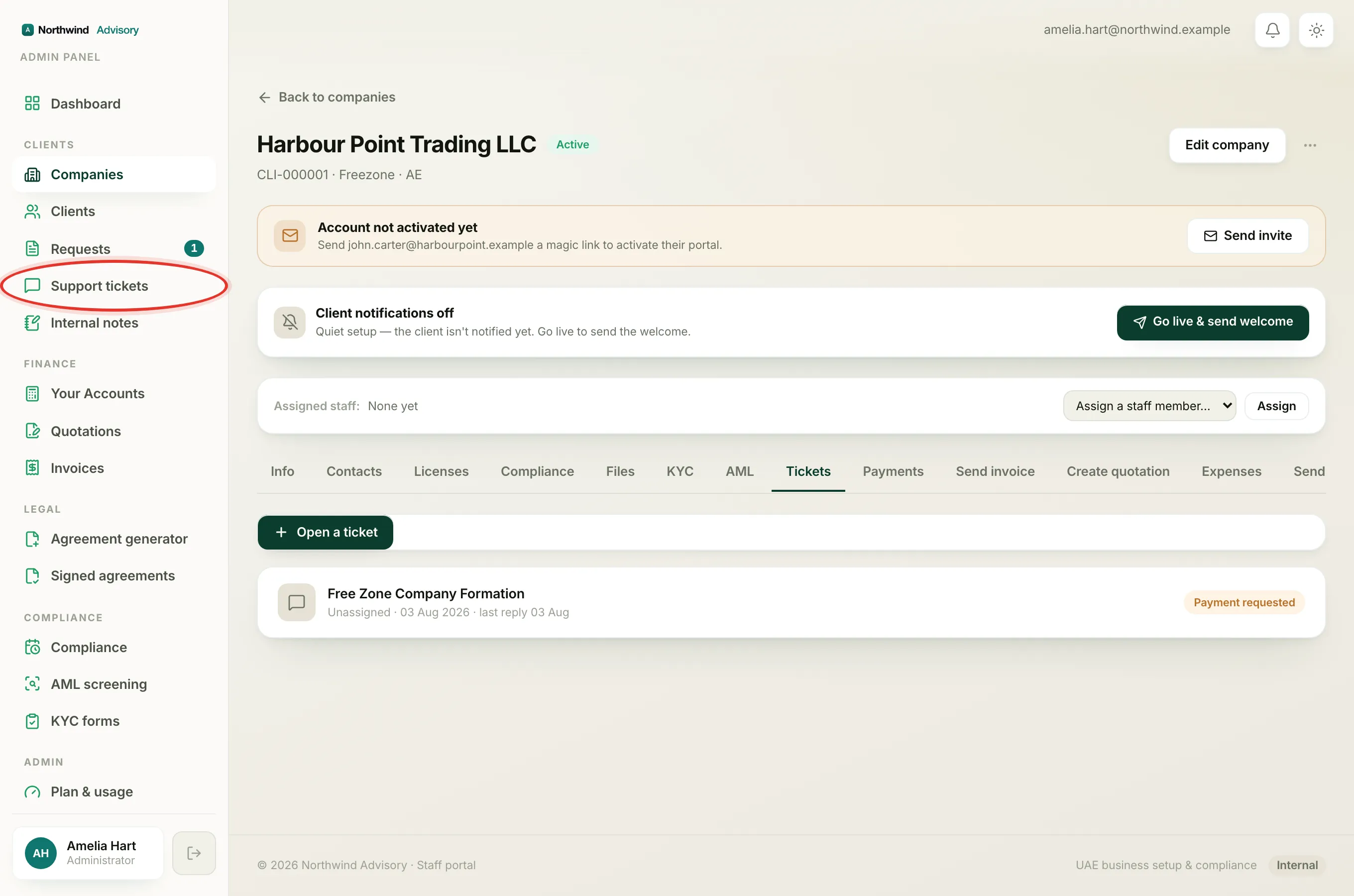
- In the left menu, under Clients, click Companies, open the company, click the Tickets tab and open the request. You can also open it from Requests in the left menu.
- Scroll to the message box at the bottom of the conversation. Above it are two small tabs: Reply to client and Internal note.
- Click Internal note. The box turns amber, and the placeholder changes to Internal note, only staff & admin can see this…
- Type your note and click Add note.
The note drops into the conversation as an amber card marked with a lock and the words Internal note · staff only, showing who wrote it and when.
Important
Always check which tab is selected before you send. Reply to client goes to the customer. Internal note (amber, with a lock) stays with your team. The amber colour is your signal that the client will never see it.
To send an ordinary reply instead, switch back to Reply to client. That is covered in Reply to a client in a ticket.
Find every internal note in one place
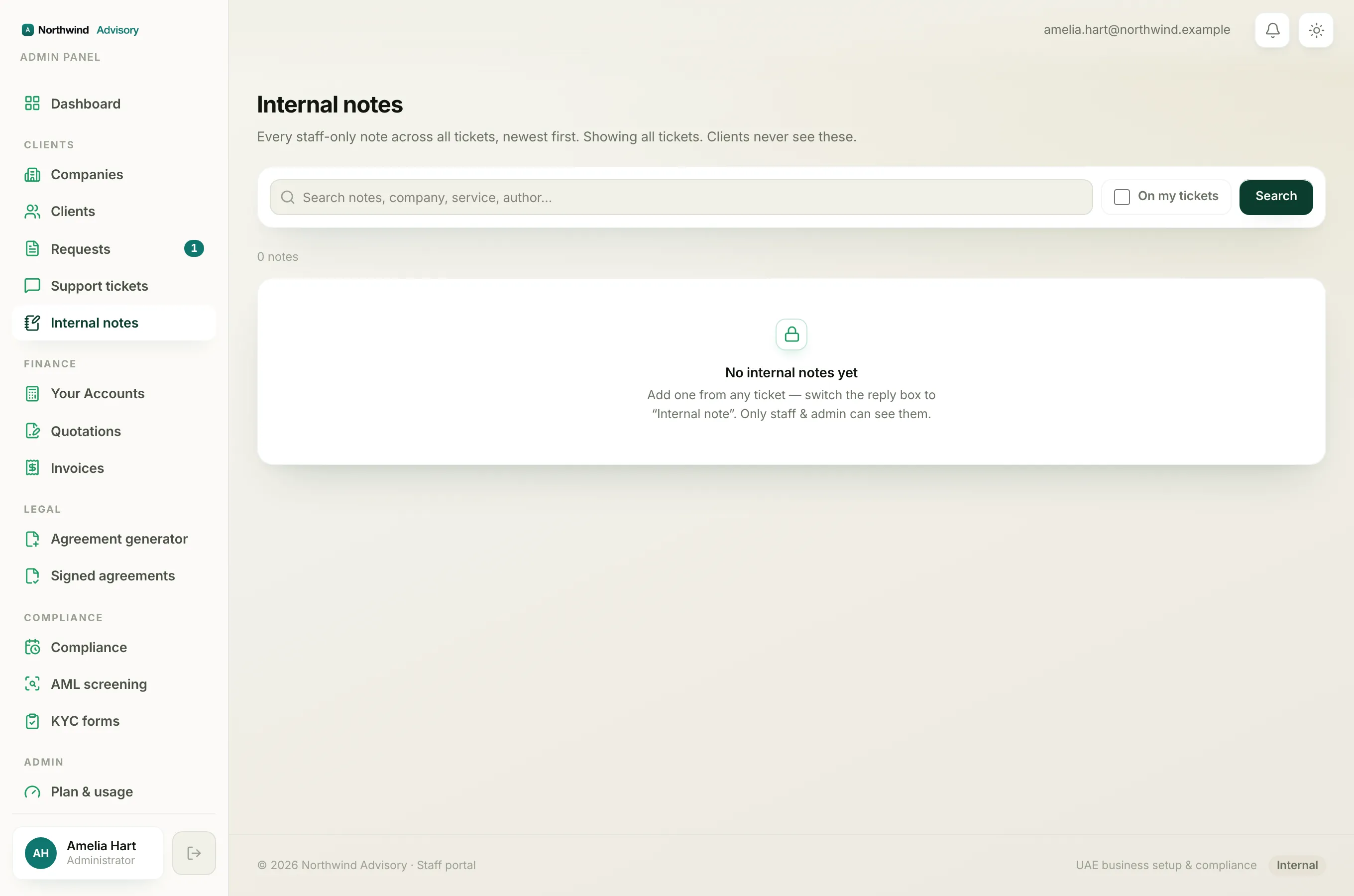
Every internal note across all your requests is also gathered on one screen, newest first.
- In the left menu, under Clients, click Internal notes.
- Each card shows the note, the company and service it belongs to, who wrote it, and the date.
- Click Open ticket on any card to jump straight to the request it came from.
Narrow the list
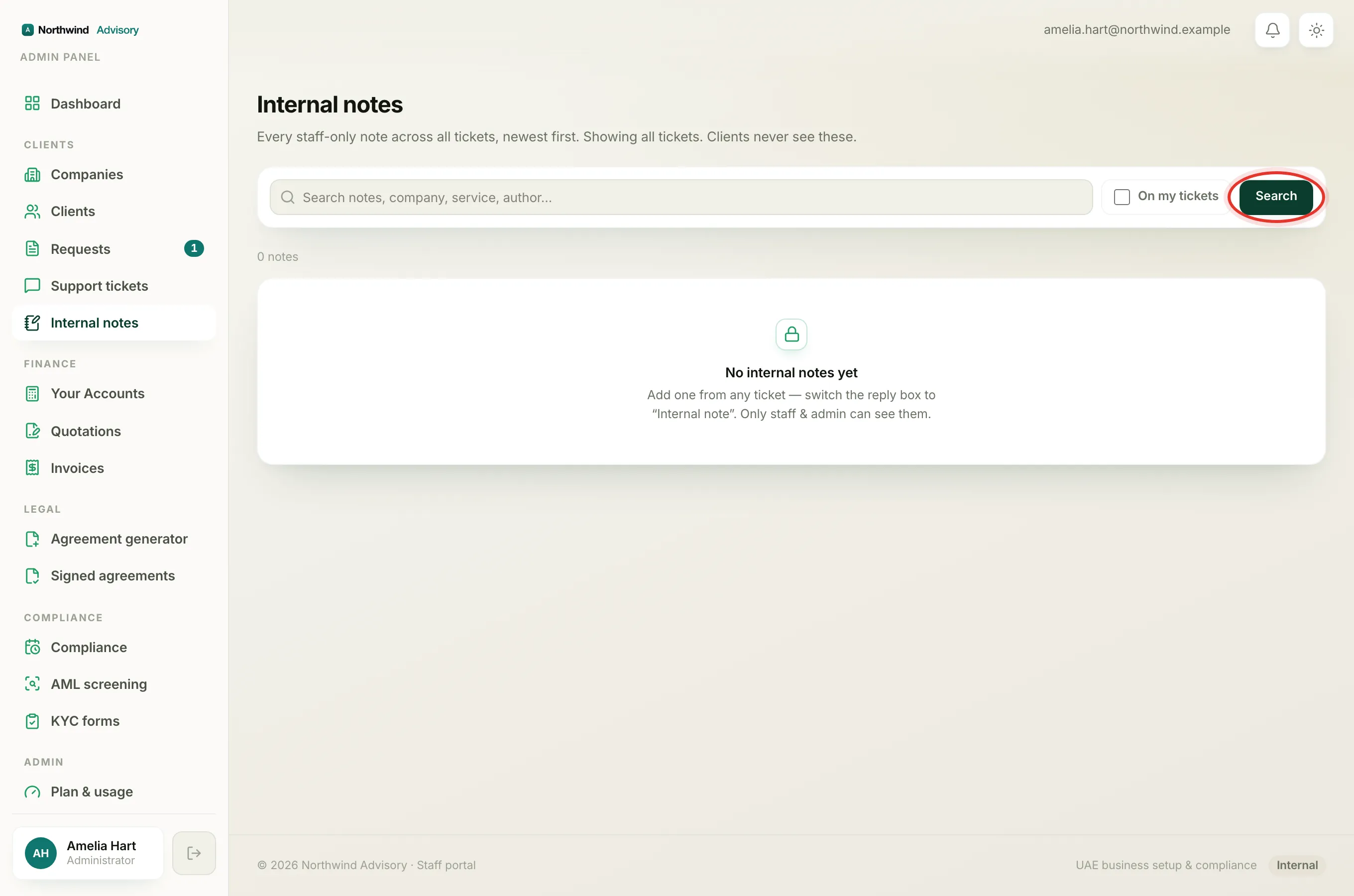
- Type in the search box to filter by note text, company, service or author, then click Search.
- Tick On my tickets and click Search to show only notes on requests you are handling. Notes on your own tickets carry a small Mine badge.
- Click Clear to remove your filters and see everything again.
Note
What you see here depends on your access. If your role sees all work, the page shows notes across every ticket. If your role only sees your own clients, it shows notes on the tickets in your scope. Either way, clients never see any internal note. See Why your dashboard differs from a teammate's.