When you record a payment, the client does not just see a status change. IzzyTap sends them a receipt for you, saves the paid invoice to their documents, and lets them know in their portal. It all happens automatically the moment you press Confirm payment. This page explains exactly what they receive.
If you have not recorded the payment yet, see How to record a payment first.
When you mark an invoice fully paid
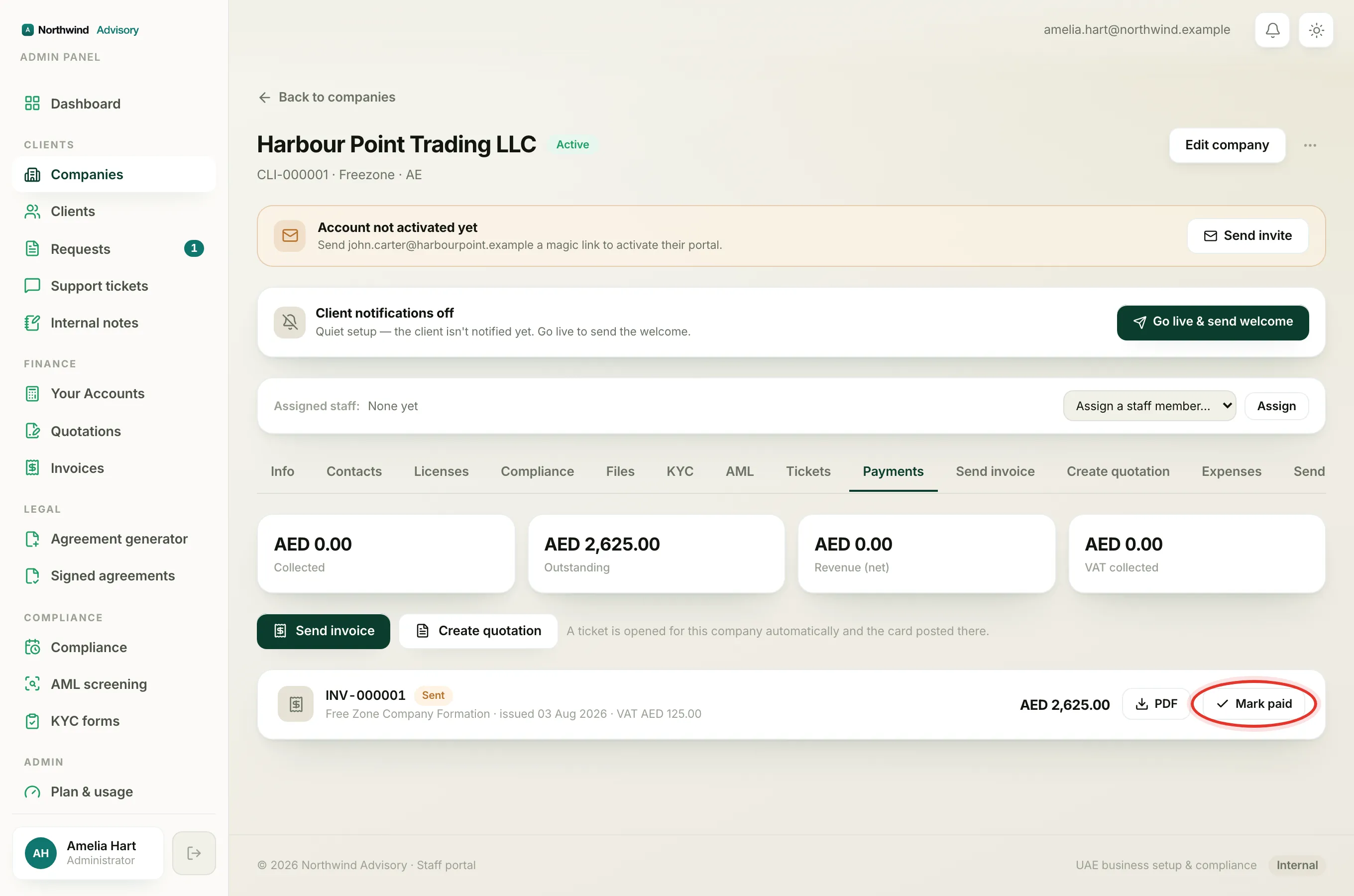
As soon as the payment settles the invoice in full, the client gets:
- A receipt email titled "Payment received, thank you", with the amount paid shown. It confirms the money is in and tells them your team will take it from here.
- The paid invoice as a PDF, attached to that email. The PDF is stamped as paid.
- A copy saved to their documents, so they can find the paid invoice in their portal anytime, not just in their inbox.
- A notification in their portal saying the payment has been received.
The invoice also moves out of their "to pay" list.
When it is a part payment
If the client pays only part of the invoice, the message is different, so they are not told the whole thing is settled. They get:
- A "Partial payment received" email that shows three figures: the invoice total, the amount paid now, and the balance still remaining.
- The updated invoice as a PDF, marked as partially paid, showing the running balance.
- A notification in their portal with the balance remaining.
The email tells them you will confirm again once the balance is settled in full. Each further part payment sends its own update until the invoice is fully paid, and the final one sends the full paid receipt above. For more on splitting a payment, see Record a part payment.
Who receives it
The receipt goes to everyone with an active login on that company, and to the email address the invoice was raised to. So if a company has two people in its portal, both get the receipt.
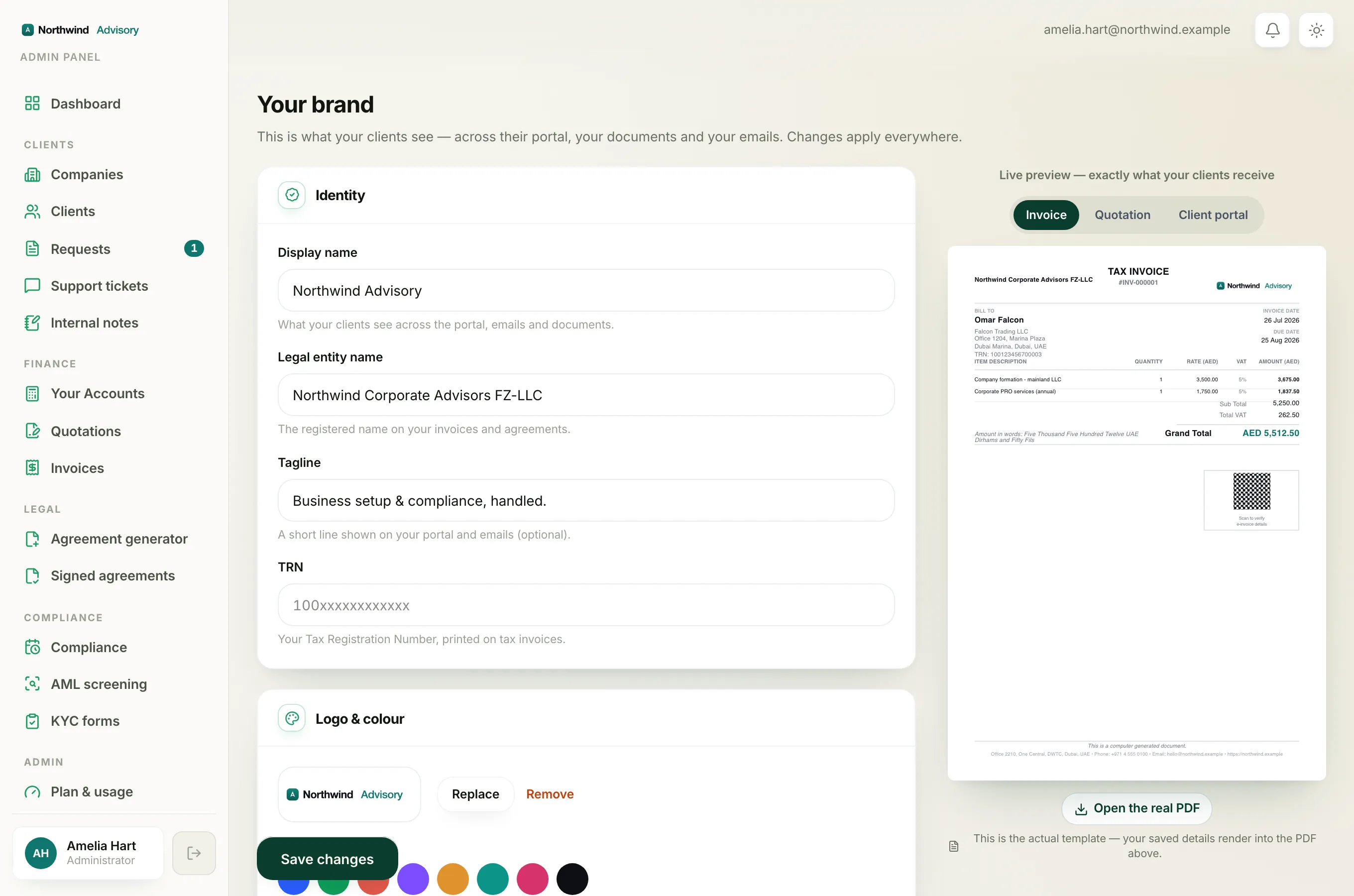
The receipt is branded as your firm
Important
The email carries your firm's name and logo, not IzzyTap's. To the client it looks like it came straight from you. Make sure your brand is set up so your receipts look right. See Set your brand.
To see the whole experience from the client's side, read What your clients see.