If you shared the wrong file, or a corrected version is on the way, you can withdraw a document your firm issued. Once withdrawn, the client can no longer see or download it, and they are told it has been pulled back.
Find the document and withdraw it
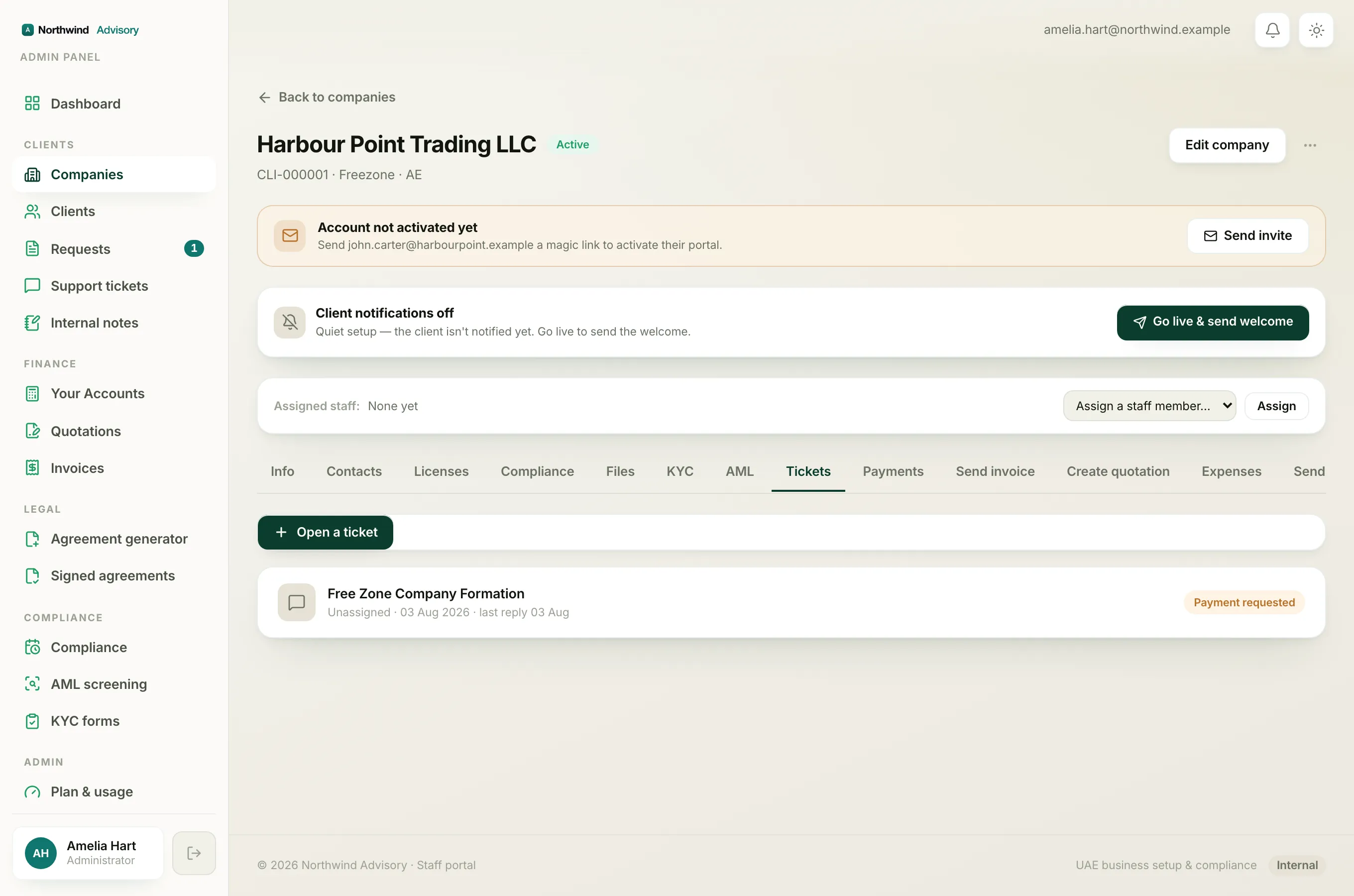
- Log in to your workspace.
- Open the company, then open the request that the document was shared in. You can reach it from the company's requests, or from Clients then Requests in the left menu.
- Scroll the conversation to the message where the document is attached.
- Under the document, click Withdraw.
- A short confirmation appears. If you want, type a note to the client, for example that an updated version is coming.
- Click Withdraw again to confirm.
What the client sees
After you withdraw:
- The document disappears from the client's portal, from the request thread and from their downloads.
- The client gets an email and an in-app alert saying the document has been withdrawn.
- If you left a note, the client sees it. If you did not, they see a standard message explaining an updated copy will follow.
The document is not wiped from your records. It is a soft removal, so your own audit trail stays intact.
Why only documents you issued can be withdrawn
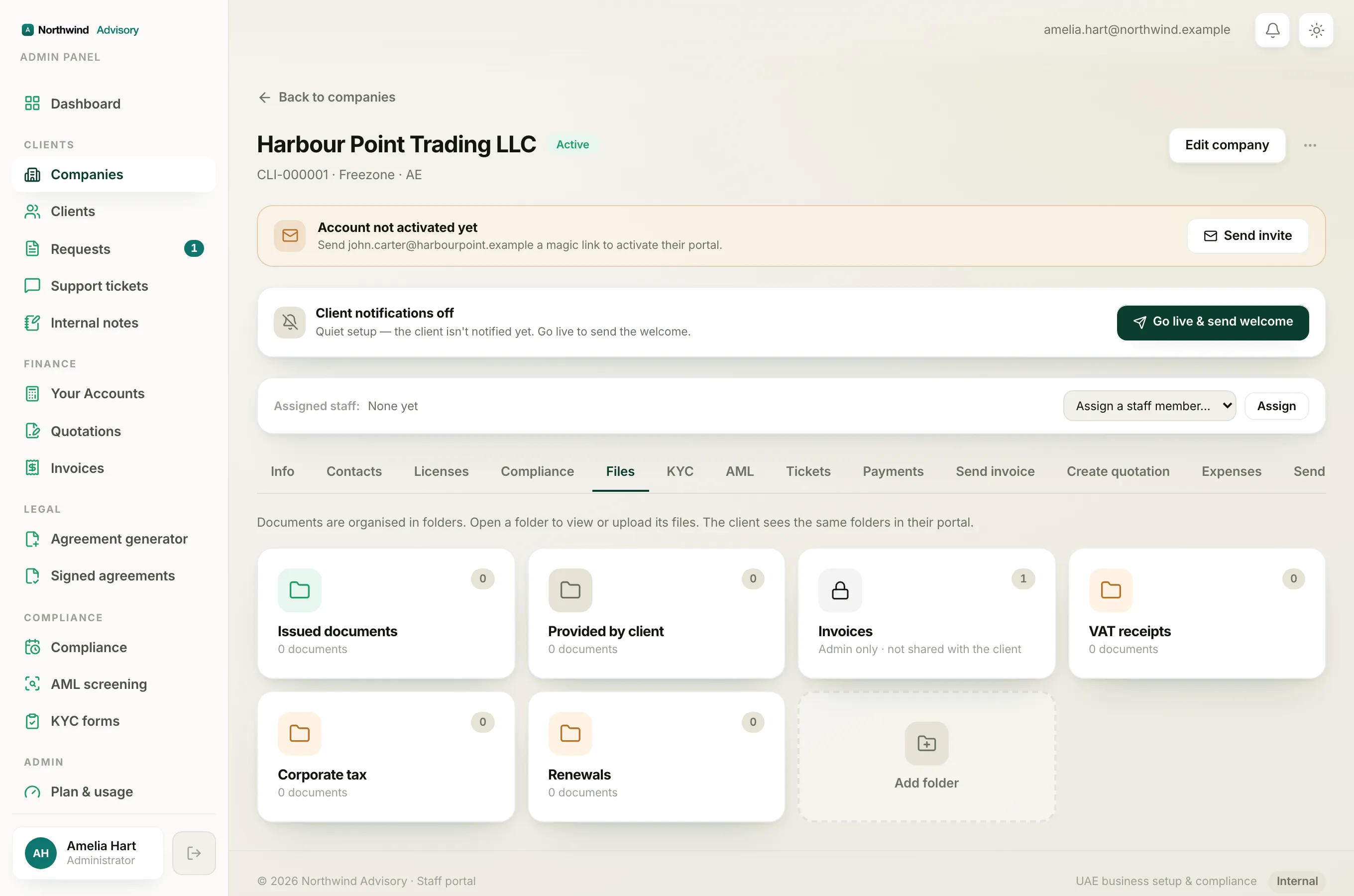
The Withdraw link only appears under documents your firm issued. A client's own uploads, the ones in the Provided by client folder, do not show it. Those belong to the client, so you cannot pull them back this way.
Note
Withdrawing is the client-facing action: it hides the document and notifies the client. If you just want to tidy a file out of a folder without any client message, use the delete option on the file in the Files tab instead.
To share the fixed copy afterwards, follow Issue a document to a client. To add a document the client sent you, see Upload a file on a client's behalf.