Every bank lays its statement out differently, so after you upload a file IzzyTap asks you to confirm which column is which. It makes a first guess for you, and you check or fix it. This is the Which column is which? screen.
How you get here
- Log in to your workspace.
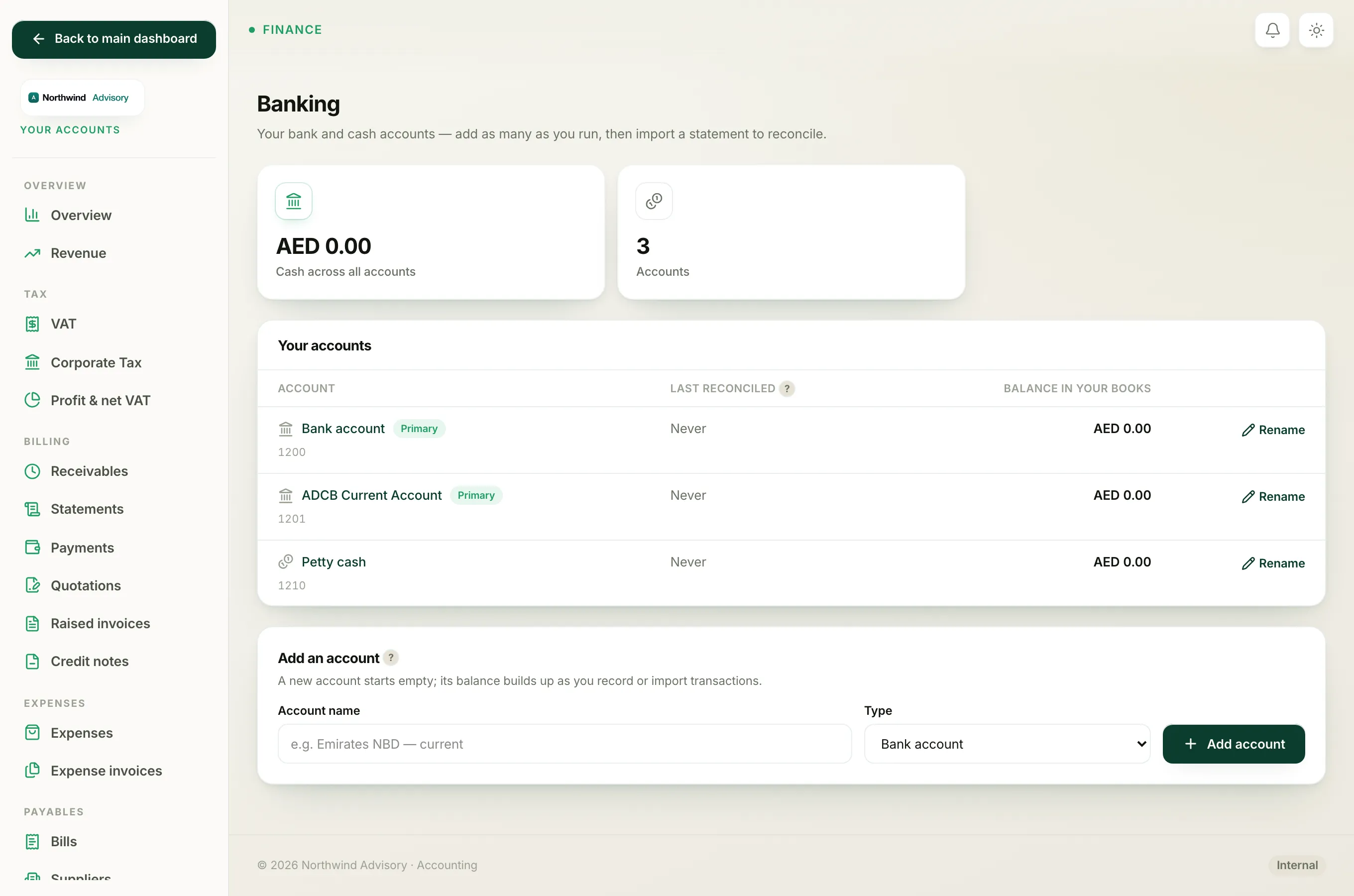
- In the left menu, under Finance, click Your Accounts, then under Banking click Bank accounts.
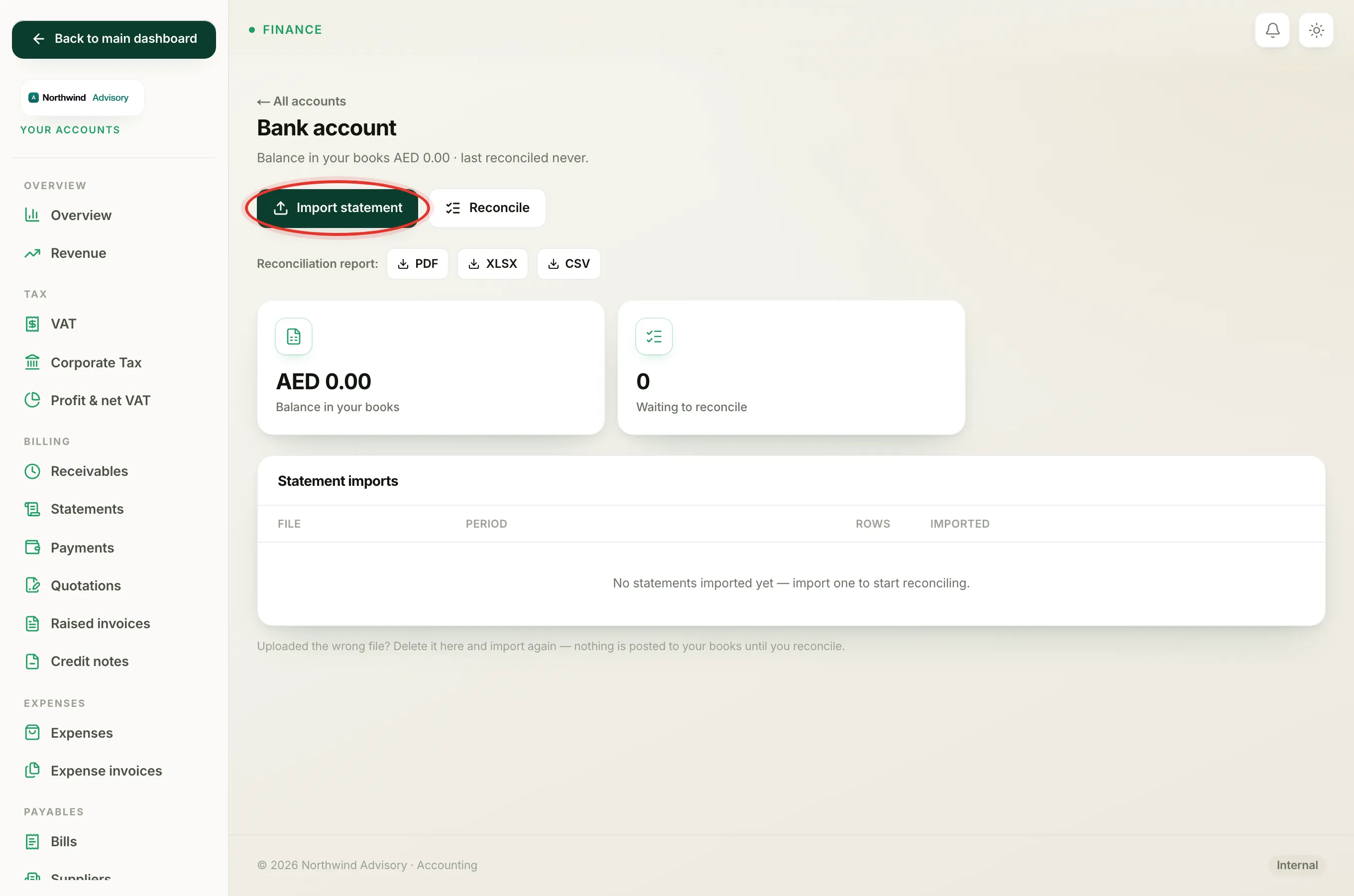
- Open the account you are importing into, then click Import statement.
- Choose your file and click Upload & map columns.
You now see the mapping screen. It shows the file name at the top, a Columns panel, and a live Preview underneath.
The mapping fields
In the Columns panel each field has a dropdown listing the columns found in your file. Match each field to the right column:
- Date is the transaction date. This one is required.
- Description is the text your bank prints for each line, such as the payee or a reference.
- Money out (Debit) is the column holding amounts that left the account.
- Money in (Credit) is the column holding amounts that came in.
- Amount (one signed column) is used only when your bank puts everything in a single column where money out is shown as a negative number.
- Running balance is the account balance after each line. This one is optional.
If a field does not exist in your file, leave its dropdown on the not in file option.
Choose one amount style, not both
Banks describe amounts in one of two ways, and you match whichever yours uses:
- Two columns: if your statement has separate columns for money leaving and money arriving, set Money out (Debit) and Money in (Credit), and leave Amount (one signed column) on not in file.
- One signed column: if your statement has a single amount column where withdrawals are negative, set Amount (one signed column) and leave the Money out and Money in fields on not in file.
Important
Use either the single Amount column or the Money out and Money in pair, not both. You must always set the Date, and you must set at least one amount style, or the import will not run.
The optional running balance
You do not have to map Running balance, but if your statement has it, setting it helps IzzyTap avoid importing the same line twice. It is a useful safety net, especially when two statements overlap.
Check the live preview
Below the columns, the Preview panel shows the first few transactions exactly as IzzyTap has read them, with the date, description and amount. Money out shows in red with a minus sign, money in shows in green with a plus sign.
Use the preview as your check:
- If the dates, text and amounts look right, your mapping is correct.
- If the amounts are the wrong way round (money in showing as out, or vice versa), you have the Money out and Money in columns swapped, or the wrong amount style. Fix the dropdowns and the preview updates.
- If the preview says no transactions could be read, the amount or date column is not matched correctly. Adjust the dropdowns until real lines appear.
Any amber notes above the form are warnings worth reading, for example if some dates could not be understood.
Import
When the preview looks right, click Import these transactions. IzzyTap brings in the lines, skips any it has already imported for this account, and remembers your column choices so the next import for this account is one click. Nothing posts to your books yet. That happens later when you reconcile.
If it will not work
- The screen will not accept your mapping: see Fix a bank import that will not map.
- Fewer lines came in than you expected: see Why some statement lines were skipped.