You can let the app chase unpaid invoices for you, so you are not sending "just following up" emails by hand. There are two ways: an automatic schedule for every invoice, and a one-off reminder on a specific day for a single invoice. This guide walks you through both from login.
Turn on automatic follow-ups
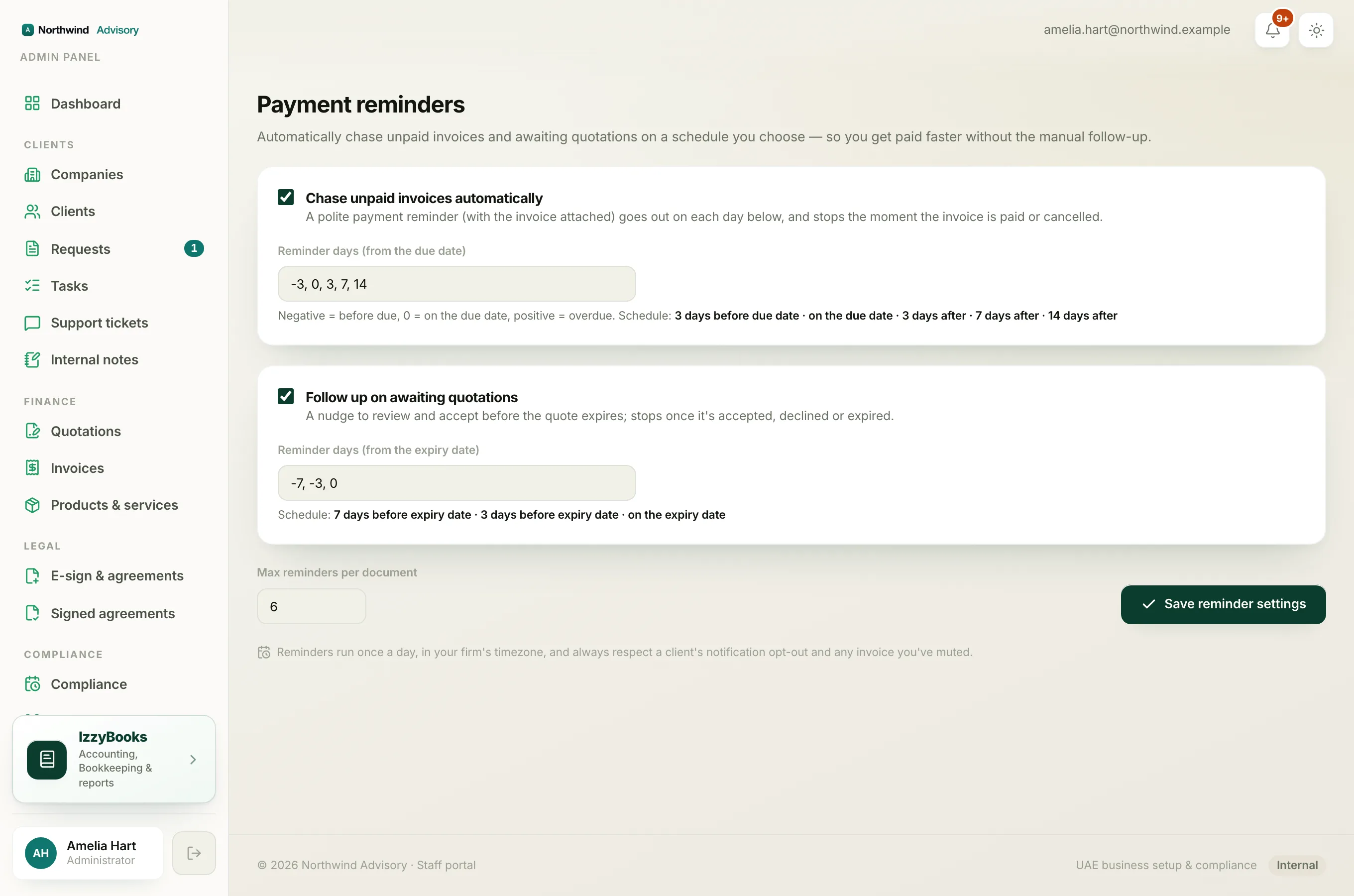
This chases every unpaid invoice on a schedule you choose, and stops on its own the moment the invoice is paid.
- Log in to your workspace.
- In the left menu, under Admin, click Payment reminders.
- Turn on Chase unpaid invoices automatically.
- In Reminder days (from the due date), set when the reminders go out, as a list of days around the due date. For example -3, 0, 3, 7, 14 sends a gentle nudge 3 days before the due date, one on the due date, then follow-ups 3, 7 and 14 days after.
- Set Max reminders per document so a client is never chased more than you want.
- Save.
Note
A minus number is before the due date, zero is on the due date, and a plus number is after. Leave these at the sensible default if you are not sure.
Also chase quotations
On the same page you can turn on Follow up on awaiting quotations, with its own list of days counted from the quotation's expiry date. This gently reminds a client to accept a quote before it runs out.
Schedule a reminder for a specific day
Sometimes you just want to remind one client on one date, for example the day they said they would pay.
- Open the invoice, or the client's ticket where the invoice was raised.
- Find the Payment reminders panel.
- Under Or schedule one for a specific day, pick a Reminder date.
- Add a Note for your team if you want. The client does not see this.
- Save. It reads Reminder scheduled.
To call it off, use Cancel scheduled reminder.
What the client gets
Every reminder is a polite email from your firm, with your name and logo, and a link to view and pay the invoice. Reminders stop automatically once the invoice is paid or cancelled, so a client is never chased for something they have already settled.
Tip
Reminders respect a client who has asked not to receive updates, so you stay on the right side of their preferences.