Your password is what you use to sign in to the admin. You can change it any time from your profile screen.
Open your profile
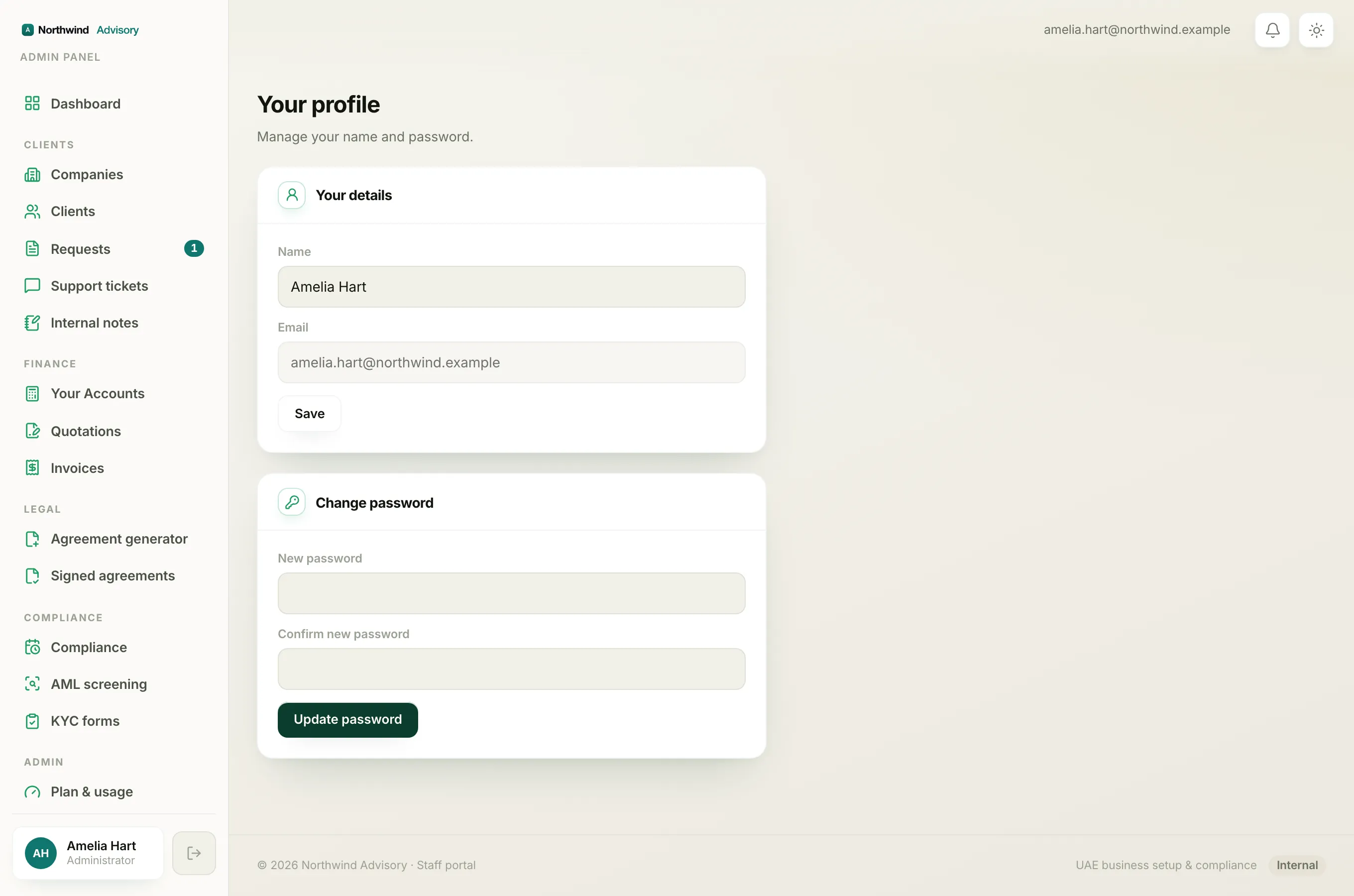
- Log in to your workspace.
- In the bottom of the left menu you will see your name and role in a small card. Click that card. It opens Your profile.
On a phone, tap the menu button (the lines icon) in the top bar to slide the menu open, then tap your name card at the bottom of the drawer.
Change your password
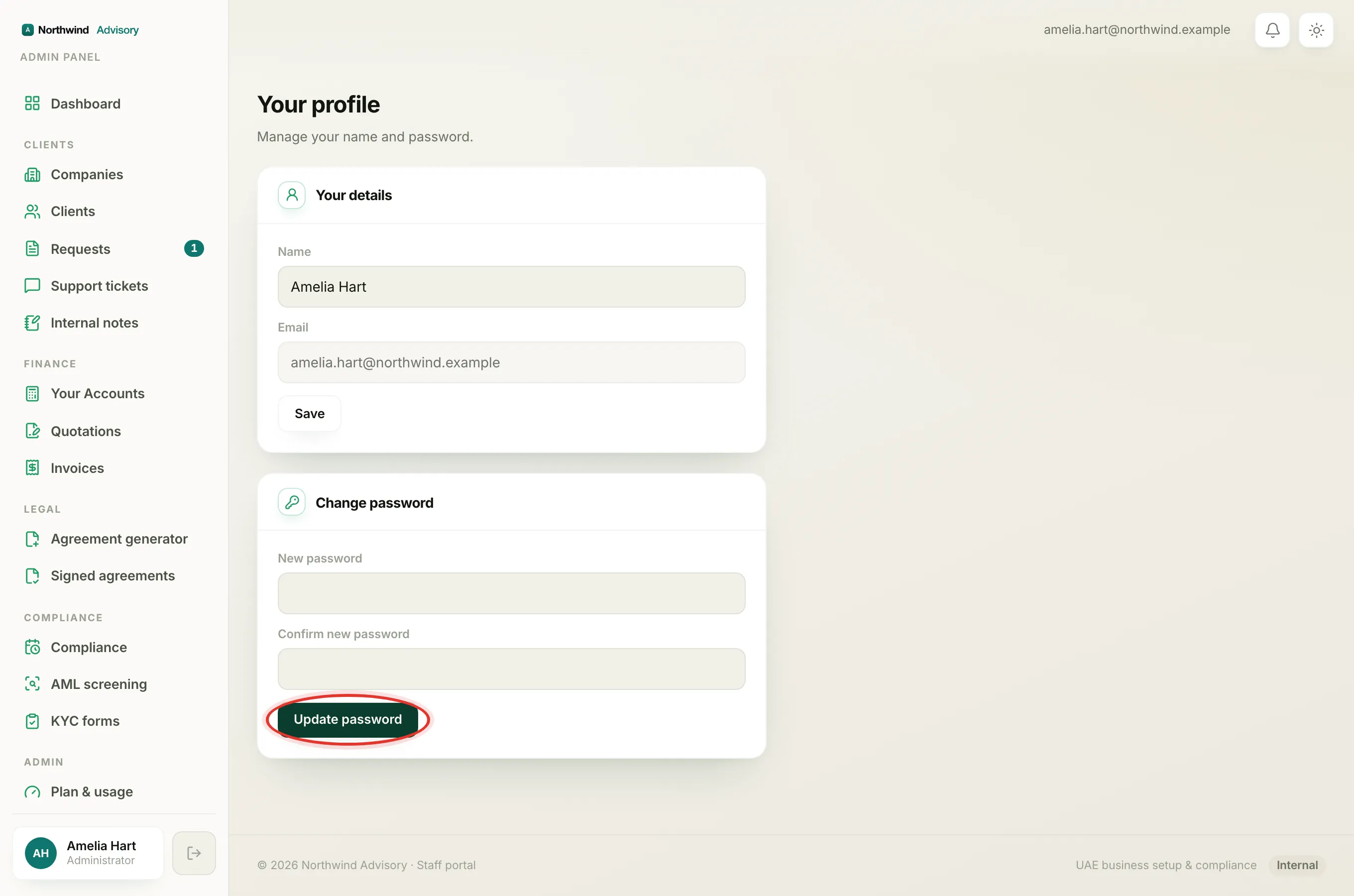
On the profile screen, find the Change password box.
- In Current password, type the password you use now.
- In New password, type the new password you want.
- In Confirm new password, type the same new password again.
- Click Update password.
When it works, you will see the message Password updated. in green. Your new password is live straight away and you use it the next time you sign in.
Note
Your new password must be at least 8 characters long. There is no other rule, but longer is safer.
If you sign in with a magic link
Some people never set a password and always sign in using the emailed magic link. If that is you, there is no Current password box, because there is no current password to check. You are simply setting one for the first time. Fill in New password and Confirm new password, then click Update password. From then on you can sign in with either your email link or your new password.
Errors you might see
- Your current password is incorrect. The password you typed in the Current password box does not match. Try again carefully, watching for caps lock.
- Password must be at least 8 characters. Your new password is too short. Add more characters.
- The two passwords don't match. The New password and Confirm new password boxes are not identical. Type the same thing in both.