What reconciling means
Reconciling is checking that every line on your bank statement matches what is in your books, then locking the month so the figures cannot drift. IzzyTap does the hard part. It suggests a match for each line, and where there is no match it lets you record the transaction in one click.
Note
Matching posts nothing new. It just confirms what is already in your books. Recording a line that has no match is the only step that adds a new entry.
Before you start, you need transactions in the account. Bring them in with How to import a bank statement, or add them by hand with How to record a payment.
Open the reconcile screen
- Log in to your workspace.
- In the left menu, under Finance, click Your Accounts.
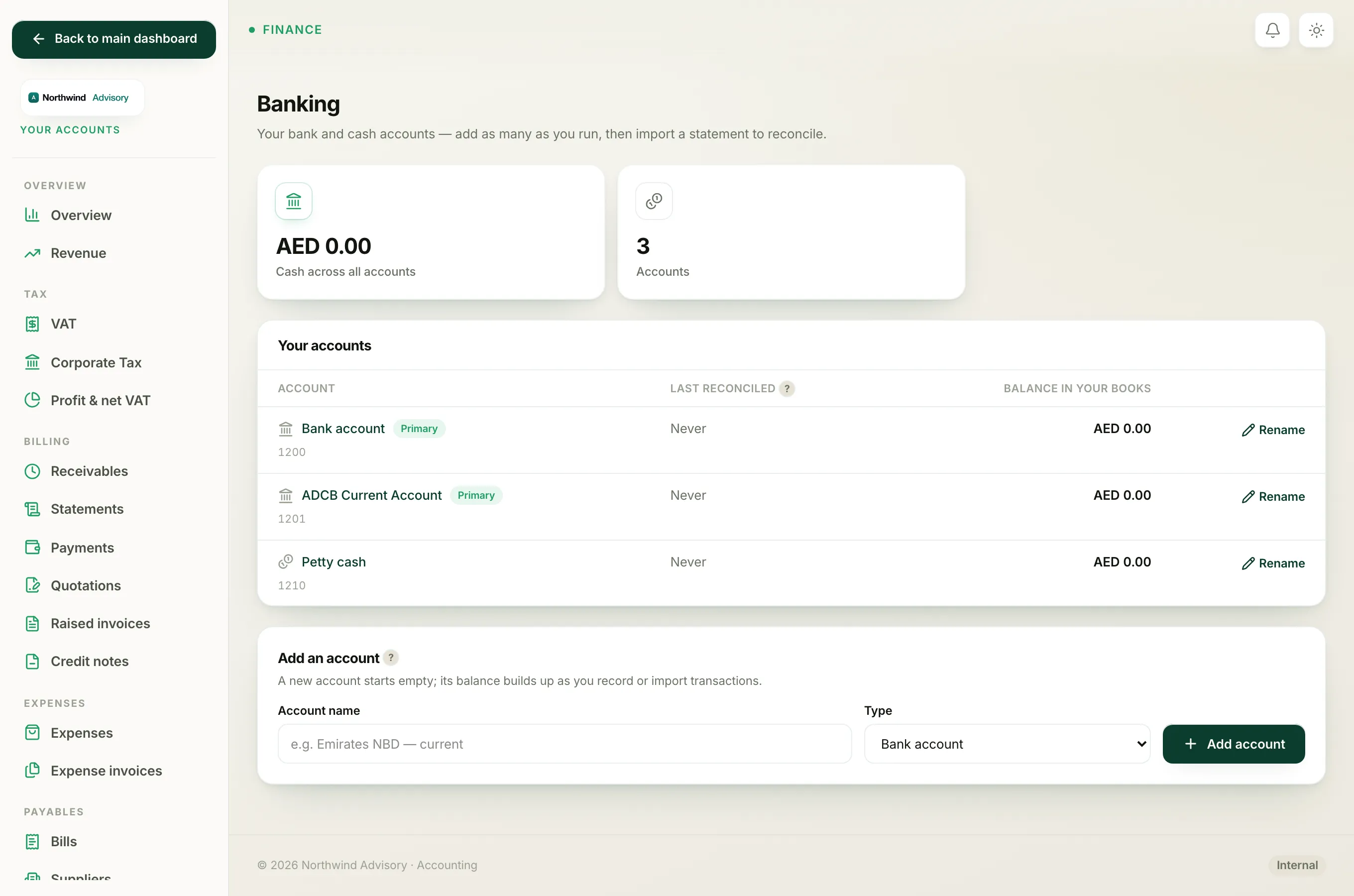
- In the accounts side menu, under Banking, click Bank accounts.
- In the Your accounts list, click the account you want to reconcile.
- On that account's page, click Reconcile. The number in brackets is how many lines are still waiting.
You are now on the Reconcile screen. Two tiles at the top show Still to reconcile and Cleared balance in your books.
Tick off each line
Under To reconcile, each statement line is shown as a card with its description, date and amount. Money out is red, money in is green.
For a line where IzzyTap has found a likely match:
- Read the suggestion, which starts with "Looks like".
- If it is correct, click Match. The line moves down to the ticked list.
- If it is not the right one, click Not a match? Categorise instead, then follow the categorise steps below.
For a line with no match:
- Open the category dropdown and choose the account that best describes the money, for example a type of income or an expense.
- Click Record.
Tip
The categories come from your chart of accounts. If you cannot find the right one, you can add it. See Chart of accounts.
Fix a mistake
Every line you tick off this session appears in the Ticked this session list at the bottom, marked either matched or recorded. If you tick the wrong one, click Undo on that row to send it back to the to-do list.
Finish and lock the month
Once your ticked lines add up, the Cleared balance in your books should equal the closing balance printed on your bank statement.
- Go to the Finish this month box near the top.
- In Statement date, set the date your statement closes.
- In Statement closing balance (AED), type the closing balance exactly as printed on your bank statement.
- Click Finish & lock.
If the two figures agree, IzzyTap locks the month so the numbers cannot change by accident.
Important
If the balances do not match, do not force it. A gap usually means a line is missing, imported twice, or ticked to the wrong category. Go back through the To reconcile list, fix the odd line, then try Finish & lock again.
Review or undo a finished month
Finished months are listed on the account page under Finished reconciliations, showing the date, the statement balance and when it was locked. If you locked one in error, click Undo on that row to reopen it.
You can also download a reconciliation report from the account page. Next to Reconciliation report, click PDF, XLSX or CSV.