Near the top of your Dashboard, just under the Needs attention list, sits a row of number cards. They are the quick pulse of your firm: how much work is waiting, how much money is owed to you, and what is coming due. Each card is a live count at the moment the page loads, and each one is clickable.
Where to find them
- Log in to your workspace.
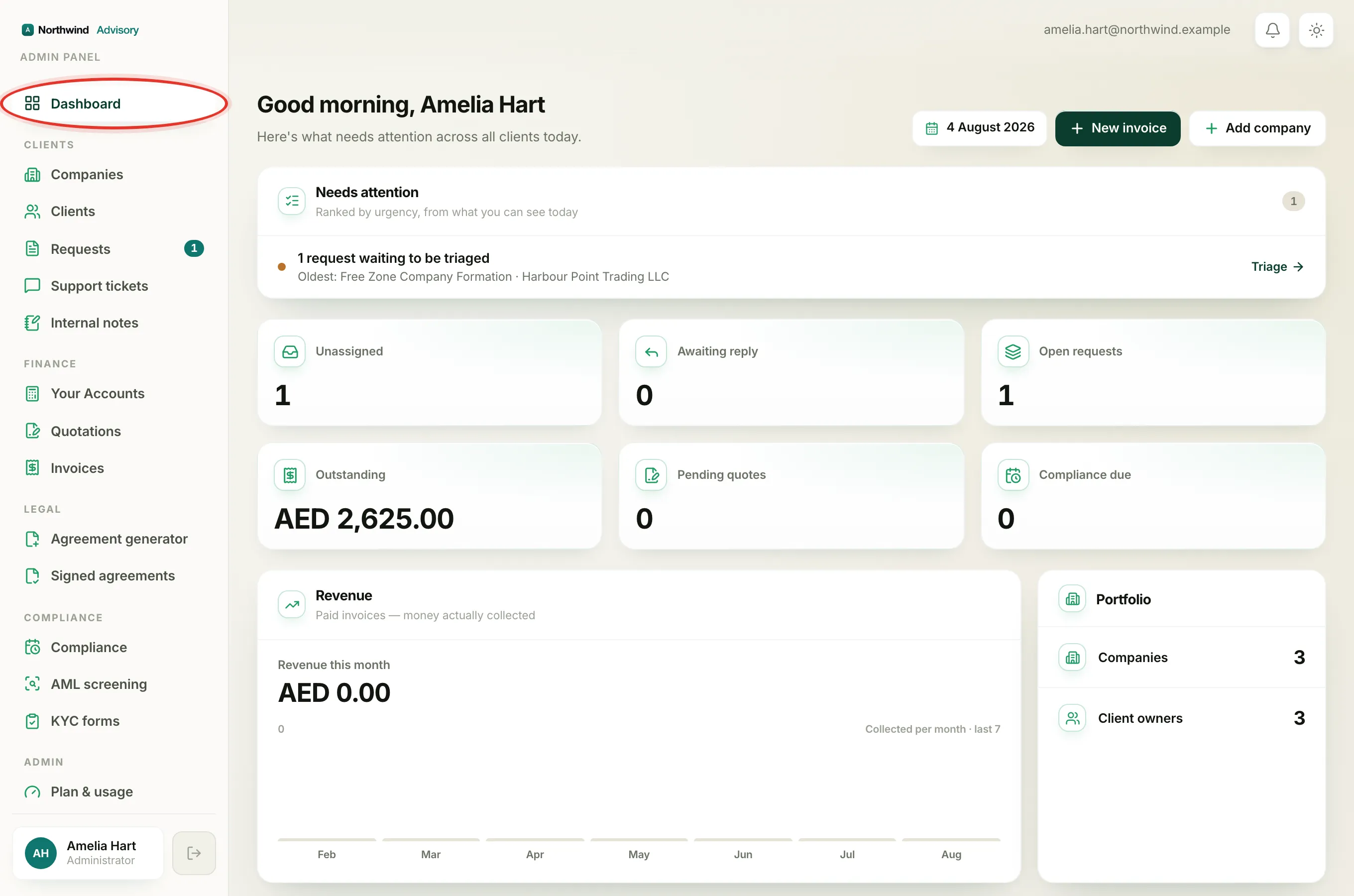
- In the left menu, click Dashboard.
- Look at the row of cards below the Needs attention panel.
Tip
Every card is a shortcut. Click a card and it opens the exact screen the number came from, already filtered, so you land straight on the work instead of hunting for it.
The six numbers, one by one
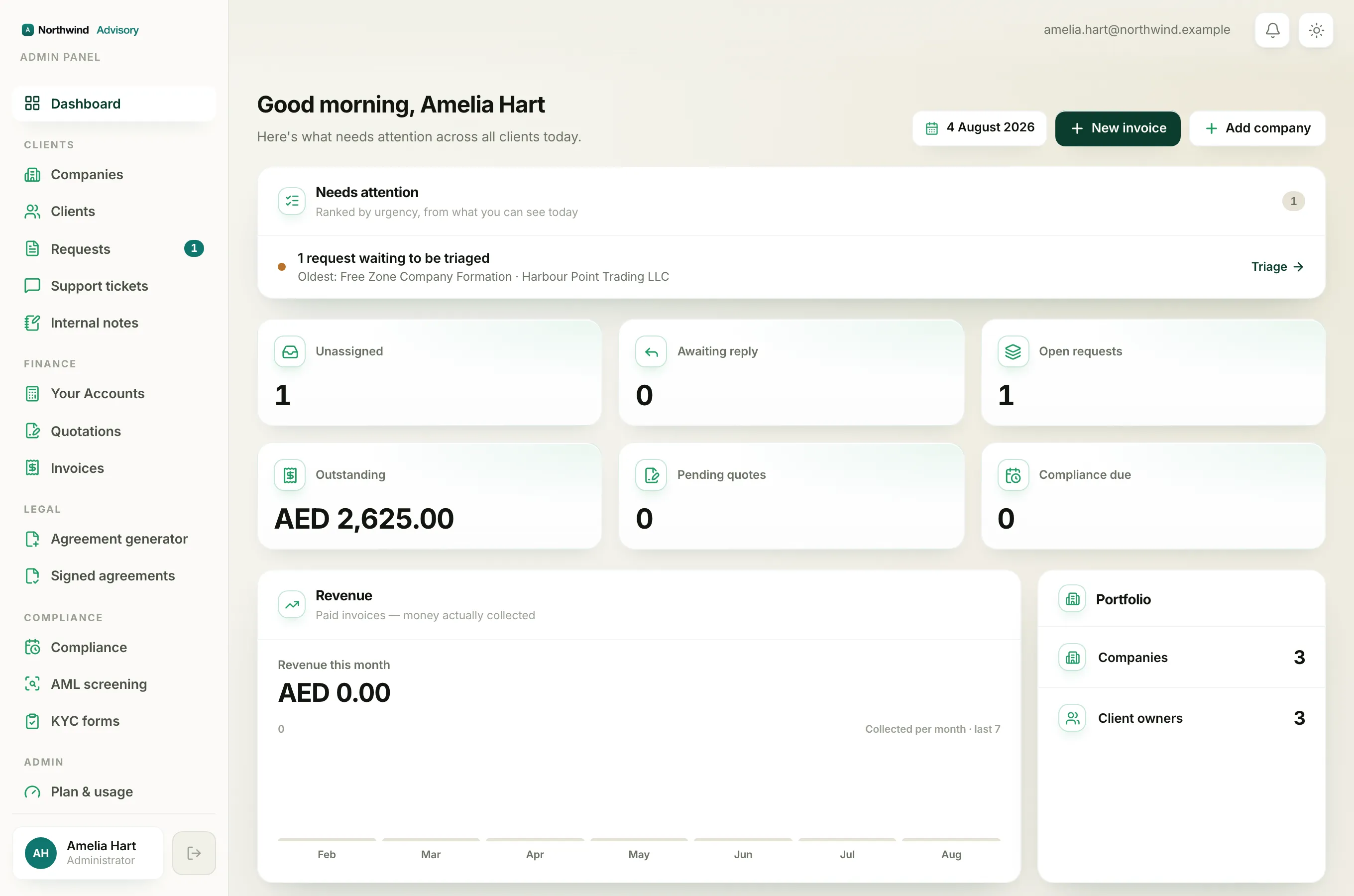
If you can see the whole firm, you get six cards laid out in two rows of three.
- Unassigned: the number of service requests that nobody on your team owns yet. Click it to open Requests showing only the unassigned ones, ready to hand out. See Assign a request to a teammate.
- Awaiting reply: requests where the client sent the last message, so the ball is in your court. Click it to open Requests sorted with the longest-waiting first.
- Open requests: every request that is still in progress. A request stops counting here once it is completed or cancelled. Click it to see all open requests.
- Outstanding: this one is money, not a count. It is the total value of invoices you have sent that are not yet paid, adding together the ones marked Sent and the ones now Overdue. It shows in your currency.
- Pending quotes: the number of quotations you have sent that the client has not yet accepted. Click it to open Quotations.
- Compliance due: the number of filing and renewal deadlines falling in the next 30 days. Click it to open Compliance.
Note
These are point-in-time counts, not trends. There is no little graph on them, because each one is simply a snapshot of right now. The one real trend on the page is the revenue chart lower down. See Read the revenue chart on your dashboard.
If you only see two numbers
Some team members see just two cards, Awaiting reply and Open requests, and no money or compliance numbers at all. That is not a fault. It happens when your access is set to your own assigned clients rather than the whole firm, so the dashboard shows you only the requests in your hands. The full explanation is in Why your dashboard differs from a teammate's.
Why a number might look off
- The cards refresh when the page loads. If a teammate just assigned a request or recorded a payment, reload the Dashboard to see the new figure.
- Outstanding counts only invoices your firm has raised and sent. A draft invoice you have not sent yet is not in the total.
- The ranked Needs attention list above the cards reads the same underlying data, so the two always tell a consistent story.