Your plan is easy to understand. Almost everything is unlimited, you pay per staff member, and you manage all of it yourself. This guide gives you the full picture and points you to the details.
What is unlimited
Your plan puts no limit on your everyday work. You get, with no cap on how much you use:
- Unlimited invoices
- Unlimited quotations
- Unlimited clients and companies
- Unlimited documents
- Accounting and bookkeeping
- Tasks and work
- The client portal
Only two things are counted each month, and both reset on the first of the month:
- AML screenings
- E-signatures
You get a monthly allowance of each per user, and you can buy a top-up any time you need more. Everything else on the list above is yours to use as much as you want.
What you get in the full bundle
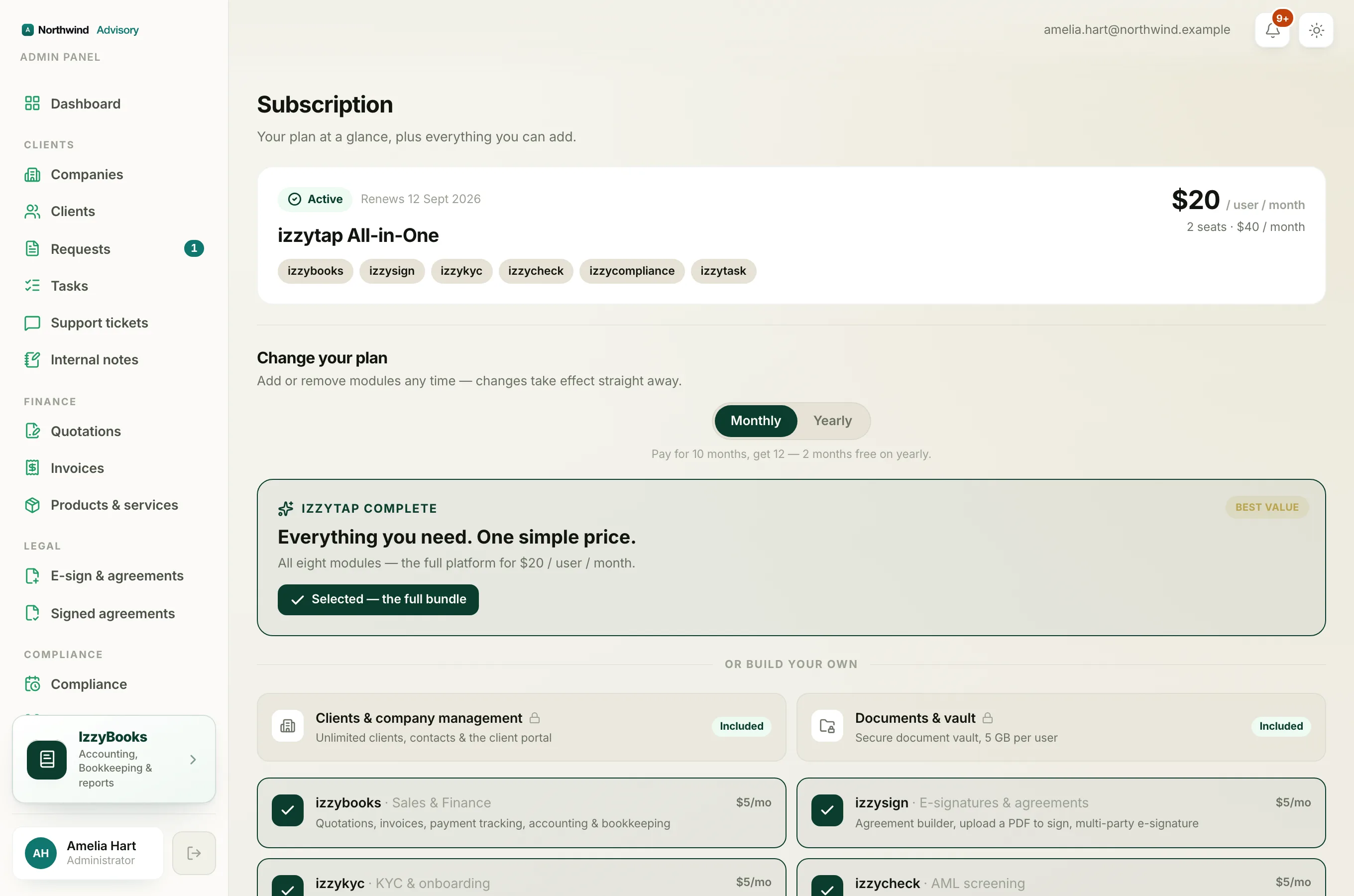
The full bundle is called IzzyTap complete. It gives you every package in one plan:
- Invoicing and finance (izzybooks): quotations, invoices, payment tracking, accounting and bookkeeping
- E-signatures and agreements (izzysign): build an agreement or upload a PDF, then get it signed by one or more people
- KYC and onboarding (izzykyc): KYC forms, digital intake, and an onboarding workflow
- AML screening (izzycheck): sanctions, PEP, and adverse-media checks with a risk rating
- Compliance and renewals (izzycompliance): reminders, renewals, and deadline tracking
- Work and tasks (izzytask): tasks, workflow, and time tracking
Two more packages are always included at no extra cost, on every plan:
- Clients and company management: unlimited clients, contacts, and the client portal
- Documents: your secure document vault
How pricing works
You pay per seat. A seat is one paid staff member who can log in and work. You have two ways to pay:
- Take the full bundle. Every package above for $20 per user each month, or $200 per user each year. This is the simplest choice and the best value.
- Or build your own plan. Pick only the packages you want, at $5 per user each month for each one. For example, invoicing on its own, or e-signatures, KYC, or AML on their own, are each $5 per user. Clients and Documents are always free.
Once you pick four packages you are already at the $20 bundle price, so the full bundle gives you the other two at no extra cost.
Pay for a year and you get two months free, on the bundle and on single packages.
Your free trial
New firms start on a 7 day free trial with full access to everything, and no card needed. When the trial ends, you start a plan to carry on. If you do not start a plan, your paid features pause, so you cannot create new invoices, quotations, KYC forms, AML screenings, e-signatures or tasks until you subscribe. Nothing is deleted, everything you created during the trial stays safe, and your clients and documents keep working. See What happens when your trial ends.
Where to manage it
All of this lives in the left menu under Admin:
- Subscription is where you pick or change your plan, switch between monthly and yearly, and manage your card, invoices, cancel, and resume. See Choose or change your plan.
- Usage and top-ups shows this month's AML screenings and e-signatures, your storage, and lets you buy a top-up when you run low. See Understand usage and top-ups.
- Staff is where you add team members and buy or reduce seats. See Buy or reduce staff seats.
Note
Some internal workspaces are not metered at all. If yours is one of those, your usage screen simply says the workspace has no limits.
Related
- Change your plan or switch between monthly and yearly. See Choose or change your plan.
- See what each month costs and how usage works. See Understand usage and top-ups.