What this is
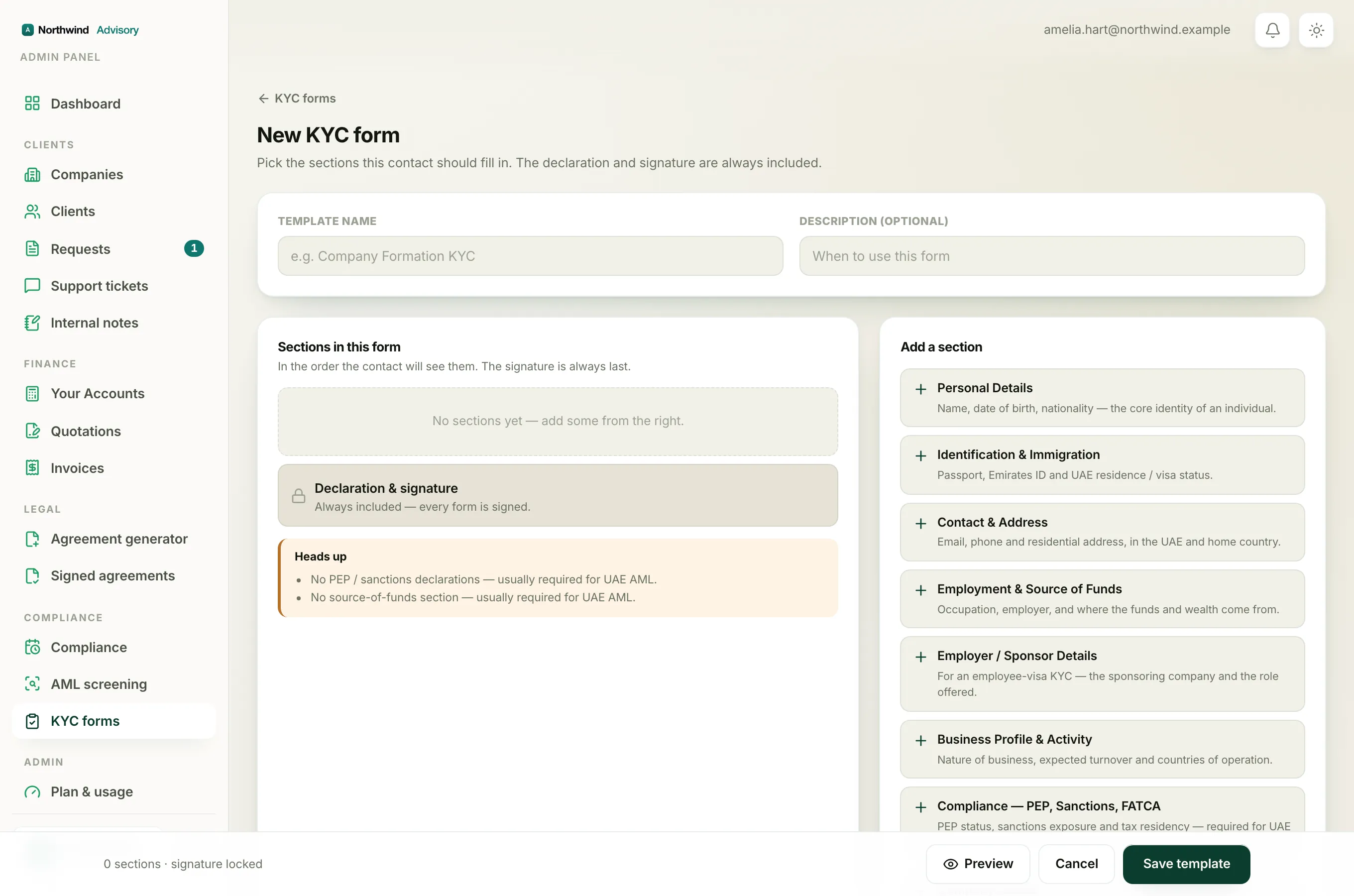
Every KYC form ends with a section called Declaration & signature. It is always there, on every form you build, and you cannot move it or take it out. It is what turns a completed KYC into a signed, legal record.
In the form builder you will see it at the very bottom of the Sections in this form list, with a small lock icon and the note "Always included, every form is signed." There are no arrows or remove button on it, because it never moves and never comes off. The bar at the bottom of the builder also reminds you the signature is locked.
What the declaration section contains
The section holds a fixed declaration statement plus the fields the contact completes at the end of the form:
- The declaration statement. A block of text confirming that everything in the form is true, accurate, complete and not misleading, and that the person will tell you in writing if anything changes. This wording is set and cannot be edited.
- Completed by, name. The name of the person filling in and signing the form.
- Position / capacity. The capacity they sign in, for example owner, director or authorised signatory.
- Signature. A signature the contact draws or types. This is required.
- Date. The date of signing.
- A confirmation tick, labelled "I confirm the information provided is true, accurate and complete." This is also required.
Because both the signature and the confirmation tick are required, a contact cannot submit the form until they have signed and ticked the box.
Why it cannot be removed
KYC is a compliance record. To be useful to you and to a regulator, it has to be signed and dated by the person who gave the information, with a clear declaration that it is true. If the signature were optional, you could end up with unsigned forms that do not stand up. Building the declaration into every form means every submission comes back as a signed record you can rely on.
Note
The declaration is always the final step of the form, after every other section. You control the order of all the other sections, but this one stays last. See Reorder or remove sections in a KYC form.
Where the signature ends up
When the contact submits, their answers and signature are saved together and turned into a signed PDF you can open and keep. To read a completed form and its signature, see Review a KYC submission.
Tip
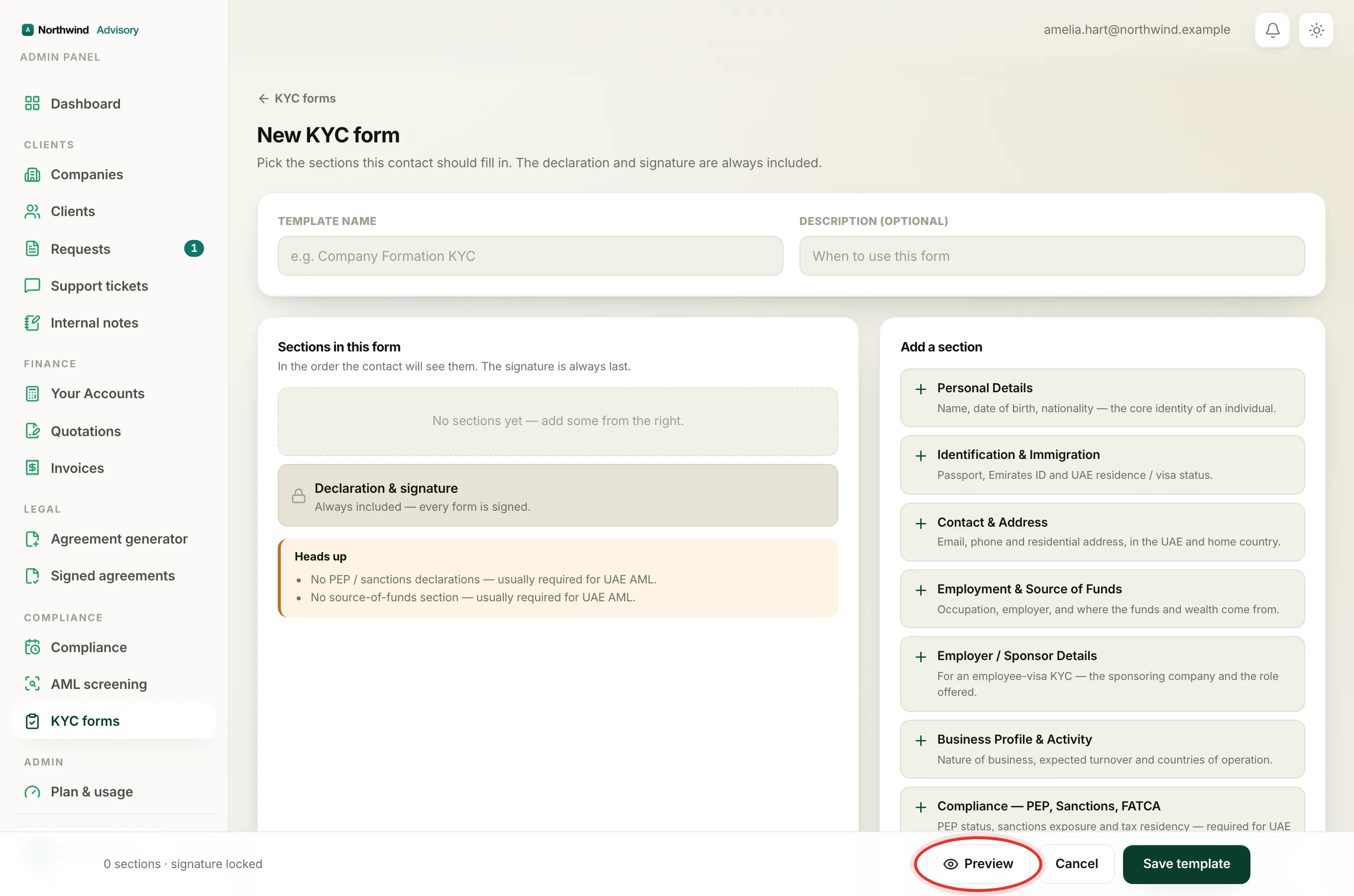
To see the declaration and signature the way the contact will, click Preview at the bottom of the builder. The signature shows as a "Sign here" box. See Preview a KYC form before you save or send it.