What this does
Instead of one fixed form, IzzyTap lets you build your own KYC forms. You pick the sections you want, add any of your own fields, name the form, and save it. The saved form can then be sent to any contact, again and again. A signature and declaration are always included, so every form comes back legally signed.
You build a form once. When you send it, that exact version is frozen onto the request, so editing the form later never changes a form someone has already been sent.
Start a new form
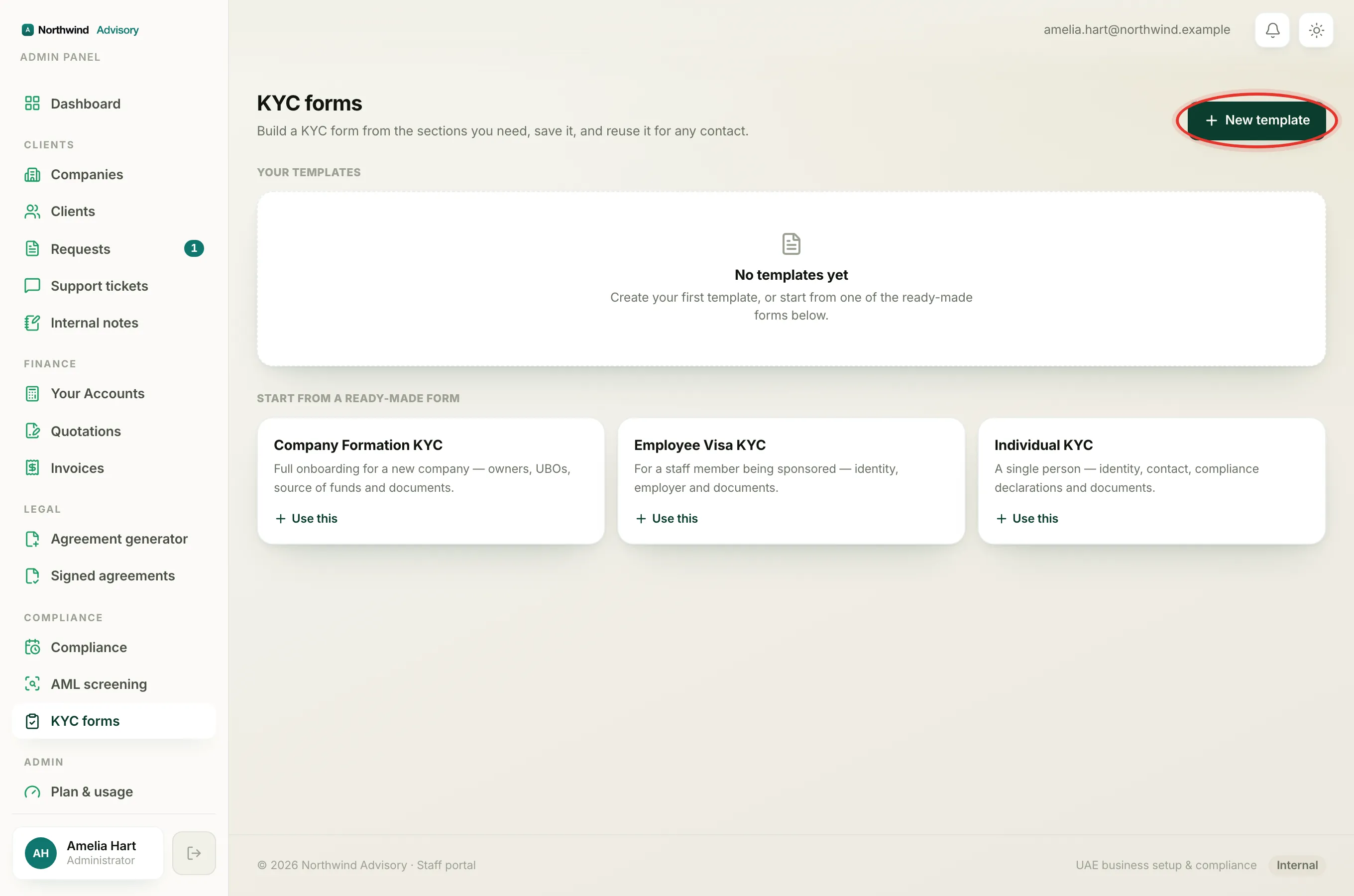
- Log in to your workspace.
- In the left menu, under Compliance, click KYC forms.
- You have two ways to start:
- Click New template at the top right to build from a blank form.
- Or, under Start from a ready-made form, click Use this on one of the starter forms. These come pre-filled with common sections that you can then change:
- Company Formation KYC for onboarding a new company.
- Employee Visa KYC for a sponsored staff member.
- Individual KYC for a single person.
Name your form
- In the Template name box, type a clear name, for example "Company Formation KYC". You need a name to save.
- In the Description (optional) box, you can note when to use this form. This is just for your own reference.
Choose the sections
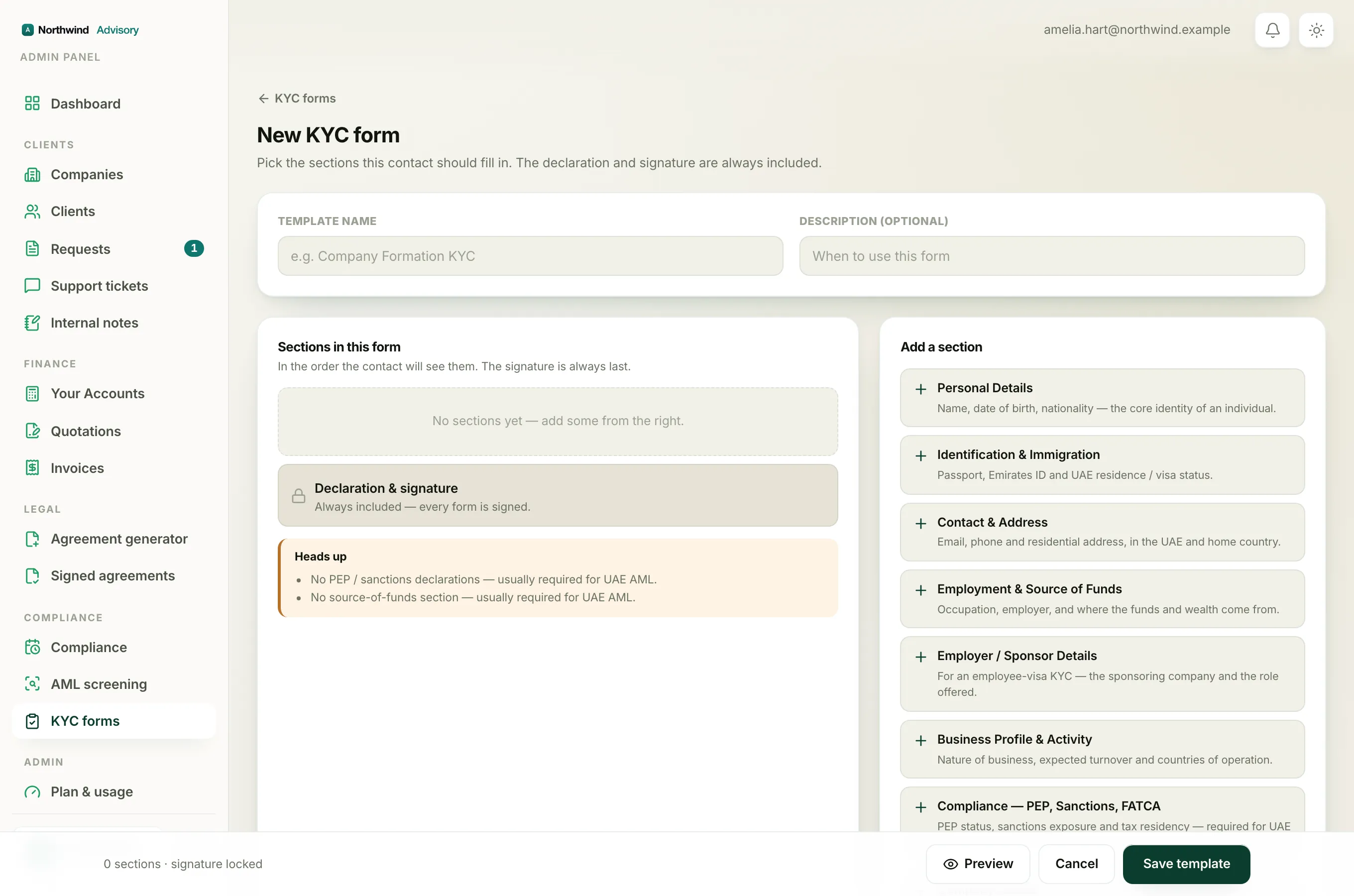
The form is built from ready-made sections. Each section is a group of related questions.
- Look at the Add a section panel on the right. It lists every section you have not added yet, such as Personal Details, Identification & Immigration, Contact & Address, Employment & Source of Funds, Compliance, PEP, Sanctions, FATCA, Company Details, Partner / Shareholder Details, Ultimate Beneficial Owner (UBO) and Document Uploads.
- Click a section to add it. It moves into the Sections in this form panel on the left.
- To set the order the contact sees them in, use the up and down arrows on each section.
- To take a section out, click the small x on it.
Note
Some sections are marked Repeatable, like Partner / Shareholder Details and UBO. On a repeatable section the contact can add as many blocks as they need, one per person.
Important
If you leave out a section that UAE KYC usually needs, a Heads up note appears with a reminder, for example when there is no PEP or sanctions section, no source-of-funds section, or a company form with no UBO section. This is only a reminder. You can still save and send the form as it is.
Add your own field
If you need a question that is not in any section, add a custom field.
- Find the Custom field panel on the right.
- In the field label box, type the question, for example "LinkedIn profile".
- Pick the answer type from the dropdown: Text, Long text, Date, Number, Phone, Email, Dropdown, Yes / no, or Document upload.
- Click Add.
Your custom fields collect together under an Additional details block. Every custom field you add is also saved to your library. Next time, it shows up under From your library so you can add it again with one click.
The signature is always there
At the bottom of the sections list you will see Declaration & signature with a lock icon. This is always included and cannot be removed. It holds the legal declaration, the signature, and a confirmation tick. This is what makes every submitted form a signed record.
Preview and save
- To see the form the way the contact will, click Preview in the bar at the bottom. Close the preview when done.
- When you are happy, click Save template (it reads Save changes if you are editing an existing form).
You return to the KYC forms page and your form appears under Your templates.
Edit, reuse or delete a form later
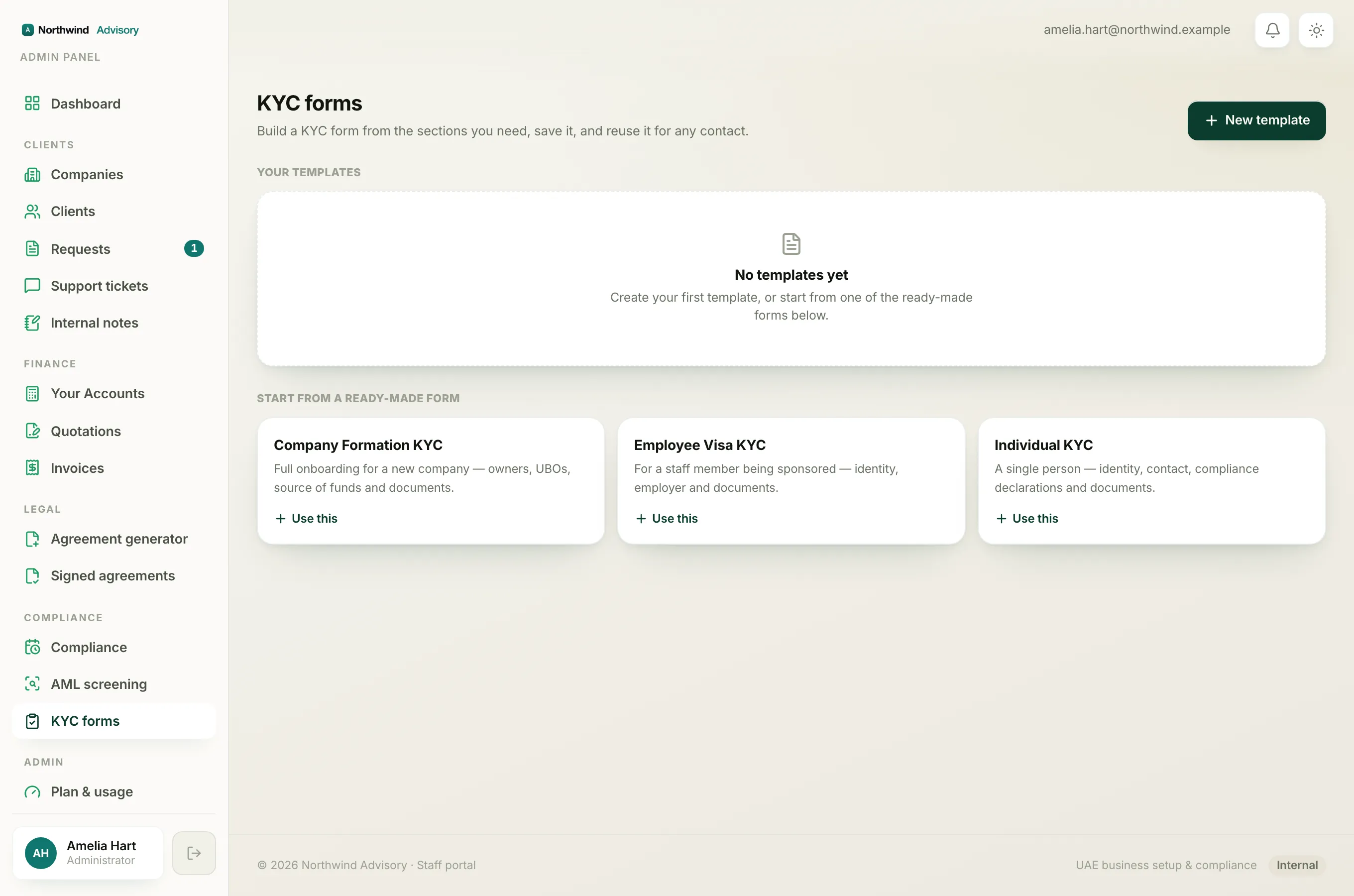
On the KYC forms page, each saved form has three buttons:
- Send to send it to a contact. See send a KYC form.
- Edit to open it in the builder and change it.
- The bin icon to delete it.
Tip
Editing a saved form does not change any form already sent to a contact. The version they received is frozen at the moment you sent it, so their in-progress form stays exactly as it was.