What the letterhead is
Your letterhead is the set of firm details that print on every invoice, quotation and PDF you send: your address, how clients reach you, where they pay you, and any standard terms or footer note. Set it up once and it appears on every document automatically, so you never retype it.
Before you start, it helps to have your legal name and tax ID in place. Your tax ID field is labelled by your country. It reads TRN in the UAE, GSTIN in India, VAT No. in the UK, and so on. See Add your TRN and legal entity name.
Open the brand settings
- Log in to your workspace.
- In the left menu, under Admin, click Brand.
The letterhead details live in two cards further down the page: Contact and Payments & documents.
Fill in your contact details
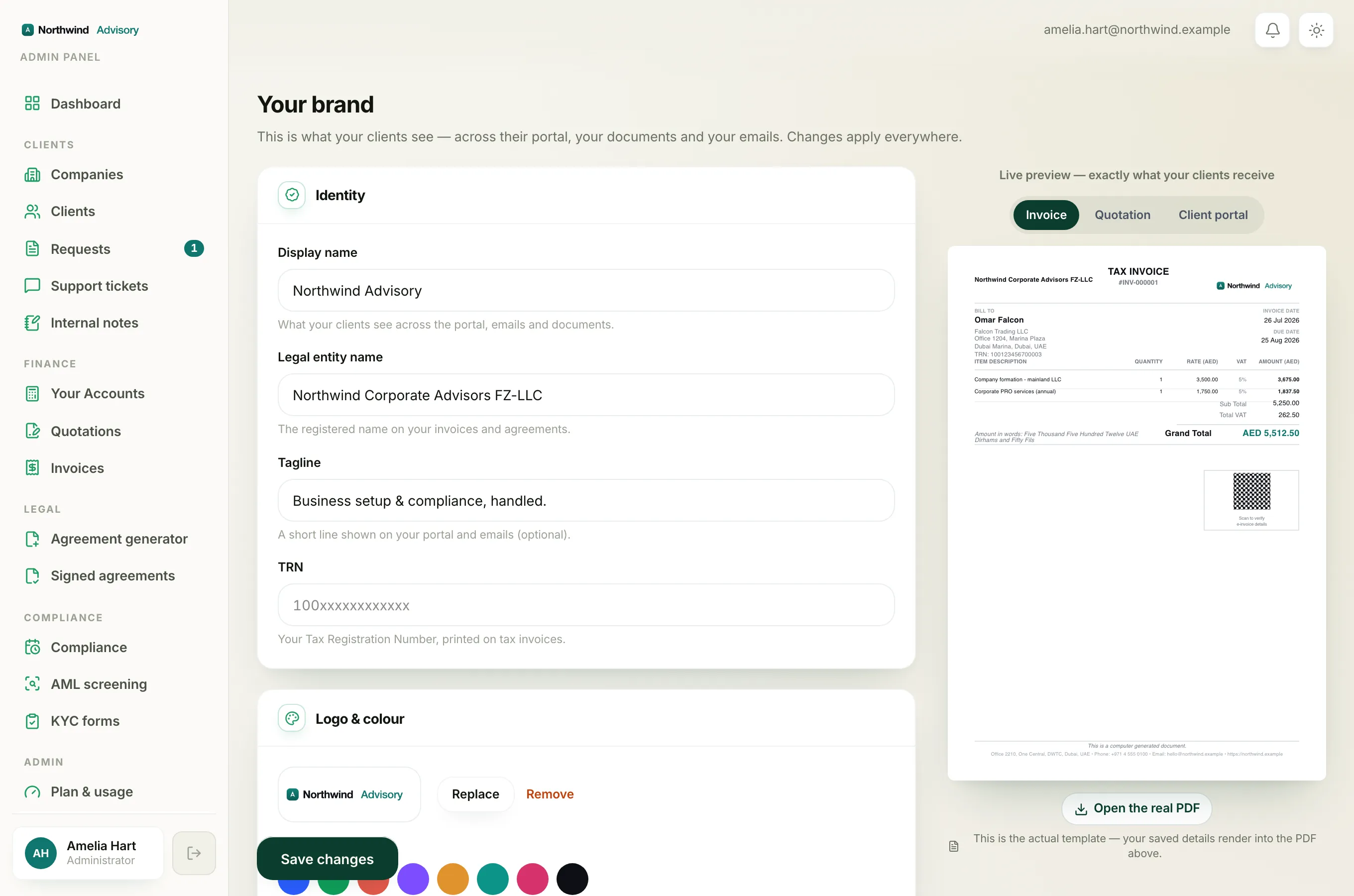
In the Contact card:
- Address: type your firm's street address. You can use more than one line.
- Emirate: this field only appears if your firm is based in the UAE. If you see it, choose your trade-licence emirate from the list. The hint explains it is "the place of supply for box 1 of your VAT return," so pick the emirate on your licence. Firms in other countries do not see this field, so skip this step.
- Phone: your firm phone number.
- Email: your general firm email.
- Website: your firm website address.
- Support email: where client "contact us" links point, if different from your main email.
Fill in your payment and document details
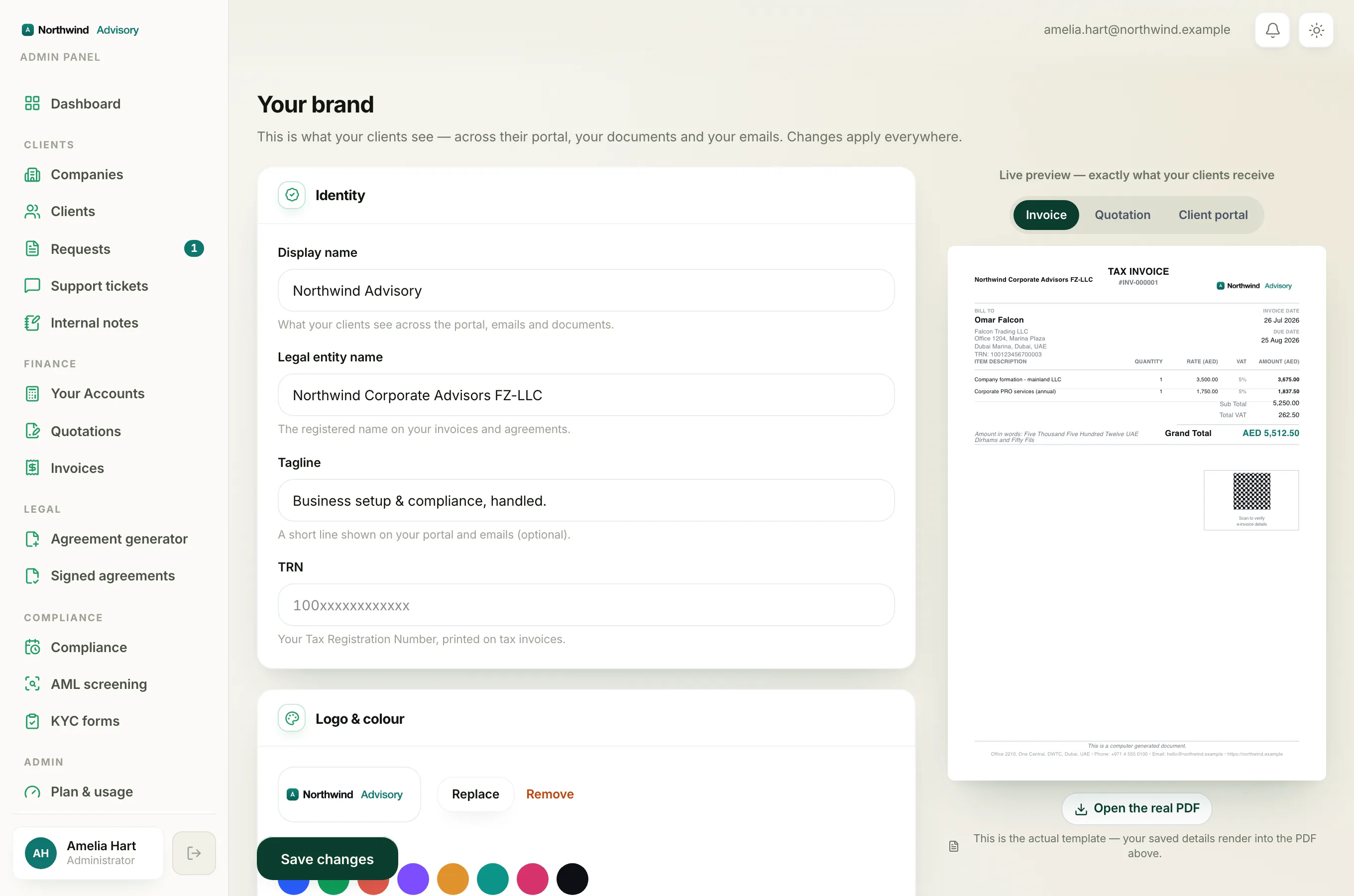
In the Payments & documents card:
- Bank details: type your bank name, account name and IBAN or account number, one per line. The hint reads "Printed on invoices for pay-by-transfer," so this is what a client uses to pay you by bank transfer.
- Default payment terms: the standard terms line you want printed on documents.
- Document footer note: a short line at the bottom of every document, for example "This is a computer-generated invoice."
Tip
Enter your bank details carefully. This block is what clients copy to pay you, so a wrong account number means a delayed or misdirected payment.
Save and preview
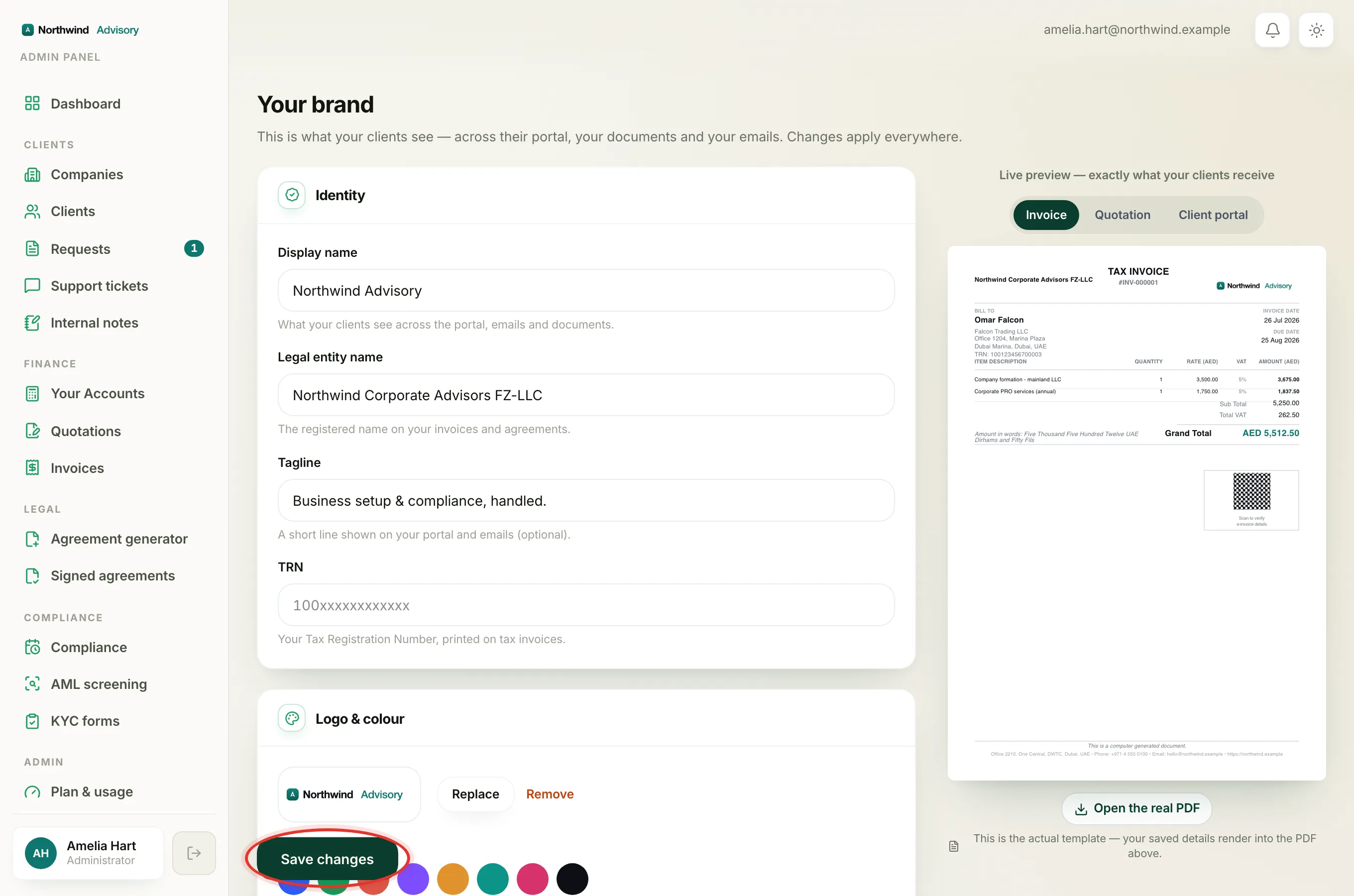
- Click Save changes. A green Saved confirmation appears.
- On the right, use the Live preview panel. Switch to the Invoice or Quotation tab to see your address, bank block, terms and footer land on the real document template. The preview also shows your own currency and tax label, so it matches what your clients receive.
- Click Open the real PDF to build a genuine sample and confirm everything prints where you expect.
Note
Anything you leave blank simply does not print. So if you do not want a footer note, for example, leave that box empty.
Related
Your letterhead works alongside your logo and brand colour. Once it is set, everything flows through automatically when you create an invoice.