When your business pays VAT on a cost, that VAT can often be claimed back on your VAT return. This is called input VAT. IzzyTap only counts an expense's VAT as reclaimable when you tell it to, so it is worth understanding the settings before you record.
The three fields that decide it
On any expense (whether you are reviewing a scanned receipt or editing a recorded one), three fields work together:
- VAT (AED) is the tax amount on the receipt.
- VAT treatment describes the kind of VAT.
- VAT reclaimable is the tick box that actually decides whether IzzyTap adds this VAT to what you can claim back.
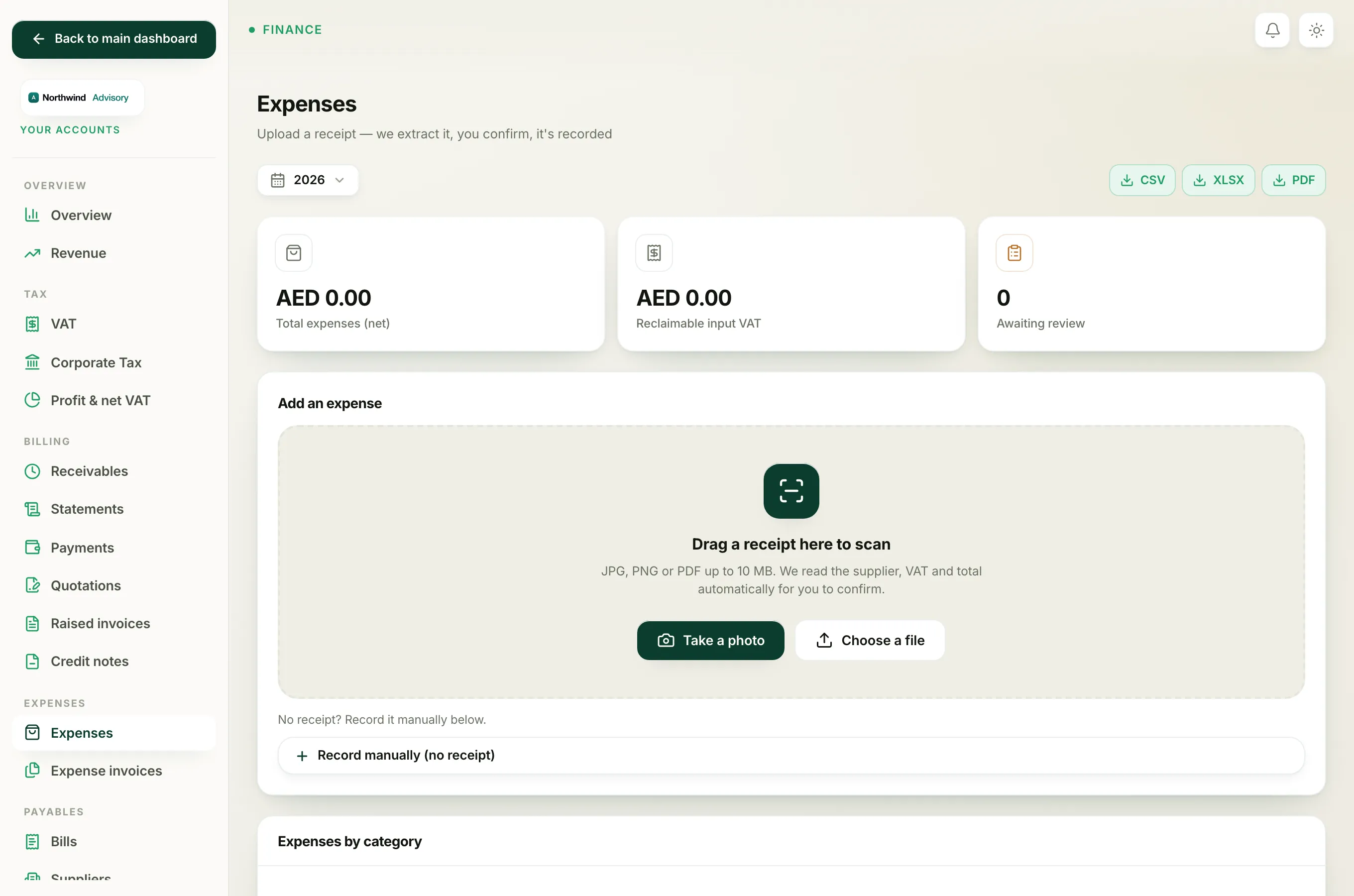
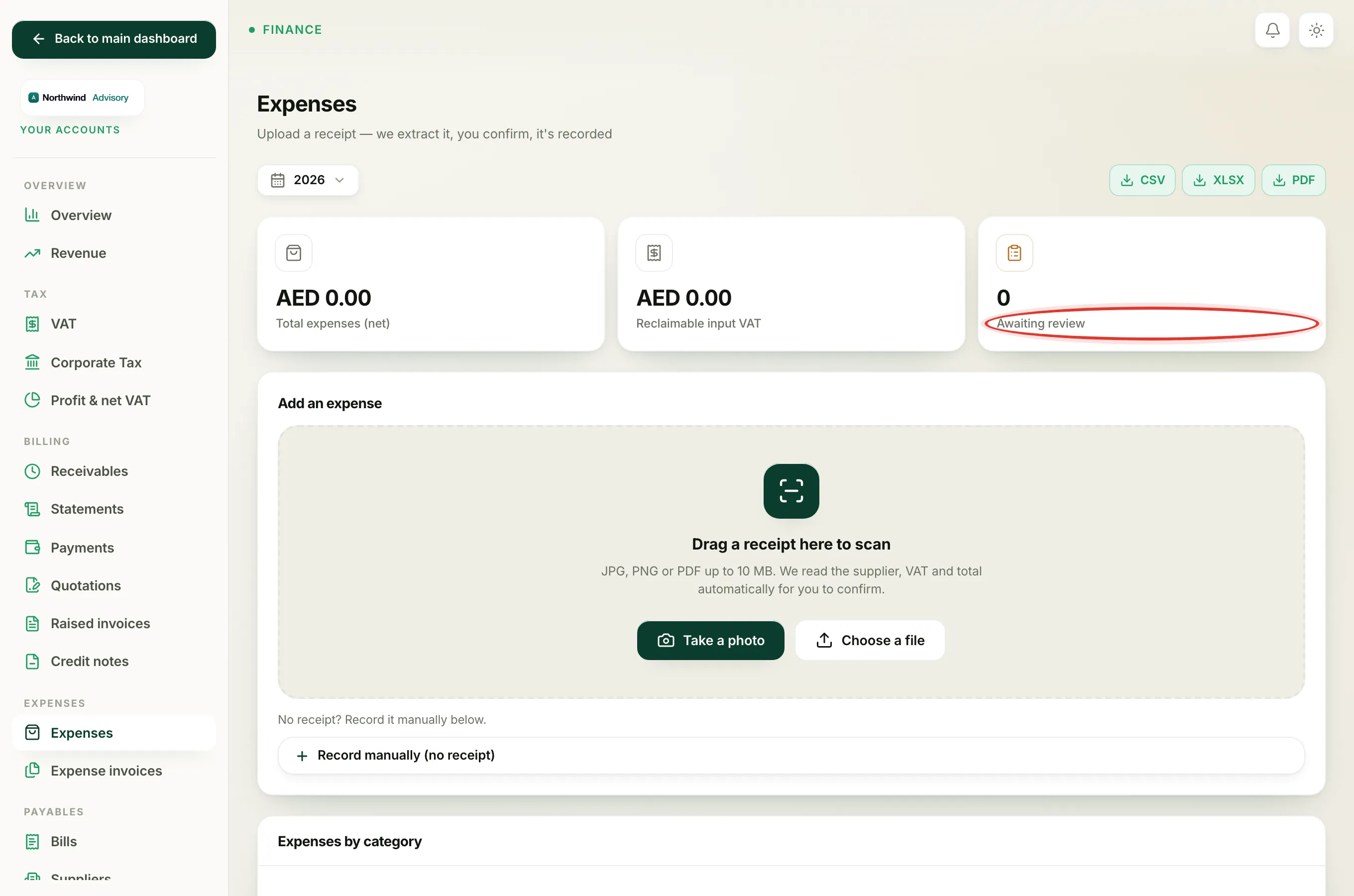
Only expenses with VAT reclaimable ticked feed the Reclaimable input VAT total at the top of the Expenses page.
VAT treatment options
The VAT treatment dropdown offers:
- Standard 5% for a normal UAE cost that carries 5% VAT.
- Zero-rated for supplies charged at 0%.
- Exempt for costs that fall outside VAT, such as certain financial services.
- Out of scope for costs with no UAE VAT at all.
- Reverse charge for imports and cross-border services where you account for the VAT yourself.
Pick the one that matches the receipt. Most everyday local costs are Standard 5%.
The no-TRN warning
To reclaim VAT, you need a proper tax invoice from the supplier, and a tax invoice shows the supplier's TRN (Tax Registration Number).
If the Supplier TRN field is empty, an amber note appears next to the VAT reclaimable tick box:
no TRN, may not be reclaimable
This is a gentle heads-up, not a block. It is reminding you that without a TRN on file, the tax authority may not accept the claim. If you have the supplier's TRN, type it into Supplier TRN so you have a valid tax invoice on record.
Tip
Typing a Supplier TRN also marks the expense as a tax invoice, which is exactly the paperwork you want to hold if the reclaim is ever queried.
How to set an expense as reclaimable
- Log in to your workspace.
- In the left menu, under Finance, click Your Accounts.
- In the accounting menu, under Expenses, click Expenses.
- Open the expense: click Review on a receipt in the Needs review panel, or Edit on a row in the Recorded panel.
- Enter the Supplier TRN from the receipt.
- Enter the VAT (AED) amount and choose the right VAT treatment.
- Tick VAT reclaimable.
- Click Confirm & record (or Save changes if it is already recorded).
The expense now shows a green Reclaimable pill in the Recorded list, and its VAT is added to your Reclaimable input VAT total.
Note
A supplier bill works the same way. If you track a cost as a bill rather than a paid receipt, see Reclaim VAT on a supplier bill.
The input VAT you gather here flows into your VAT return. To see how expenses and bills combine into the VAT you claim back, read Reclaim input VAT from expenses and bills.