The Plan and usage screen is where you see what your firm pays, where you are in your trial or subscription, and how much of this month's usage you have used. This guide walks you through it from login.
Open the screen
- Log in to your workspace.
- In the left menu, under Admin, click Usage and top-ups.
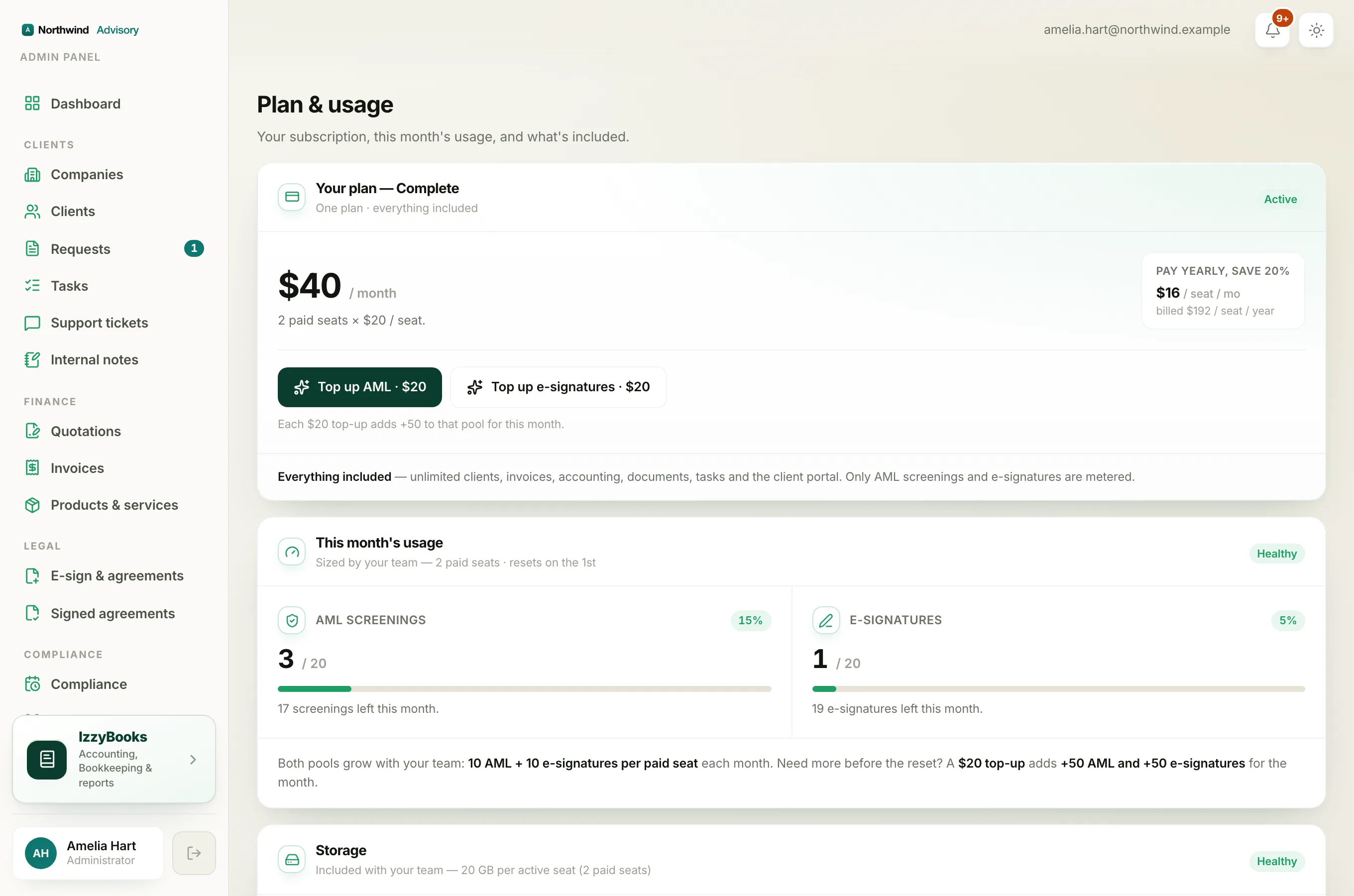
Your trial or subscription status
A band near the top tells you where you stand:
- On a free trial. It reads Free trial with the number of days left. You have full access to everything with no card needed.
- Trial ended, no plan yet. It reads Your free trial has ended. Your paid features pause until you start a plan, so you cannot create new invoices, quotations, KYC forms, AML screenings, e-signatures or tasks. Nothing is deleted. Everything you have already created stays safe and comes back the moment you subscribe, and your clients and documents keep working. See What happens when your trial ends.
- Paying. No band shows, and your plan reads as active below.
Your plan and what it costs
The Your plan card shows the price you pay each month, worked out as your number of paid seats times the price per seat. A chip on the right reads Active, Trialing or Paused. The card also shows the yearly price, which saves you 20%.
Under the price, a line reminds you what is included: unlimited clients, invoices, accounting, documents, tasks and the client portal. Only AML screenings and e-signatures are counted.
To change what you pay for, see Choose or change your plan.
This month's usage
Below your plan are two meters, AML screenings and E-signatures. Each shows how many you have used this month, your total, and how many are left. A chip reads Healthy, Nearly out or Limit reached. Both reset on the first of the month.
For how these amounts are set and how to add more, see Understand usage and top-ups.
Storage
At the bottom is your document storage, shown as how much you have used out of your total. This is for information only. Uploads are never blocked, even if you go over.
Note
If you ever see a message that this workspace has no limits, it is an internal, unmetered workspace. Ordinary firm plans always show the plan card and meters above.