Each of your requests has a conversation thread. It is the single place to talk to your firm about that piece of work, ask a question, or send a document. Everything stays together so nothing gets lost.
Open the conversation
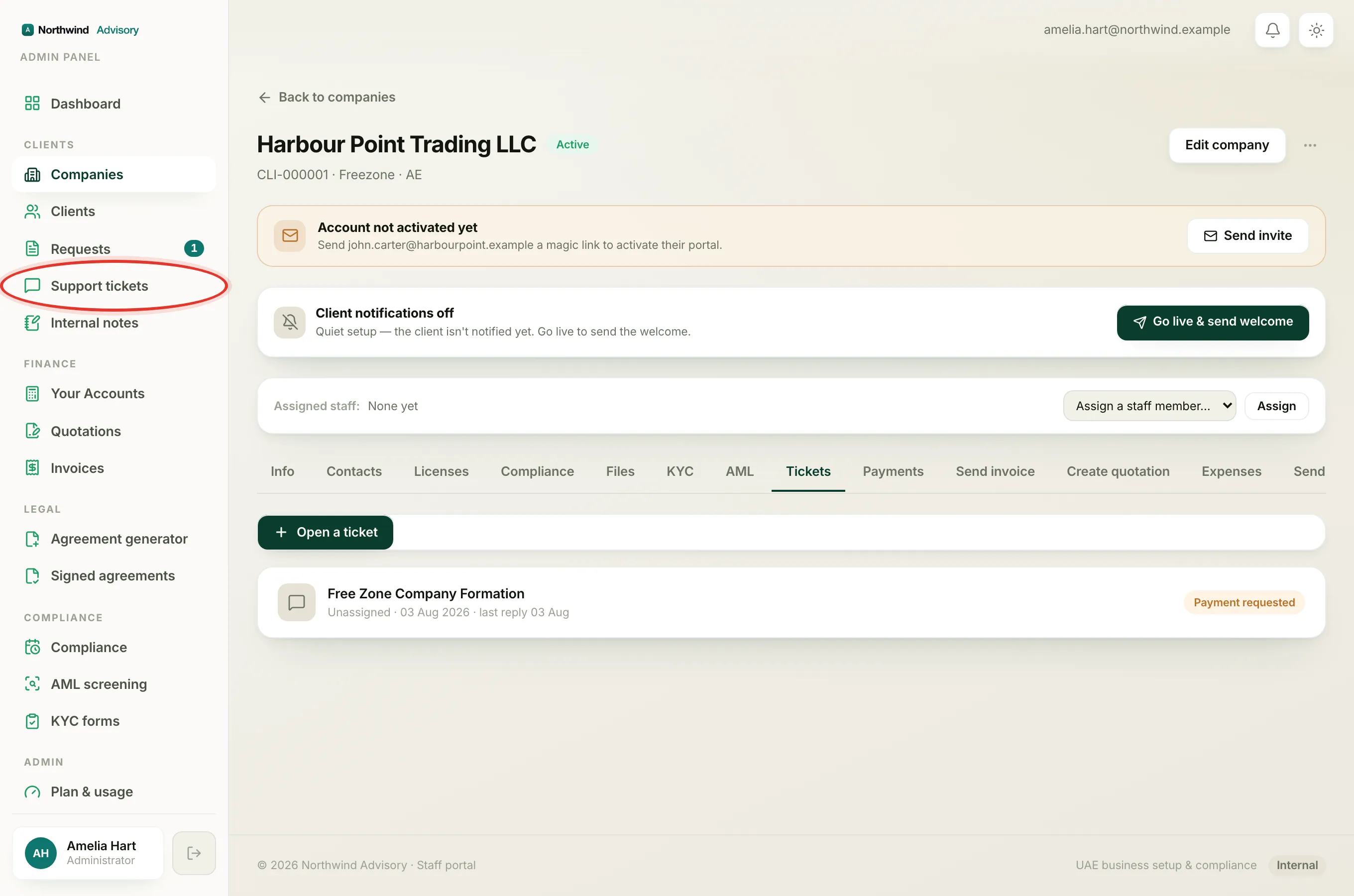
- Log in to your portal.
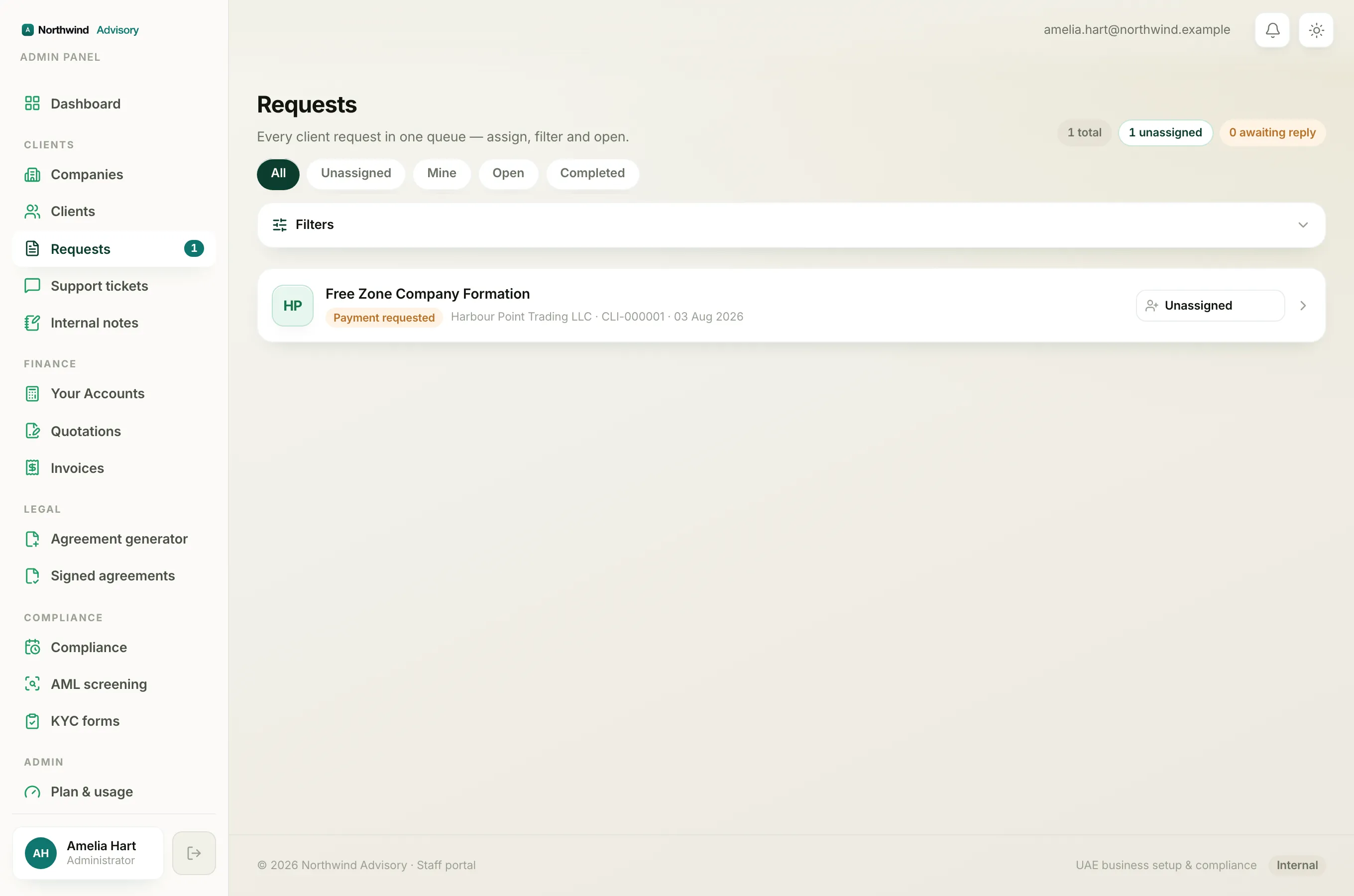
- In the left menu, under your firm's workspace, click Requests.
- Click the request you want to open.
The conversation is in the middle of the page. Your own messages appear on the right in blue. Messages from your firm appear on the left. Short grey notices in the centre mark things like a status change or a payment received.
Send a reply
- Scroll to the reply box at the bottom of the request.
- Type your message in the Write a reply… box.
- Click Send.
Your message appears in the thread straight away and your firm is notified.
Attach a file to your reply
- In the reply box, click Attach (the paperclip).
- Choose a file from your device.
- The file shows as a chip with its name and size. To swap it, click the small x on the chip and pick another.
- Add a short note in the message box if you like.
- Click Send.
The file is sent with your message. It appears in the thread as a link that you and your firm can open at any time.
Tip
Each reply carries one file. To send more than one document, send them in separate replies: attach the first, click Send, then attach the next and Send again.
What you can attach
You can send a PDF, an image (JPG, PNG or WebP), or a Word document, up to 10 MB each. The reply box tells you if a file is the wrong type or too large before you send. For details, see Supported file types and upload limits.
When your firm has asked for specific documents
If your firm is waiting on particular papers, you will see an amber Documents requested card in the thread listing exactly what is needed. See Send documents your firm has asked for.
Just have a general question?
If your question is not about a specific request, you can open a support ticket instead, which starts a fresh conversation with your firm.