You can record how long work takes, so you know where your team's time goes and can bill for it accurately. Time is logged on a task, either with a live timer or by typing the minutes. This guide walks you through it from login.
Log time on a task
- Log in to your workspace.
- In the left menu, under Clients, click Tasks.
- Click a task to open it, and find the Time section.
You have two ways to record time:
- Use the timer. Start the timer when you begin the work and stop it when you finish. The task shows Timer running while it counts.
- Add it by hand. Type the number of minutes in the Mins field, add a short note if you want, and save.
The task keeps a running Time logged total, and lists each entry. A card on the board also shows the total, so you can see effort at a glance.
Note
Only one timer runs at a time on a task, so your totals stay clean. If you forget to stop it, you can fix the entry by adding or adjusting the minutes.
See the time report
To see time across all your work, use the report.
- On the Tasks page, click Time report.
- Choose a date range.
- Switch between By team member and By company to see who spent time, or which client the time went to.
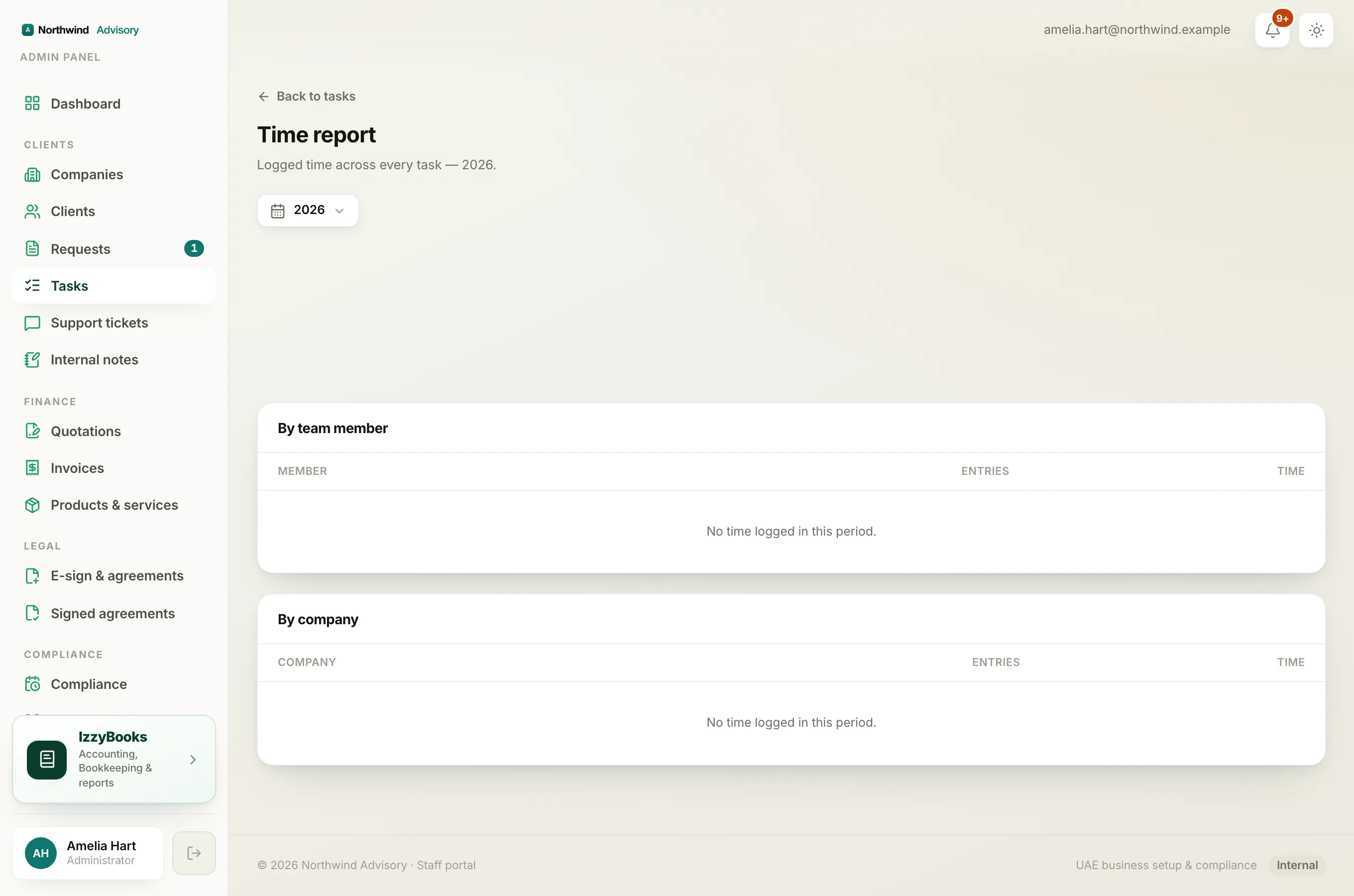
Each row shows the member or company, the number of entries, and the total time. This is useful for understanding workload, planning, and billing a client for the hours spent on their work.
Tip
Log time as you go rather than at the end of the week. A quick timer start is more accurate than guessing later.