What the dashboard is
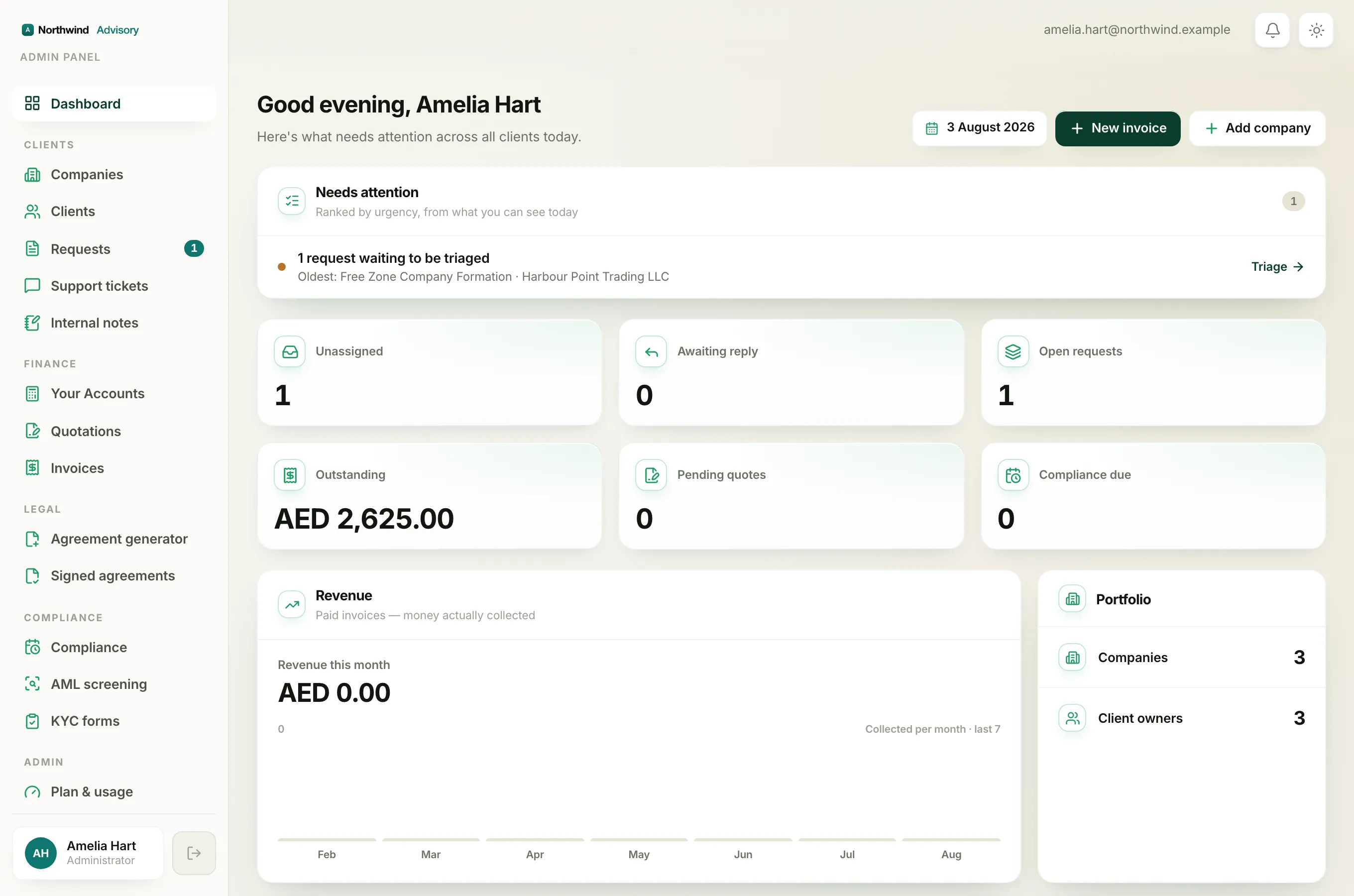
The Dashboard is your home screen. It is the first thing you see after you sign in, and you can always get back to it by clicking Dashboard at the top of the left menu.
It pulls together the work that needs you today so you do not have to go hunting through every section. Everything on it is a live read of your own data. What you see depends on your role, so a teammate's dashboard may show fewer parts than yours.
Getting here
- Log in to your workspace. See How to log in to your workspace if you need it.
- You land on the Dashboard straight away. To return to it from anywhere else, click Dashboard at the very top of the left menu.
The top of the screen
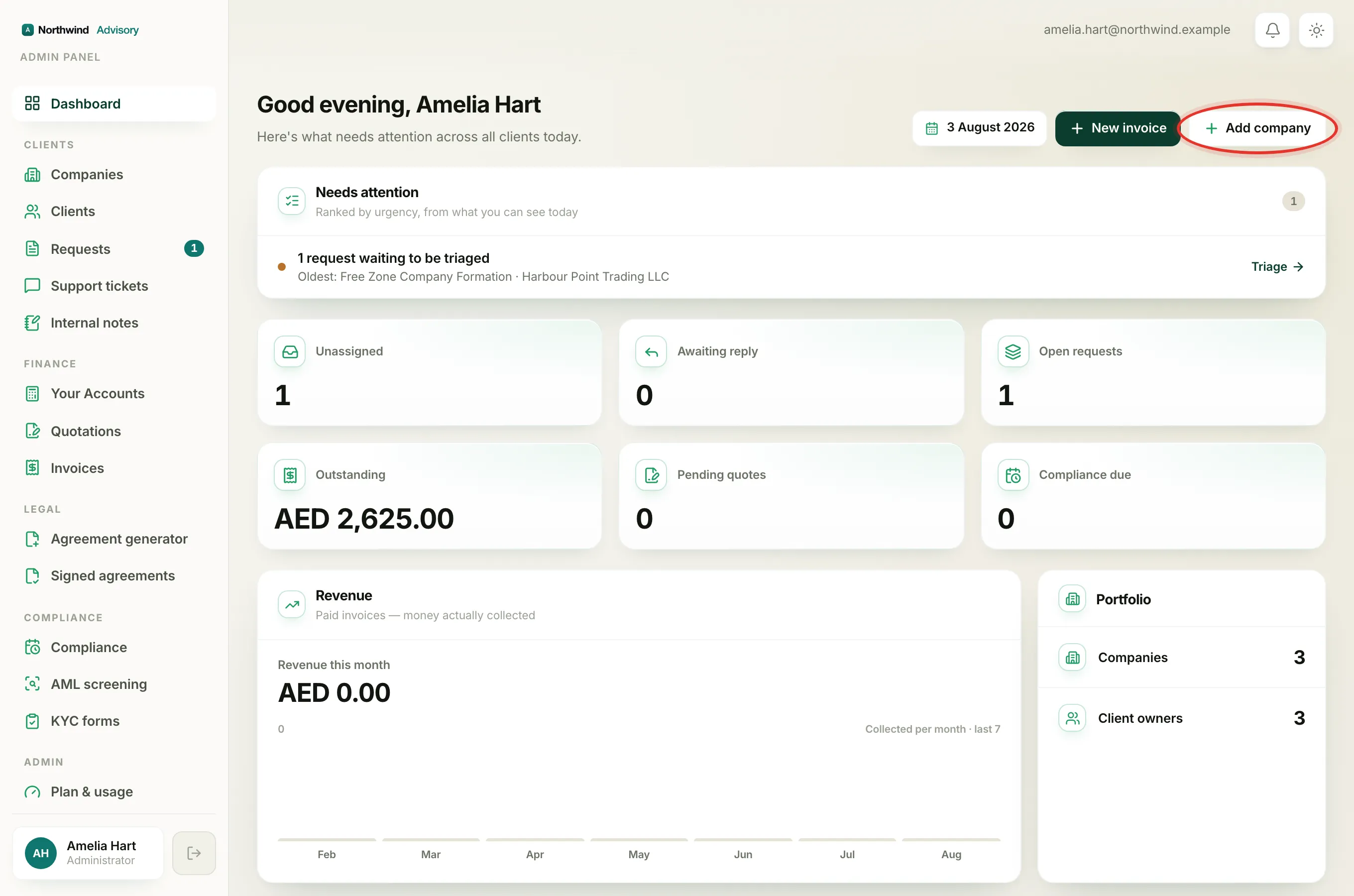
At the top you see a greeting with your name, such as "Good morning", and today's date.
Next to the date are two quick buttons for the things people do most:
- New invoice takes you straight to raising a bill. See How to create an invoice.
- Add company takes you straight to adding a new client company. See Add a company.
Note
If you do not see these buttons, your role does not include those actions. That is normal. See Staff roles.
Needs attention
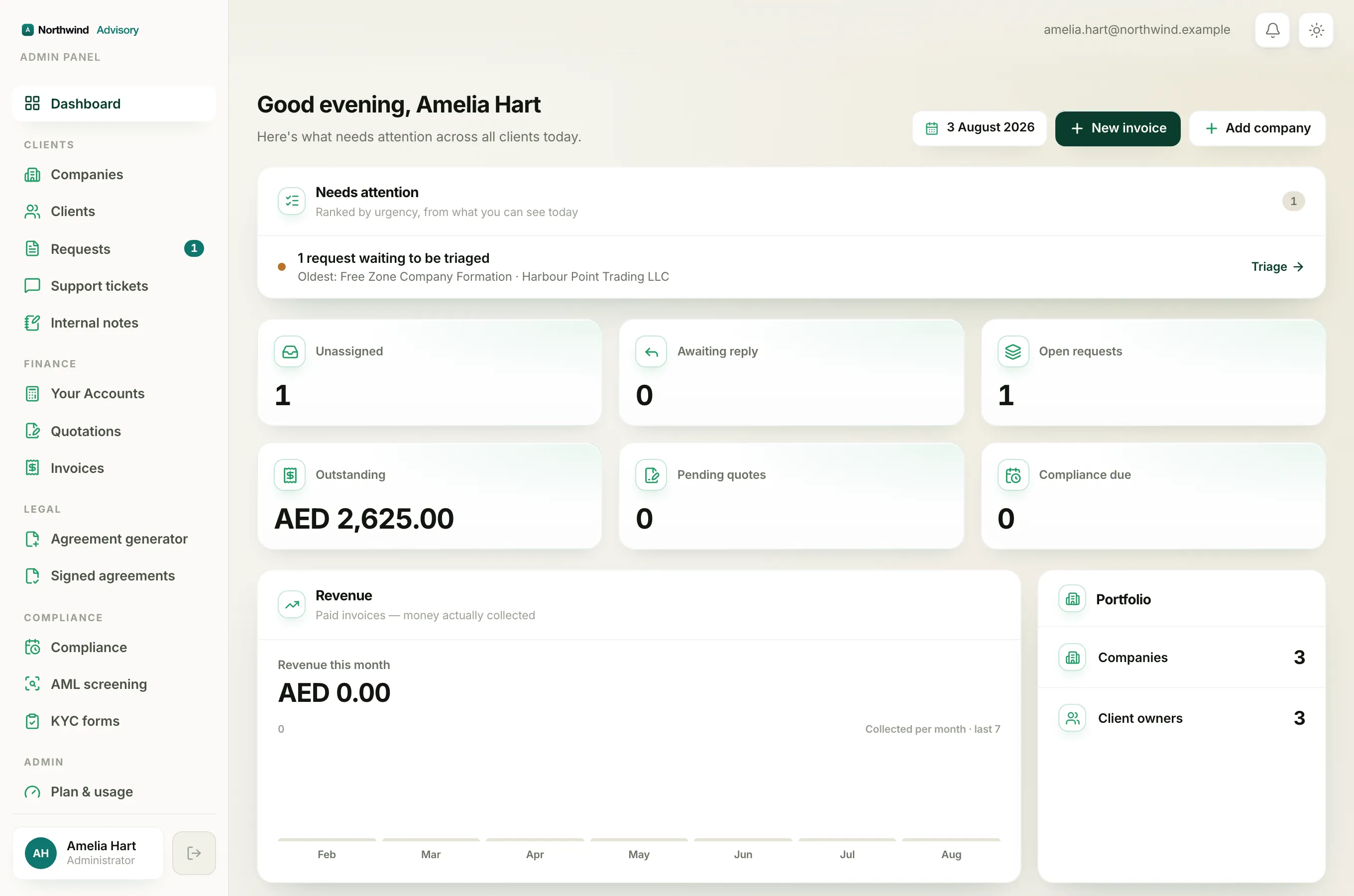
Below the greeting is the Needs attention panel. This is the most important part of the screen. It is a short, ranked list of the things that matter most right now, worst first.
It can include a compliance deadline that has passed, an invoice that is overdue, a deadline falling within seven days, requests waiting to be picked up, and clients waiting on a reply. Each row has a link on the right, such as Open invoices or Open compliance, that takes you straight to the right place to deal with it.
If there is nothing urgent, you will see "Nothing needs you today". That is a good sign.
The numbers
Under that is a row of number cards. They give you the state of your work at a glance. Depending on your role you may see up to six:
- Unassigned requests that nobody owns yet.
- Awaiting reply where a client is waiting on you.
- Open requests in progress.
- Outstanding money still owed on invoices.
- Pending quotes you have sent but the client has not accepted.
- Compliance due deadlines coming up.
Each card is clickable and jumps to the full list behind it.
Money and portfolio
If your role can see revenue, there is a Revenue panel. It shows money actually collected this month and a small bar chart of the last seven months. It only counts paid invoices, so it is real money in, not money invoiced.
Next to it is the Portfolio panel, a simple count of how many Companies and Client owners your firm has.
The work queues
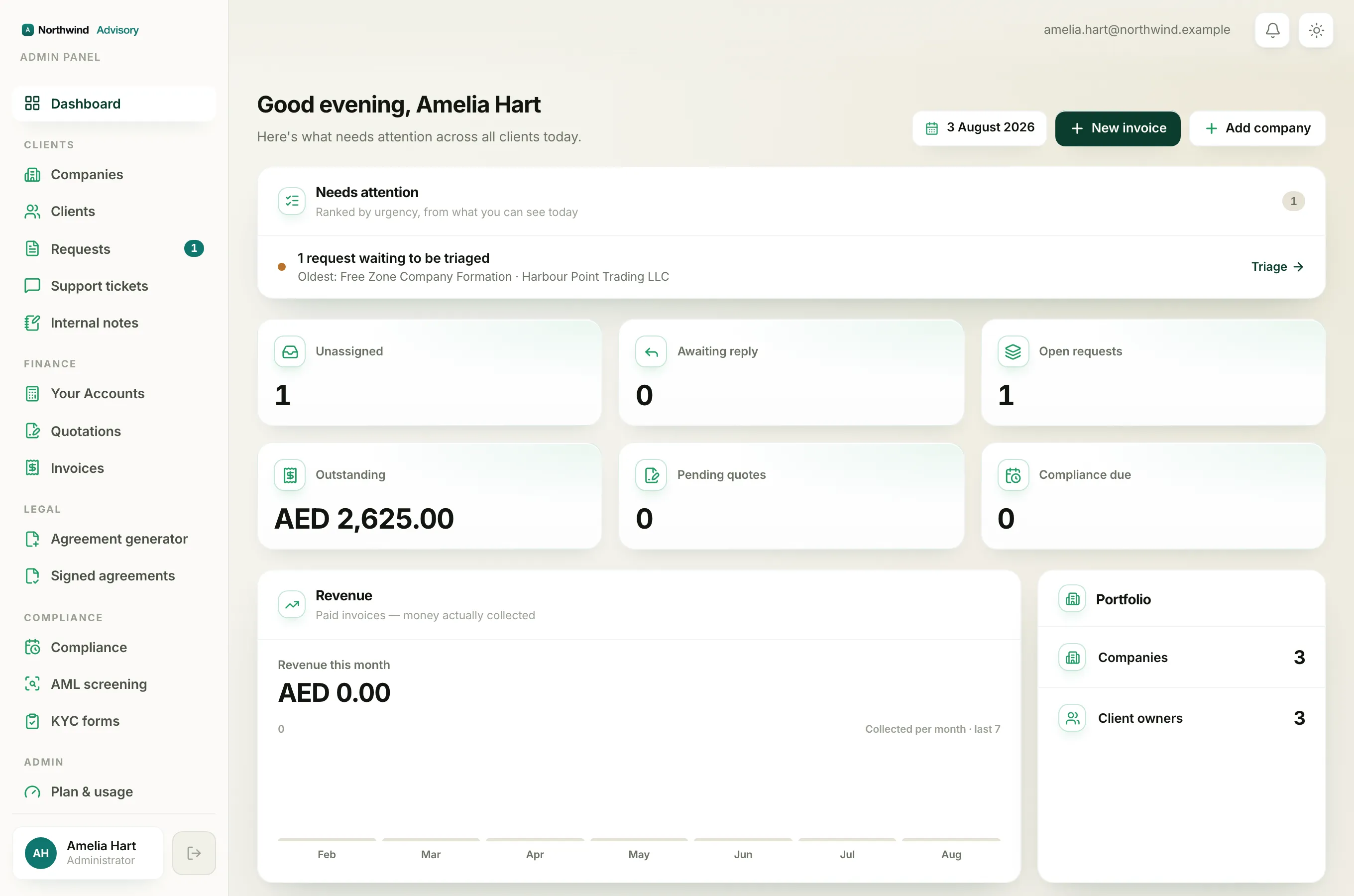
Lower down are the working lists, each showing its actual items so you can act without leaving the page:
- Unassigned requests that need someone to take them on.
- Awaiting our reply, threads where the client spoke last.
- Compliance requests raised by clients from their portal.
- Recent activity, a running feed of payments, accepted quotations, and new requests.
- Upcoming deadlines for the next 30 days. See Compliance for the filing work behind these.
- Outstanding invoices that are still unpaid.
- Pending quotations waiting for the client to accept. See How to create a quotation.
Each of these panels has a link in its header, such as View all or Triage all, that opens the full screen.
Tip
Use the dashboard as your daily starting point. Work the Needs attention panel from the top down, then glance at the number cards, and you will rarely miss anything important.