Suspending a client blocks that person from signing in to their portal, straight away, while keeping every record intact. Use it when you need to pause someone's access, for example during a dispute or while an account is under review. You can restore access at any time.
This is an admin-only action, and it works on the person's login, not on one company.
Suspend a client's login
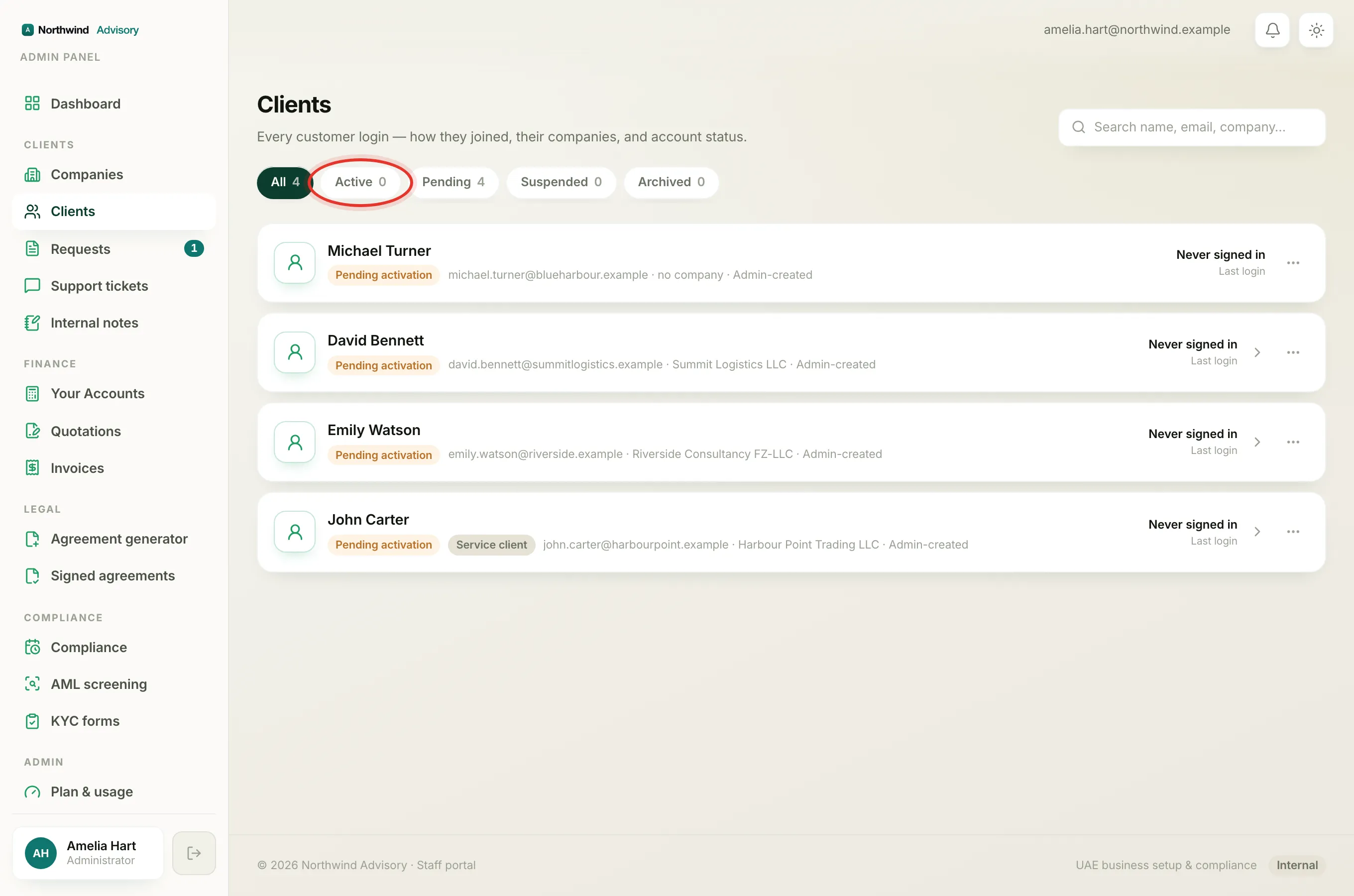
- Log in to your workspace.
- In the left menu, under Clients, click Clients.
- Find the person. You can use the search box, or open the Active tab to narrow the list.
- On their card, click the actions menu (the three-dot button on the right).
- Click Suspend access.
- A confirmation window opens. It first shows an impact check while it counts up what this person has on file: Companies, Service requests, KYC on file and any Outstanding balance. Read this so you know what you are pausing.
- You can type an optional Reason. It is internal only, the client never sees it, and it is saved to your audit log.
- Click Suspend access to confirm.
The moment you confirm, the person's portal access is revoked and any session they had open is ended. Their card moves to the Suspended tab and shows a red Suspended chip. None of their data is deleted.
Important
Only an admin can suspend or re-enable a client. If you do not see Suspend access in the actions menu, your staff role does not include this permission. See Staff roles.
Re-enable a suspended client
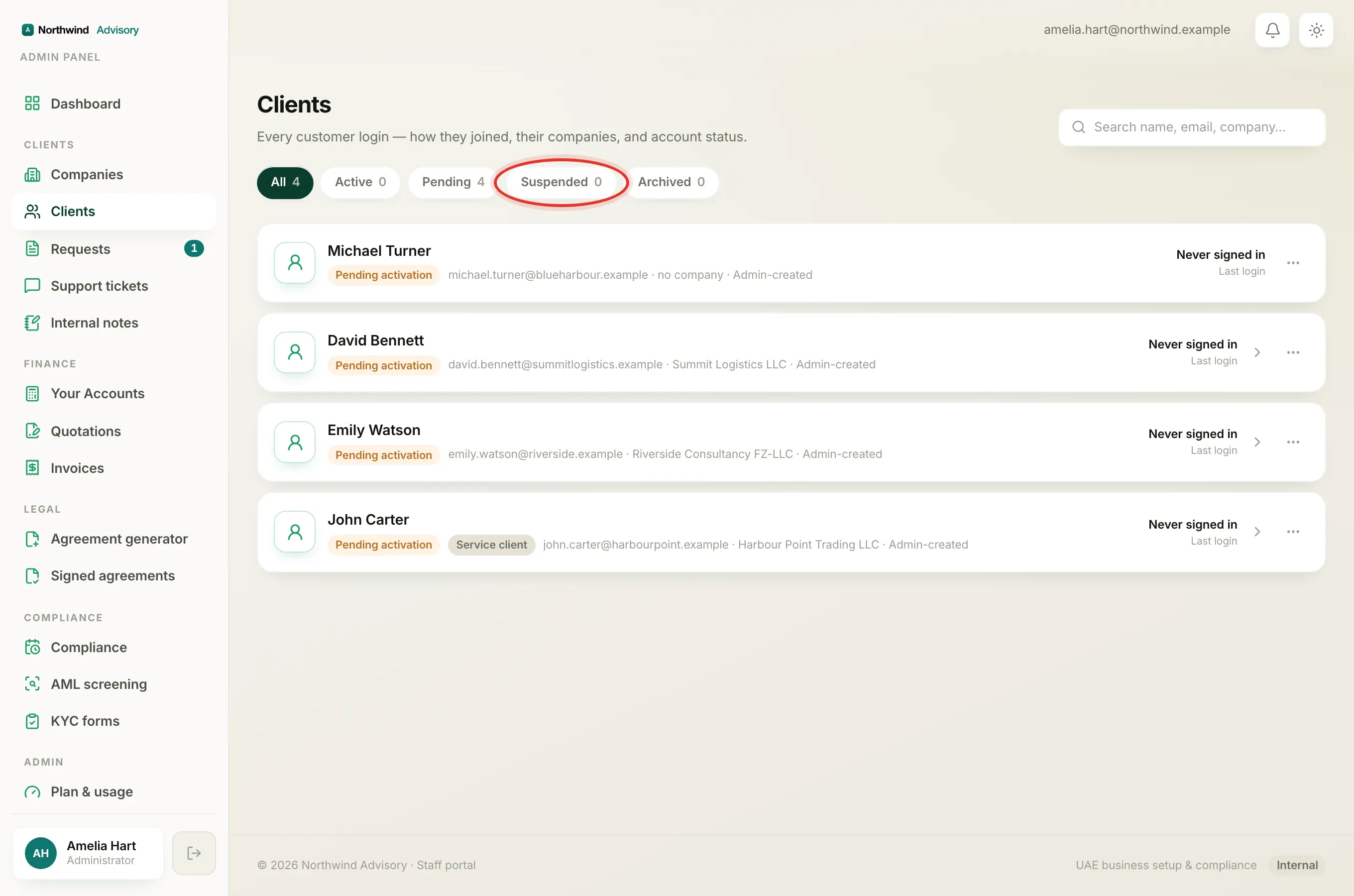
- In the left menu, under Clients, click Clients.
- Open the Suspended tab, or search for the person.
- On their card, click the actions menu.
- Click Re-enable access.
- Confirm in the window that opens. A reason here is optional.
Access is restored right away and the client can sign in again. Their chip goes back to green Active.
How this differs from suspending a company
These two actions are easy to mix up, so it helps to be clear:
- Suspending a client blocks the person's login. If they own several companies, they lose access to all of them at once, because it is one login. Their companies are not touched.
- Suspending a company pauses that one workspace: its portal, its services and its reminders. The owner can still sign in to any of their other companies. See Suspend a company (and re-enable it).
Pick the login block when the issue is with the person, and pick the company suspension when the issue is with one specific business.
Note
Suspending is not the same as archiving. Suspending is a pause you can undo in seconds. Archiving retires the account. Both keep all records.