The read-only company panel
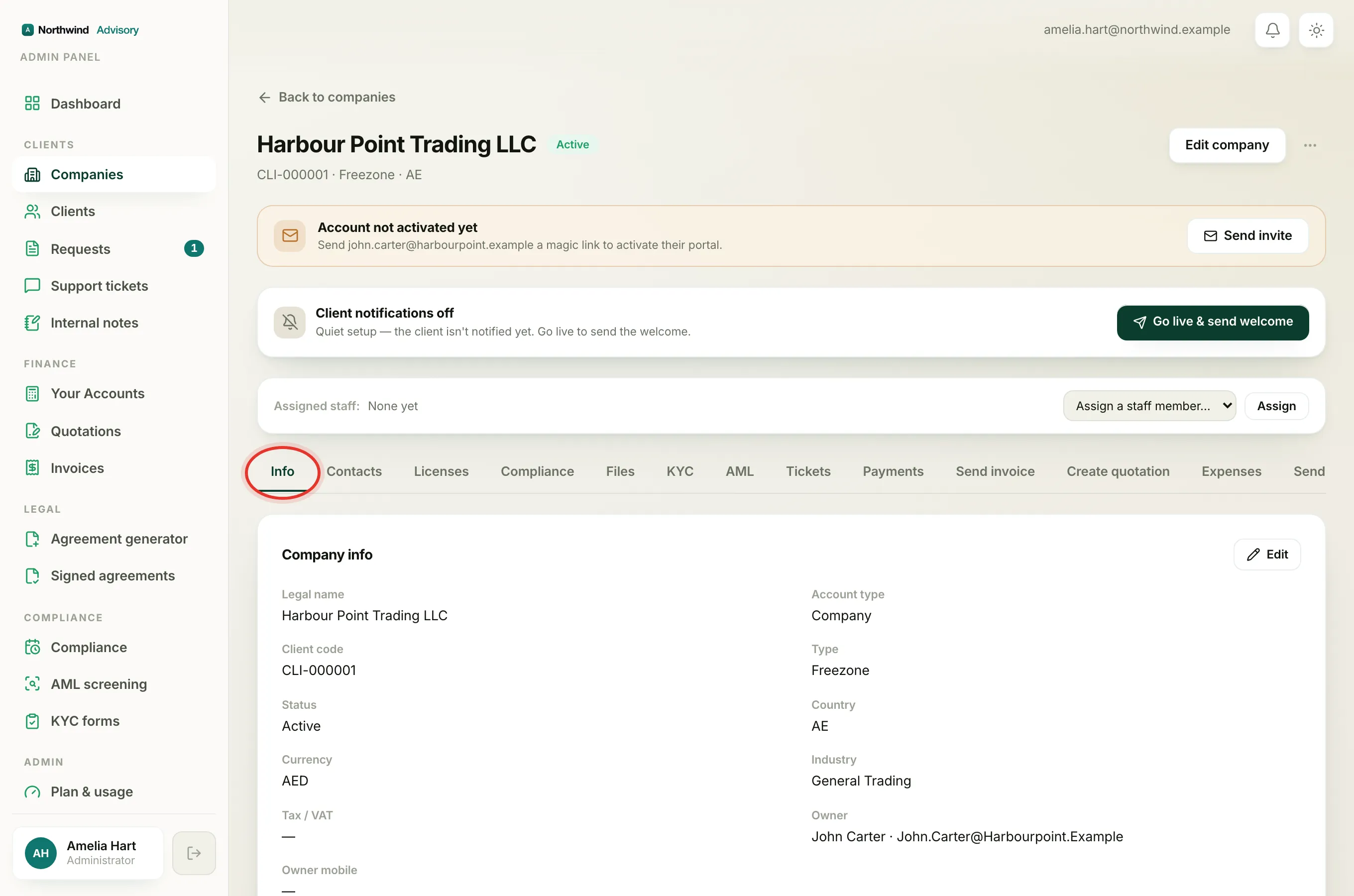
On your Account settings page there is a Company card near the bottom. Its subtitle reads "Shown on your invoices." It lists:
- Company name
- Client code
- TRN (your tax registration number, if one is on file)
- Address
These details are shown for reference only. Unlike your name and phone number, you cannot type over them here.
Why you cannot edit them
These fields are the official identity of your company. They appear on the invoices, quotations, and documents your firm issues, so they have to match your real records exactly. If clients could change them freely, an invoice could go out with the wrong legal name or tax number, which causes real problems with the tax authority.
To keep everything accurate and consistent, your firm is the single place these details are managed. The Client code in particular is set by your firm and never changes, so they can always find your file.
How to get a detail corrected
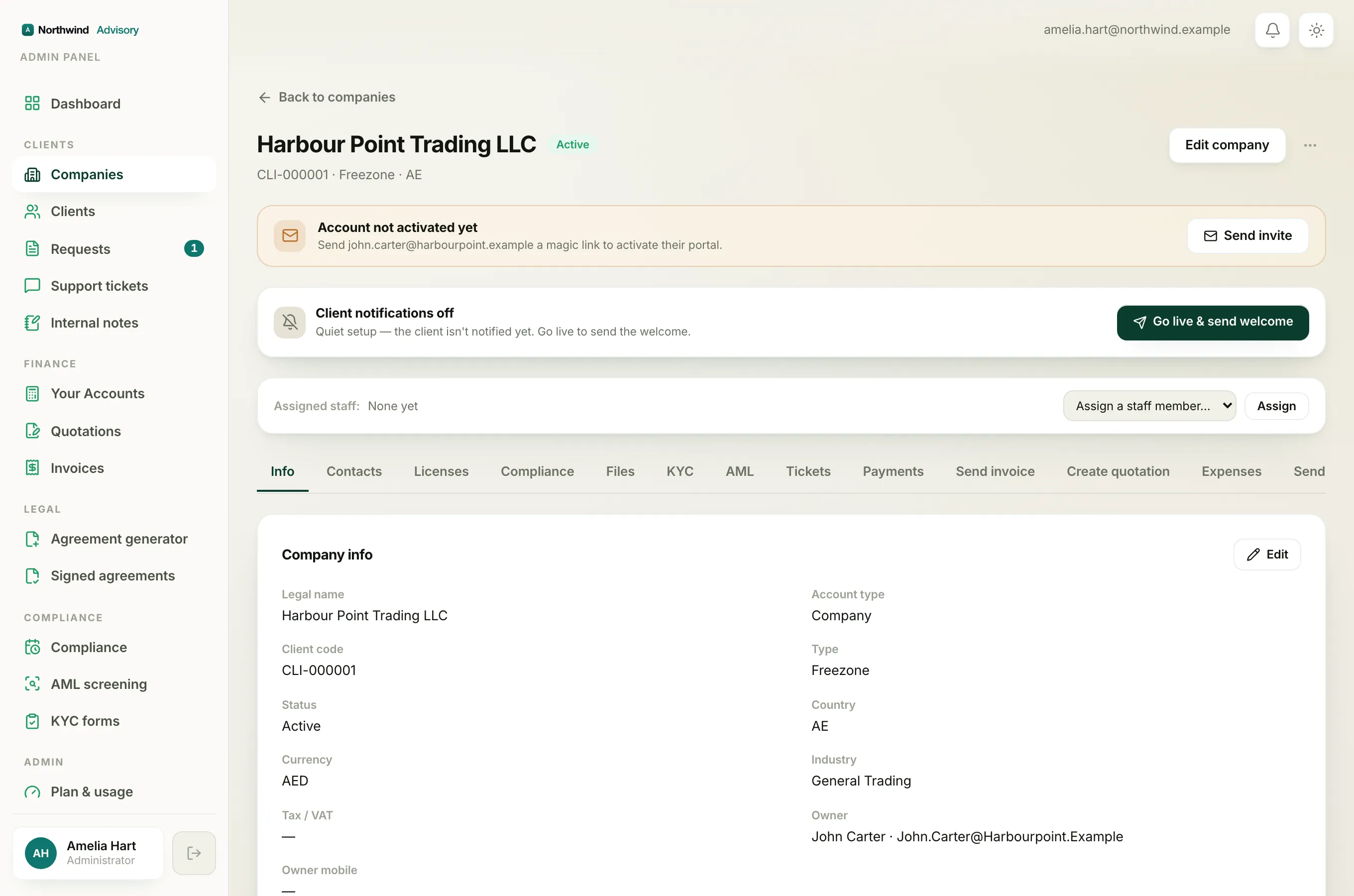
If any of these is wrong or out of date, your firm can fix it in moments. The card itself says "Need a change to your company details? Message us on any request and we'll update them."
To ask:
- Log in to your portal.
- Open any of your requests and send a message there, or open a support ticket.
- Say which detail is wrong and what it should be. If it is a TRN or a legal name change, attaching the supporting document helps your firm update it quickly.
See Open a support ticket for how to start that conversation.
Note
The details you can change yourself, your own name and phone number, are on the same page in the Profile card. See Update your name and contact number.