You can give a client a discount on an invoice. In IzzyTap a discount is set per line, not on the whole invoice. Each line has its own small discount control, so you can reduce one line and leave the others at full price.
Add a discount to a line
- Log in to your workspace.
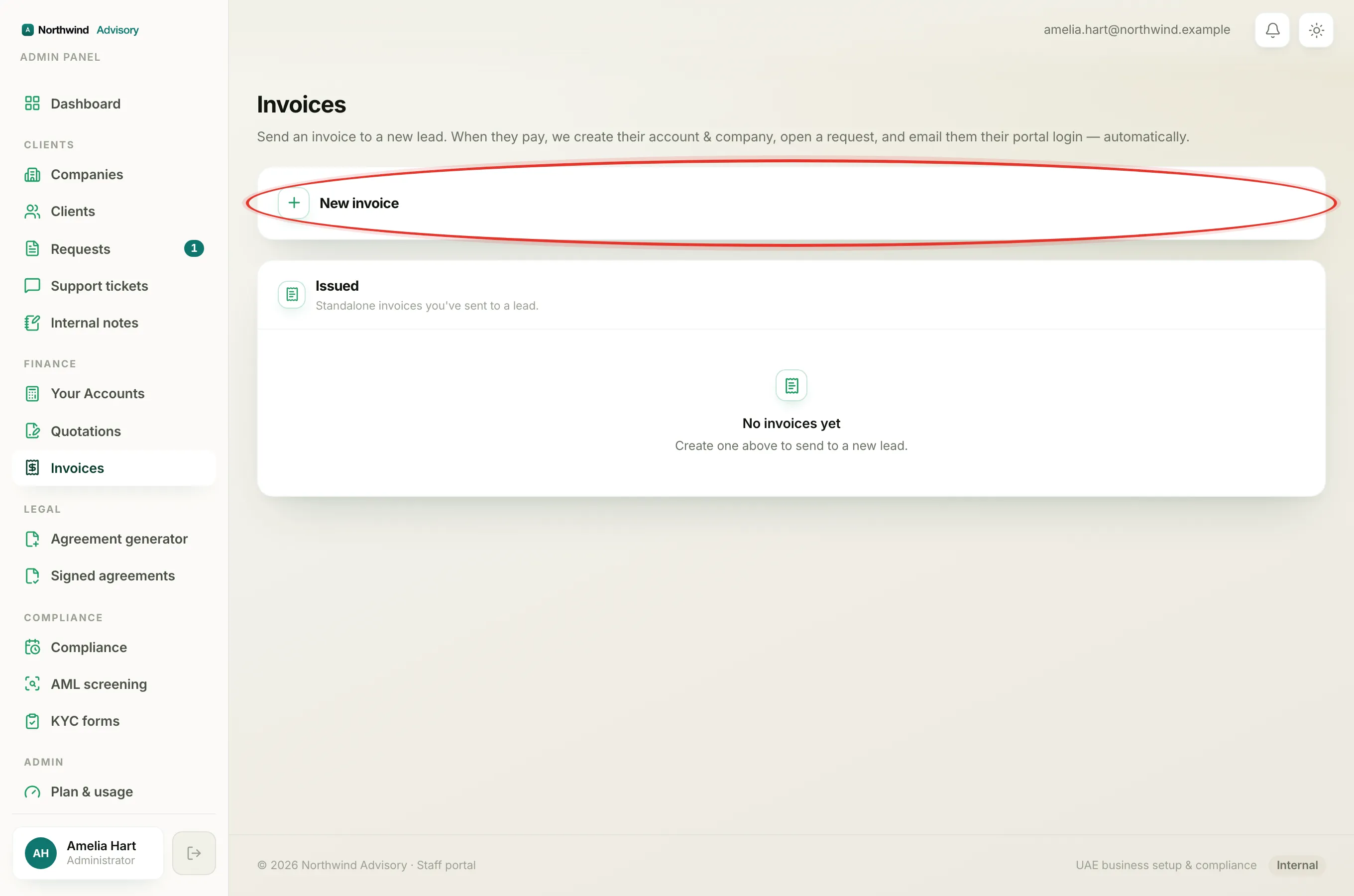
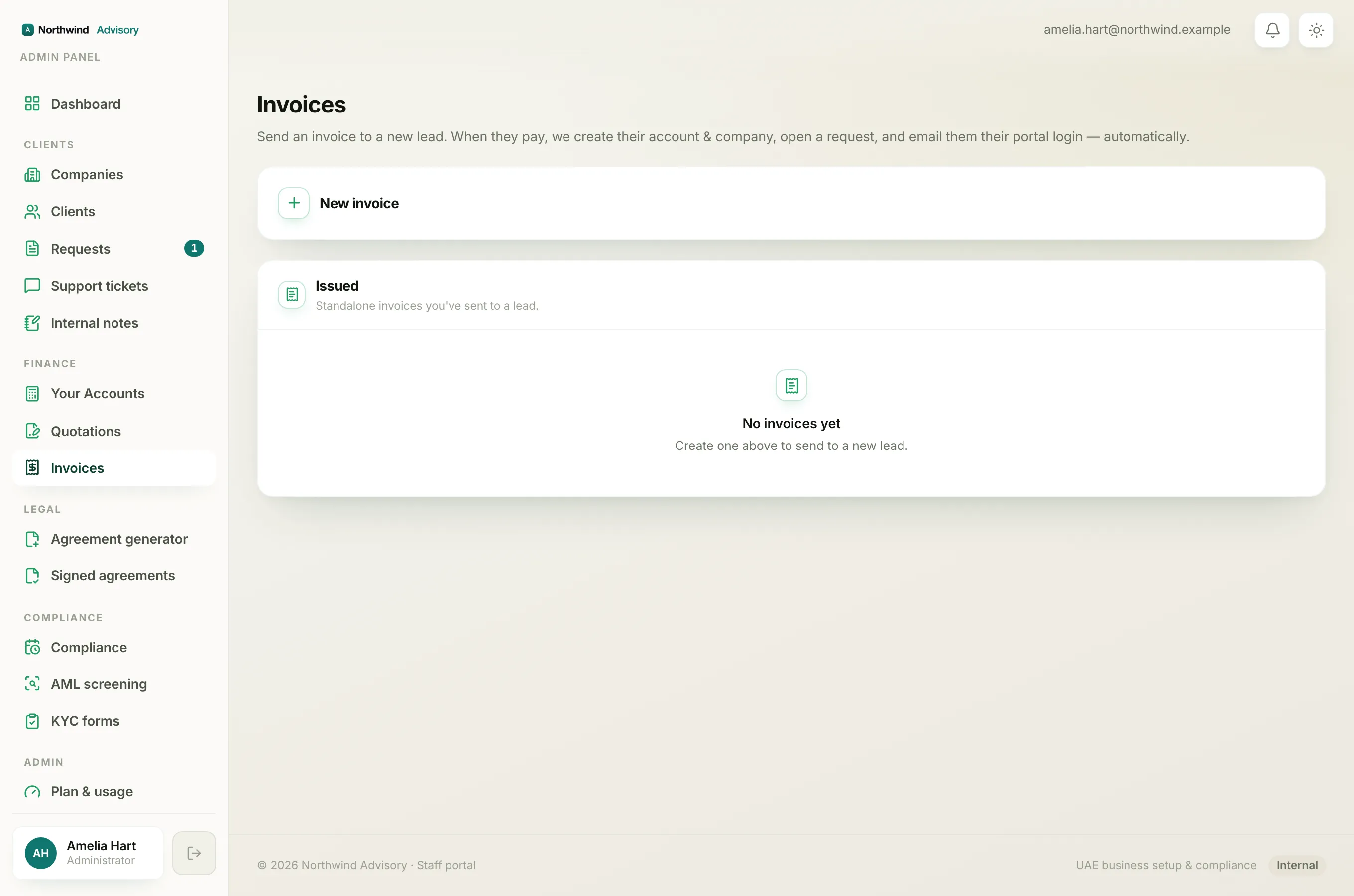
- In the left menu, under Finance, click Invoices.
- Click New invoice to open the invoice builder.
- Add your line item as normal: a description, the Qty, and the Rate. See how to create an invoice if you need the full steps.
- On that same line, find the Disc. control. It has a small toggle with two buttons next to a value box.
- Choose how the discount is worked out:
- Click the currency button (for example AED) to take off a fixed amount of money.
- Click the % button to take off a percentage.
- Type the discount into the value box. For example, type 50 with the currency button chosen to take AED 50 off, or type 10 with the % button chosen to take 10% off.
As you type, the totals box updates. A Discount line appears showing the amount taken off.
Note
The discount is worked out on that line only, using its Rate times Qty. If a line also has VAT, the discount comes off first and the 5% VAT is then worked out on the lower amount. See how to charge 5% VAT on an invoice.
Discount more than one line
Each line has its own Disc. control. To discount another line, add or find that line and repeat the steps above. To discount the whole invoice, apply a discount to each line you want to reduce.
Check it before you send
- Click Preview invoice.
- Check that the Discount amount and the Total are correct.
- Click Edit to make changes, or Send invoice when it is right.
Tip
To remove a discount, clear the value box on that line. The Discount row disappears from the totals and the line goes back to full price.