Signing out ends your session and returns you to the login screen. It is worth doing on any device that is not only yours, such as a shared office computer.
Sign out on a computer
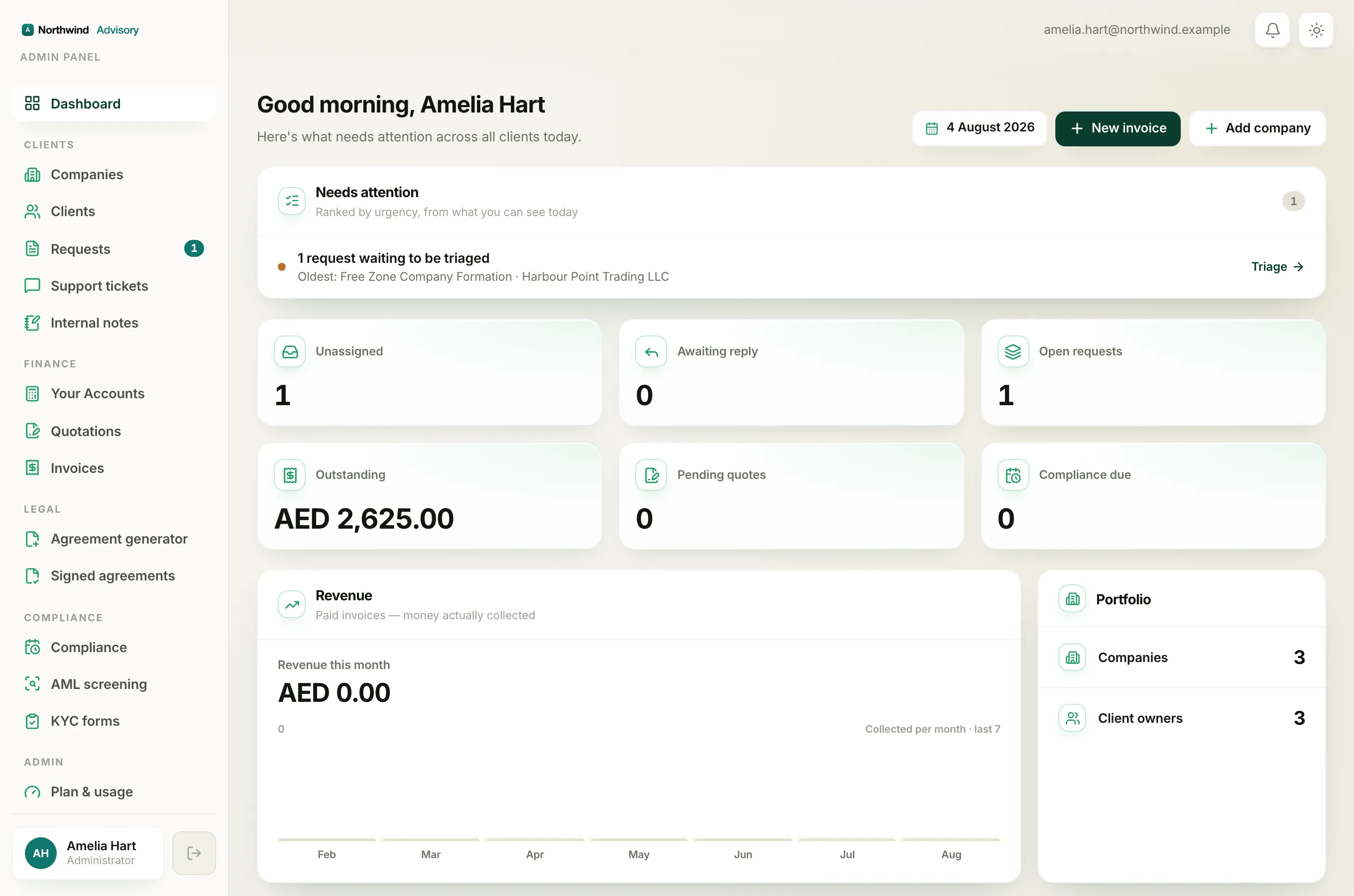
- Look at the bottom of the left menu. You will see your name and role in a small card, and next to it a small button with a door-and-arrow icon.
- Click that icon button. A small window opens to confirm you want to sign out.
- Click Sign out to confirm, or Cancel if you change your mind.
The confirmation window reminds you that you will need to sign in again to get back into the admin. That is expected.
Sign out on a phone
- Tap the menu button (the lines icon) in the top bar to slide the menu open.
- Scroll to the bottom of the drawer. The same name card and sign-out icon button are there.
- Tap the sign-out icon, then tap Sign out in the window that appears.
What signing out does
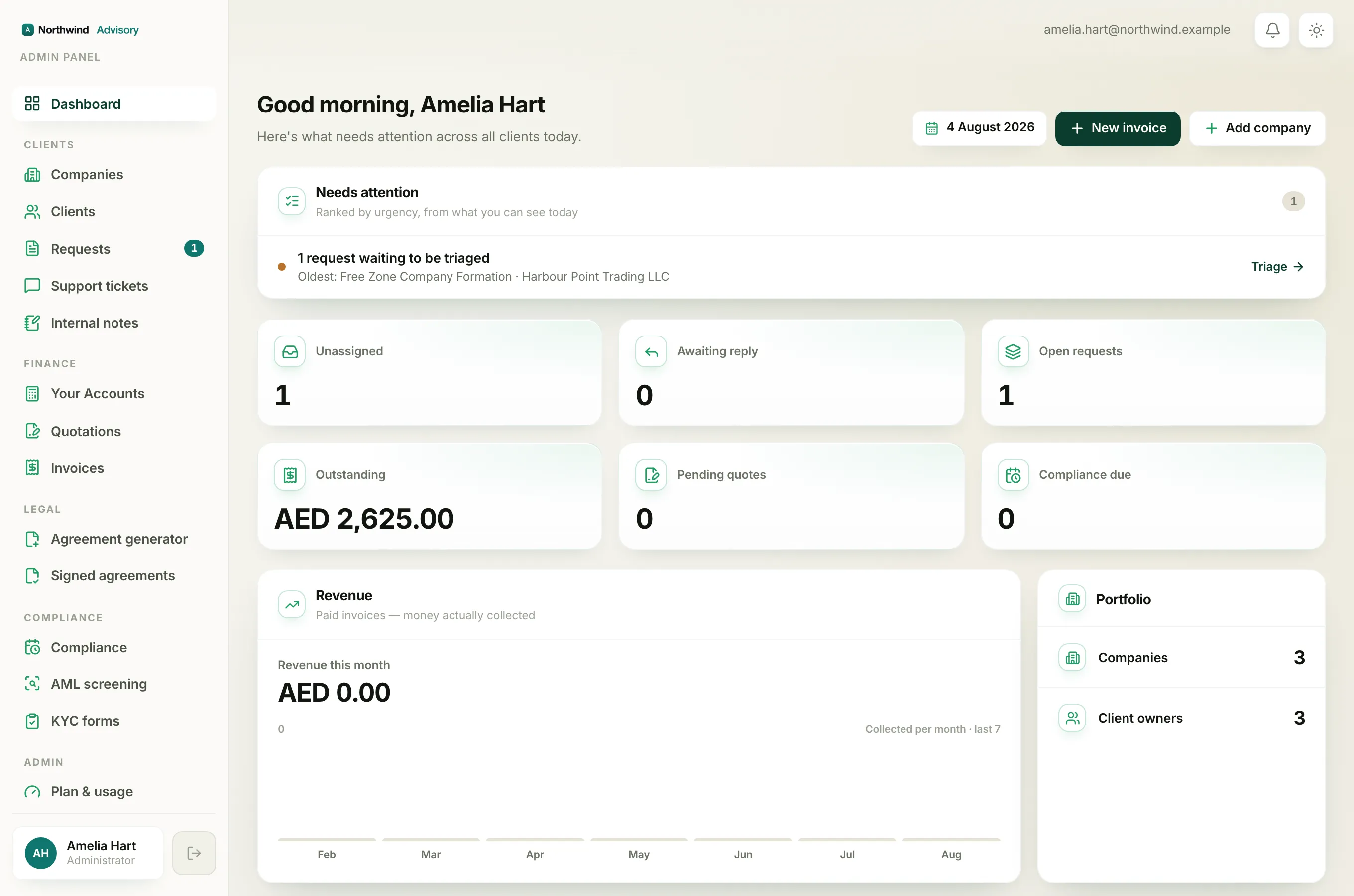
When you confirm, the system ends your session and takes you back to the login page. Nothing you saved is lost. Your work, clients, invoices and everything else stay exactly as they were. Signing out only closes your access on that device, so the next person cannot see or use your account. To get back in, simply log in again.
Tip
If you only want to switch what your screen shows, you do not need to sign out. Signing out is for leaving the workspace entirely or protecting a shared device.