Why preview
The builder shows your form as a list of sections. That is not quite how the contact sees it. Preview shows you the real thing: the exact step-by-step form the contact will fill in, with every question in the order you set. It is worth a quick look before you save or send, so nothing surprises you later.
Preview does not save the form and does not send anything. It is just a look.
Open the preview
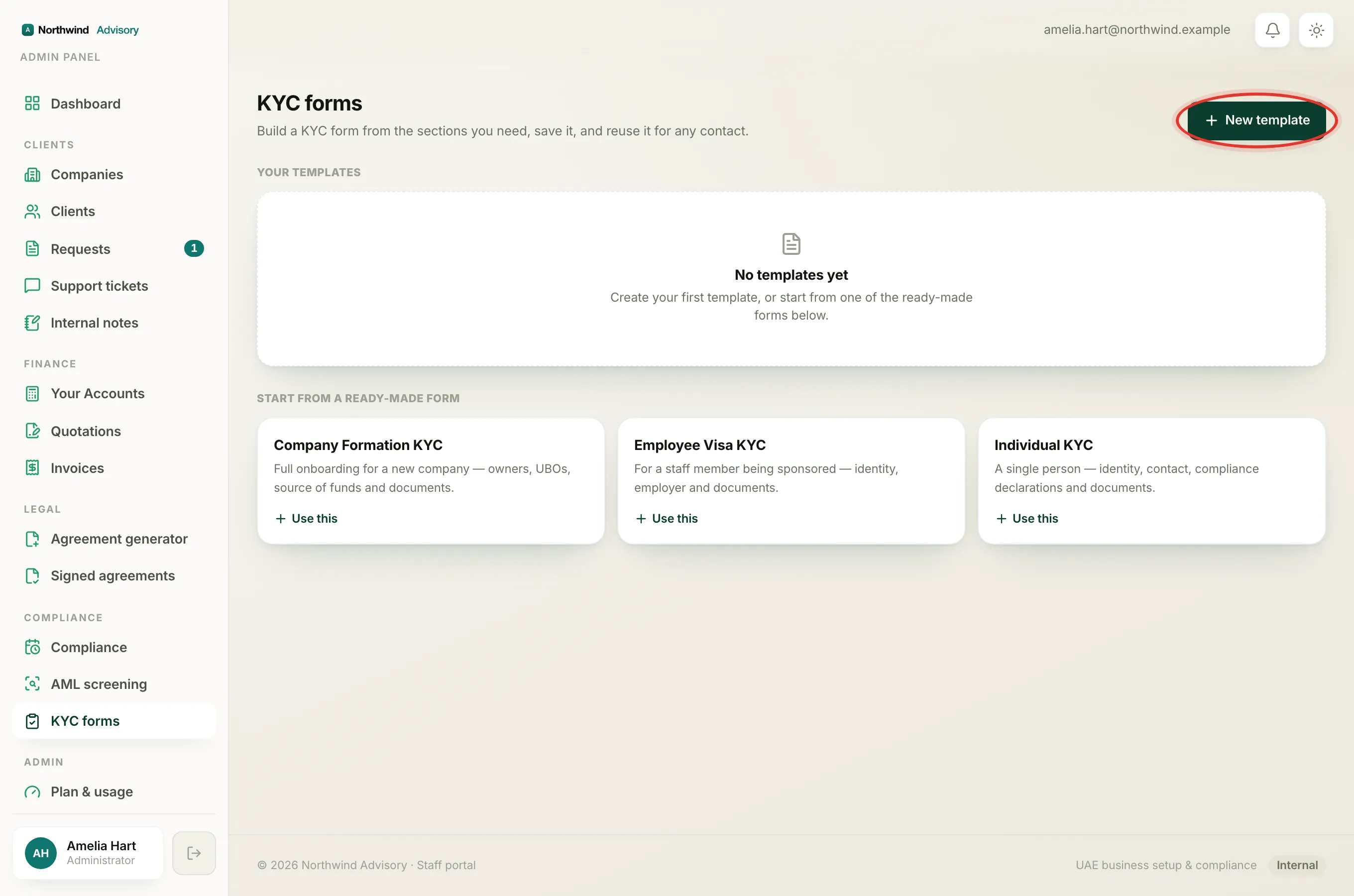
- Log in to your workspace.
- In the left menu, under Compliance, click KYC forms.
- Click New template to start a form, or click Edit on one of Your templates.
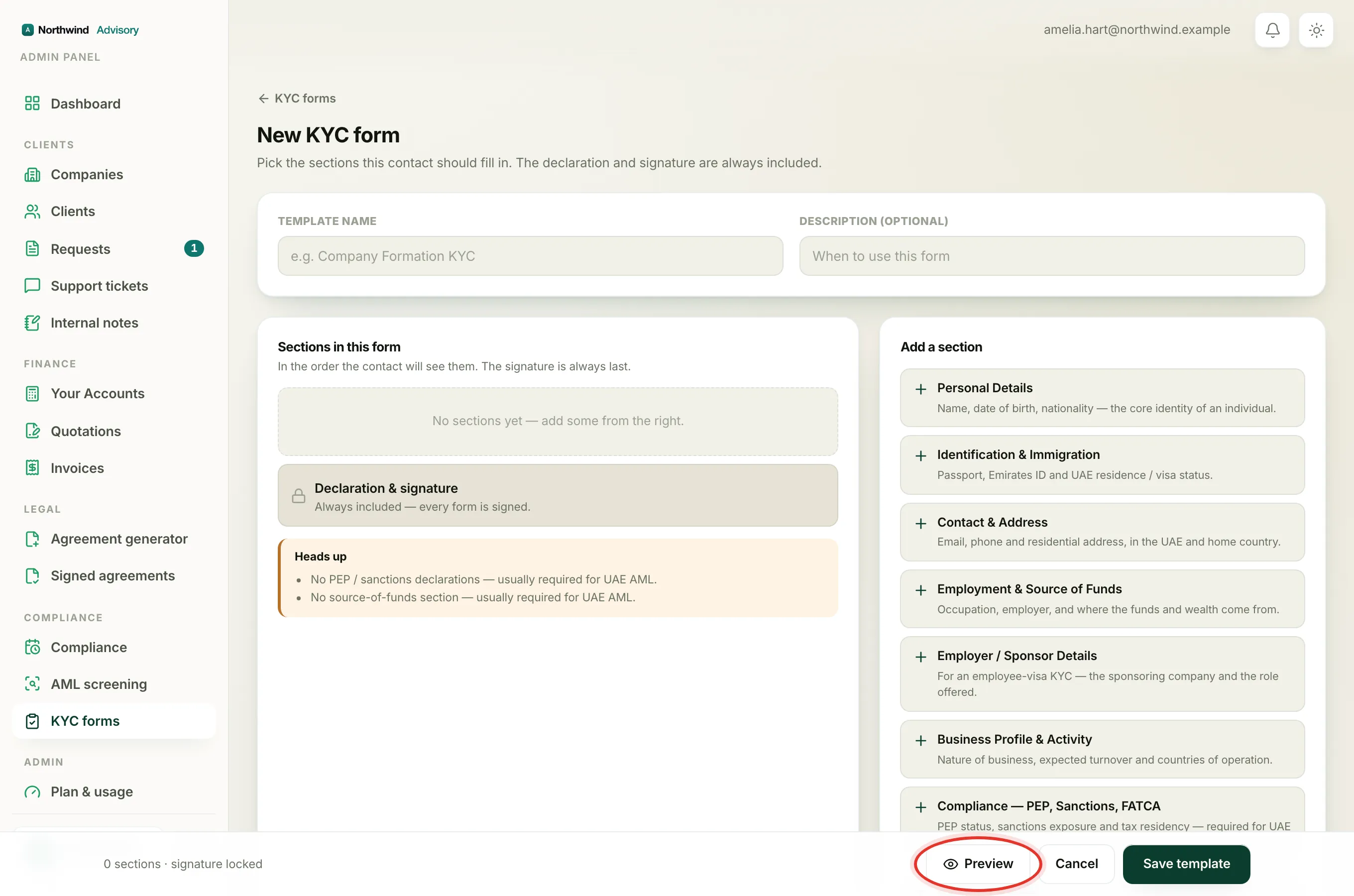
- Add and order the sections you want.
- In the bar fixed at the bottom of the screen, click Preview.
A preview window opens over the builder, titled Preview followed by your form's name.
What you see
At the top it tells you how many steps the form is, for example "This is what the contact fills in, a 4-step form." IzzyTap groups your sections so the contact never has more than five steps, so even a long form is still short to fill in.
Each step is shown in turn, labelled Step 1 of ... and so on, with the sections and every question inside. The boxes are just for show here, so you cannot type into them. A few things to look for:
- Dropdowns, dates and file uploads appear as the contact will see them.
- A repeatable section shows one block, for example Shareholder 1, with an add button like Add shareholder under it. See Collect multiple shareholders, directors or UBOs.
- The final step is always Declaration & signature, where the signature shows as a "Sign here" box.
Close the preview and save
- To close the preview, click the X at its top right, or click the dark area outside the window.
- If something is wrong, change your sections, then preview again.
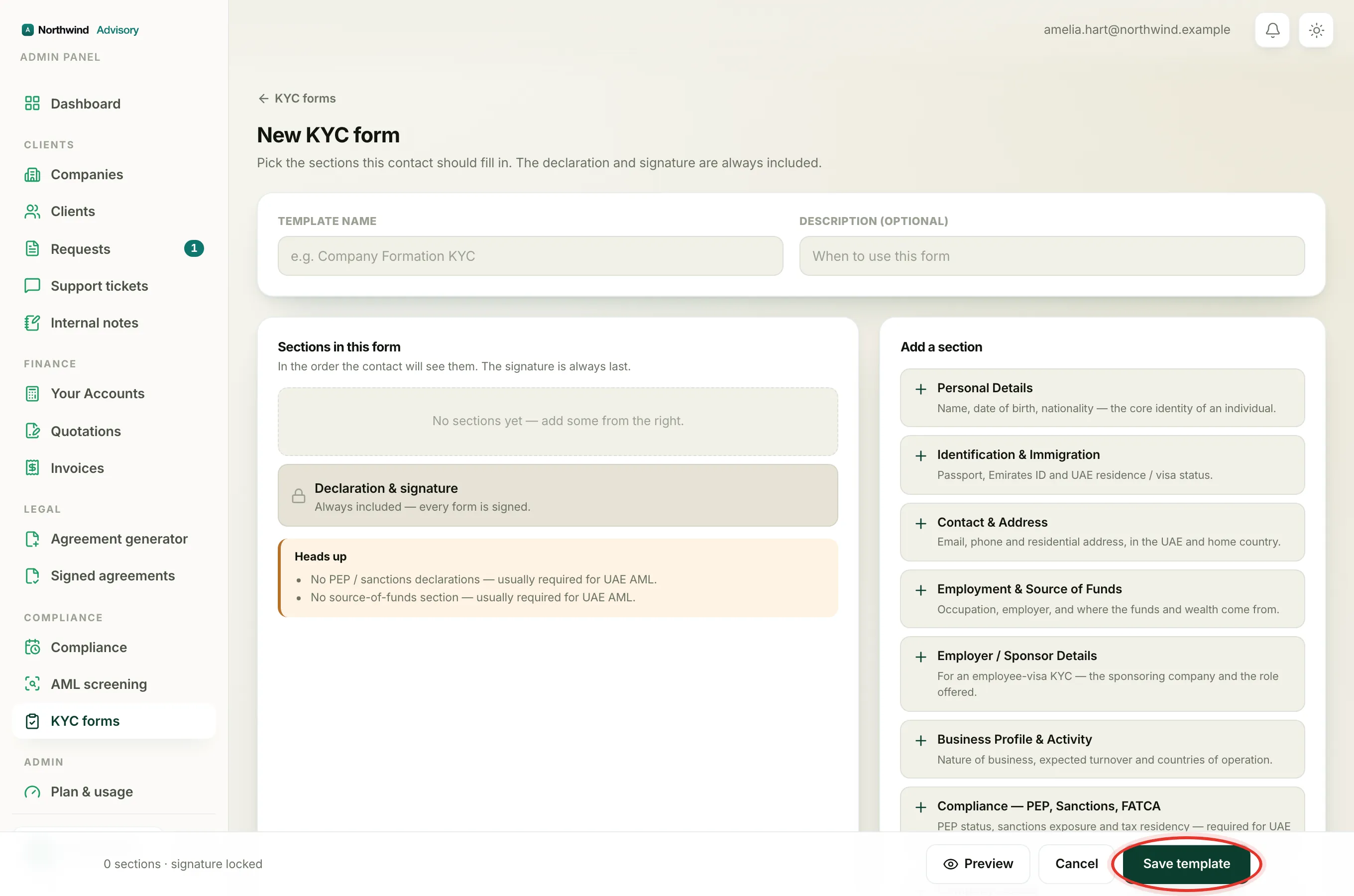
- When it looks right, click Save template (or Save changes if you are editing).
Tip
Preview is the safest way to check a form before it reaches a client, because sending is instant. To see how forms and other items look inside the client's own portal, see What clients see.