Every service request in IzzyTap moves through the same four stages. This article shows you the pipeline, how to change the stage, and what the client sees when you do.
The four stages
At the top of a request you will see a stepper with four steps:
- Documents (status Document requested) the client still needs to send you papers.
- Payment (status Payment requested) an invoice is out and you are waiting for money.
- Review you have what you need and are doing the work.
- Completed the job is finished.
The step you are on is filled in forest. Finished steps show a green tick. The final step, Completed, always shows a green tick once you reach it because it is an end point, not work in progress.
The status chip near the top of the request is colour coded so you can read the state at a glance:
- Amber the client needs to act (send documents or pay).
- Grey the ball is in your court (Review).
- Green the request is Completed.
Open a request
- Log in to your workspace.
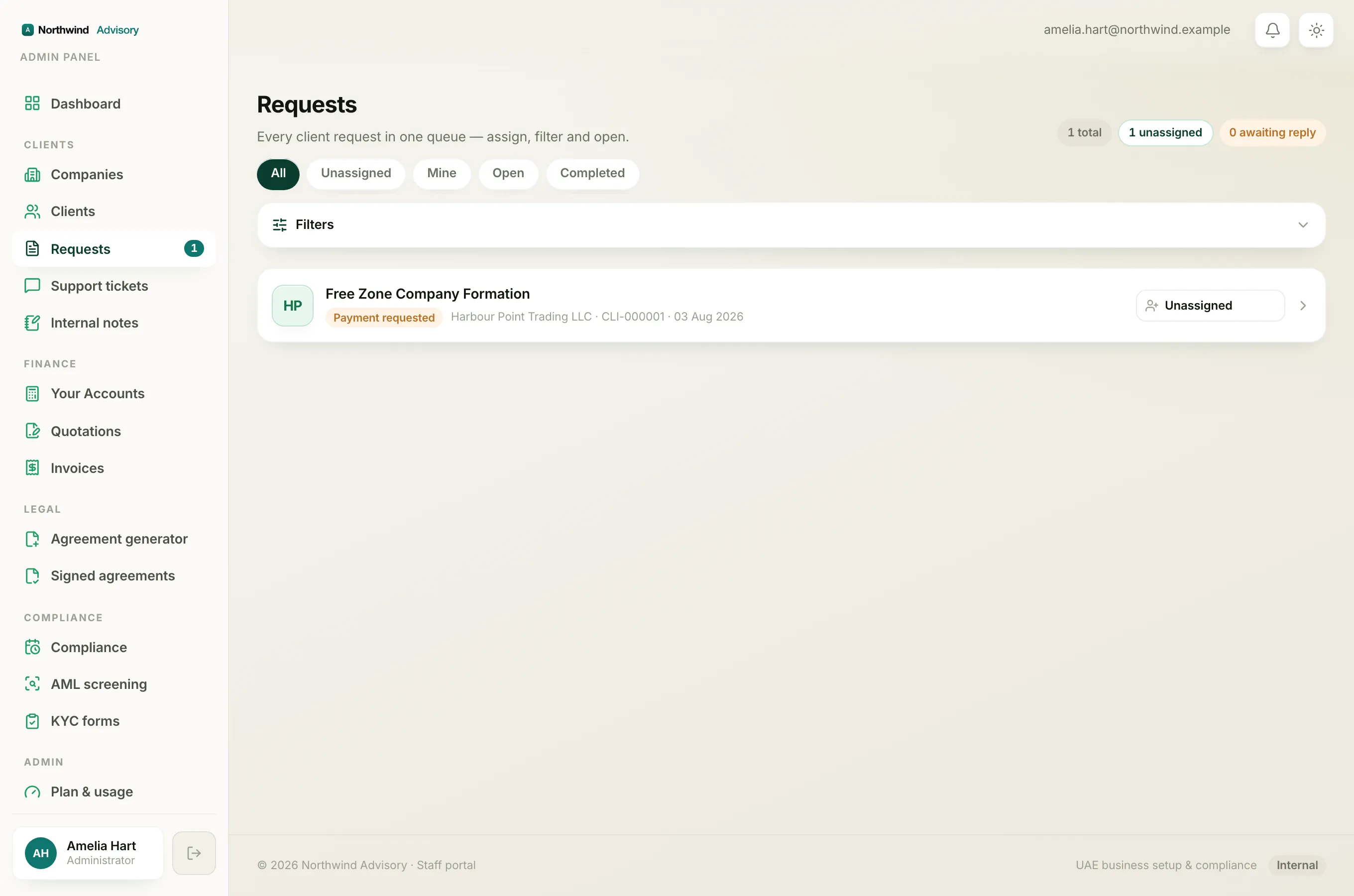
- In the left menu, under Clients, click Requests.
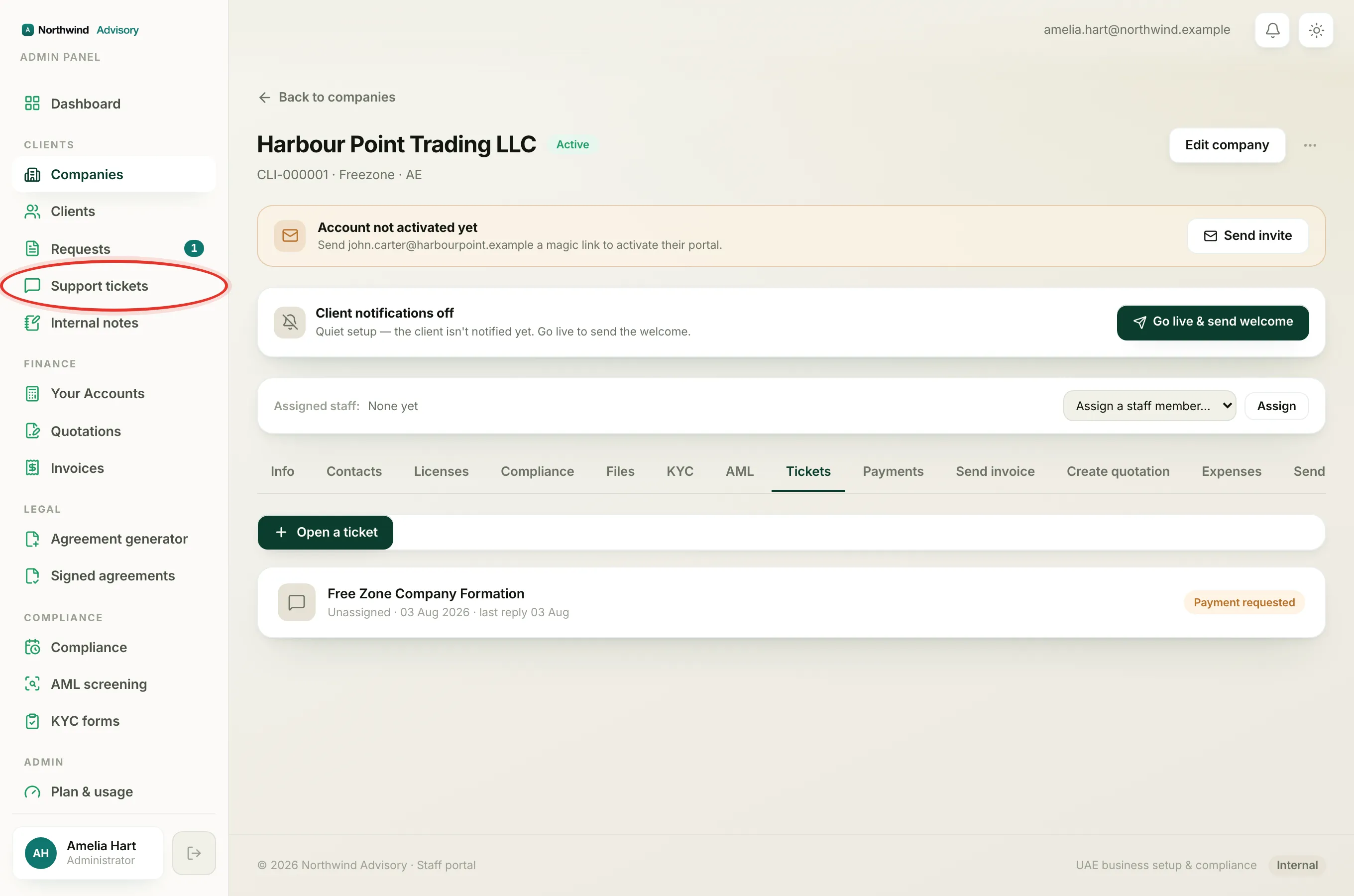
- Click the request you want to work on. (You can also open it from a company: under Clients click Companies, open the company, then open the Tickets tab.)
Change the stage by hand
- Open the request.
- Scroll down to the staff tools and open the Update status card. Its subtitle reads Move the request along the pipeline.
- Pick the new stage from the dropdown: Document requested, Payment requested, Review or Completed.
- Click Update status.
A line appears in the conversation saying Status updated to the new stage, and the client is told their request has moved.
Note
Moving the status is how you keep the client informed. Changing to Review is a good way to tell a waiting client that you have everything and are now working on it.
Some stages move on their own
You do not always have to set the status by hand. Two actions move the request for you:
- When you use Request documents, the request jumps to Document requested automatically. See Request documents from a client.
- When you use Send invoice and post a pay card, the request jumps to Payment requested automatically. See Request a payment inside a ticket.
So in practice you usually only set Review and Completed by hand.
Why you cannot mark a request Completed
IzzyTap will not let you close a request while money is still owed on it. If you try to set the status to Completed while an invoice on the request is unpaid or part paid, you will see a message like:
Can't complete, AED 500.00 still outstanding on INV-000123. Collect the balance first.
Record the outstanding payment first, then set the status to Completed. To record money received, see How to record a payment.
What the client sees
Each time the status changes, the client sees the new stage on their side of the request and gets a notification. Nothing else about the request changes, so it is safe to move the stage as often as the real work moves.