Why these two fields matter
Your legal entity name and your tax number are the official details that must appear on the documents you send. Your legal name is the registered company name that belongs on invoices and agreements. Your tax number is your business tax registration number, and it is what makes your invoice count as a proper tax invoice where your country requires one. Setting both once here means every document you raise from then on prints them automatically.
Important
These are different from your Display name. Your display name is the friendly name clients see across the portal and emails. Your legal entity name is the registered name that appears on formal paperwork. They can be the same, but they do not have to be.
Your tax number field is named for your country
The tax number field on the Identity card is labelled to match your country, so you always see the right name for it:
- In the UAE it reads TRN (Tax Registration Number).
- In India it reads GSTIN.
- In the UK and much of Europe it reads VAT No.
- Other countries show their own name, for example ABN in Australia or Tax ID in the United States.
Whatever the label says, this is the same field. Type your business tax registration number into it.
Enter your legal name and tax number
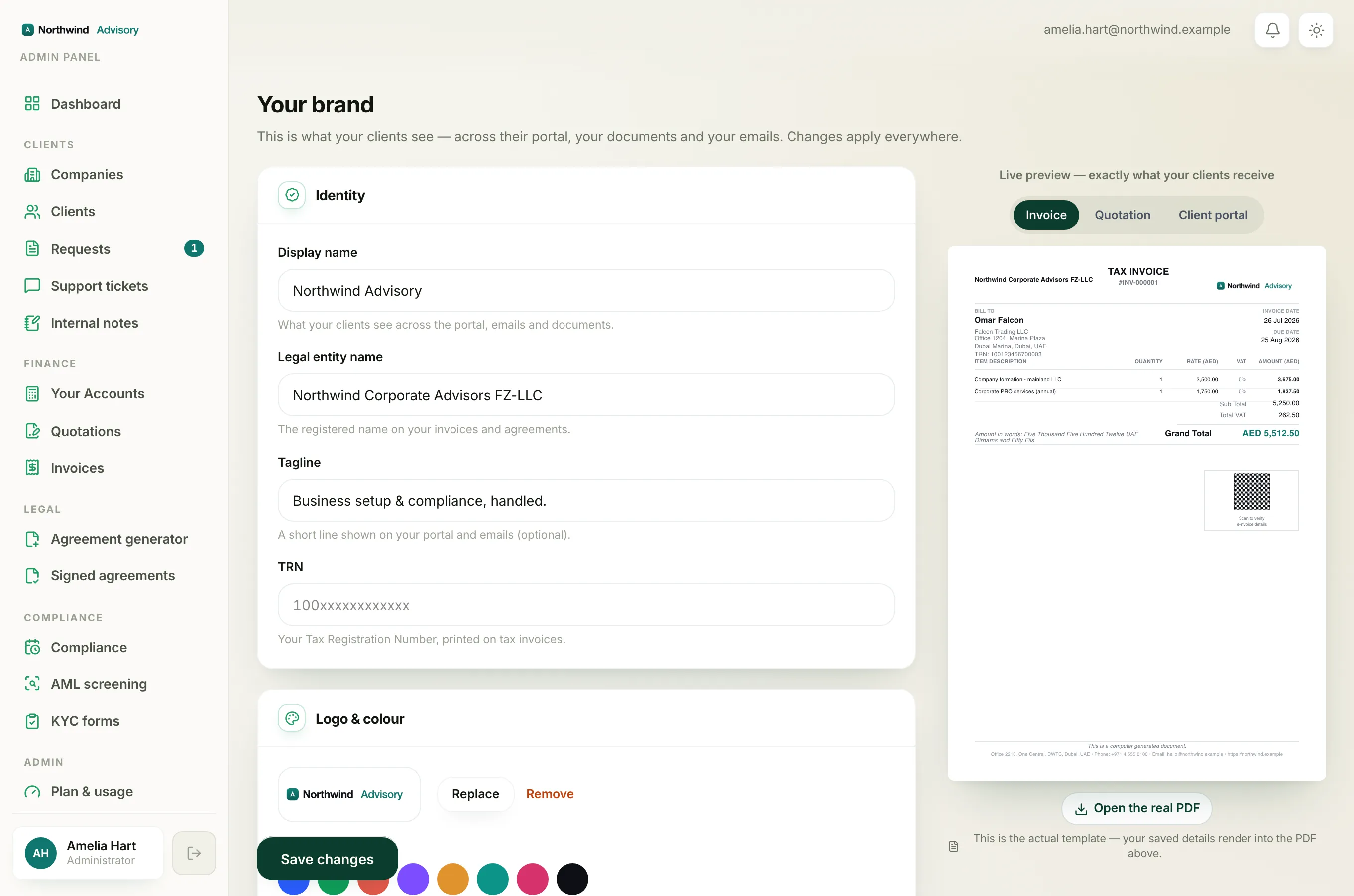
- Log in to your workspace.
- In the left menu, under Admin, click Brand.
- Open the Identity card at the top of the page.
- In Legal entity name, type your registered company name exactly as it appears on your trade licence or registration. The hint reads "The registered name on your invoices and agreements."
- In the tax number field (labelled TRN, GSTIN, VAT No. or your country's own name), type your business tax registration number. The hint reads "Your [label], printed on your invoices and tax documents." The box shows "Optional" until you fill it in.
- Click Save changes. A green Saved confirmation appears.
Check it on a real document
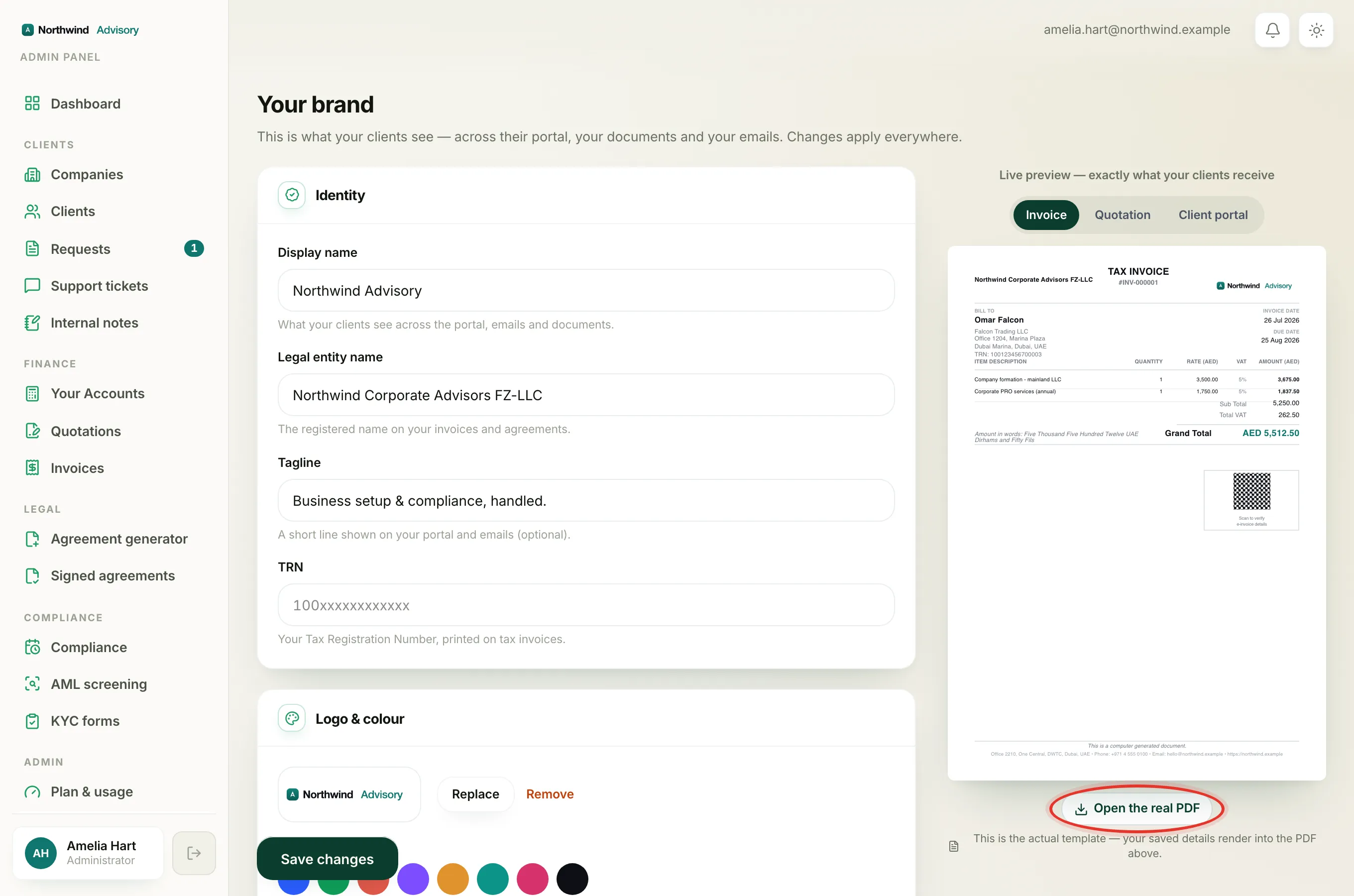
Use the Live preview panel on the right of the page. Switch to the Invoice or Quotation tab to see your legal name and tax number in place on the document. You can click Open the real PDF to build a genuine sample invoice and confirm the details render correctly.
Note
Leave the tax number blank only if your business is not registered for tax. If you enter it, make sure it is correct, because it prints on every tax invoice you send and your clients rely on it for their own records.
The Identity card also holds
While you are on this card you will also see:
- Display name for what clients see everywhere.
- Tagline for an optional short line on your portal and emails.
All four fields save together when you click Save changes.
Related
To complete the details that print on your documents, see Set up your invoice and document letterhead.