If you send the same kind of agreement again and again, save it once as a template. Then you can start a new agreement from it in seconds instead of writing it fresh each time. Here is how to save, reuse, and manage your templates.
Save an agreement as a template
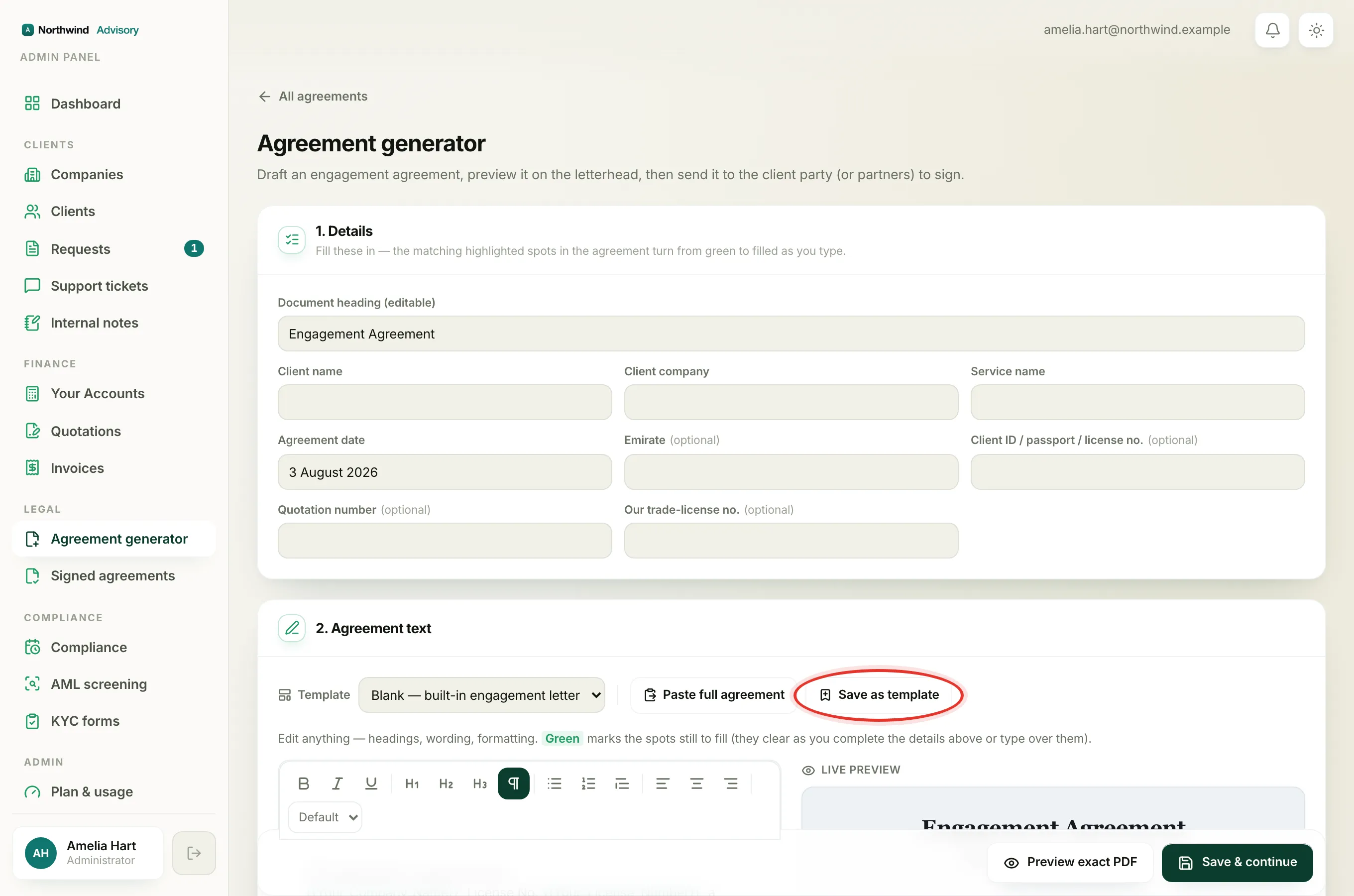
You save a template from inside the builder, using whatever text you have on screen.
- Log in to your workspace.
- In the left menu, under Legal, click Agreement generator.
- Open the builder. If you have no templates yet, it opens straight away. If you do, click Draft a new agreement (the Start blank button) on the Create an agreement page.
- In section 2. Agreement text, write or paste the wording you want to reuse. You can also fill in the details in section 1. Details that should be part of the template.
- Still in section 2. Agreement text, click Save as template.
- In the panel that opens, type a clear name in Template name, for example Standard Engagement Letter.
- Click Save template. IzzyTap confirms it is now in your template list.
Note
A template saves the wording and the document details for reuse. Signing parties are never saved, so you always add fresh signers when you send. See How to create an agreement to sign.
Start a new agreement from a template
- Log in to your workspace.
- In the left menu, under Legal, click Agreement generator.
- On the Create an agreement page, click Start from a saved template (the Choose a template button).
- On the Start from a template page, find the template you want and click Use this template.
- The builder opens, already filled in with the template's text and details. Edit anything you need, add your signing parties, and send it as usual.
Important
Starting an agreement from a template does not change the template. Your saved template stays exactly as it is, so you can use it again next time.
Open the templates management page
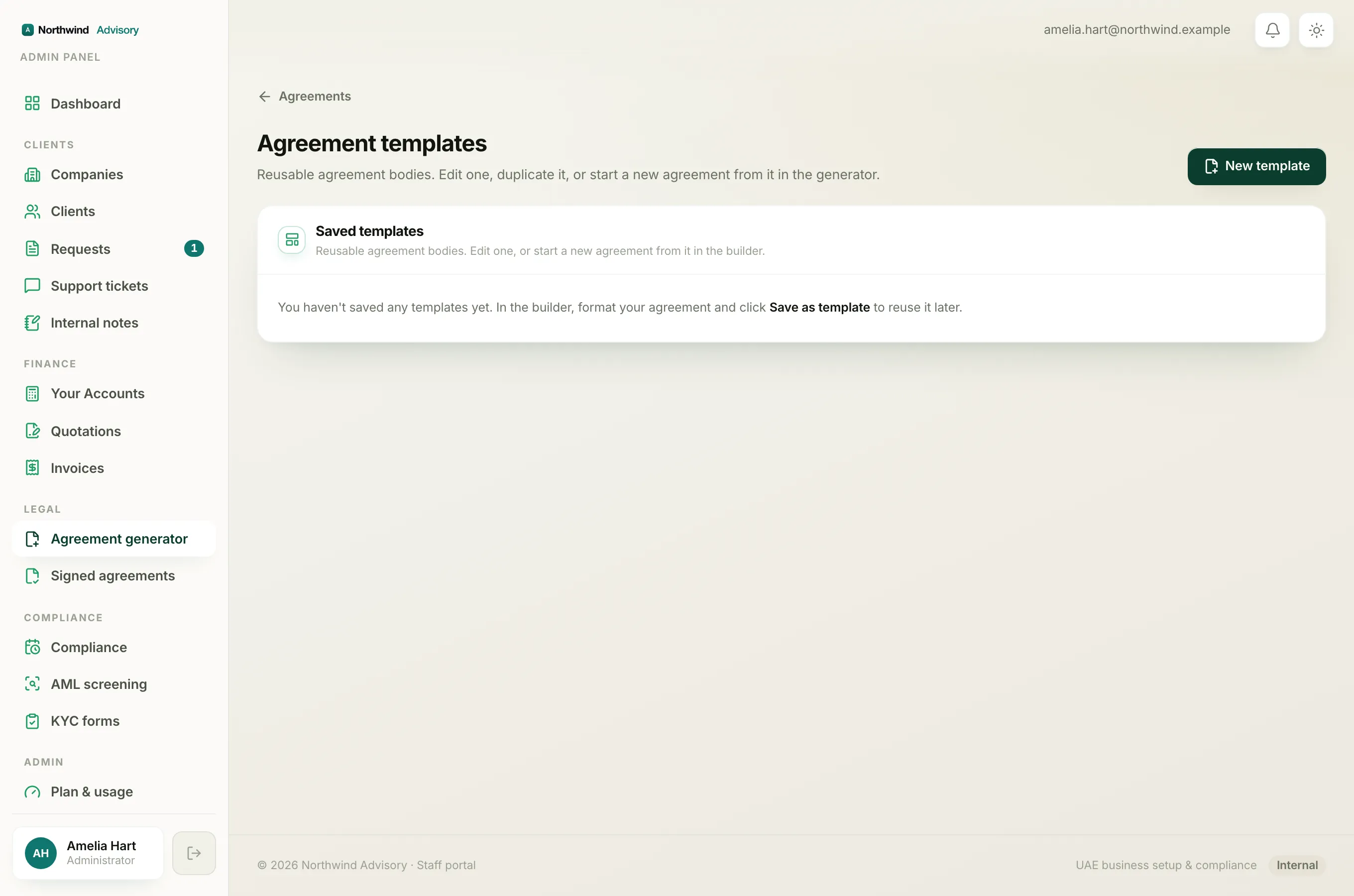
This is the one place to edit, duplicate, or delete your templates.
- Log in to your workspace.
- In the left menu, under Legal, click Signed agreements.
- At the top right, click Templates. This opens the Agreement templates page, where all your saved templates are listed under Saved templates.
Tip
You can also reach this page from the Agreement generator hub: click the Manage templates link near the bottom.
Edit a template
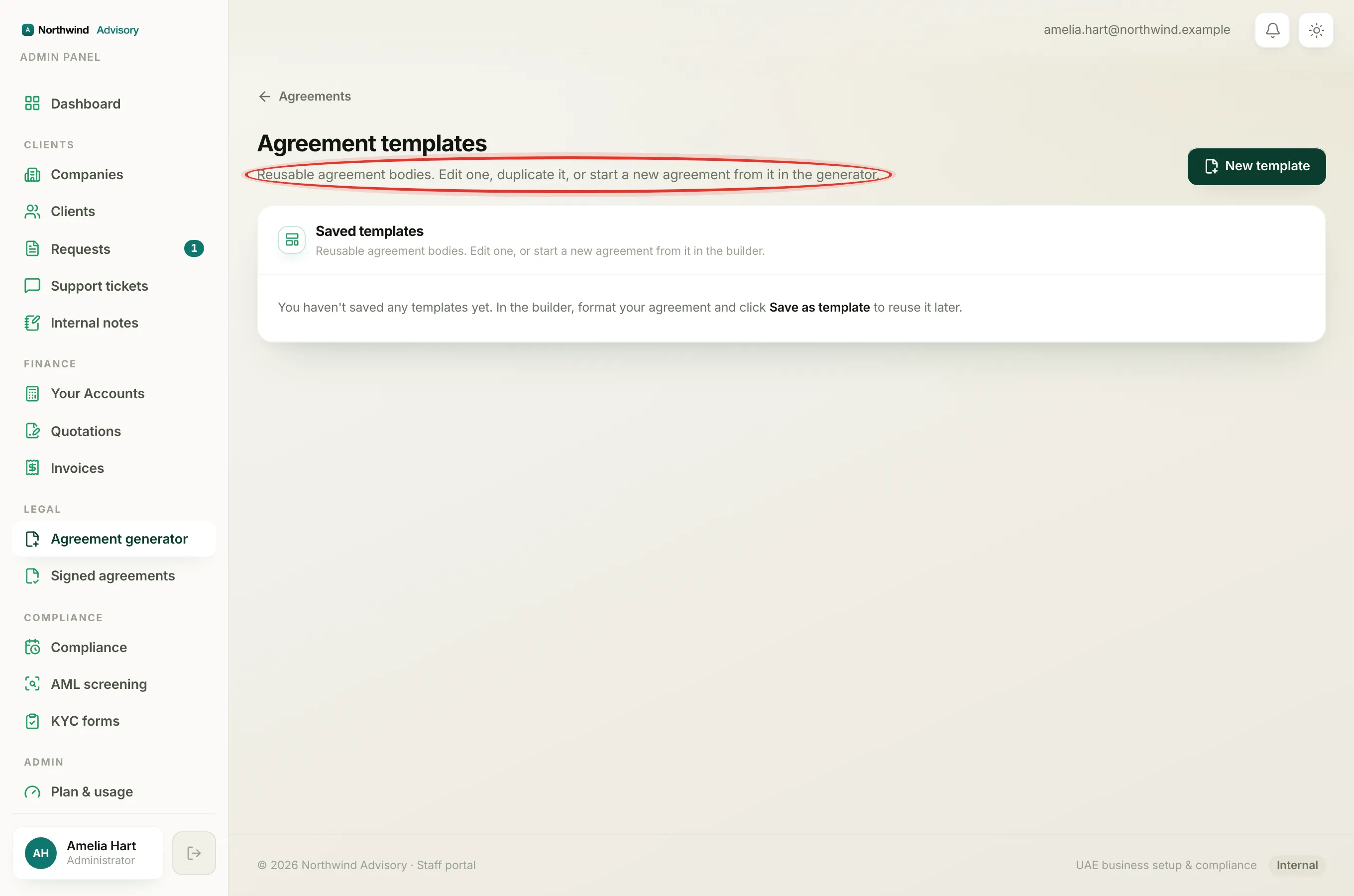
- Open the Agreement templates page (steps above).
- Find the template in the Saved templates list and click Edit.
- The builder opens with that template loaded. Change the heading, wording, or details as needed.
- In section 2. Agreement text, click Update template to save your changes back to the same template.
Note
Editing a template only changes the template. Agreements you have already created or sent are not affected, because their wording is frozen onto each one when you save it.
Duplicate a template
Use this to make a copy you can change without touching the original.
- Open the Agreement templates page.
- Find the template you want to copy and click Duplicate. A copy appears in the list, ready for you to edit and rename.
Delete a template
- Open the Agreement templates page.
- Find the template and click the trash bin icon at the end of its row.
- Confirm when asked. The template is removed.
Important
Deleting a template does not affect agreements you have already sent. They keep their own copy of the wording.
Create a brand-new template from scratch
- Open the Agreement templates page.
- At the top right, click New template. This opens the blank builder.
- Write your agreement, then click Save as template, give it a name, and click Save template.