Where requests come from
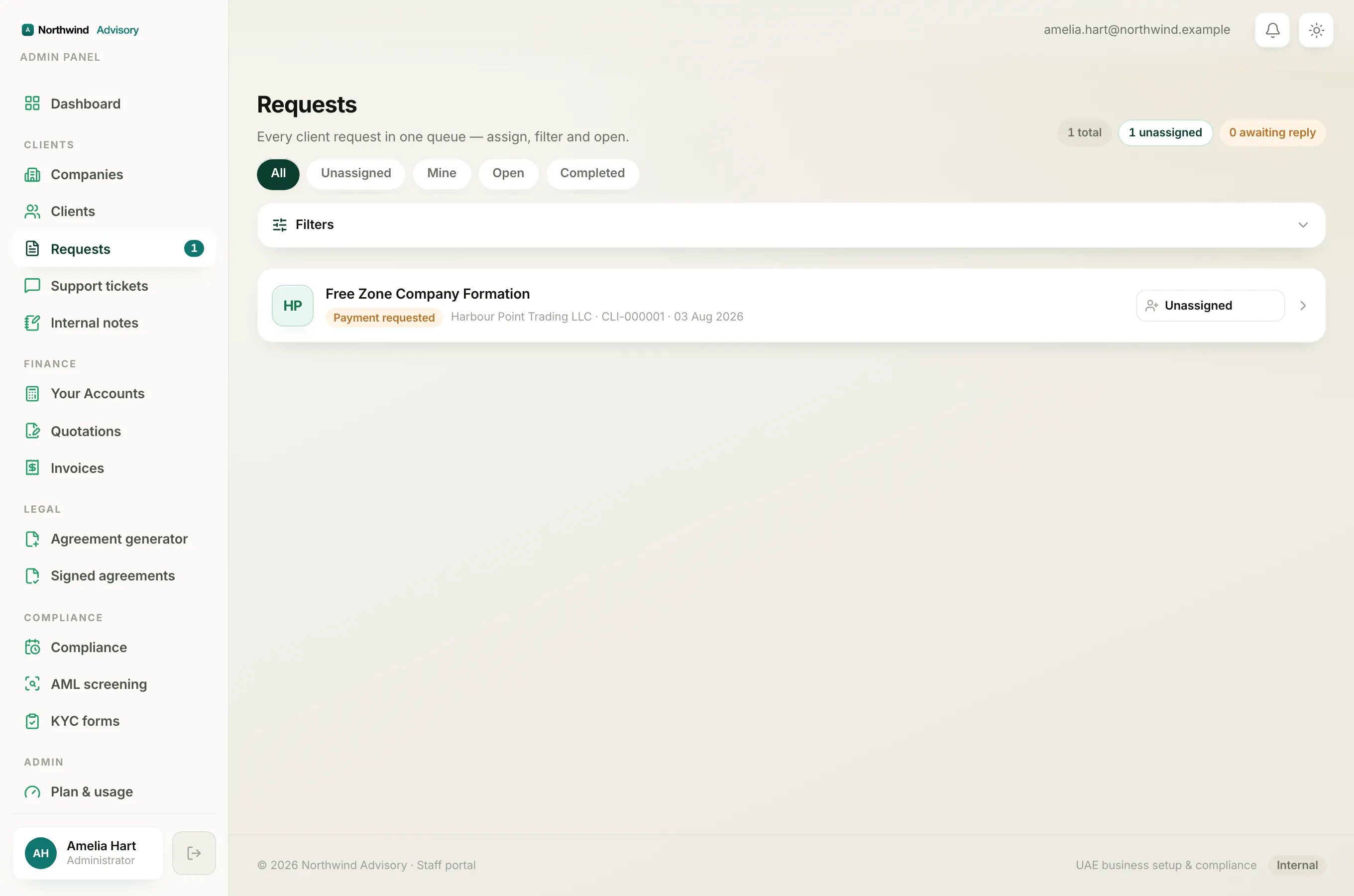
When you need your firm to do something for you, such as a licence renewal or a new setup, you raise a request from the service catalogue. Your firm then picks it up and works with you inside that request.
Open the service catalogue
- Sign in to your portal.
- In the left menu, under your firm's workspace, click Requests.
- On the Requests page, click New request at the top right. This opens the Request a service page.
The Request a service page lists what your firm offers, grouped into sections, with a Popular group at the top. To find something quickly, type in the Search services box.
Choose a service
- Read the short description on each card.
- Click the card for the service you want. This opens the guided form for that service.
If you picked the wrong one, click All services at the top to go back.
Fill in the form
The form is broken into short steps so it never feels long.
- Answer the questions on the first step. Fields marked with a red asterisk (*) are required. Everything else is optional.
- If a form runs across several steps, a Step 1 of 3 style marker and a progress bar appear at the top. Click Continue to move on and Back to return.
- If you are unsure of an answer, leave it. As the form notes, only the marked fields are required and your firm will help you finish the rest.
Tip
Some questions offer a Not sure, advise me choice. Pick it when you would like your firm to recommend the right option for you.
Attach any documents
- Where the form has a file field, click it and choose a file from your device.
- Near the bottom you may see a Documents to prepare list. These are all optional. Attach what you have now, and share the rest later in your request thread.
You can upload PDF, JPG, PNG, WebP, DOC and DOCX files, up to 10 MB each. For the full rules, see Supported file types and the 10 MB upload limit.
Send it
- On the last step, click Submit request.
- You are taken to your Requests list with a green banner: Your request was submitted, we'll be in touch shortly.
- Your new request appears in the list, and a first message from your firm is waiting inside it.
Note
Your typed answers are saved as you go. If your connection drops or the page reloads before you submit, your answers are still there when you come back. Files and a drawn signature are the only things you may need to add again.
To follow what happens next, see What each request status and step means.