Two ways a client can pay
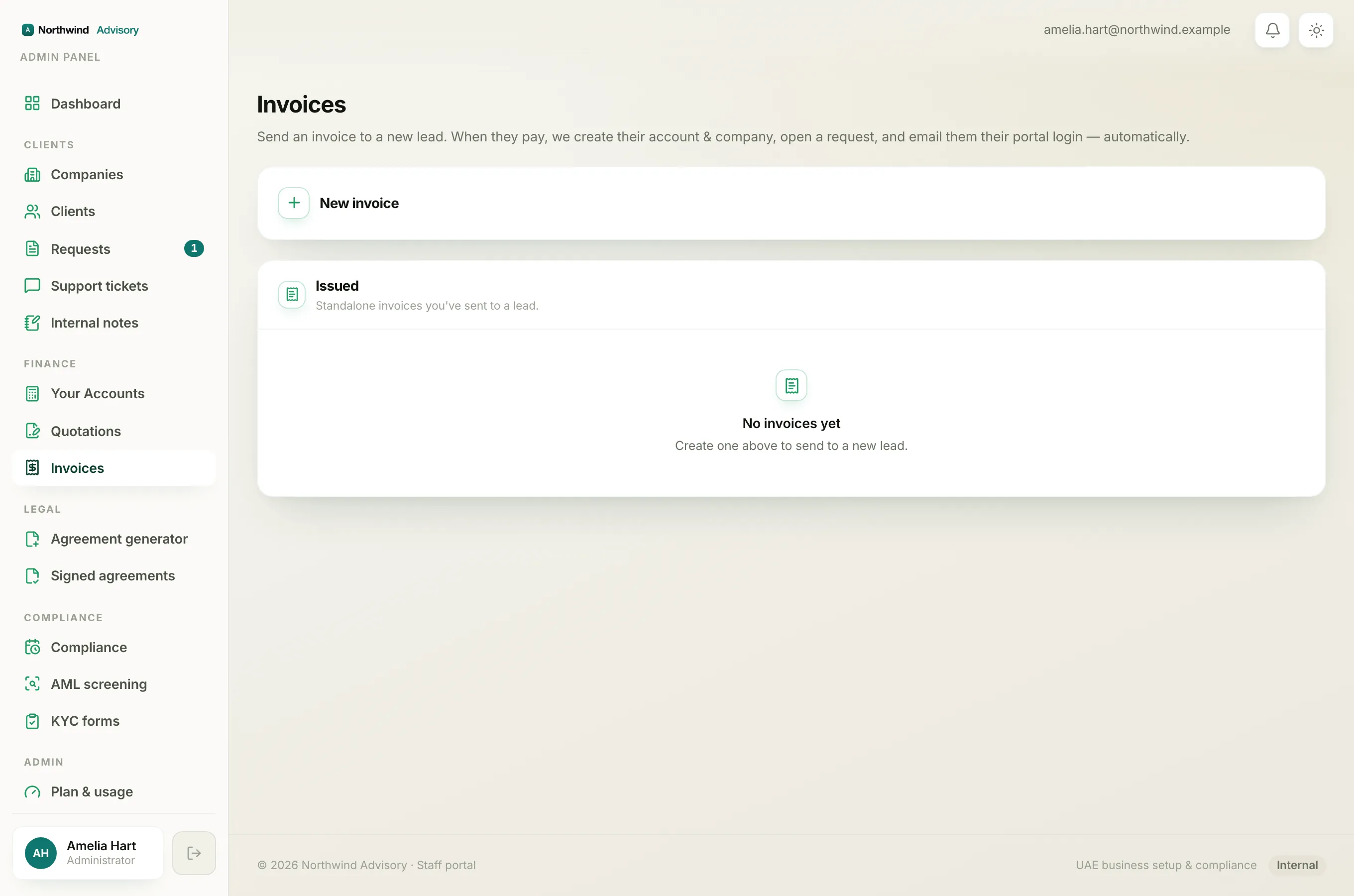
When you send an invoice, your client can settle it in one of two ways. They can pay online with a card through the payment provider you have connected, or they can pay by bank transfer using the details on the invoice PDF. Both cover the same amount.
Note
Older versions of izzytap added a 3% card fee at checkout. That fee is gone. Clients now pay through your own provider and are charged the exact invoice amount, with nothing added on top.
Paying online
Online payment only appears when you have connected your own payment provider, such as Stripe, PayPal or Razorpay. See Connect your payment provider to set this up.
Once a provider is connected, your client sees a Pay button next to any outstanding invoice in their portal, showing the amount. When they click it, izzytap sends them to your provider's secure checkout. They are charged the exact invoice amount, with no surcharge, and the money goes straight into your own account.
A short note under the button reads: "You pay the exact invoice amount. To pay by bank transfer instead, use the details on your invoice PDF." So there is no fee to explain and no surprise total at checkout.
When the payment clears, izzytap records it and the invoice moves to Paid on its own. Your client sees a "Payment received" message on their invoice list.
If you have not connected a provider yet, there is no Pay button. The client pays by bank transfer instead.
Paying by bank transfer
Bank transfer works whether or not you have connected a provider. Your bank details are printed on every invoice PDF, in a box titled BANK ACCOUNT DETAILS. It lists the account to pay into, for example the Account Title, Account No., IBAN, and SWIFT. Your client transfers the invoice amount to that account and uses the invoice number as the payment reference so you can match it.
The invoice PDF also carries a small Scan to verify QR code next to the bank box. That is for confirming the document is genuine, not a separate way to pay. Clients pay to the bank account details shown.
Important
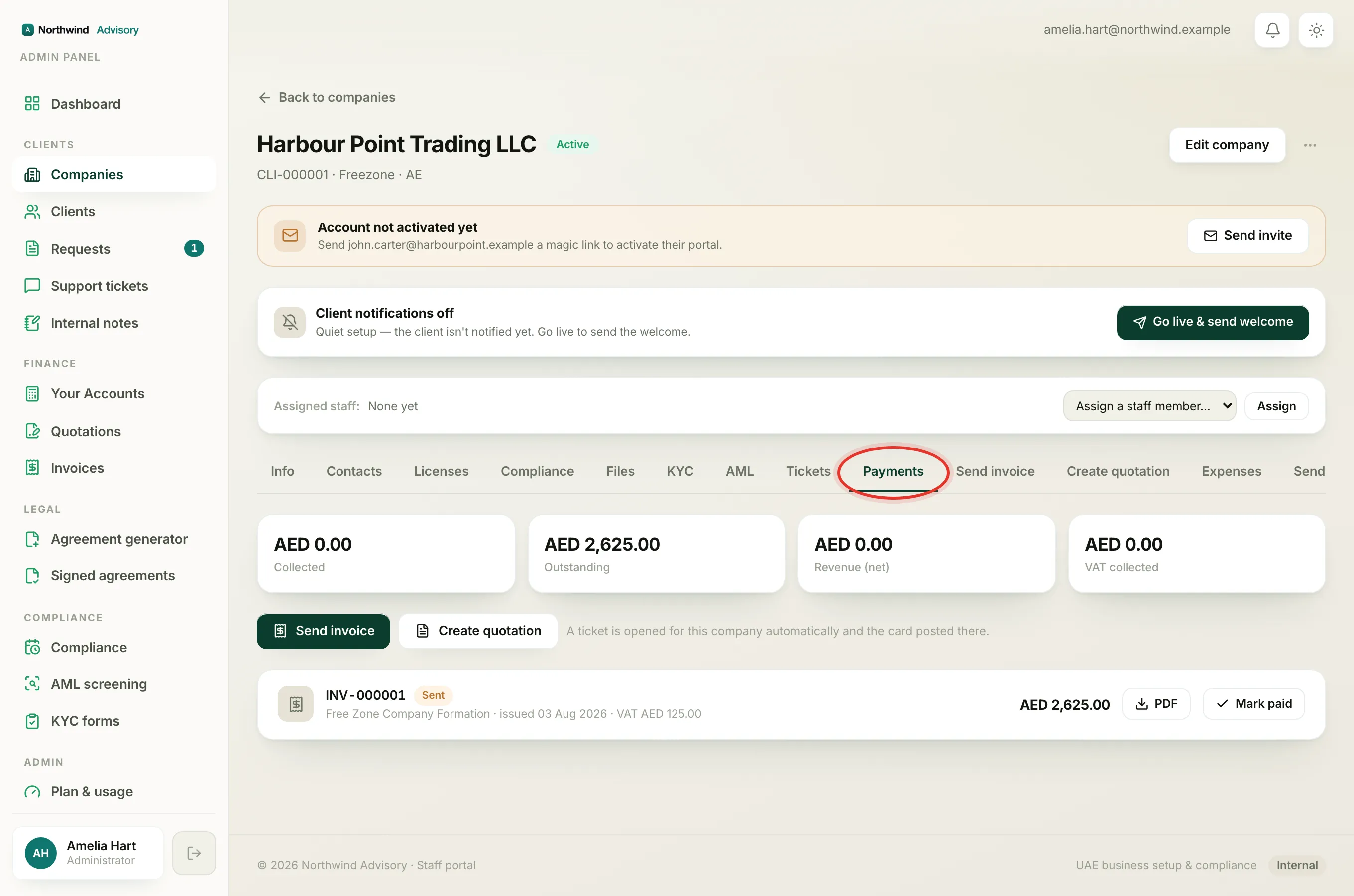
Bank transfers are not confirmed automatically. The invoice stays outstanding until you record the payment yourself, once the money has reached your account.
To record a bank transfer once it arrives:
- Log in to your workspace.
- In the left menu, open Companies and choose the client's company.
- Open the Payments tab.
- Find the invoice and click Mark paid, then enter the amount received.
The invoice then moves to Paid. For more detail, see How to record a payment.
Which one to point a client to
- Point them to online payment if you have connected a provider and they want to pay instantly with a card. See Pay an invoice online by card.
- Point them to bank transfer if they prefer to pay from their bank, or if you have not connected a provider yet. Remember you record this one by hand.
Either way, once the payment is in, the invoice shows as paid. To read the badges on your invoices, see Invoice statuses in the portal.