Every invoice in IzzyTap has a PDF. You can download the PDF of any invoice you have already sent, and you can also open the PDF while you are still building an invoice, before you send it.
Download the PDF of an invoice you have sent
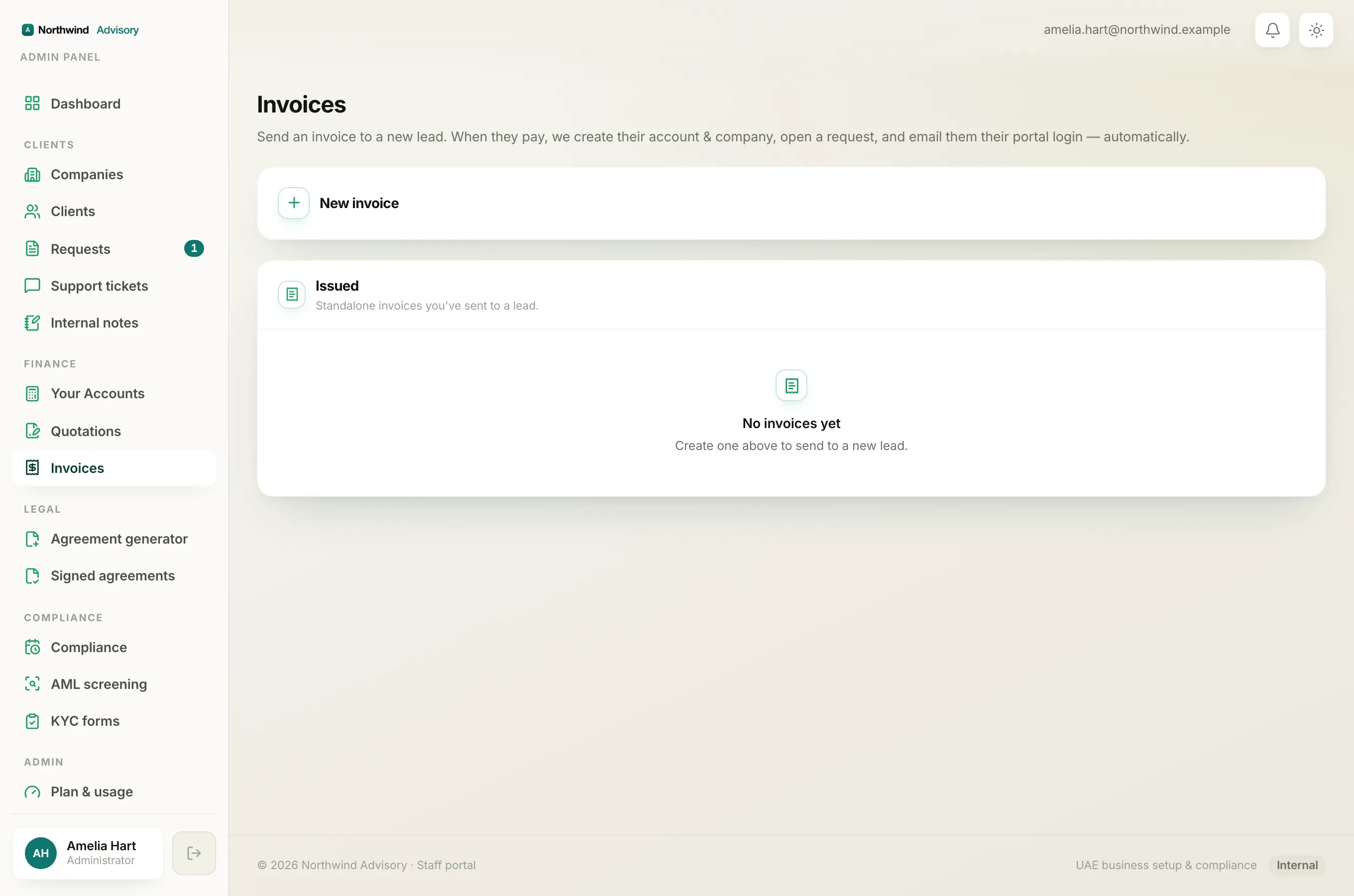
- Log in to your workspace.
- In the left menu, under Finance, click Invoices.
- Find the invoice in the Issued list.
- On that row, click the PDF button on the right.
- The invoice PDF opens in a new browser tab. From there you can save it to your computer or print it.
Note
The PDF always matches the current state of the invoice. Once an invoice is paid, its PDF is regenerated as a paid invoice, so downloading it again gives you the paid version.
Get the PDF before you send
If you are still building an invoice and want to see or save the PDF first:
- Log in to your workspace.
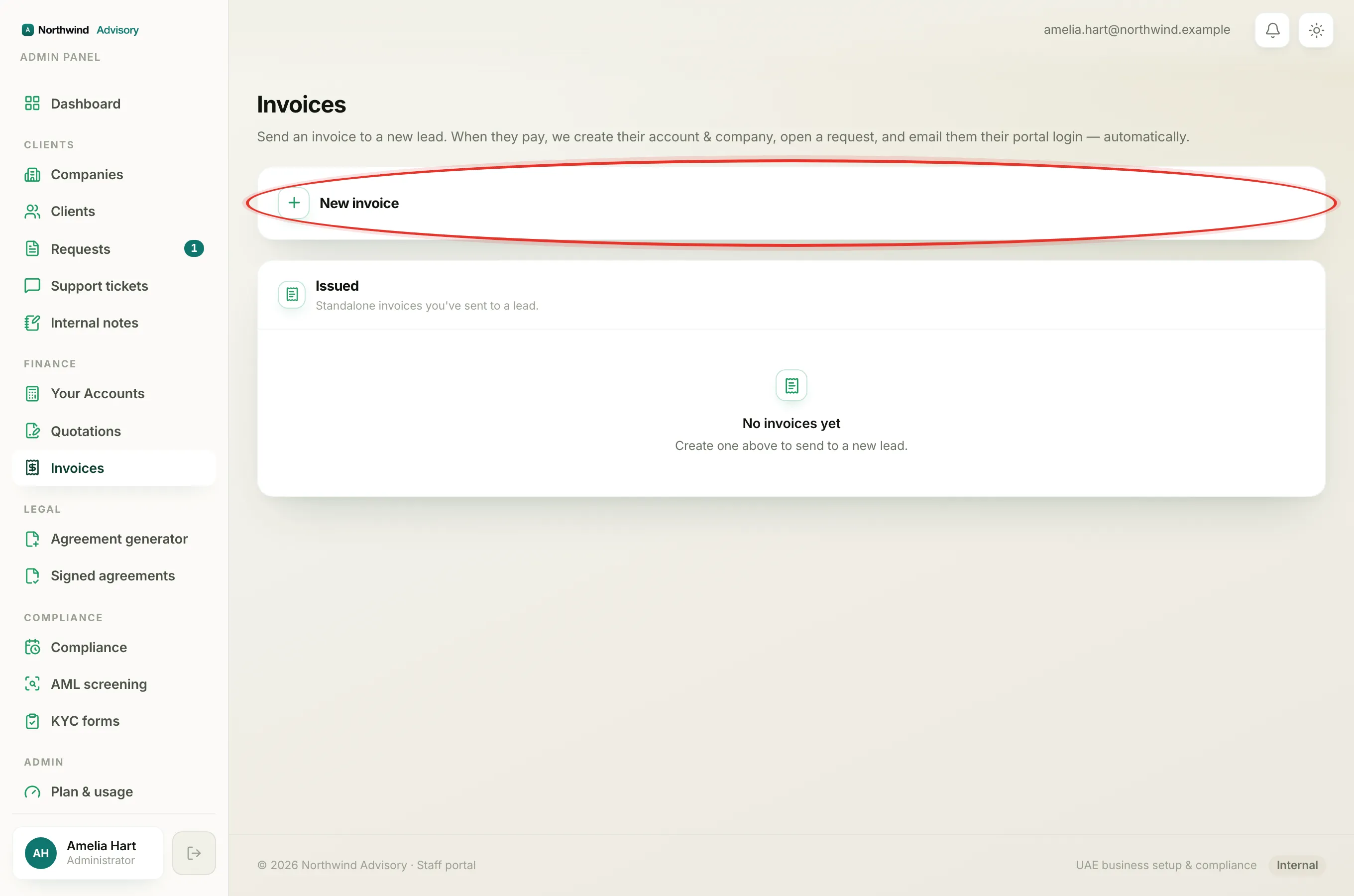
- In the left menu, under Finance, click Invoices.
- Click New invoice and fill in the invoice. See how to create an invoice for the full steps.
- Click Preview invoice. A preview of the PDF opens right inside the page.
- To open it on its own, click Open preview in a new tab. You can save or print it from there.
- When you are ready, click Send invoice, or click Edit to make changes first.
Tip
The client is also sent the invoice PDF by email automatically when you send the invoice, so you do not have to download and send it to them yourself.