What this is for
Instead of typing every line by hand, you can upload the statement file your bank gives you. IzzyTap reads the transactions, you confirm the columns, and the lines are ready for you to reconcile. Nothing is posted to your books during the import. That only happens when you reconcile.
Note
You need a bank account set up first. If you have not added one yet, see How to add a bank account.
Get the file from your bank
- Log in to your bank's online or business portal.
- Open the account statement for the period you want.
- Download or export it as CSV or Excel. PDF is not supported for now.
Tip
IzzyTap never sees your bank login. You only ever hand it the downloaded file.
Open the import screen
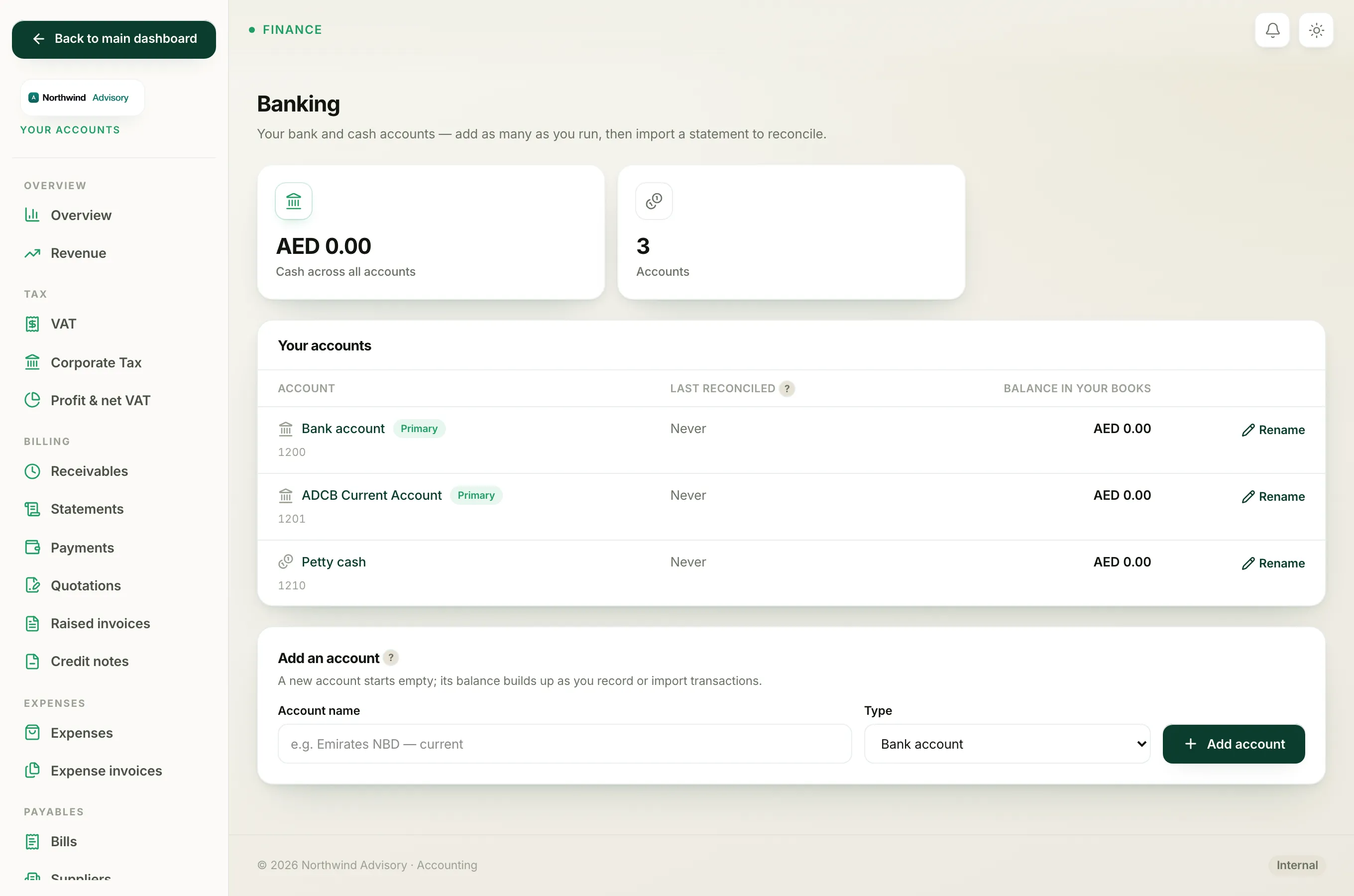
- Log in to your workspace.
- In the left menu, under Finance, click Your Accounts.
- In the accounts side menu, under Banking, click Bank accounts.
- In the Your accounts list, click the name of the account you want to import into.
- On that account's page, click Import statement.
Upload the file
- On the Import a statement screen, under Statement file (CSV or Excel), click the file button and choose the file you downloaded. It must be a .csv, .xls or .xlsx file.
- Click Upload & map columns.
Confirm which column is which
You now land on the Which column is which? screen. IzzyTap makes its best guess at your columns and shows a preview of the first few transactions.
- Check each dropdown under Columns. Match each field to the matching column from your file:
- Date
- Description
- Money out (Debit) and Money in (Credit) if your statement has two separate amount columns.
- Amount (one signed column) if your statement instead uses a single amount column where money out is a negative number.
- Running balance, which is optional but helps IzzyTap avoid importing the same line twice.
- If a field is not in your file, leave that dropdown on not in file.
- Look at the Preview table. Check that the dates, descriptions and amounts look right, and that money out shows as a minus figure.
- When the preview looks correct, click Import these transactions.
Important
Use either the single Amount (one signed column) field, or the Money out (Debit) and Money in (Credit) pair. Do not fill in both, or your amounts may double up. If the preview shows no transactions, adjust the dropdowns until lines appear.
After the import
IzzyTap takes you back to the account page and confirms how many transactions it imported. If any lines were already imported before, it skips them and tells you how many it skipped.
The file now appears in the Statement imports list, showing the file name, the period it covers, the number of rows and the date you imported it.
Tip
Uploaded the wrong file? In the Statement imports list, click Delete on that row and import again. Nothing is posted to your books until you reconcile, so deleting an import is safe.
What to do next
Your imported lines are now waiting to be ticked off. Follow How to reconcile your bank to match them to your books and lock the month.