When a client pays you, you record that payment against their invoice. This keeps your records correct, so you always know who has paid and who still owes you. If your books are set up, recording the payment also updates your bank balance for you, with the maths handled automatically.
Before you can record a payment, you need an invoice for it. If you have not made one yet, see How to create an invoice.
Where you record a payment
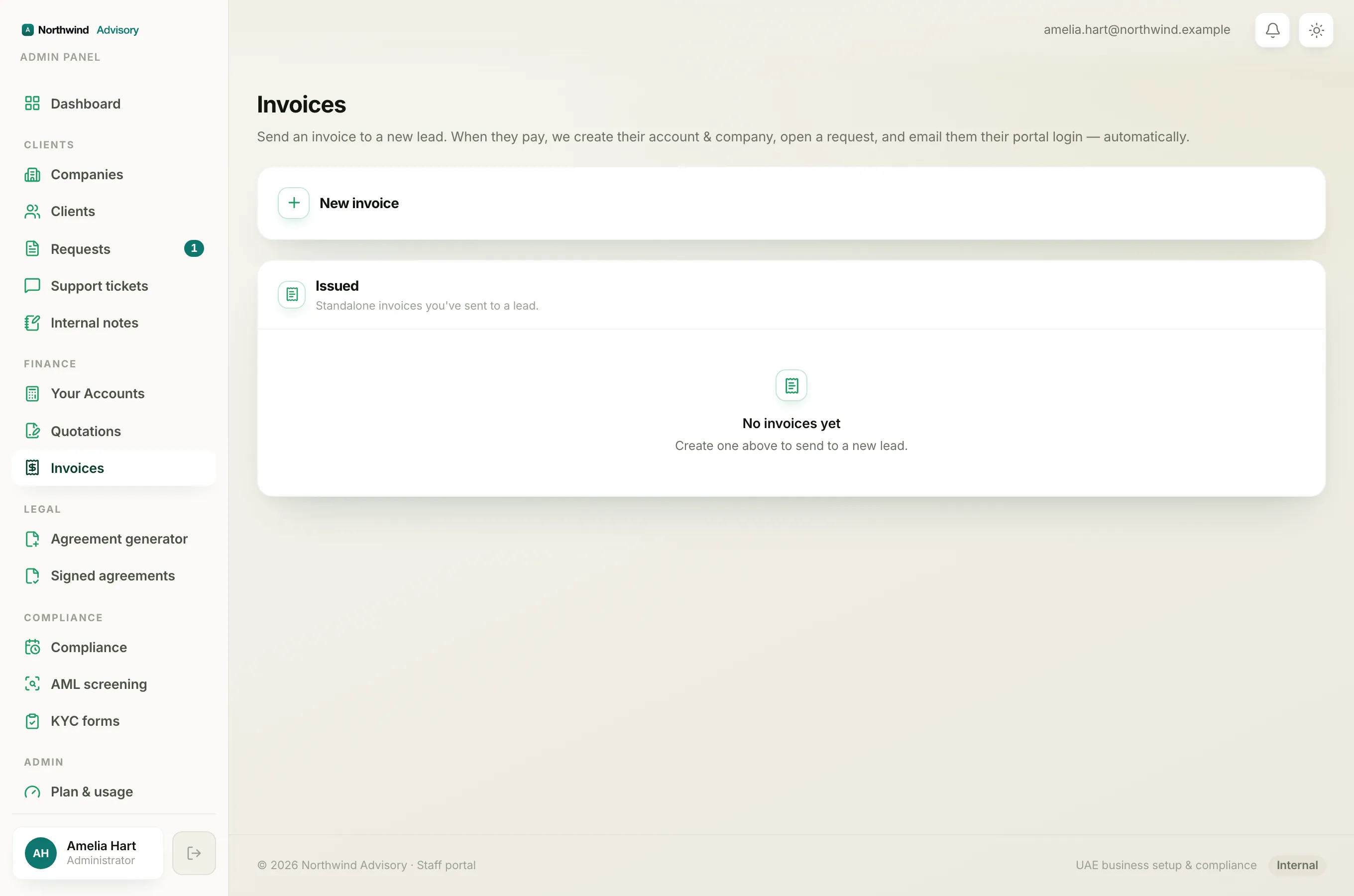
You mark a payment in the same place the invoice lives.
- For an invoice you sent to a company in your list, open that company and use its Payments tab.
- For an invoice you sent to a new lead from the Invoices page, open the Invoices page and use the Issued list.
Both use the same short form. The steps below use the company page as the example.
Step by step
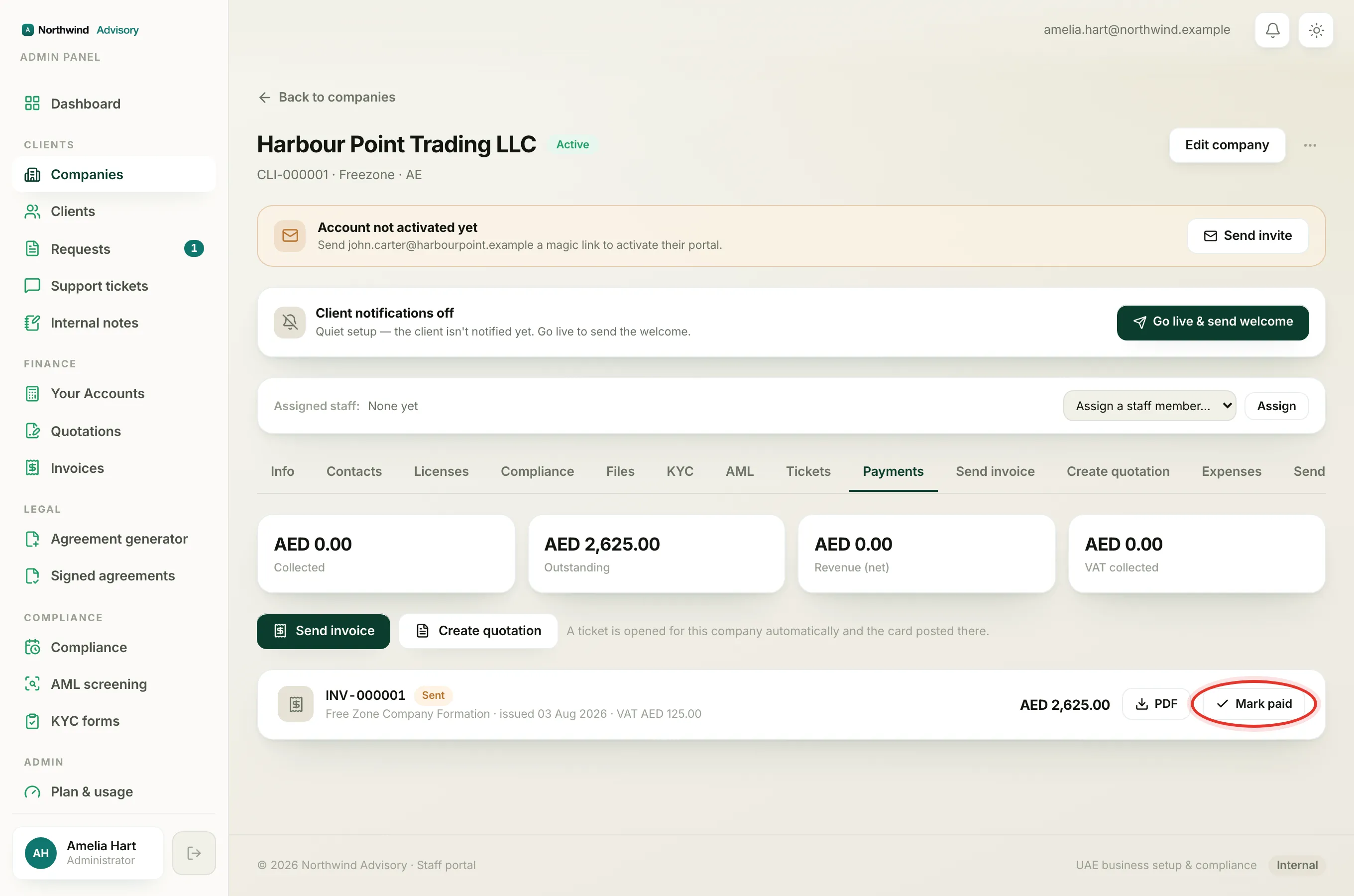
- Log in to your workspace.
- In the left menu, under Clients, click Companies.
- Click the company that paid you.
- Click the Payments tab. You will see the company's invoices with the amount and the status.
- Find the invoice that was paid and click Mark paid. A small form opens.
- Choose the Payment method, for example Cash or Bank transfer.
- In Where / reference, add a short note so you can find it later. For example the bank account it landed in, or a transfer reference number.
- If your books are set up and you have more than one bank account, choose Deposit to. This is the bank account that received the money. Picking it updates that account's balance in your books.
- Click Confirm payment.
The invoice is now marked as paid and moves out of your "owed" list.
What happens to your books
Note
If your books are set up, recording the payment posts it for you. The bank account you chose goes up by the amount received, and the amount the client owed goes down to zero. You do not need to make any journal entry by hand, and there is no risk of entering it twice. The figures stay balanced.
If your books are not set up yet, the invoice is still marked as paid. Nothing is posted to any ledger, which is fine. You can turn your books on later from Your Accounts.
Good to know
Important
The Deposit to picker only shows when you have two or more bank accounts. With a single account, every payment goes to that account, so there is nothing to choose.
- Part payments. If a client pays only part of an invoice, you can enter the smaller amount. The invoice then shows the remaining balance until the rest is paid.
- New leads who pay online. When a lead pays your invoice through the pay link in their email, the app marks it paid on its own, so you do not need to record anything by hand.