The notification bell
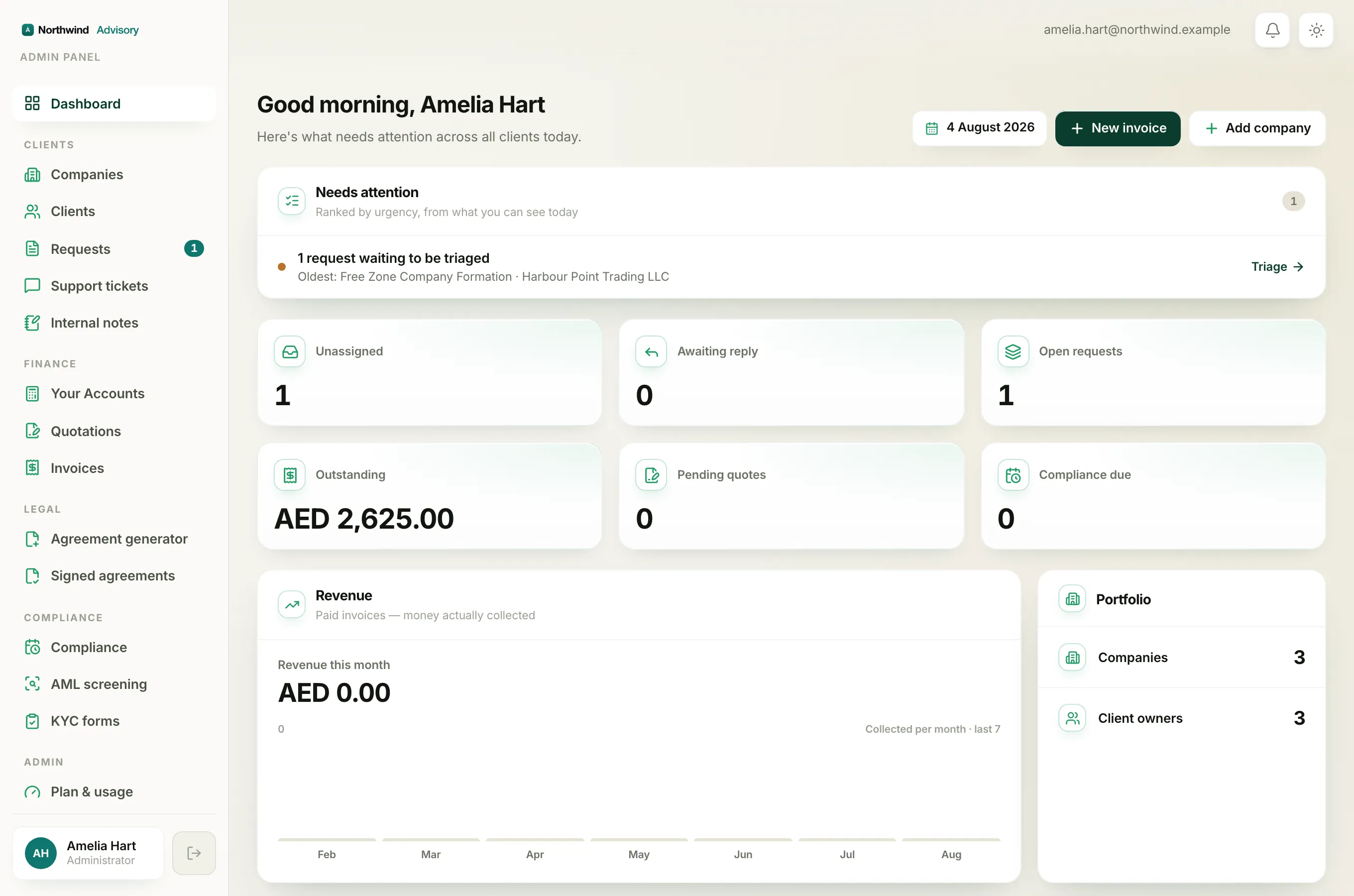
At the top of your portal there is a bell icon. It is how your service provider keeps you updated without you having to check every page. This works the same on a computer and on your phone.
The unread badge
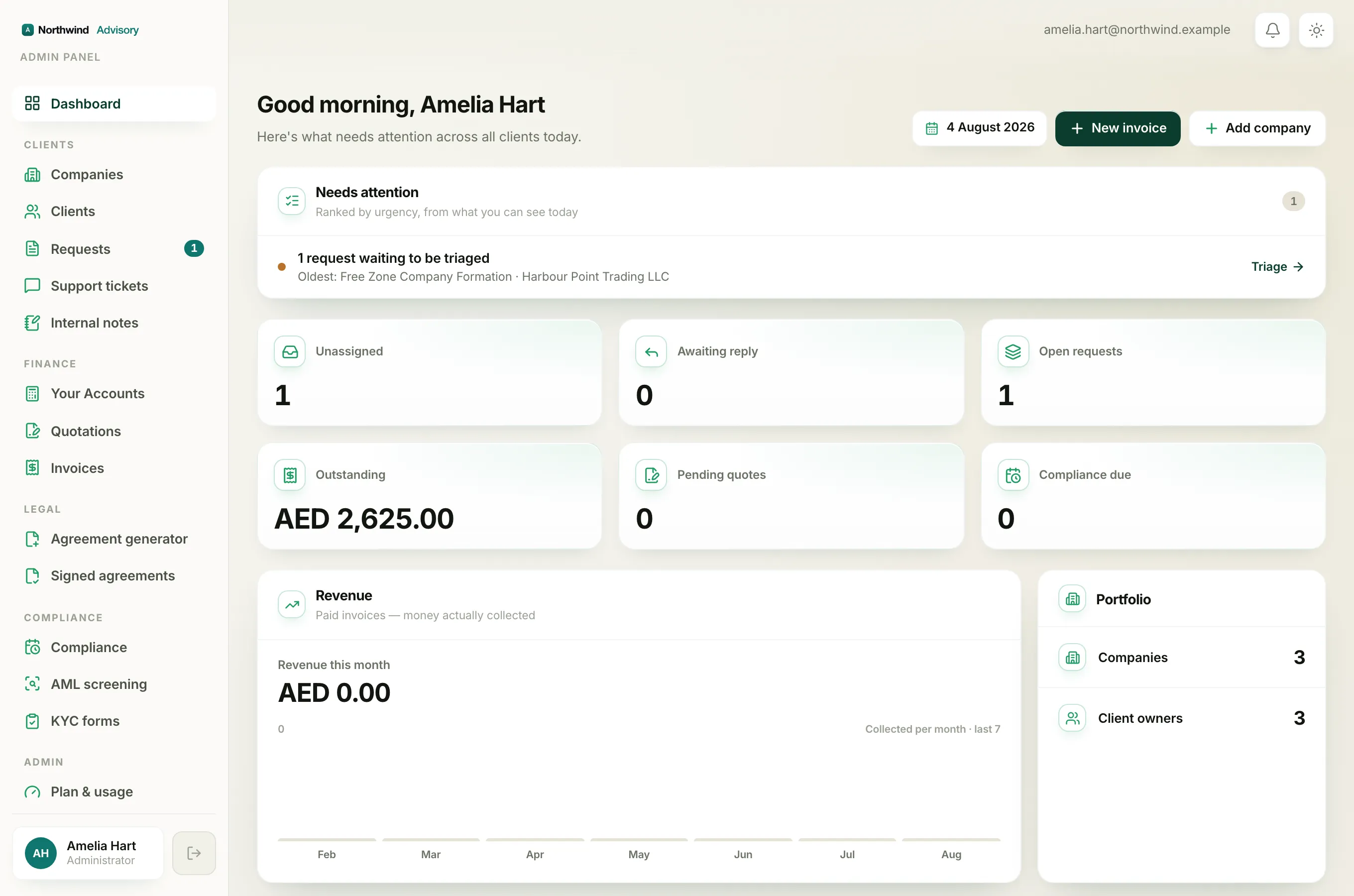
When you have unread notifications, a small red number sits on the bell. It counts how many you have not seen yet. If there are more than nine, it shows 9+.
Opening your notifications
- Log in to your portal.
- Click the bell icon at the top of the screen.
- A panel headed Notifications opens with your most recent items.
As soon as you open the panel, your notifications are marked as read and the red badge clears. The items stay in the list so you can still read them.
If you have nothing new, the panel simply says You're all caught up.
Reading a notification
Each row shows a short title, a line of detail, and how long ago it happened. A blue dot next to a row means you had not seen it yet. Click any row to jump straight to the page it is about, for example the request, quotation, invoice or document it refers to.
What raises a notification
You get a notification when there is something you should see, such as:
- Your firm replies to one of your support tickets.
- A new document is issued to you.
- A quotation is sent to you to review.
- A payment is recorded against one of your invoices.
- A compliance item is updated on your account.
Good to know
- Notifications are personal to your login. Another person at your company sees their own list based on what they can access.
- Many of these updates are also emailed to you, so you can stay in the loop even when you are not signed in.
To follow a conversation you have started, see Open a support ticket and track replies. To understand where a request has got to, see What each request status and step means.