If the agreement builder won't let you preview, save, or send, it is usually one of four things. Here is each one and how to clear it.
First, set up your letterhead
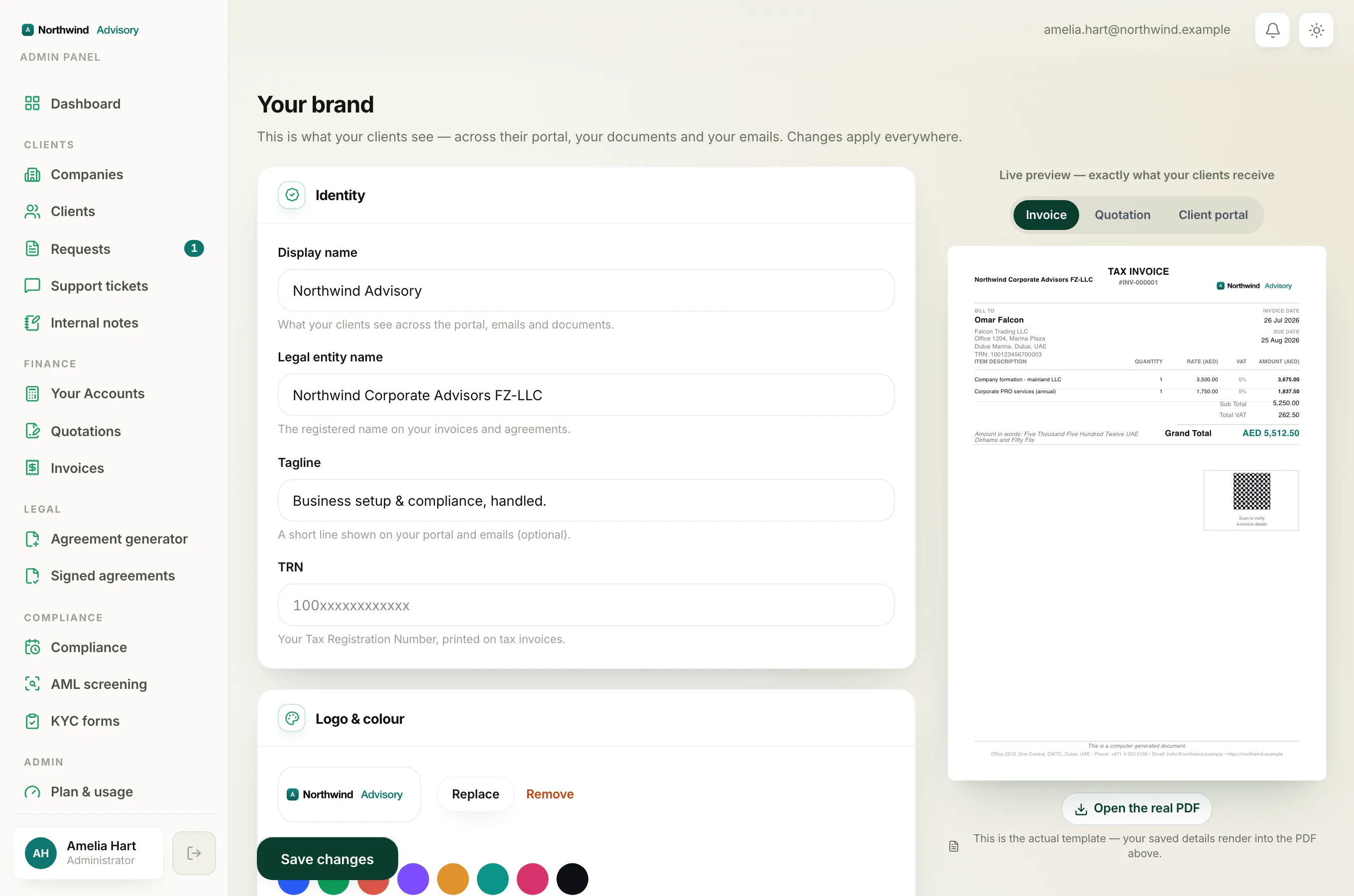
Every agreement goes out in your own firm's name, on your own letterhead. If your firm has no brand profile with a legal name saved yet, the builder stops you with a message like "Set up your letterhead before previewing an agreement" when you try to preview, or a similar block when you click Save & continue.
This protects you: without it, the document would have no company name of its own to speak in.
To fix it, set your brand and letterhead first, then come back to the agreement. See set your brand.
Add at least one signing party
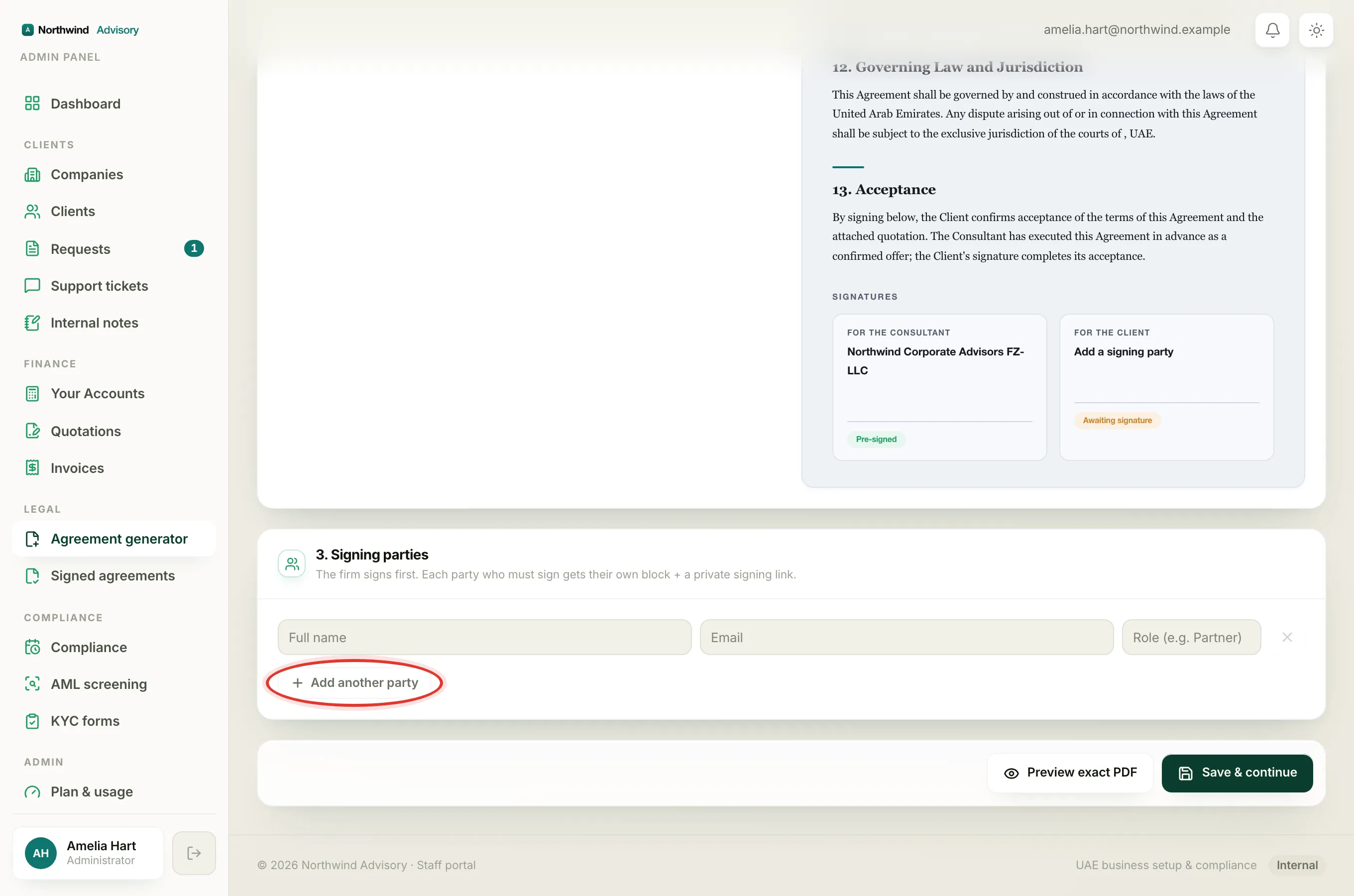
When you click Save & continue you may see "Add at least one signing party (name + email)."
An agreement needs someone to sign it. Your firm signs first automatically, but you must add the other side.
- Log in to your workspace.
- In the left menu, under Legal, click Agreement generator.
- Scroll to 3. Signing parties.
- In a party row, fill in the Full name and Email (the Role is optional).
- Use Add another party if more than one person needs to sign.
A party only counts once it has both a name and an email. A row with just a name is ignored. See add signing parties.
The agreement is too large
If you pasted in a very long document, you may see "This agreement is too large. Please shorten it before saving" (or a similar message when previewing).
A normal agreement is a few pages of text. If yours trips this limit, trim the body down: remove repeated blocks, cut anything that doesn't belong in the agreement, and try again.
The send that stayed in Draft
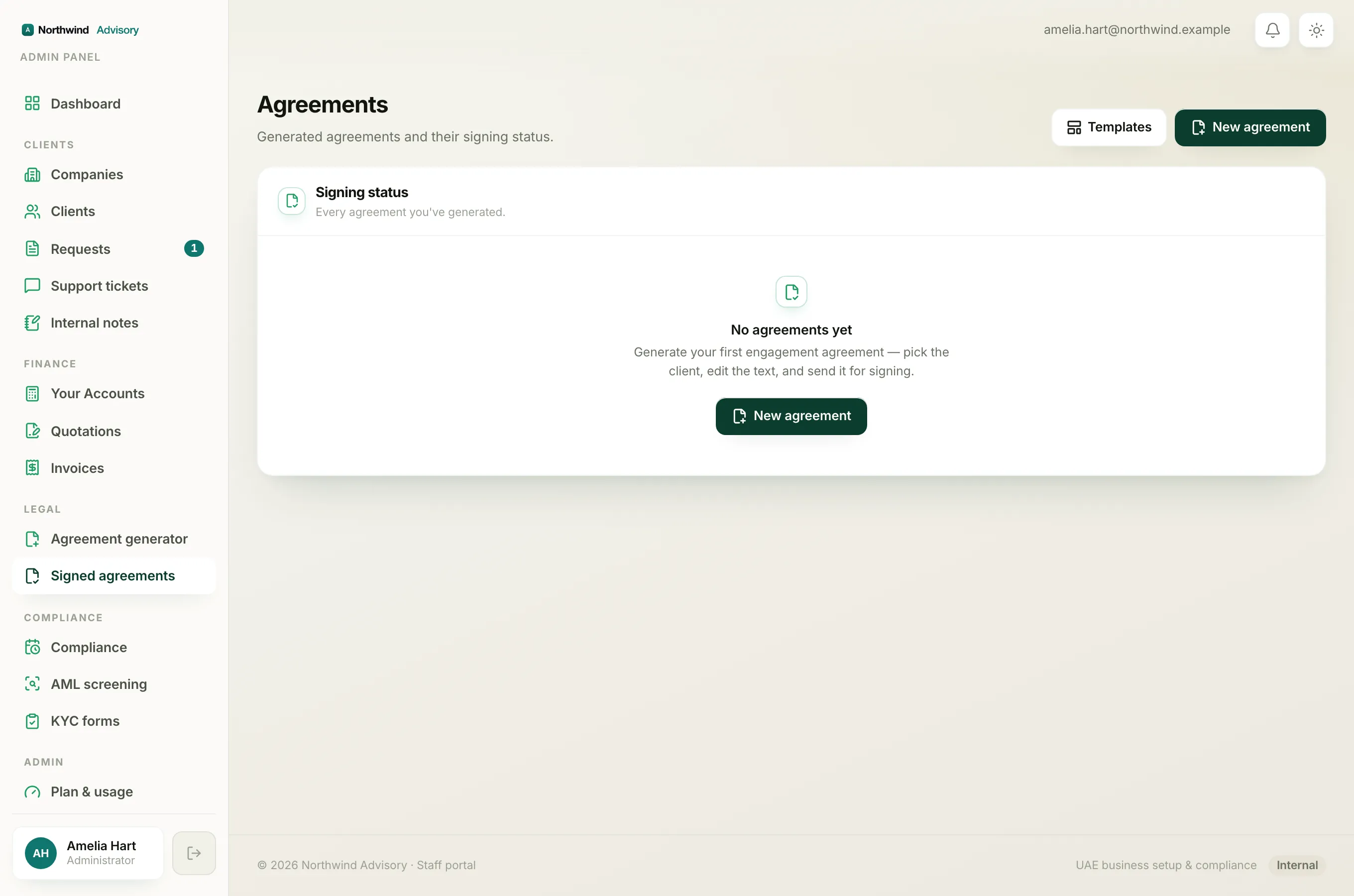
Creating an agreement and sending it are two separate steps. When you click Save & continue, the agreement is saved as a Draft. It is not out for signing yet, and nobody has been emailed.
To actually send it:
- Open the agreement (it opens on its own after you save, or find it under Legal then Signed agreements).
- Look for the green Send for signing panel.
- Click Send for signing.
Important
The Send for signing button only appears while the agreement is a Draft and it has at least one signing party. If you can't see it, check the status chip near the title. If it already says Out for signing, it has been sent. If it is still Draft with no party listed, add a signing party first.
If a send doesn't go through (for example a brief technical hiccup while building the PDF), the agreement is deliberately left as Draft so nothing goes out half-finished. Just open it and click Send for signing again. See send an agreement for signing.