Sit two team members side by side and their Dashboards can look very different. One sees six number cards, a revenue chart and a wall of queues. The other sees two numbers and a single list. Neither screen is broken. What each person sees is decided by two settings on their account, and only an admin can change them.
The two settings that shape your Dashboard
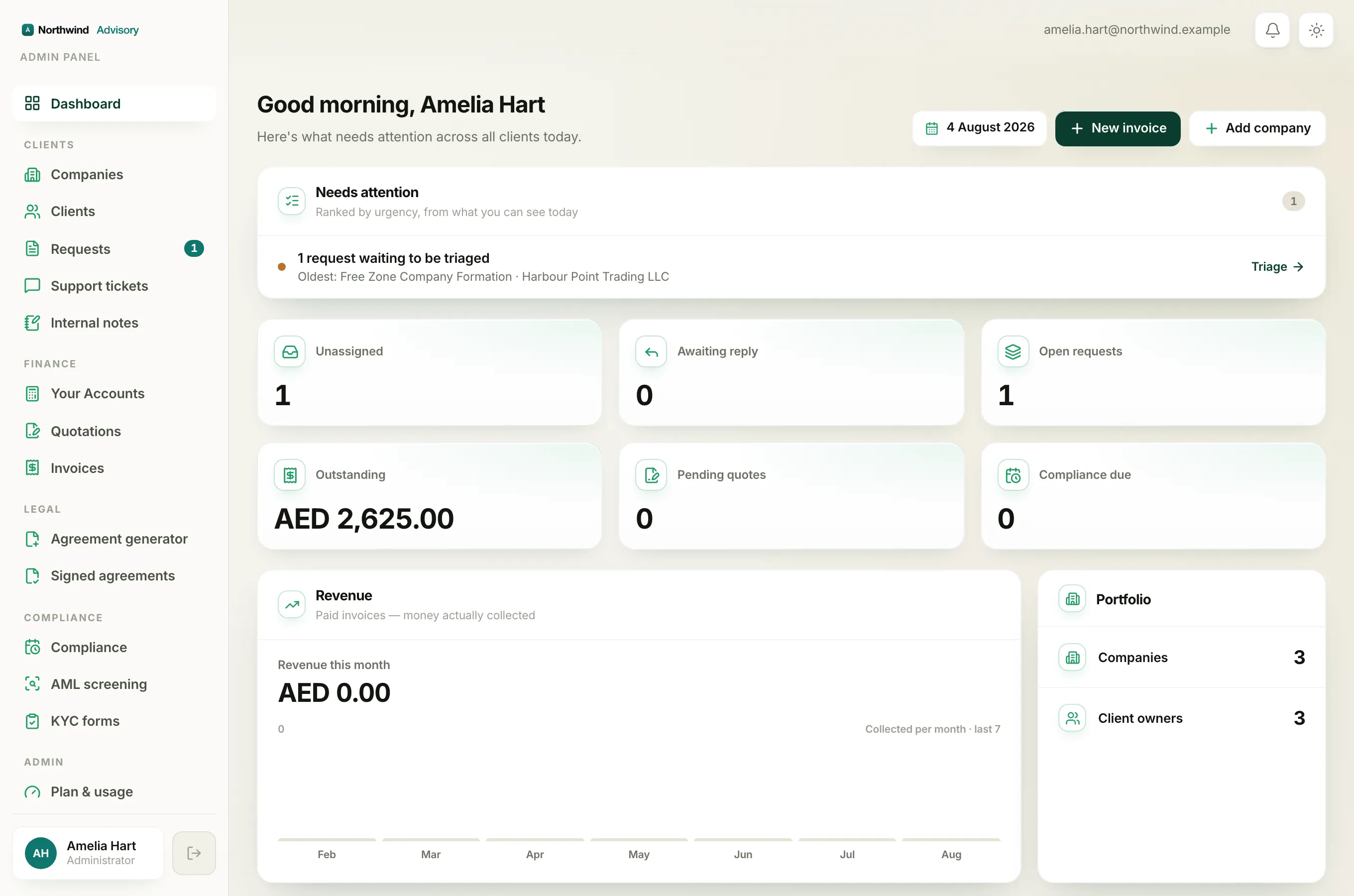
1. Which clients you can see (your scope). Your account is set either to the whole firm or to only the clients assigned to you.
- Whole firm. You see everything: all six number cards, the money and compliance figures, the revenue and portfolio cards, and every queue (unassigned requests, awaiting reply, compliance requests, recent activity, upcoming deadlines, outstanding invoices and pending quotations). Your greeting reads "Here's what needs attention across all clients today."
- Only my assigned clients. You see a trimmed Dashboard built around your own work: just two number cards, Awaiting reply and Open requests, and only the Awaiting our reply queue. There are no firm-wide money figures, no deadlines list and no unassigned queue, because handing work out and watching the firm's money are the job of whoever assigns your work. Your greeting reads "Here are the requests assigned to you."
2. What your role lets you do (your capabilities). On top of scope, your role switches individual pieces on or off.
- The revenue chart is separate from everything else. Only a role that is allowed to see firm income gets the Revenue card. So a manager can see the whole firm and every queue, yet still not see the revenue chart if their role does not include income access. See Read the revenue chart on your dashboard.
- The action buttons at the top follow your role too. The New invoice button only appears if you are allowed to raise invoices, and the Add company button only appears if you are allowed to manage clients.
Putting it together
Your Dashboard is the overlap of those two settings. An administrator sees all of it. An operations manager may see the whole firm and every queue but not the revenue chart. A support agent set to their own clients sees just two numbers and their reply queue. None of that is a setting you flip yourself on the page.
Note
The Needs attention list follows the same rules. It can only rank items you are allowed to see, so a person on assigned-only scope will usually have a shorter list.
Who can change it
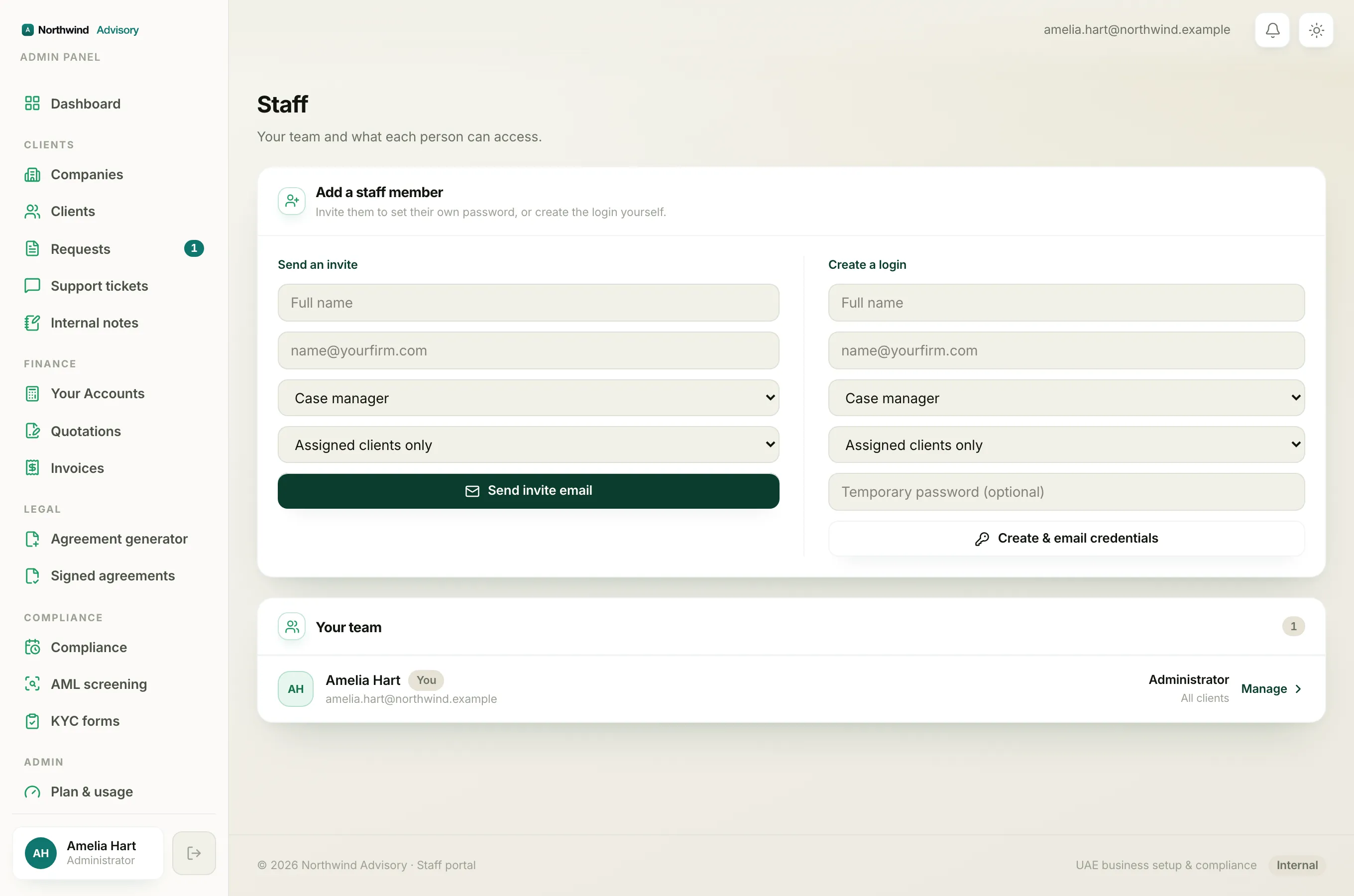
Your scope and your role are set by an admin when they add you to the team or edit your account. If you think you should be seeing more, that is the person to ask. The roles and what each one can do are explained in Staff roles, and the same settings are why a whole menu section can be missing for you, covered in Why a menu section is missing for you.