What the Signature Certificate is
When an agreement reaches the Signed status, IzzyTap builds the final signed PDF and adds one extra page at the end called the Signature Certificate. This page is your audit trail. It proves who signed, when they signed, and from where. You do not create it or fill anything in. It is generated automatically the moment the last party signs, and it stays part of the signed document forever.
The certificate only appears once the agreement is fully executed, meaning every party has signed. A draft or an agreement still out for signing does not have one yet.
How to see it
- Log in to your workspace.
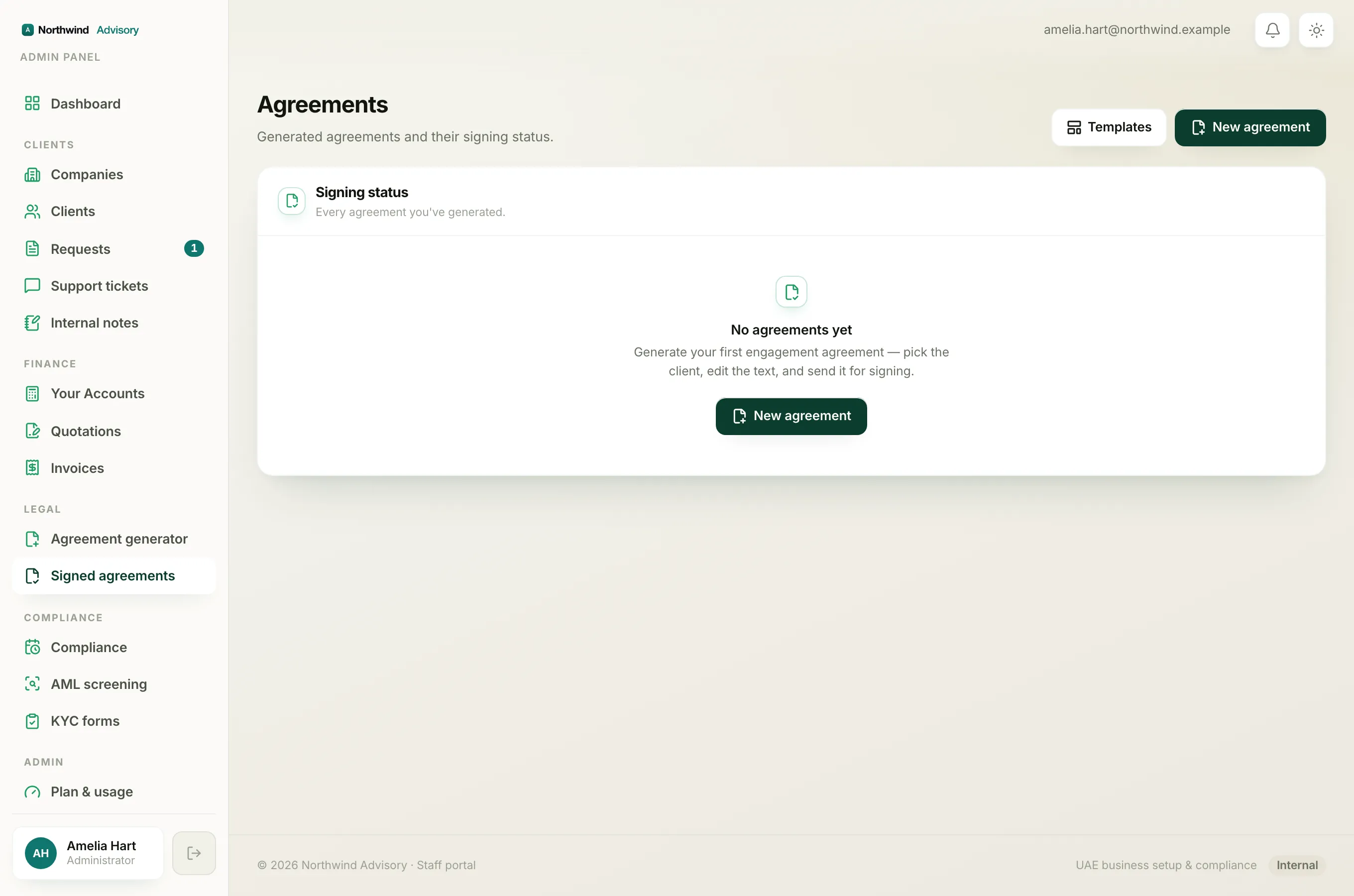
- In the left menu, under Legal, click Signed agreements.
- Click the agreement you want to open.
- Click Download PDF (or Download signed agreement) at the top of the page.
- Open the PDF and scroll to the last page. The Signature Certificate sits after the signature blocks.
The header of the page reads Signature Certificate with a green Executed tag next to it.
For more on getting the file itself, see Download an agreement PDF.
What each column records
The certificate is a table with one row per party. For every signer it shows:
- Party. Their name, email address and company, plus whether they are the Consultant (your firm, who signs first) or the Client.
- Method. How the signature was applied. This reads Drawn signature if the person drew it with their finger or mouse, Typed signature if they typed their name, or Pre-signed for your firm's side, which is signed in advance when you send.
- Signed. The full date and time the person signed, shown in UAE local time and labelled GST (for example, 13 July 2026, 14:32 GST).
- IP address. The internet address the person signed from.
- Device. A short summary of their browser and operating system, such as Chrome and macOS.
Your firm's own row shows Pre-signed as the method, and a dash in the IP address and Device columns. That is expected. Your side is signed at the moment you send the agreement, so there is no separate device or address to record for it.
Note
The wording under the table confirms that each signer verified their identity with a one-time passcode sent to their email address before they could sign. That is why the email column matters. See How your client signs the agreement.
The Verification ID
At the foot of the certificate you will find three lines:
- Document reference. The agreement number, for example AGR-000001.
- Verification ID. A short code in the form XXXX-XXXX-XXXX, made up of letters and numbers.
- Certified. The date and time the final signed PDF was produced, again in GST.
The Verification ID is the tamper-evident part. IzzyTap builds it from the signed content itself: the agreement number, its title, and every signer's email, signing time and IP address. Because the code is derived from that exact data, any change to the signed document, even a tiny one, would produce a completely different Verification ID. So if two copies of the same agreement show the same Verification ID, you know they are identical and untouched. If someone edited the document after signing, the code would no longer match.
The same Verification ID is also printed near the top of the first page, next to the reference and date, so you can check it at a glance without scrolling to the last page.
Tip
Keep the downloaded signed PDF as your official copy. The Verification ID travels inside that file. You do not need to store it separately.