You do not have to pay a bill all at once. IzzyTap lets you record a payment for part of the amount, then record the rest later. This page shows how, and what changes on the bill each time.
Record a part-payment
- Log in to your workspace.
- In the left menu, under Finance, click Your Accounts.
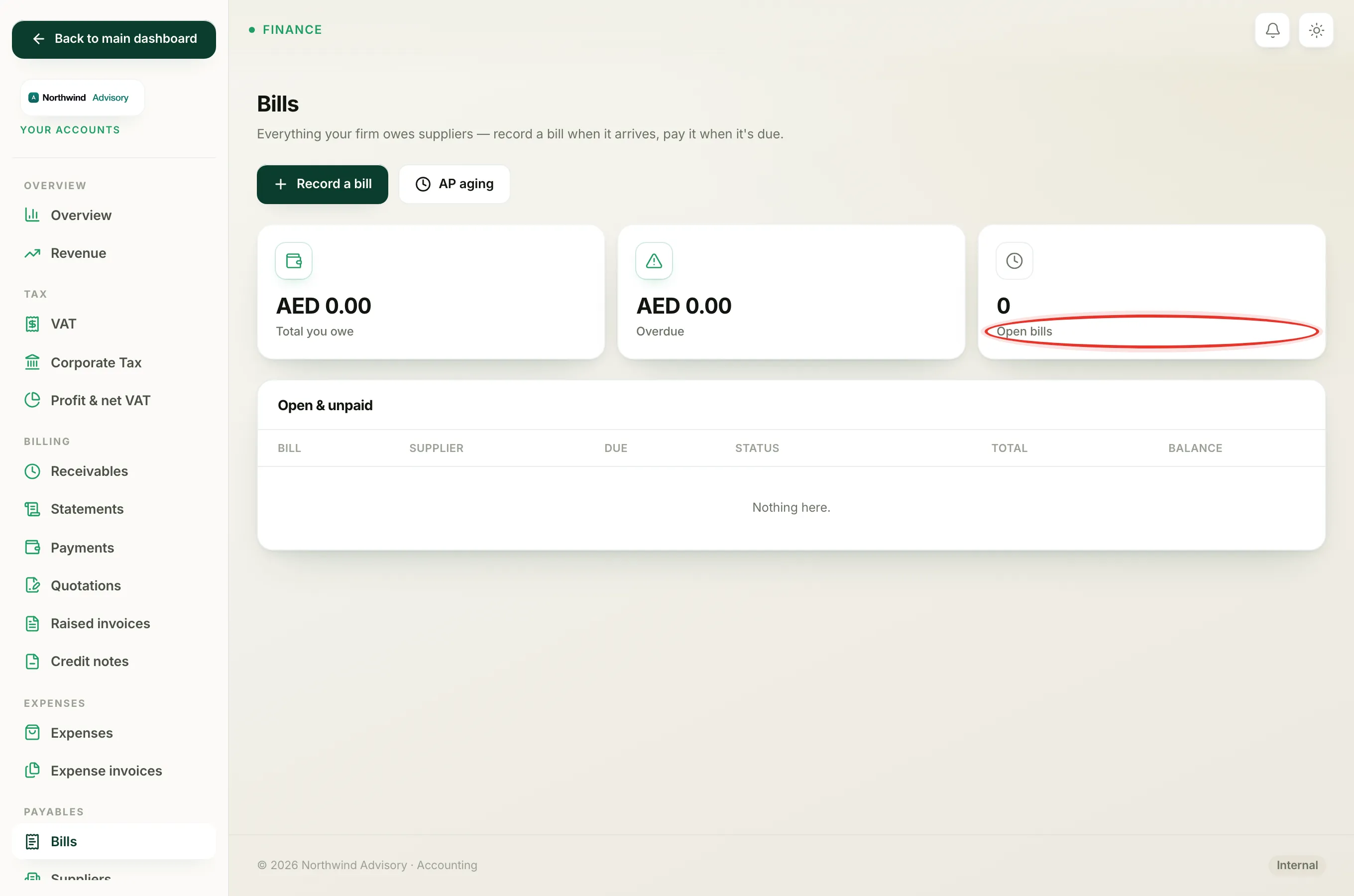
- In the Accounts menu on the left, under Payables, click Bills.
- Find the bill in the Open & unpaid list and click Open.
- In the Pay this bill box, look at the Amount (AED) field. It fills in with the full balance by default. Type the smaller amount you are paying now instead.
- Set Paid on to the date the money went out.
- Choose the Method: Bank transfer, Cash / other, or Card / online.
- Add a Reference if you have one, such as a transaction number.
- Click Record payment.
The line under the amount box always shows the Balance outstanding, so you can see how much is still owed before you record anything.
What happens after a part-payment
- The bill's status becomes Part-paid (an amber pill).
- In the Bill details box, Paid so far goes up by what you paid, and Balance drops to what is still owed.
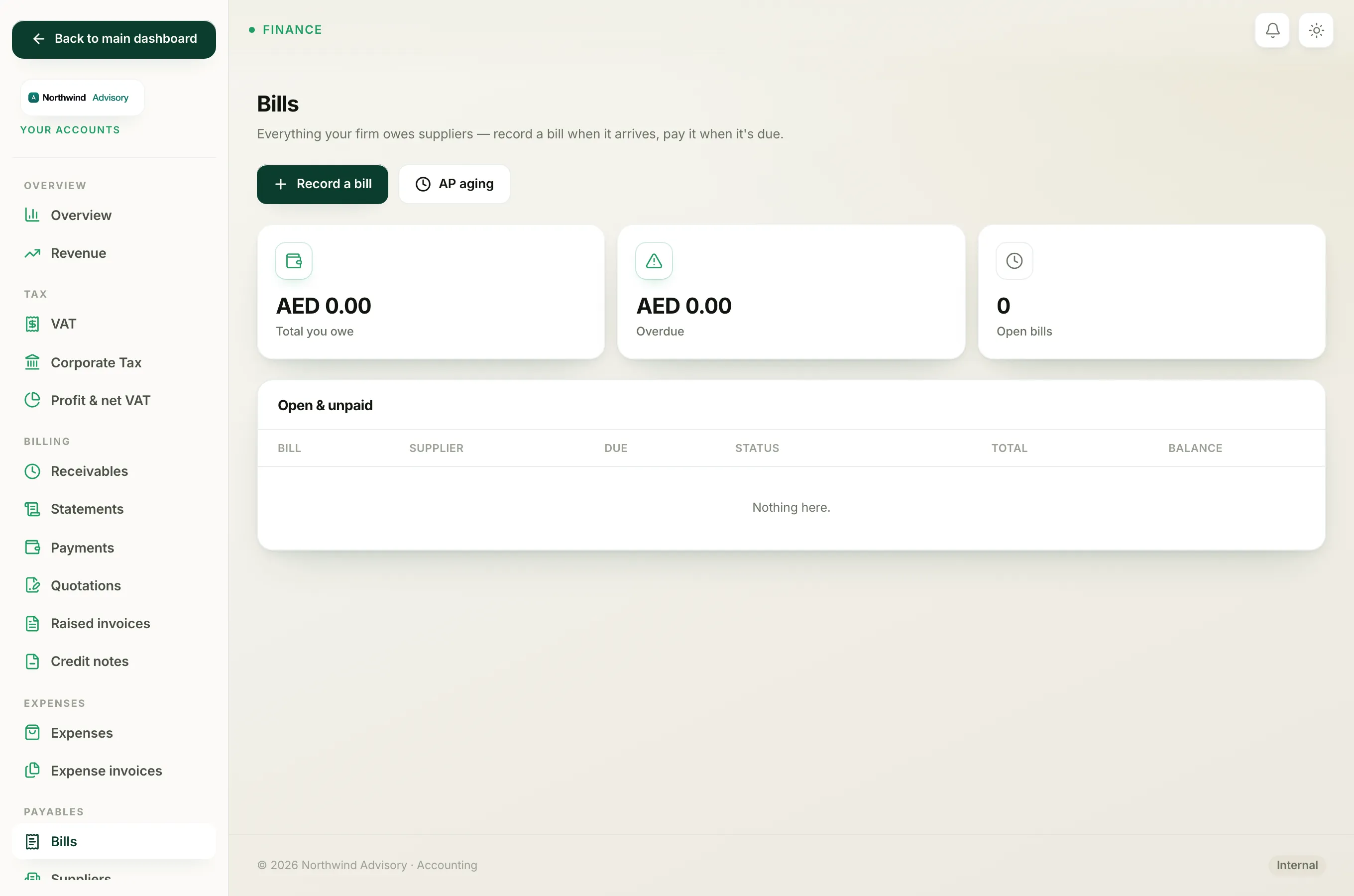
- The bill stays in the Open & unpaid list, because there is still money to pay.
- Each payment is listed in the Payments table at the bottom of the bill, with its date, method, reference and amount. Nothing is overwritten, so you keep a full history.
Pay the rest later
When you are ready to pay more, open the same bill again and repeat the steps. The Amount field will again default to whatever balance is left. Record the final amount and the bill becomes Paid, then moves to the Paid list.
Note
You cannot pay more than is owed. If you type an amount larger than the outstanding balance, IzzyTap trims it down to exactly the balance so a bill can never show as over-paid.
Important
If the bill is past its due date, it will still read Overdue in red until the balance reaches zero, even after a part-payment. See Why a bill shows as overdue.
To understand every state a bill can be in, see Bill statuses explained.