Where this screen is
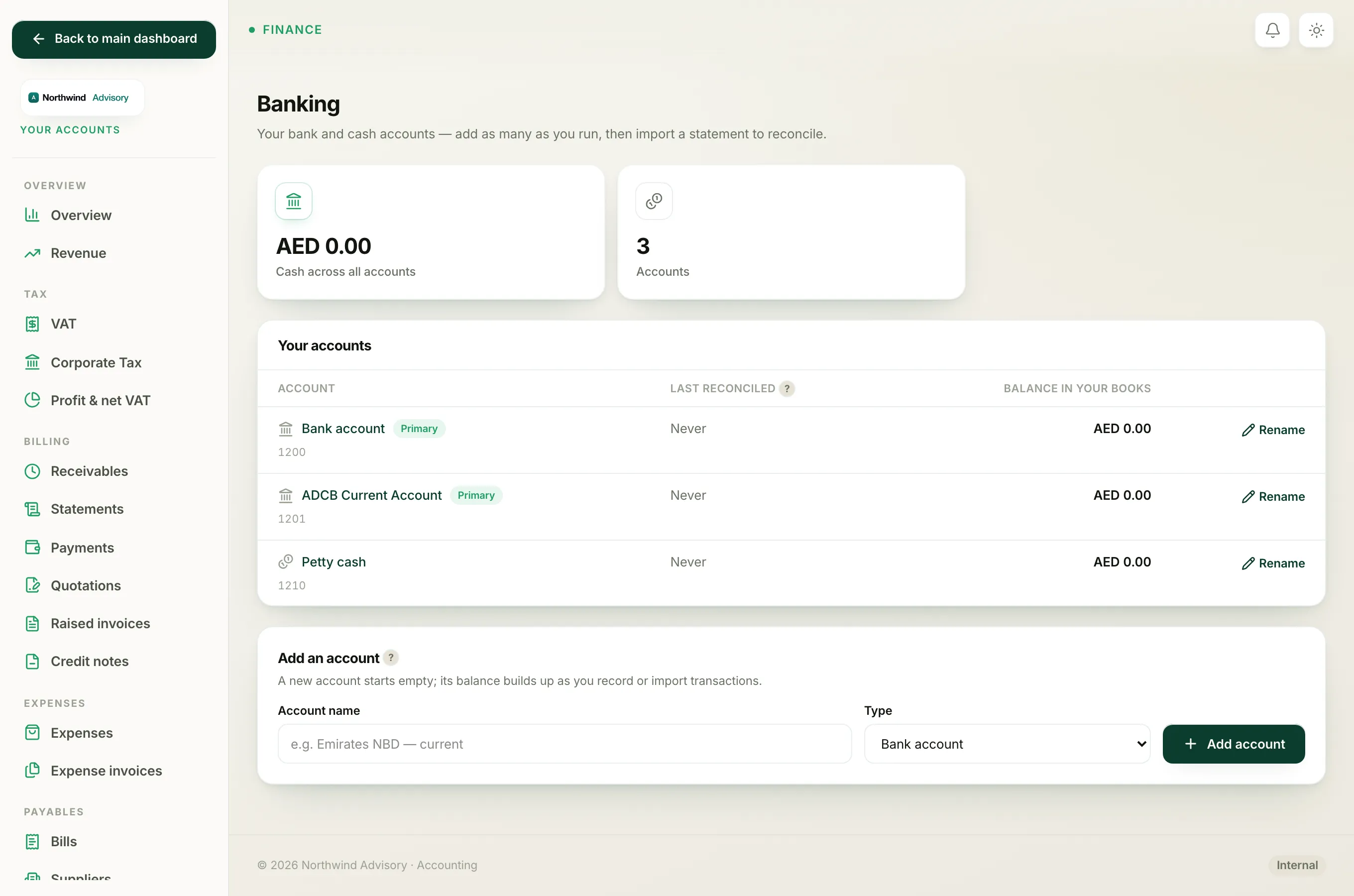
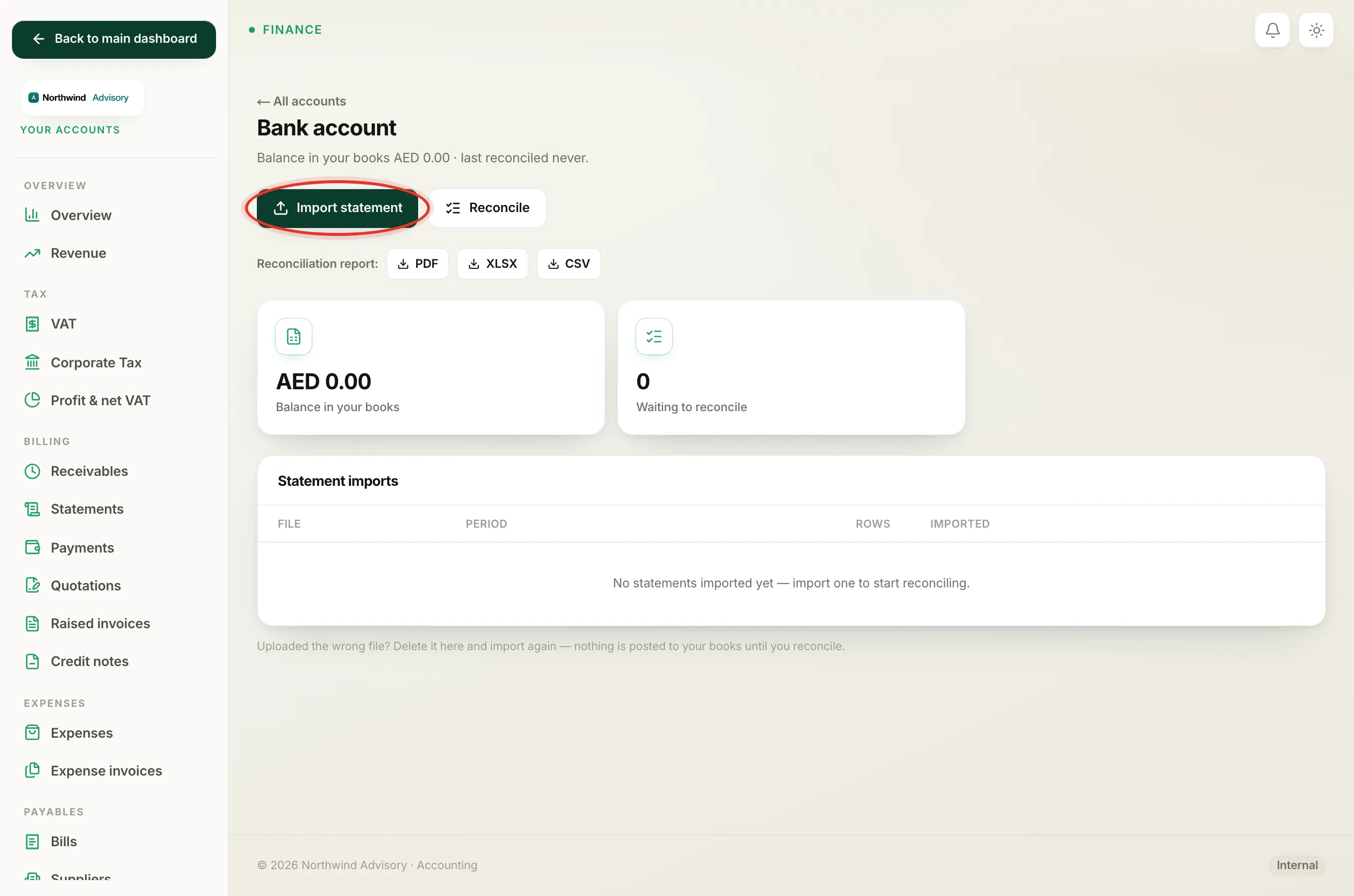
When you import a bank statement, the second step is a screen titled Which column is which?. IzzyTap reads your file, makes its best guess at which column holds the date, the description and the money, and shows you a Preview of the first few transactions. You confirm or correct the columns, then import.
To get here:
- Log in to your workspace.
- In the left menu, under Finance, click Your Accounts.
- In the accounts menu, under Banking, click Bank accounts.
- Click the account you are importing into, then click Import statement and upload your file.
If something on this screen looks wrong, work through the problems below. See also Match the columns in your statement file.
The Import button is greyed out
The Import these transactions button only turns on when the preview shows at least one transaction. If the preview is empty you will see:
No transactions read with these columns, adjust the mapping above.
This almost always means IzzyTap could not find a usable Date column, so it read no rows.
The most reliable fix is to give it a clean file:
- Click Upload a different file at the top of the screen.
- Open your statement in Excel and check the very top row holds the column names (Date, Description, Amount, and so on), with the real transactions directly underneath.
- Delete any blank rows, logos or summary lines above the column names.
- Save it as CSV or Excel, then upload it again.
Tip
A header row that says Column 1, Column 2 in the dropdowns is a sign your file has no proper column names. Add them in Excel and re-upload.
The amounts show the wrong way round
In the preview, money leaving the account should be red with a minus sign, and money coming in should be green with a plus sign. If they are reversed (money you spent shows as a green plus), the columns are mapped the wrong way.
There are two ways a statement lists amounts, and you must use one or the other, never both:
- Two columns: a Money out (Debit) column and a Money in (Credit) column. If these are swapped, set each dropdown to the correct column.
- One signed column: a single Amount (one signed column) where money out is a negative number. Only use this if outgoing amounts in your file are already negative. If your single Amount column shows everything as a positive number, it cannot tell money out from money in. Set Amount back to **, not in file , ** and use the Money out (Debit) and Money in (Credit) pair instead.
'Tell us which column is the Date...'
When you click import you may be sent back with this message:
Tell us which column is the Date, and either an Amount column or Money-out/Money-in columns.
This means a required column was left as **, not in file , **. Every import needs two things:
- A Date column.
- Either an Amount (one signed column), or the Money out (Debit) and Money in (Credit) pair.
Pick those, then import again.
'No transactions could be read with those columns'
If you changed the columns and then saw this message, your new choices pointed at the wrong columns (for example, the Date field is now aimed at a text column). Go back, line each field up with the matching column in the preview, and import again.
'Your upload expired'
Your file is held only for a short while between the upload step and the import step. If you leave the screen open too long, or the file could not be re-read, you will see:
That upload expired, please upload the file again.
There is nothing wrong with your file. Click Upload a different file (or go back to Import statement) and upload it once more, then finish the mapping without a long pause.
Note
Nothing is posted to your books at this stage. Importing only stages the transactions, ready for you to reconcile. Getting the columns right here just means the amounts and dates read correctly.
Once the preview looks right, read Why some statement lines were skipped or flagged so you know what to expect after you import.