What the Requests inbox is
Every service a client asks you to handle becomes a request. Instead of hunting through company pages one by one, the Requests inbox gathers them all into a single queue so you can see what is waiting and pick up the next job.
Open the inbox
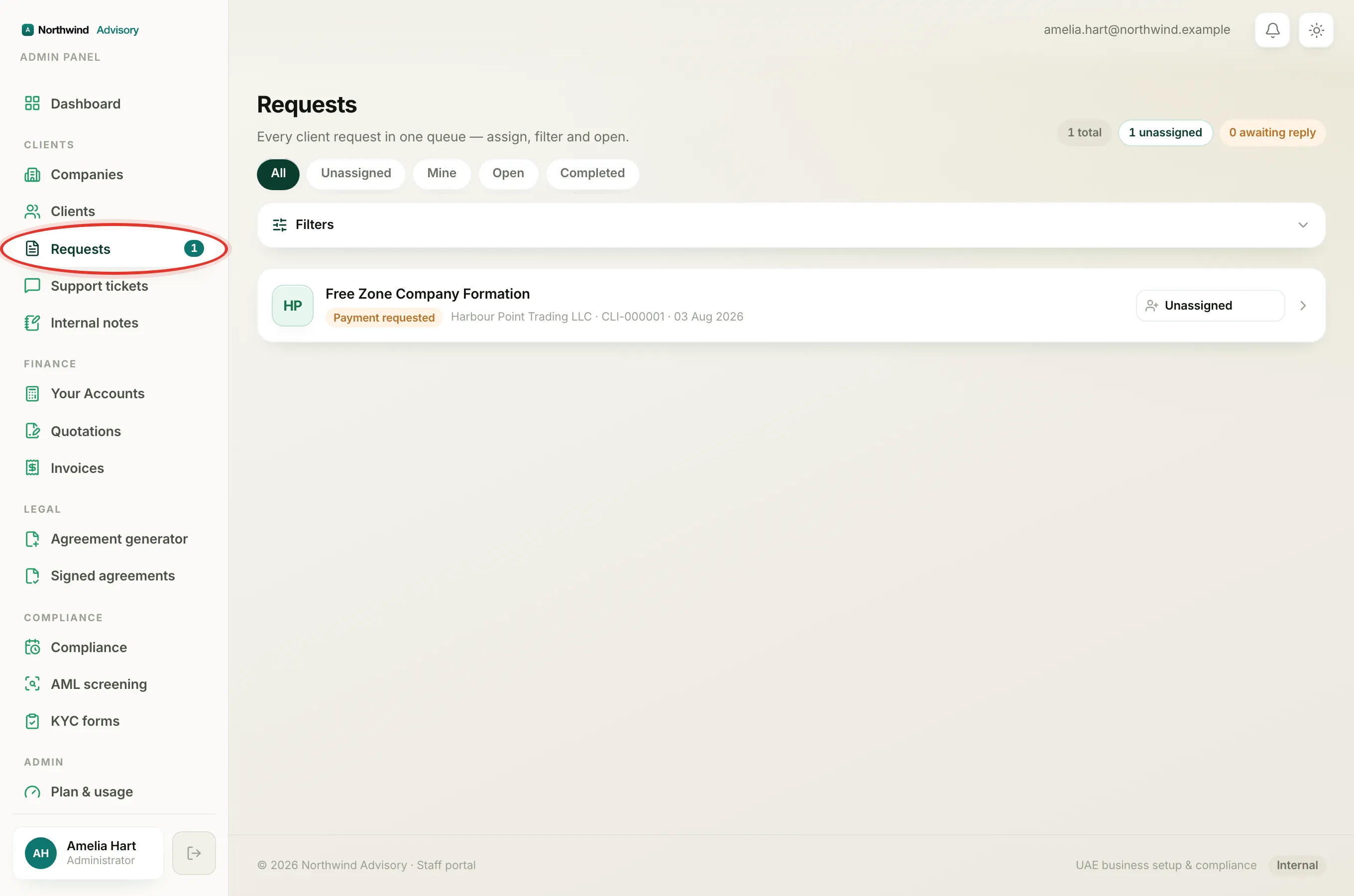
- Log in to your workspace.
- In the left menu, under Clients, click Requests.
Note
What you see here depends on your role. An administrator or a teammate with see-all access sees every client's requests in one queue. A teammate who only sees their own work sees just the requests assigned to them. This is why your inbox can look different from a colleague's. See Why your dashboard differs from a teammate's.
The three counts at the top
Next to the title is a short row of counts:
- total is how many requests are in your queue right now.
- unassigned is how many have nobody working on them yet. Click it to jump straight to the unassigned ones.
- awaiting reply is how many have a client waiting on an answer from you. Click it to sort the list so those come first.
Tip
The unassigned count is also shown as a small number badge next to Requests in the left menu, so you can spot new work without opening the page. See The number badge next to Requests.
The segments
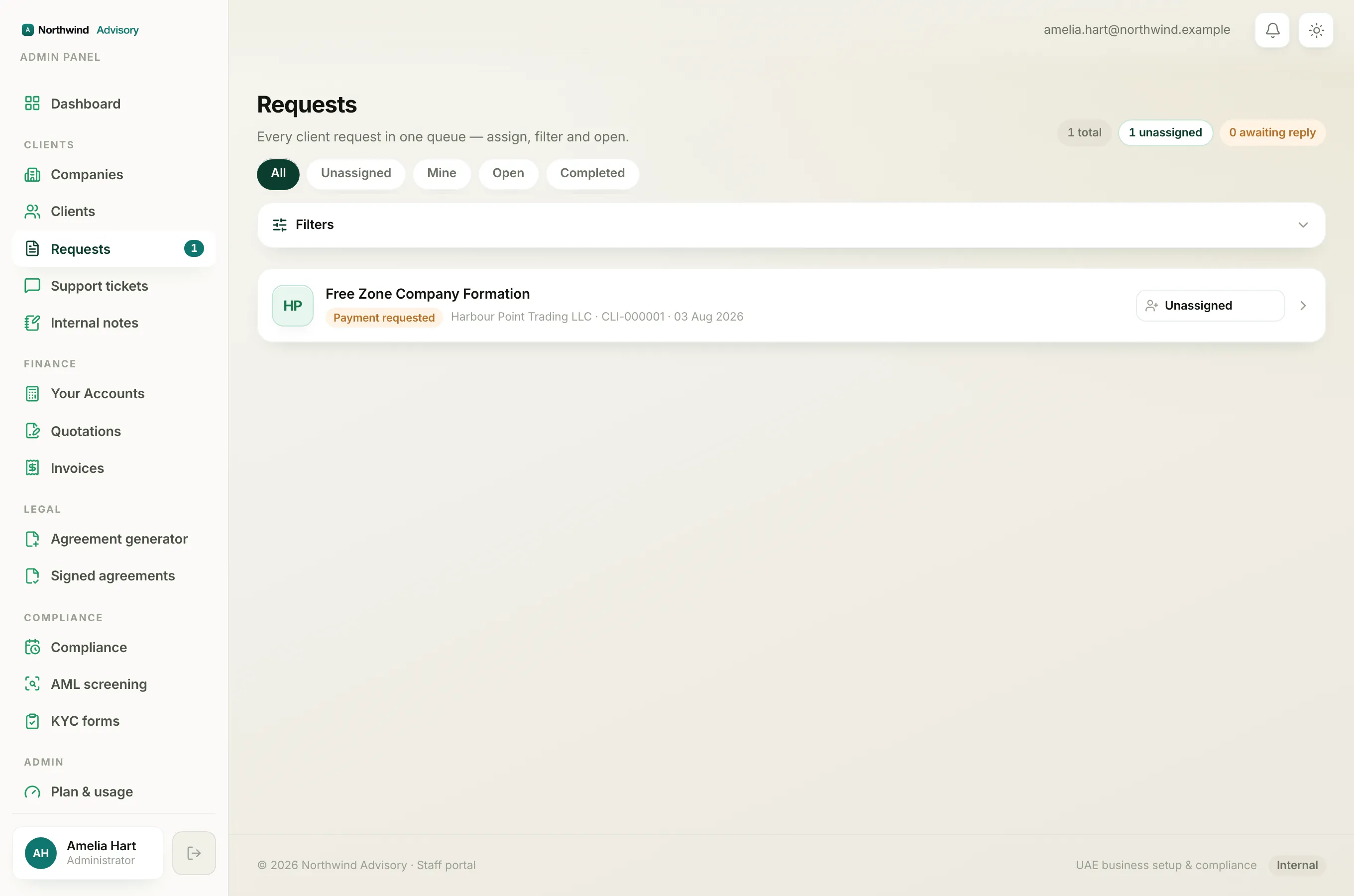
Under the counts is a row of segments that switch which slice of the queue you are looking at:
- All shows everything in your queue.
- Unassigned shows only requests with nobody assigned.
- Mine shows only requests assigned to you.
- Open shows requests that are still in progress, that is anything not yet completed.
- Completed shows finished requests.
Tap a segment to switch to it. The one you are on is highlighted.
Reading a request row
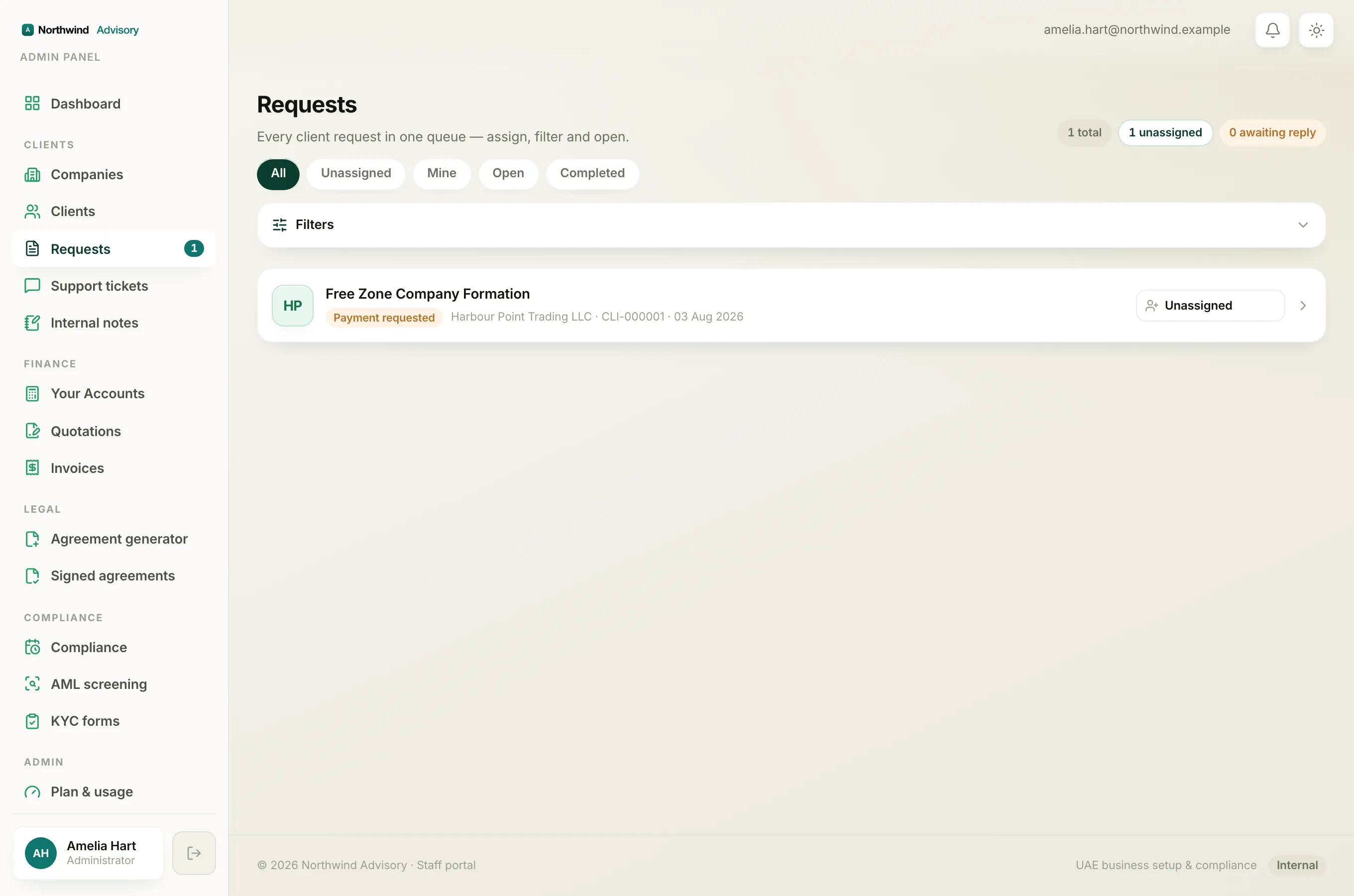
Each request is a card. From left to right it shows:
- The service name, for example the service the client asked you to handle.
- An amber Reply badge, but only when the last message in the thread came from the client and you still owe them an answer.
- A status chip showing where the request is in its workflow.
- A line of detail: the company name, the client code, the contact person if there is one, and when the request was last updated.
- The assignee, or Unassigned if nobody has picked it up.
Click anywhere on the row to open the full request and its message thread.
Note
The Reply badge only reacts to messages a client can see. A staff-only internal note does not clear it, because the client is still waiting to hear from you.
Where to go next
- To narrow a long queue, see Filter and sort the Requests inbox.
- To hand a request to a colleague, see Assign a request to a teammate.
- To push a request forward through its stages, see Move a request through its stages.