What suspending does
Suspending a company pauses it. The client's portal access, their services and their compliance reminders all switch off. Nothing is deleted. Every request, invoice, document and contact is kept exactly as it was, and you can re-enable the company at any time.
Suspending is the right lever when you need to pause a relationship for a while, for example if fees are unpaid or work is on hold, but you are not closing the account for good. To retire a company you no longer serve, use Archive a company (and restore it) instead.
Important
Only an admin can suspend or re-enable a company. If you do not see the Actions menu, your role does not have this permission.
Suspend a company
- Log in to your workspace.
- In the left menu, under Clients, click Companies.
- Find the company (search by name, code or owner if the list is long). You can act from the list card, or open the company first.
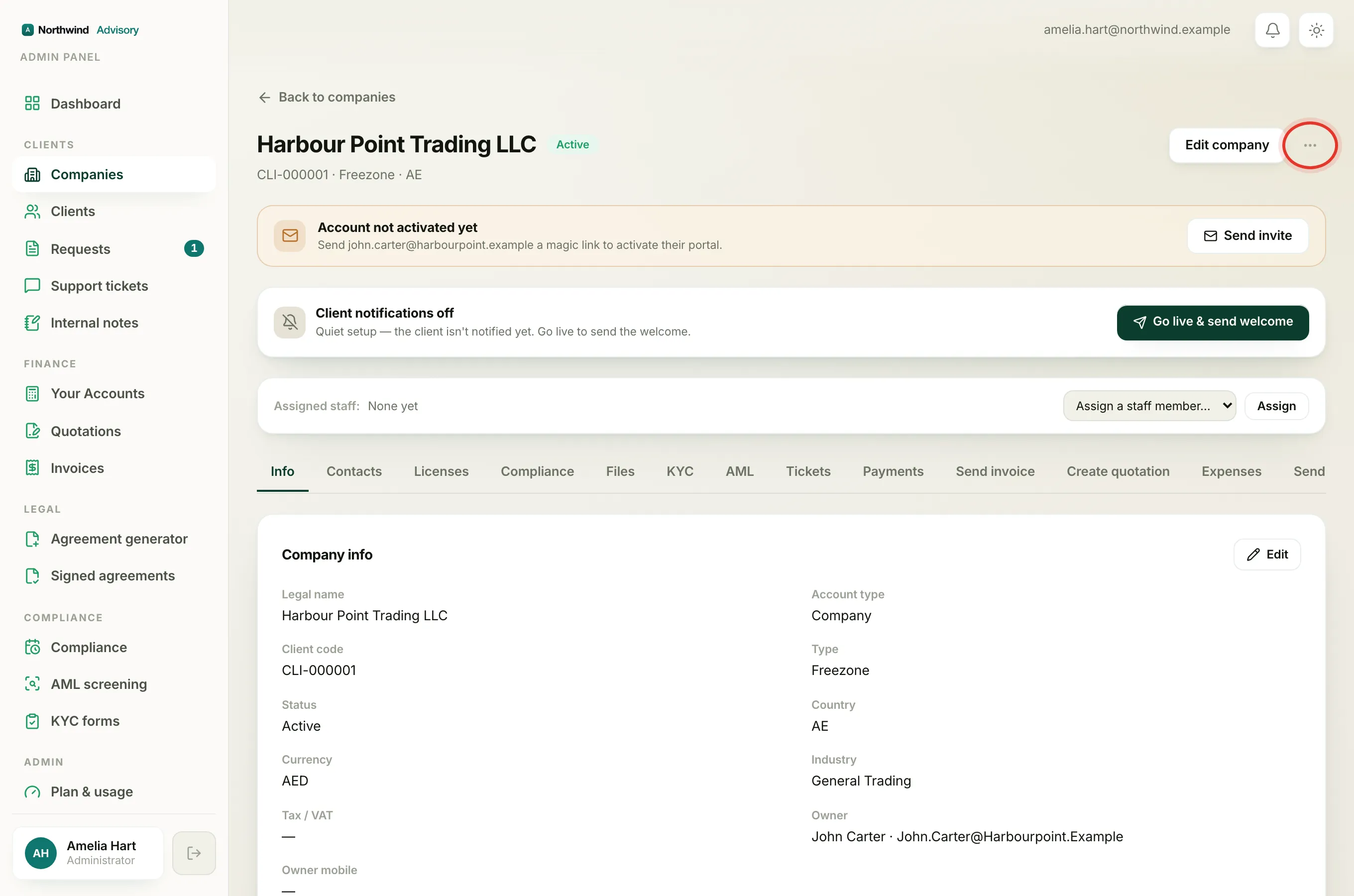
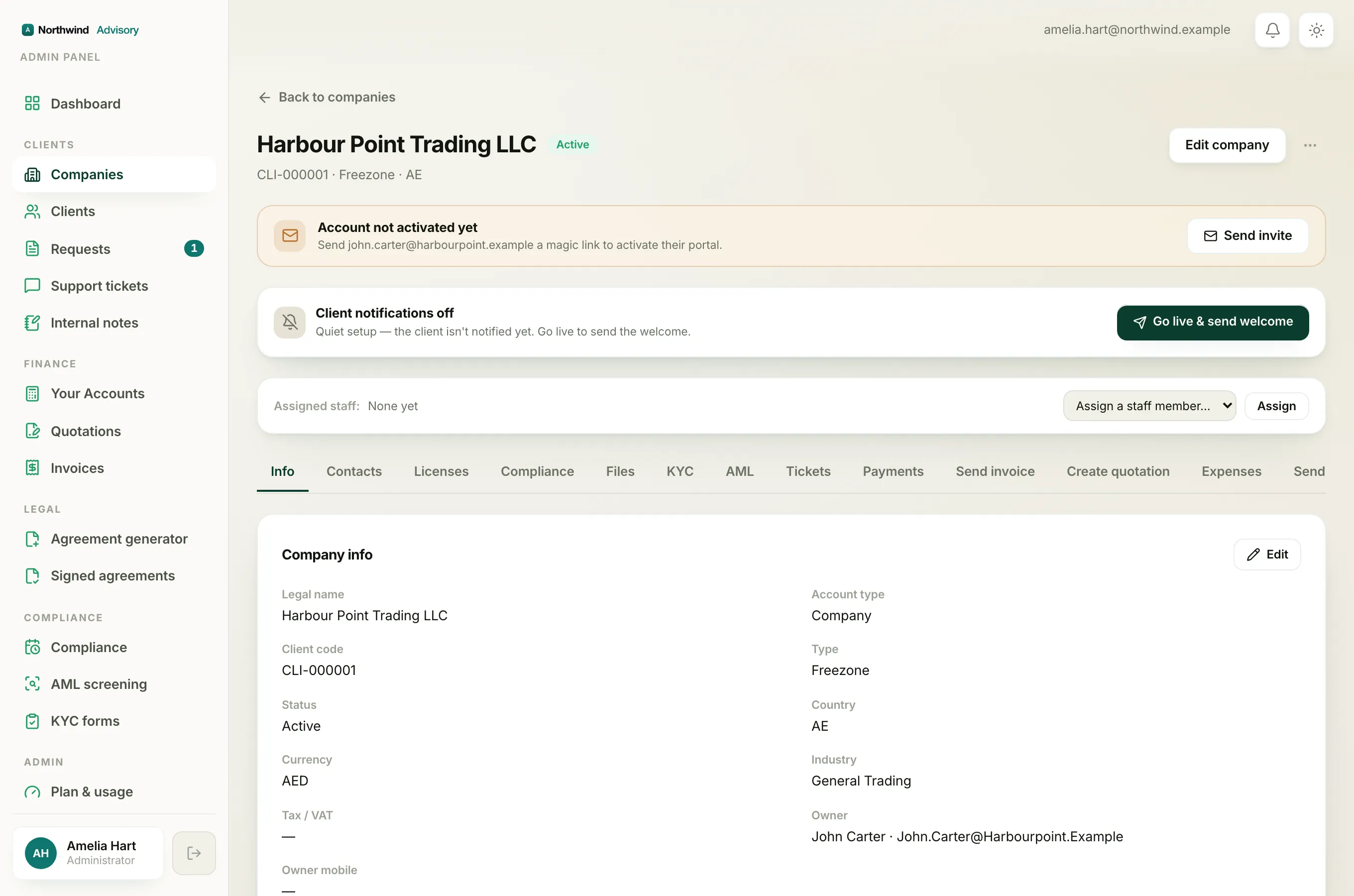
- Open the Actions menu (the three-dots button on the card, or at the top of the company page).
- Click Suspend company.
A confirmation box opens. Before you confirm, it runs a quick impact check so you can see what you are pausing.
Read the impact check
The box shows three numbers for this company:
- Active contacts: how many people are attached to the company.
- Open requests: requests that are not yet completed.
- Outstanding: the money still owed on sent or overdue invoices, with the number of invoices in brackets. If there is a balance owed, it is shown in amber.
Use these to make sure you are pausing the right company, and that you are aware of any unpaid invoices or open work before you go ahead.
There is also a Reason field. It is optional and internal only. Whatever you type is recorded in the audit log for your own records, and the client does not see it.
- When you are ready, click the red Suspend company button. To back out, click Cancel.
After it saves, the company's chip changes to a red Suspended chip, and portal access and reminders are paused for the client.
Re-enable a suspended company
- In the left menu, under Clients, click Companies.
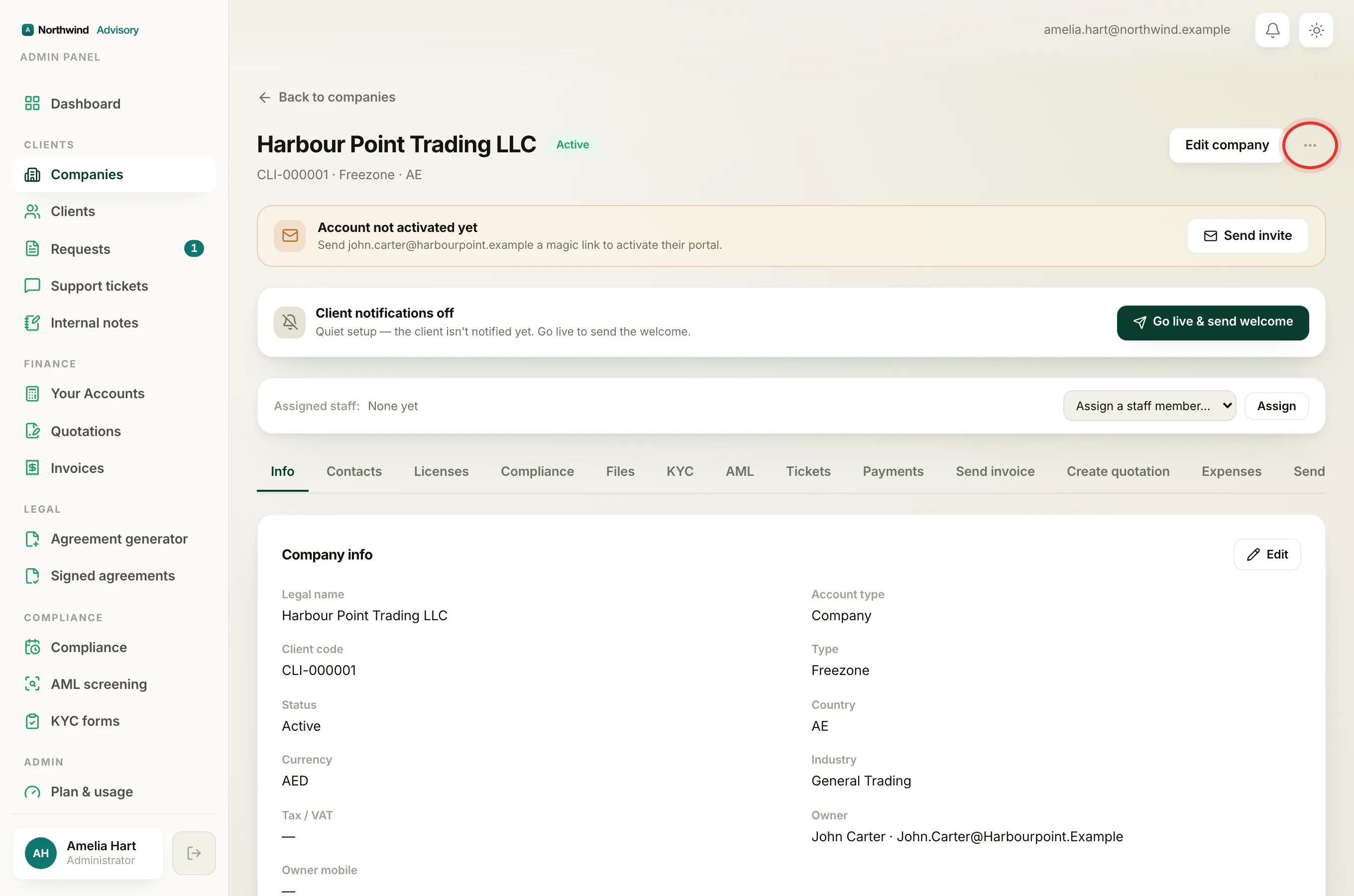
- Open the Actions menu on the suspended company.
- Click Re-enable company.
- Read the same impact box, add an optional reason if you like, then click Re-enable company.
Portal access, services and reminders are restored, and the status returns to a green Active chip.
Note
Suspending a company is not the same as blocking one person's sign-in. Suspending pauses the whole company workspace. To stop a single person from logging in while keeping the company active, see Suspend or restore a client's login.