Where your profile lives
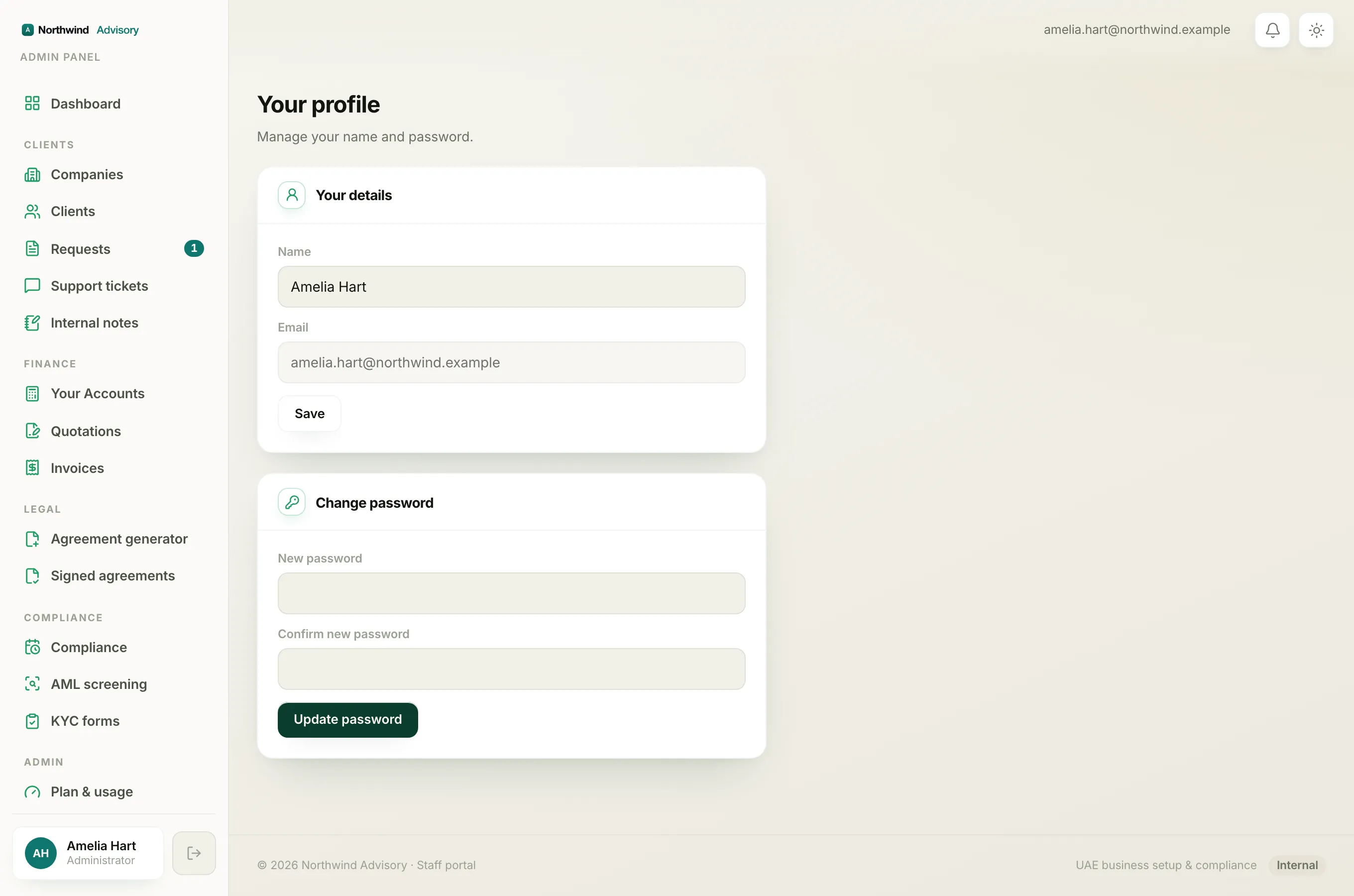
Your profile is your own settings: your display name and your password. It is separate from your firm's brand and from your team list.
- Log in to your workspace.
- At the very bottom of the left menu you will see your name and initials. Click that.
- This opens Your profile, headed "Manage your name and password."
Change your name
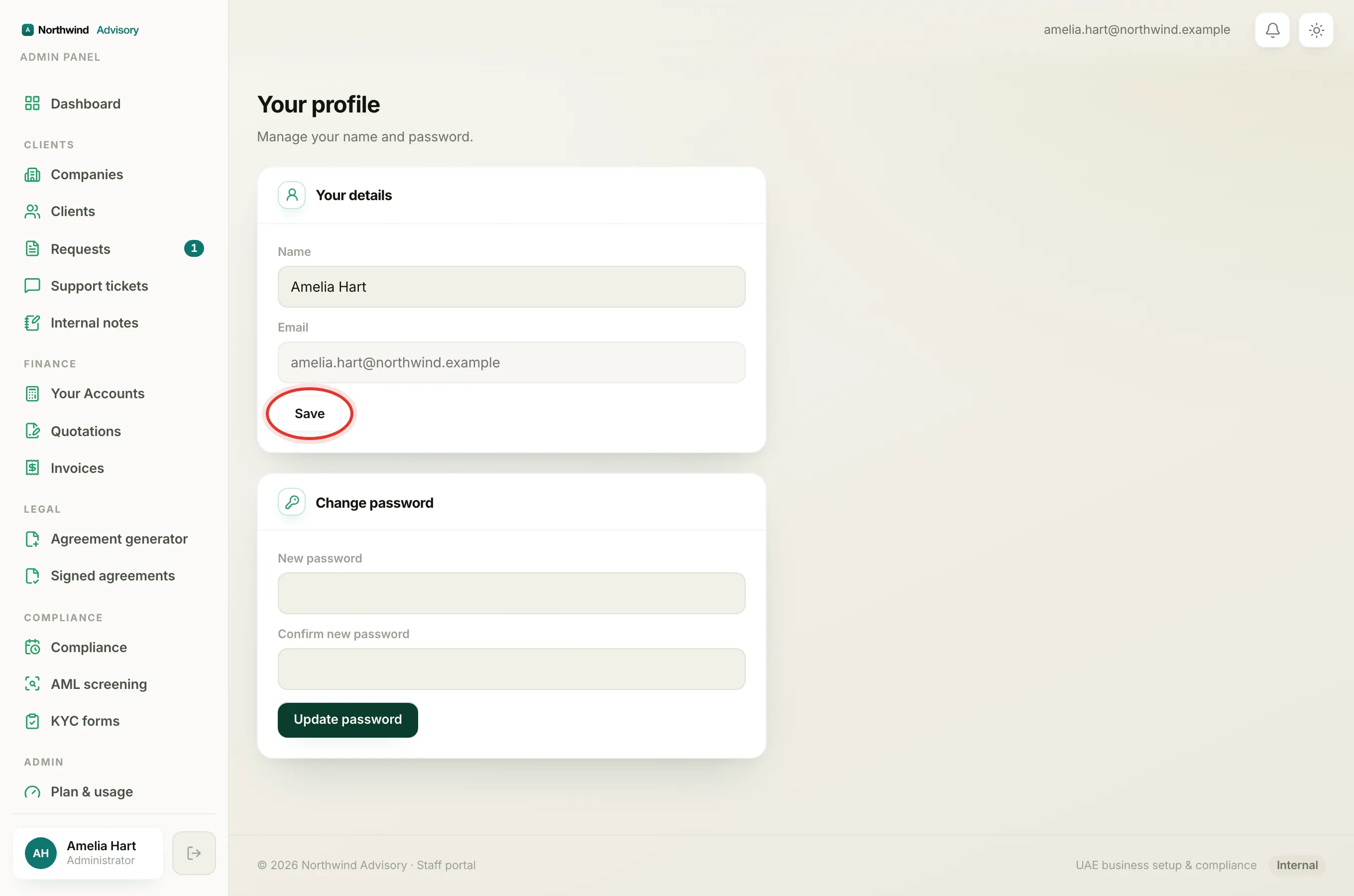
- On the profile page, find the Your details card.
- In the Name box, type the name you want shown.
- Click Save.
This is the name your teammates and, where relevant, your clients see against your messages and actions.
Note
The Email box is locked and cannot be changed here. Your email is your sign-in identity, so changing it is not a self-service edit. If your email address really needs to change, ask an admin on your team to sort it out.
Change your password
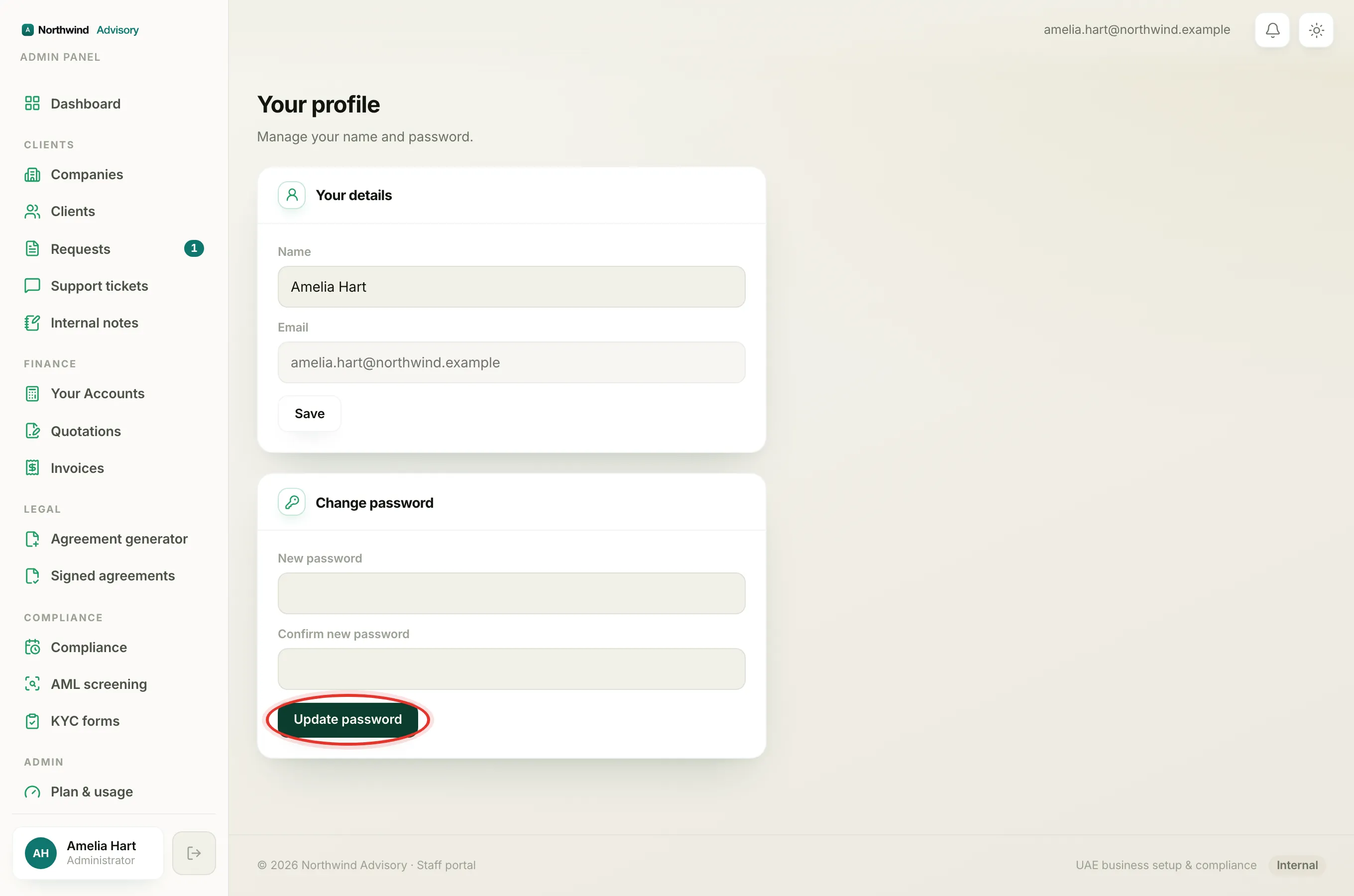
- On the profile page, find the Change password card.
- If you already have a password set, type it in the Current password box. (If your login was set up as magic-link only and you have never had a password, this box will not appear.)
- Type your new password in New password.
- Type it again in Confirm new password.
- Click Update password.
When it works you will see "Password updated."
Rules and common errors
- Your new password must be at least 8 characters. Shorter than that shows "Password must be at least 8 characters."
- The two new-password boxes must match. If they differ you will see "The two passwords don't match."
- If the current password you typed is wrong you will see "Your current password is incorrect." Retype it carefully and try again.
The amber "set a new password" prompt
The first time you sign in with a login an admin created for you, you may land on your profile with an amber banner that says to set a new password to finish securing your account.
This is normal and it is for your safety. The admin who created your login gave you a temporary password. You are being asked to replace it with one only you know.
To clear it, just fill in the Change password card as above and click Update password. Once your new password is saved the amber prompt will not come back.
Tip
Use a password you do not use anywhere else, and keep it somewhere safe. If you ever forget it, you can still get in using the magic-link sign-in. See Log in to your workspace.
If you manage the team and need to add someone or reset a colleague's access, see Add a team member.