Before you start
You sign in to your workspace in a web browser. Your firm's administrator gives you your sign-in web address and sets up your account with your work email. If you do not have these yet, ask whoever set up your firm's workspace.
There are two ways to sign in. You can use your email and password, or you can ask for a one-time sign-in link by email. Both land you in the same place.
Sign in with your email and password
- Open your firm's workspace web address in your browser. You will see the sign-in card. It shows a short heading and Staff sign-in. below it.
- In the Work email box, type your work email address.
- In the Password box, type your password.
- Click Sign in.
That is it. You land on your Dashboard.
Important
Use your work email, the one your administrator added you with. A personal email will not be recognised and you will not be able to sign in.
Sign in with an email link instead
If you would rather not type a password, you can have a secure link sent to your inbox.
- Open your firm's workspace web address.
- Scroll down past the password fields to the part marked OR.
- In the email box under OR, type your work email address.
- Click Email me a sign-in link.
- You will see a Check your email message. Open your inbox on this same device and open the link we sent.
The link signs you straight in.
Tip
Open the link on the same device and browser you asked for it on. That is the quickest way for it to work.
If you forgot your password
- On the sign-in card, click Forgot password? just under the Sign in button.
- Follow the steps on screen to set a new password.
- When you are done, you come back to the sign-in card and see a note that your password was updated. Sign in with your new password.
If your account is suspended
If you see a message that your account is suspended, your firm's administrator has paused your access. You cannot sign in until they turn it back on. Contact your administrator. If you are the administrator, see Staff roles to manage who has access.
Once you are in
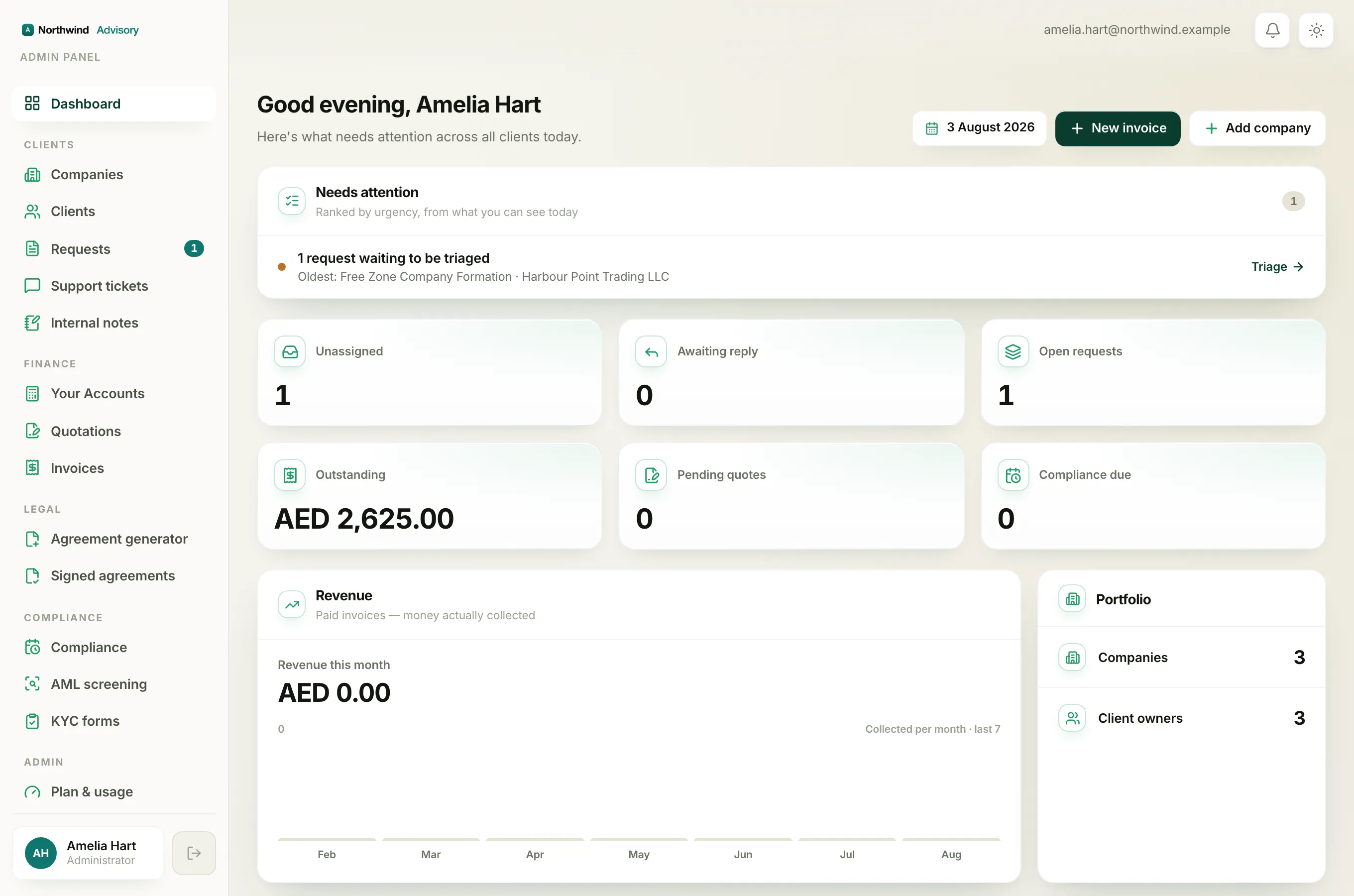
Your email shows in the top bar so you always know which account you are signed in as. When you are ready, take the tour in A quick tour of your dashboard.