If you sent an invoice by mistake, you can cancel it. Cancelling voids the invoice. It can no longer be paid, and it is taken out of your books. The invoice keeps its number, so there is no gap in your numbering.
Important
You can only cancel an invoice that has not been paid. If any money has already come in against it, the Cancel button will stop you and ask you to issue a credit note or a refund instead. See how to record a payment.
Cancel an invoice
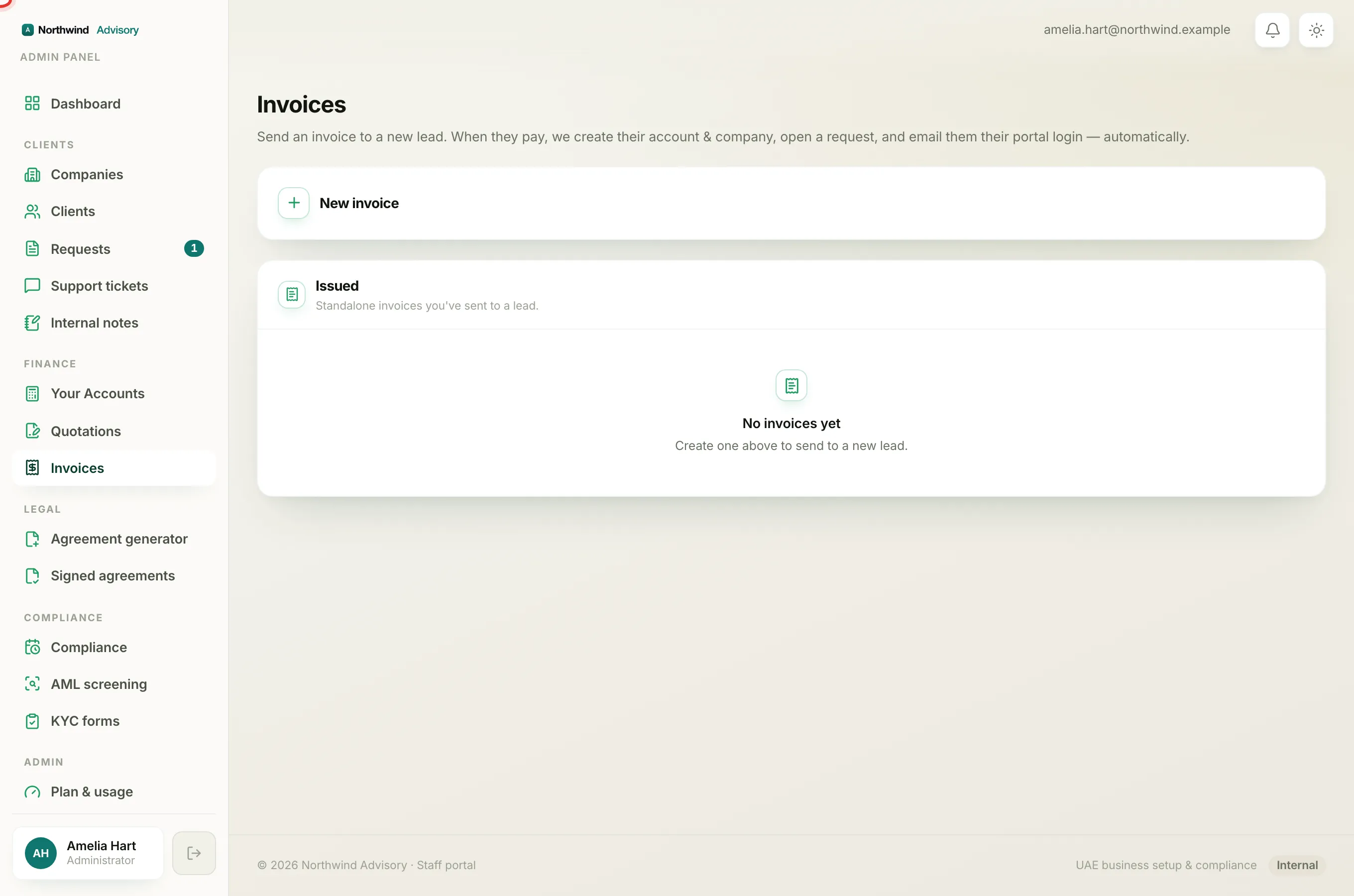
- Log in to your workspace.
- In the left menu, under Finance, click Invoices.
- Find the invoice you want to cancel in the Issued list. Each row shows the invoice number, who it went to, the amount, and a status.
- On that row, click Cancel.
- A confirmation appears. It reads that the invoice will be voided, excluded from the books, and can no longer be paid.
- If you want, type a short reason. This is optional. The reason is included in the message the client receives.
- Confirm to cancel the invoice.
That is it. The invoice status changes to cancelled.
What happens when you cancel
- The invoice can no longer be paid. Its pay link stops working right away.
- It is removed from your books, so it will not show in your reports.
- The client is told the invoice was cancelled, by a notice in their portal and by email.
- If the invoice was raised inside a request (a ticket), a short note is added to that request so there is a record.
Note
A cancelled invoice does not disappear from the Issued list. It stays there marked as cancelled so you have a full history.
Heads up
Cancelling cannot be undone. If you still need to bill the client, create a fresh invoice. See how to create an invoice.