Sometimes you need to stop a teammate from signing in without removing them for good. Someone is on long leave, a laptop went missing, or you just want to pause an account for a while. Deactivating does exactly that: it blocks sign-in immediately and keeps everything else in place. This article shows how to deactivate a teammate and how to bring them back later.
What deactivating does
- The person can no longer sign in. If they are signed in right now, they are bounced out straight away.
- Their role, access scope, company assignments and tickets are all kept untouched.
- Their status changes to Deactivated (an amber chip). Nothing is deleted.
Because nothing is handed over or lost, deactivating is the right choice when the person is coming back. If they are leaving for good, use Remove a teammate and hand over their work instead.
Deactivate a teammate
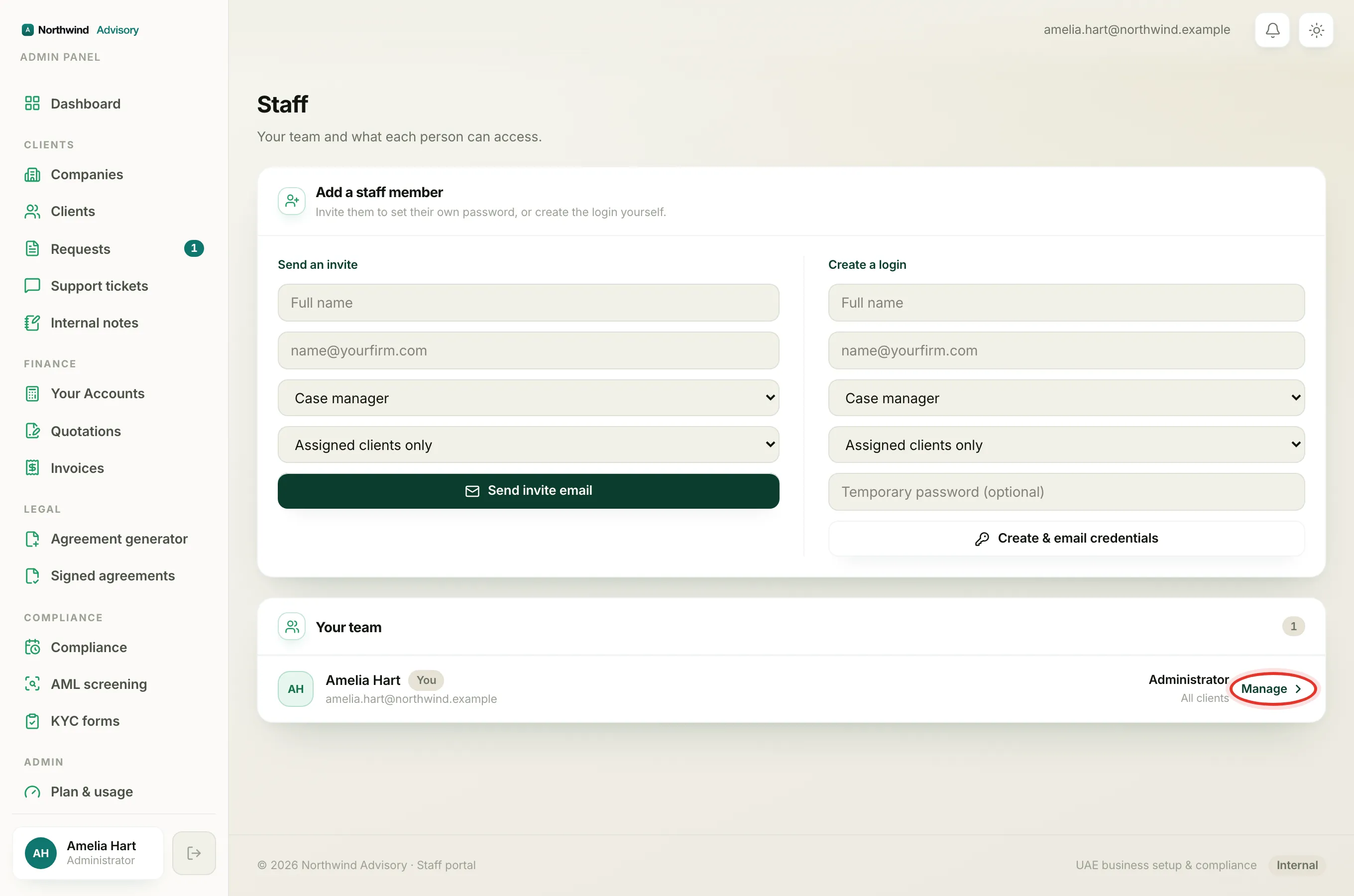
- Log in to your workspace.
- In the left menu, under Admin, click Staff.
- In the Your team list, find the person and click Manage.
- In the Access panel, click Deactivate.
The status chip beside their name switches to Deactivated, and any active session they had ends immediately.
Important
You cannot deactivate your own account or another administrator from here. The button does not appear for those accounts.
Bring them back
- Open the same teammate with Manage.
- In the Access panel, click Reactivate.
Their status returns to Active and they can sign in again with their existing password. All their old assignments are still there, so they pick up exactly where they left off.
Tip
Deactivate and reactivate are the everyday tools for pausing access. You can switch a person between the two as many times as you need, and it never touches their work.
Deactivating a teammate vs suspending a company
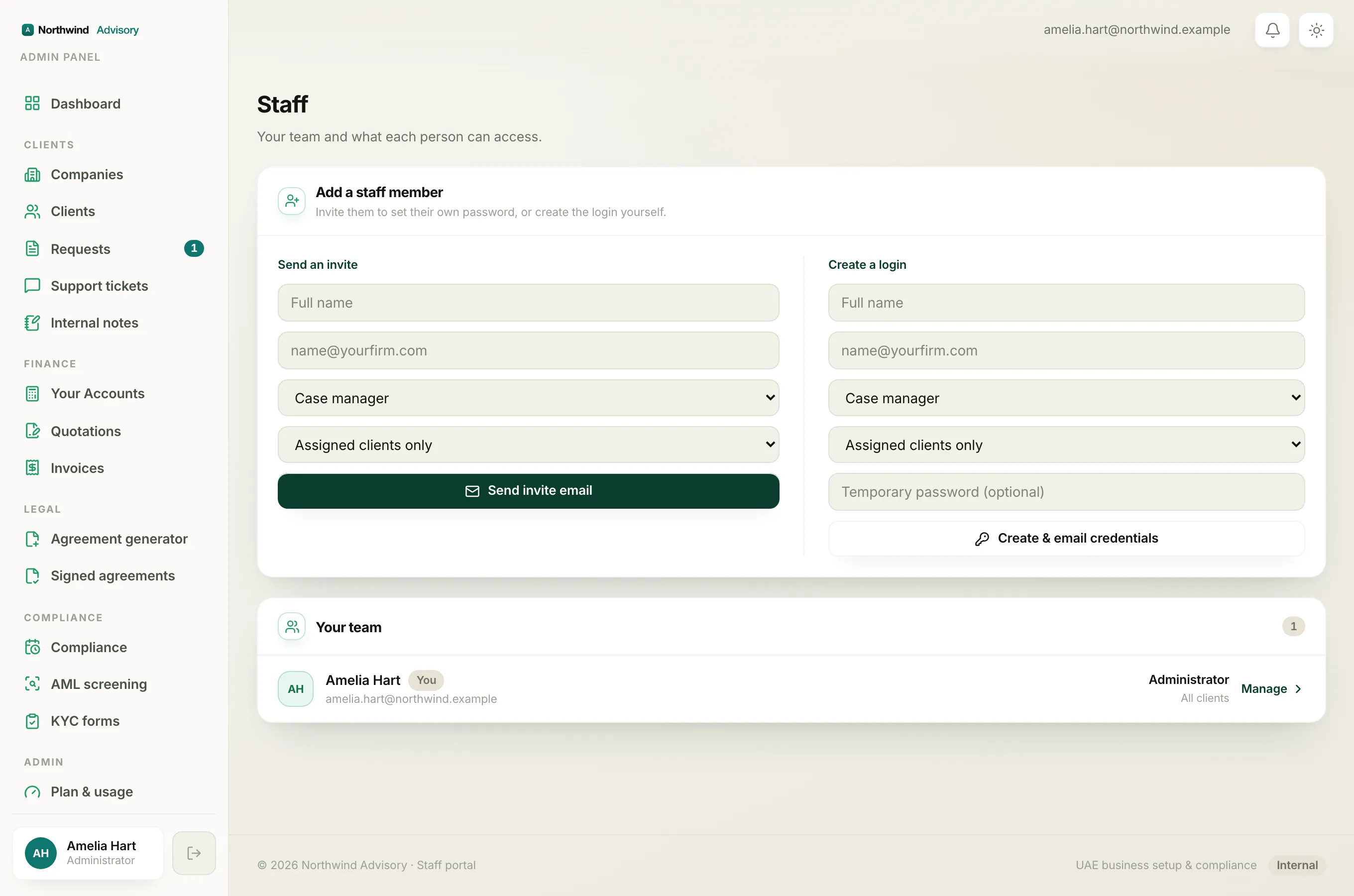
These are different things and easy to mix up:
- Deactivating a teammate blocks one of your own staff members from signing in to your workspace.
- Suspending a company pauses one of your clients' access to their portal.
If you meant the client side, that is a separate control on the company, not here in Staff.