What Deposit to does
When you record a payment against an invoice, IzzyTap adds that money to one of your accounts in your books. The Deposit to picker lets you say which account received it: a specific bank account, or petty cash. Choosing correctly means that account's balance in your books goes up by the right amount, and your bank reconciliation lines up cleanly later.
How to choose the account
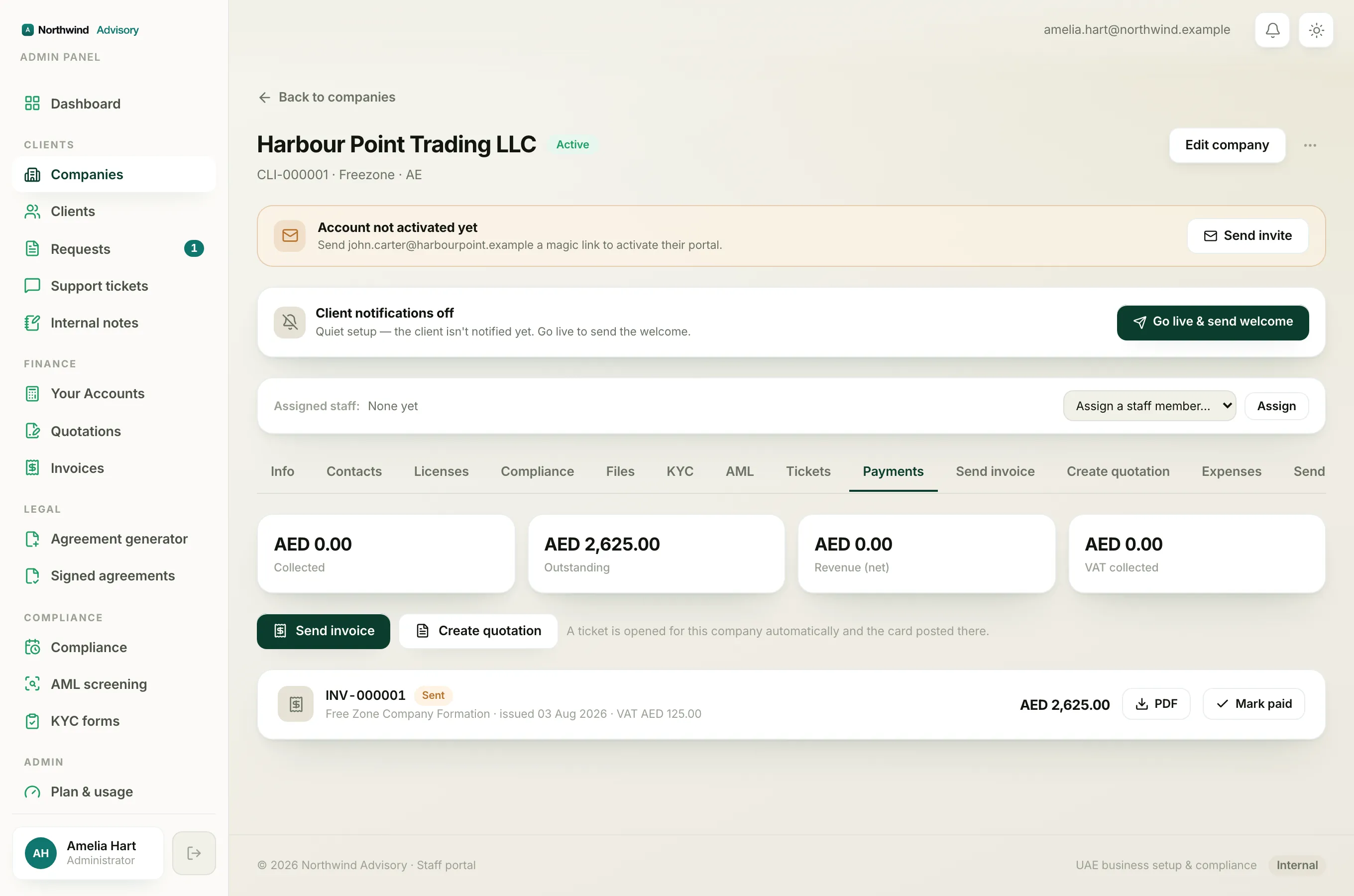
- Log in to your workspace.
- Open the invoice and click Mark as received.
- Pick the Payment method and fill in the Where / reference note as usual.
- If the Deposit to dropdown is shown, choose the account the money actually landed in.
- Click Confirm payment.
The top option in Deposit to is your primary bank account. If you leave the picker on that option, the payment goes to your primary account. So doing nothing is always safe.
When the picker appears
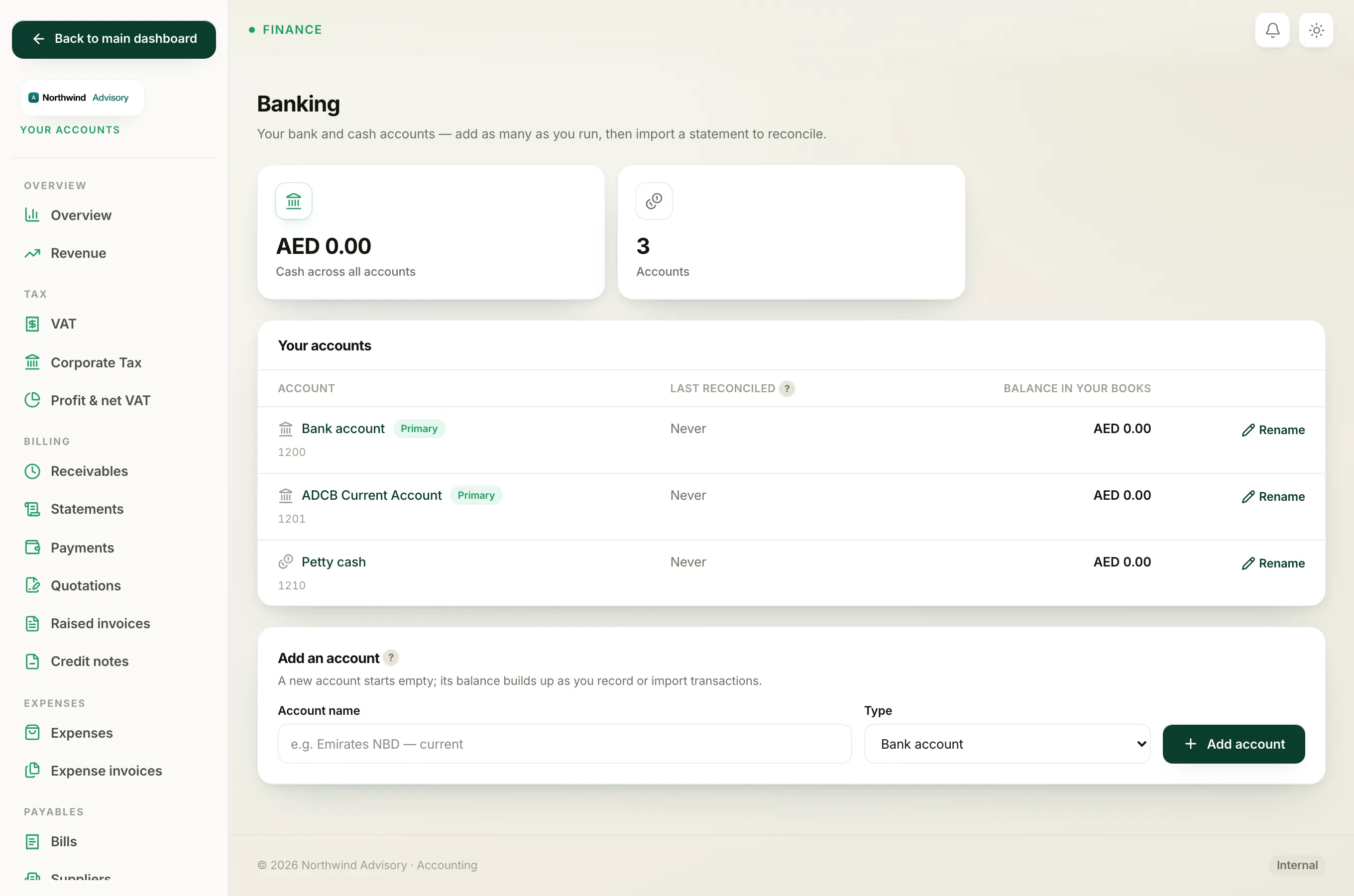
The Deposit to dropdown only shows when both of these are true:
- Your firm has turned on the books (accounting) feature, and
- You have more than one account to choose from (at least two bank or cash accounts).
If you have only one account, there is nothing to choose, so the picker is hidden and every payment goes to that single account. If your firm has not activated its books, the picker is hidden too.
Tip
Want the choice to appear? Add another account first. Then the next payment you record will offer the Deposit to dropdown. See Add a bank account and Activate your books.
Why it matters
Getting the account right is what makes reconciling your bank simple. If you deposit a client's cheque into your Emirates NBD account but record it against your ADCB account, your books will show money in the wrong place and neither account will match its statement. Take the extra second to pick the account that truly received the cash.
Important
The Deposit to choice affects your books, not the client. The client's receipt and the invoice balance are the same whichever account you pick.
Related: Choosing the right payment method and How to record a payment.